 Carna
Assign a module to your class
One dialog does the whole thing: who gets it, when it is due, how many attempts, when they see feedback, and which pages.
Open Courses in the left menu and press Assign on any module card. One dialog does everything — it assigns and publishes in a single action, so there is no second "publish" step to forget.
Who gets it #
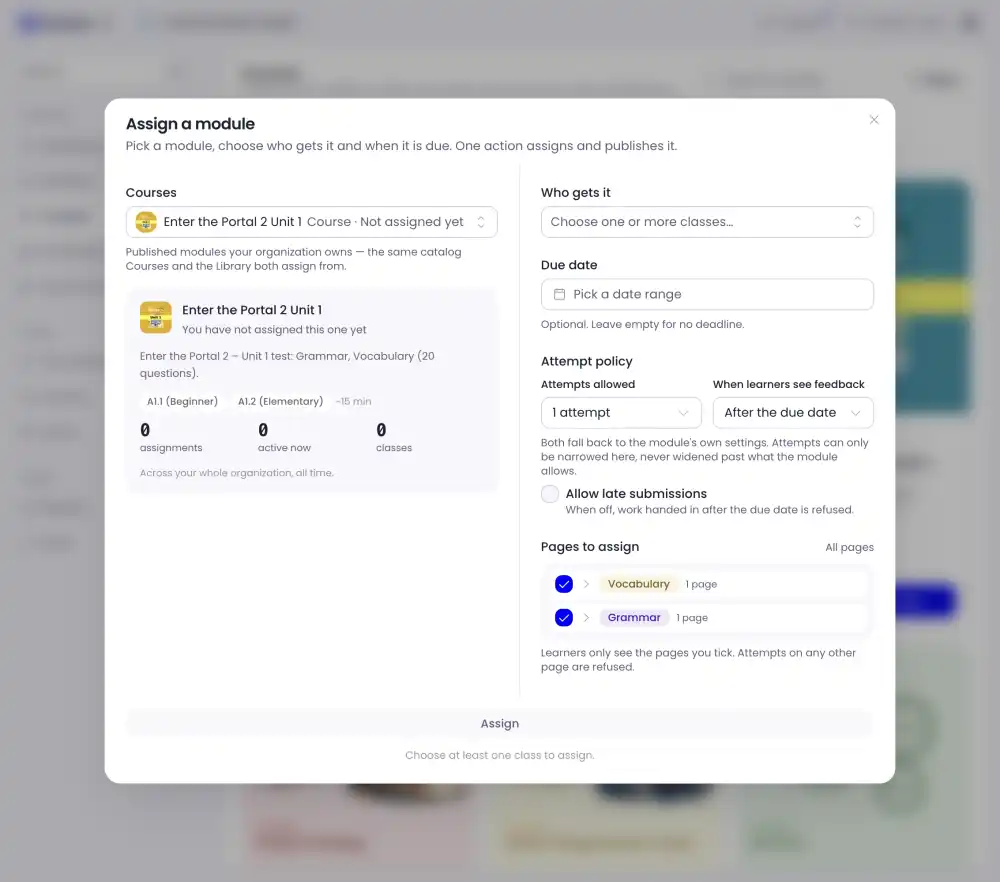
Pick one or more classes. You can send the same module to several classes at once; each class gets its own copy of the results.
You cannot press Assign until at least one class is chosen.
Due date #
Optional. Leave it empty and the work has no deadline — it sits on the student's To do list until they do it.
A due date changes two other things on this screen, so set it before you look at them: it is what "after the due date" means for feedback, and what counts as late.
Attempts allowed #
How many times a student may do the module. The default comes from the module itself.
You can narrow this, never widen it. If the module allows one attempt you cannot grant three here; a module that allows three can be tightened to one for your class.
This is the setting to change when a student asks to redo something. Set the attempts before you assign — raising it afterwards on work already handed in is not what this control does.
When learners see feedback #
Either straight away, or after the due date. "After the due date" is the normal choice for a test: it stops the first student who finishes from handing the answers round the class.
If you set no due date, think about what "after the due date" can mean — with no deadline there is no moment for feedback to appear.
Allow late submissions #
Off by default. When it is off, work handed in after the due date is refused — not marked down, refused. Turn it on if you would rather receive late work and decide yourself what it is worth.
Pages to assign #
A module is made of pages, each tagged with what it practises — Vocabulary, Grammar, Listening and so on. Every page is ticked to start with.
Untick a page and your class never sees it. Attempts on a page you did not tick are refused, so use this to give one class the grammar half and another the whole unit.
After you assign #
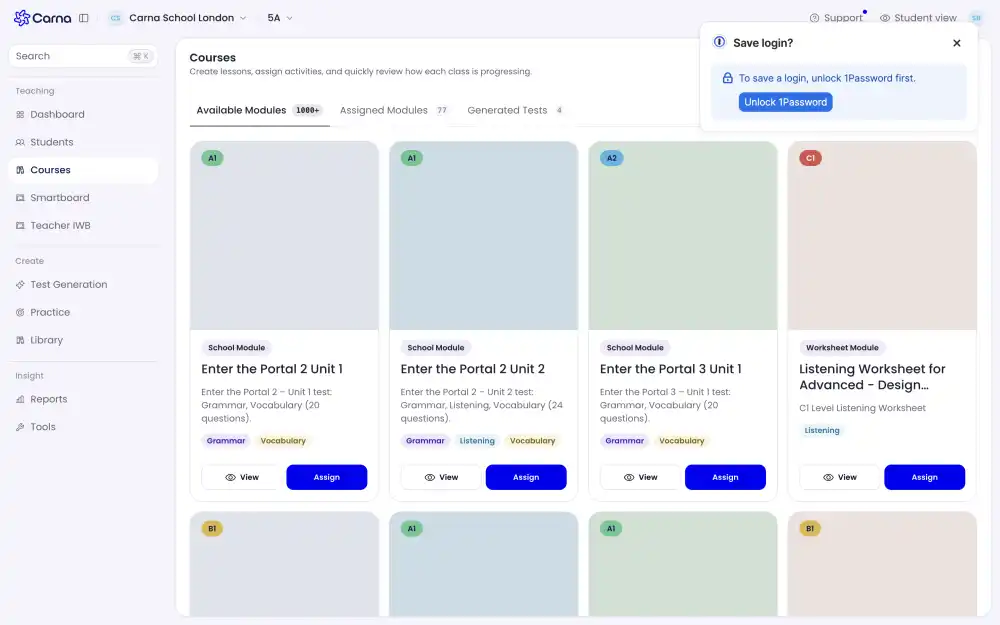
The module moves to Assigned Modules on the Courses page, and appears on each student's Assignment list, sorted by due date. The card on Courses shows how many assignments exist and how many are active right now.