 Carna
Find the right module, and check it before you assign
A thousand modules, twelve to a page. How to narrow them down, and the two ways to look inside one before your class does.
Courses is the whole catalogue your school can assign from — on a typical school that is over a thousand modules, twelve to a page. Scrolling is not a strategy.
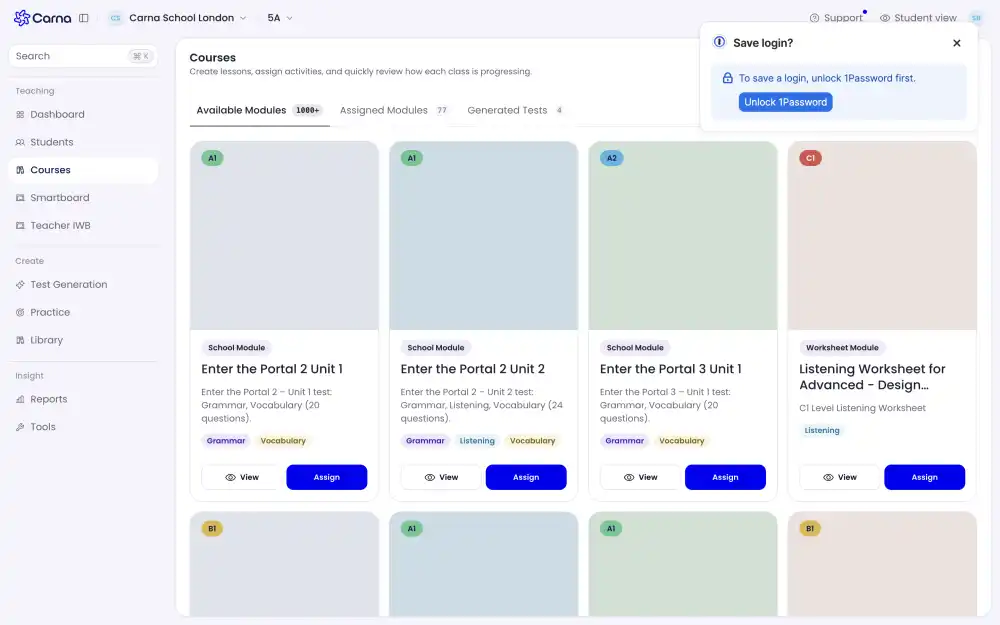
The three tabs #
- Available Modules — everything your school is licensed for.
- Assigned Modules — what your class already has. Check this before assigning; it is how you avoid sending the same unit twice.
- Generated Tests — the tests you built in Test Generation. They live here and are assigned like any other module.
Reading a card #
Each card tells you four things before you open anything:
- The level — A1, A2, B1, C1.
- The type — School Module is coursework from your school's own books; Worksheet Module is standalone practice.
- The skills — Grammar, Listening, Vocabulary, Reading, Writing. The tags are what the module actually contains, not a category somebody chose.
- The description — usually the unit and the question count, like "Unit 1 test: Grammar, Vocabulary (20 questions)".
A module you have already given this class carries an Assigned badge, and its button says Manage instead of Assign.
Use Filters at the top to cut the list down by level and skill. That, plus the search in the header, is faster than paging through ninety-two pages.
Look inside before you assign #
Press View on a card and you get two different previews. Pick deliberately — they are not the same thing.
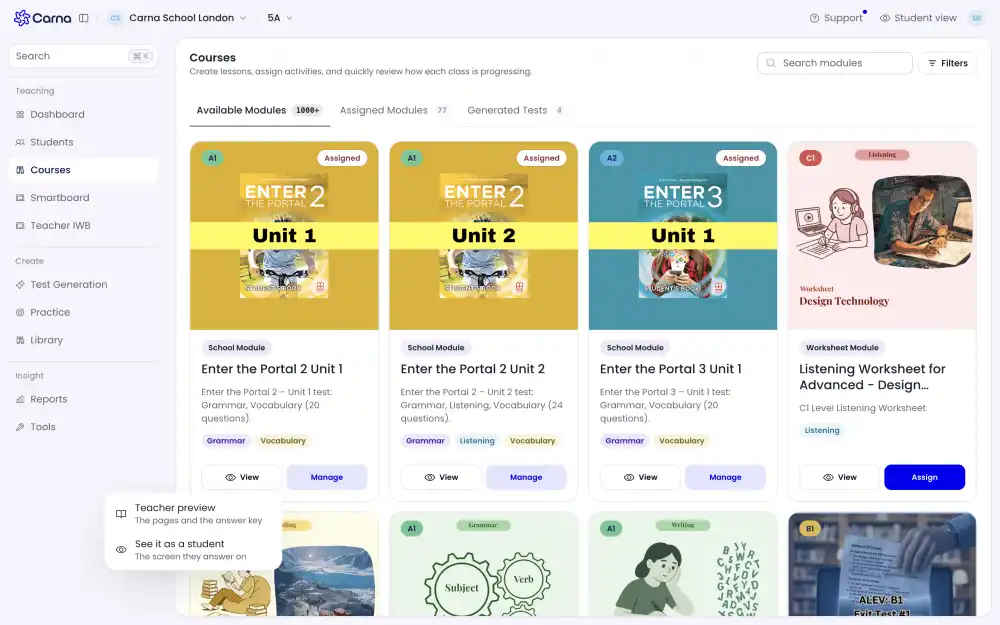
- Teacher preview — the pages and the answer key. This is the one for deciding whether the module fits: you can read the questions and the answers together.
- See it as a student — the screen they answer on. This is the one for checking that the task is clear, that the audio plays, and that nothing is confusing before thirty people meet it at once.
Do not show Teacher preview on the classroom board. It has the answer key in it.
Is this module the right fit? #
Three checks, in order:
- Level. Compare the badge against the level your class is actually working at, not the level of the book on the shelf.
- Skills. A test tagged Listening needs working sound in the room or at home. A test tagged Writing takes much longer than its question count suggests.
- Length. The description gives the question count. Twenty questions is a lesson; a skills test with reading, writing and listening is not.
Then use Assign and set the deadline, attempts and pages — see Assign a module to your class.