 Carna
Smartboard and Teacher IWB
Two boards, and only one of them is safe to put on the classroom screen with students watching.
Carna has two interactive whiteboard sections, and the difference between them matters in a room full of students.
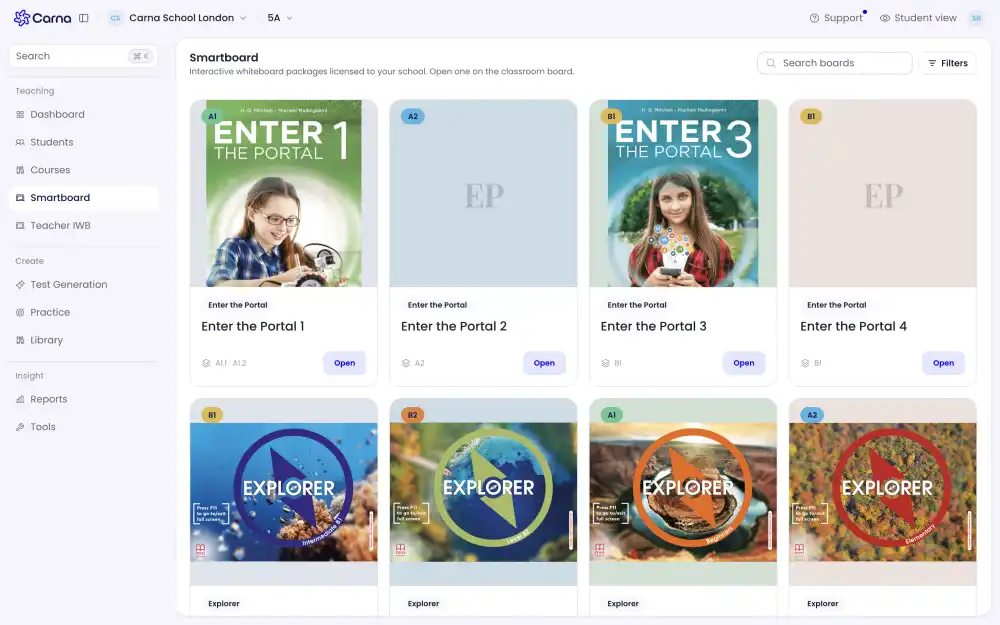
Smartboard #
Interactive whiteboard packages licensed to your school. Open one on the classroom board.
The shelf is organised by series — Enter the Portal, Explorer, Full Blast, Key Links and whatever else your school licensed — and each card shows the CEFR level it covers, like A1.1 · A1.2 or B1. Open puts it on the board.
Your students see this shelf too. It is the same list on their side, so a package you open in class is one they can open again at home.
Use Filters at the top to cut the shelf down by level or series rather than scrolling it.
Teacher IWB #
Your school's teacher editions — the test booklet and the answer keys.
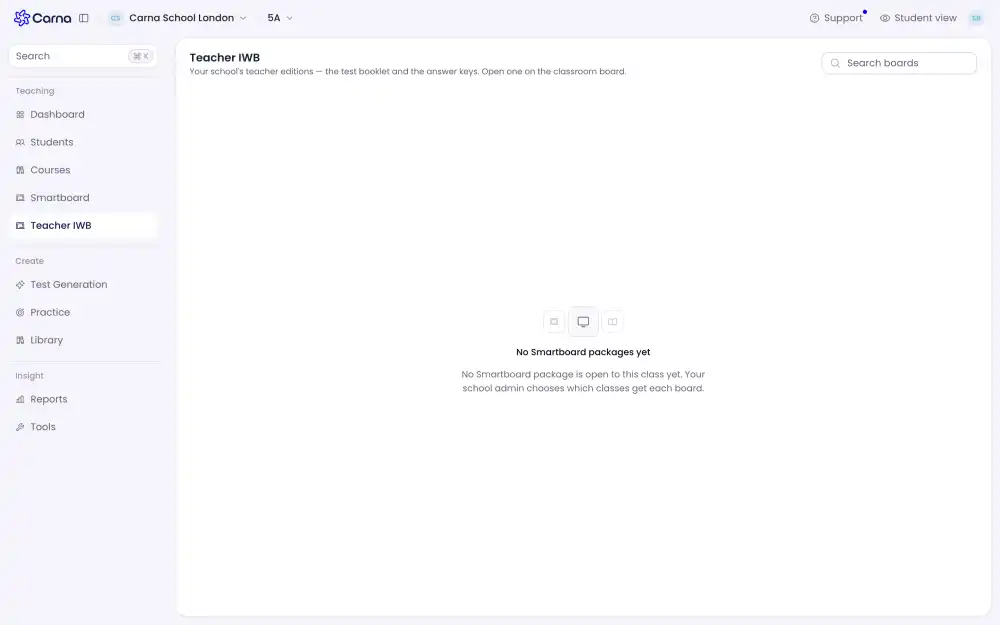
This one holds the answer keys, and students cannot see it. That is the whole point of the separate tab — and the reason to think before you mirror your screen. Teacher IWB on the classroom board shows the class the answers.
"No Smartboard packages yet" #
No Smartboard package is open to this class yet. Your school admin chooses which classes get each board.
Access is granted per class, not per teacher. If you teach two classes and only one of them has boards, that is a deliberate setting, not a fault — your school administrator decides which classes get which packages.
Ask your administrator rather than support: it is their switch.
If the page is blank #
A completely empty panel — no heading, no message — means your account is in the school but not on a class. Pick a class at the top of the page. This is a known bug and the page should be telling you that instead of showing nothing.