 Carna
Student view: see the screens your class sees
It shows the learner's screens with your data, not theirs. Useful for "where is that button", useless for "what has this student done".
Student view is at the top of every page, next to Support. It switches the whole app to the learner's side so you can see what your class is looking at.
The one thing to know first #
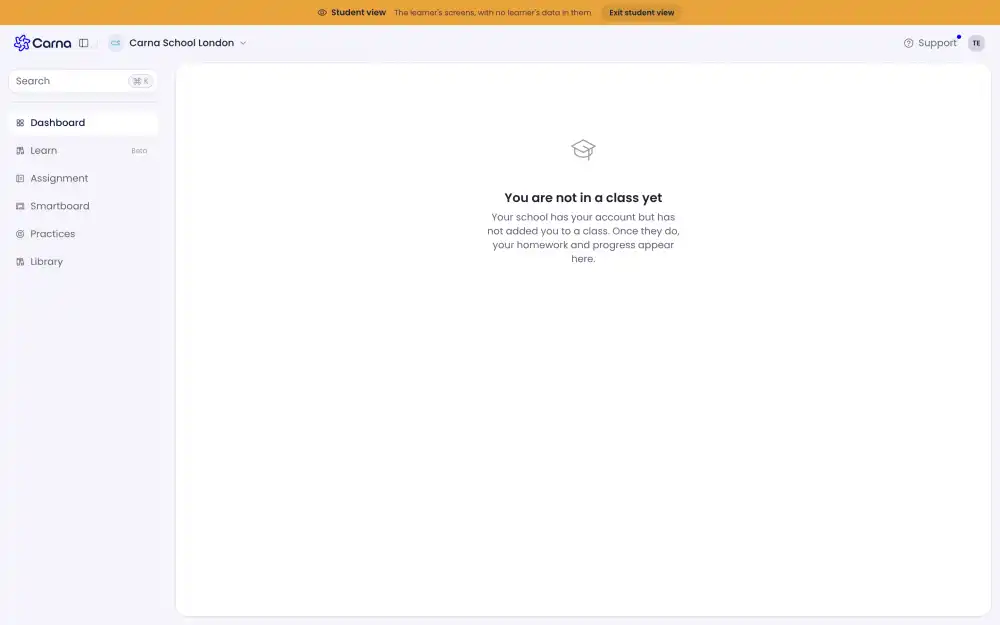
The banner says it plainly:
The learner's screens, with no learner's data in them.
This is not a window into a particular student's account. You get the learner's menu and screens, with your own data in them — which for a teacher means mostly empty. Practices will say Nothing assigned here yet and the homework count will be your own, not theirs.
So it answers "where is that button on their screen?" and it does not answer "what has Ayşe done?". For the second one, use Reports, which is built for it — and is also the only one of the two that respects a student's privacy.
What changes #
The left menu becomes the learner's: Dashboard · Learn · Assignment · Smartboard · Practices · Library. Note that it is a different shape from yours — students have Assignment where you have Courses, and a Learn tab for self-study that you do not have at all.
That difference is exactly why this is worth doing before you explain anything to a class: the words on their screen are not the words on yours.
Getting out #
Exit student view, in the banner. The banner stays visible the whole time, so you cannot forget which side you are on.