 Carna
Your dashboard, widget by widget
What each widget actually measures — and why Skill Performance and Upcoming Events are empty more often than people expect.
The dashboard is the first thing you see, and it is about today, not about the term. It opens on the class in the chip at the top — change the class there and every widget below changes with it.
The top row #
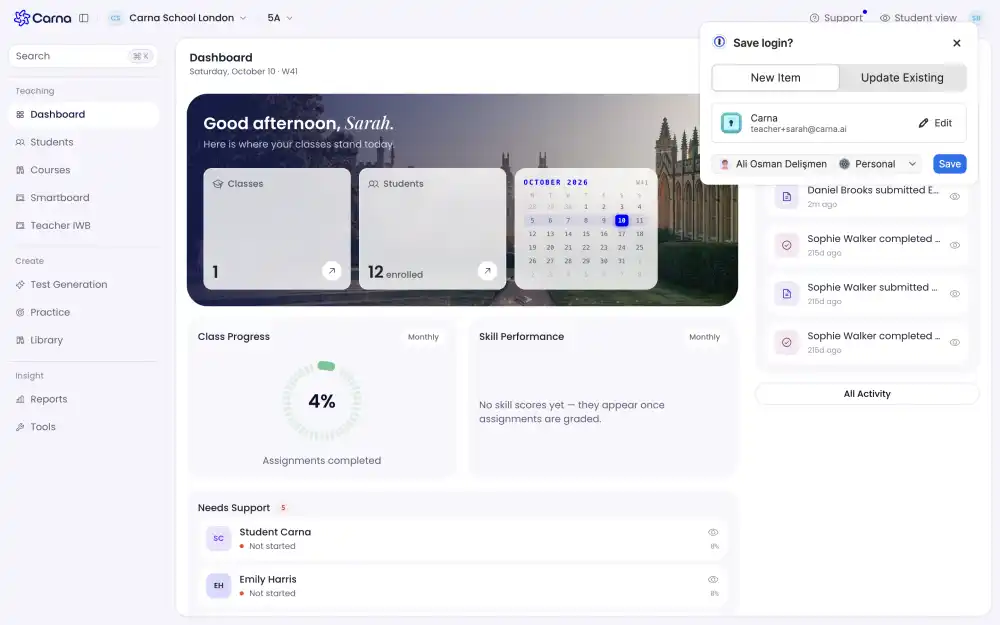
Classes and Students are counts, and both are links — click the arrow to go to the list.
The calendar marks the current week, so the week number next to the date (W41) matches what your school calls it.
Class Progress #
One ring: the share of assigned work your class has completed, this month. Not the average score — the share finished. A class that hands everything in badly still shows a high ring.
Skill Performance #
Empty until work is graded. "No skill scores yet — they appear once assignments are graded" means exactly that: assigning does not produce skill data, submitting and grading does.
Needs Support #
The widget to read first. Each student here is flagged with a reason:
- Not started — assigned work they have not opened.
- Overdue — past the due date.
- a percentage — how far through they are.
The eye icon opens that student without leaving the page.
Upcoming Events/Exams #
What is due next, soonest first. "Nothing due right now" means nothing has a due date — it does not mean nothing is assigned. Work assigned with no deadline never appears here.
Recent Activity #
A running list of what students finished and submitted, newest first — "Lucy Palmer completed Book Quiz", 15d ago. All Activity opens the full history.
Quick create and Edit widgets #
Quick create is the shortcut to the four things teachers start most: assign a module, browse the library, generate a test, set up a practice.
Edit widgets rearranges this page. It changes what you see, not what your students see.