 Carna
Join your school or class
Most school students do not need a code — you were sent a username and a password. Here is each way in, and what to do when a code is refused.
There are two ways into a class, and which one you use was decided by your school, not by you.
If your school sent you a username and a password #
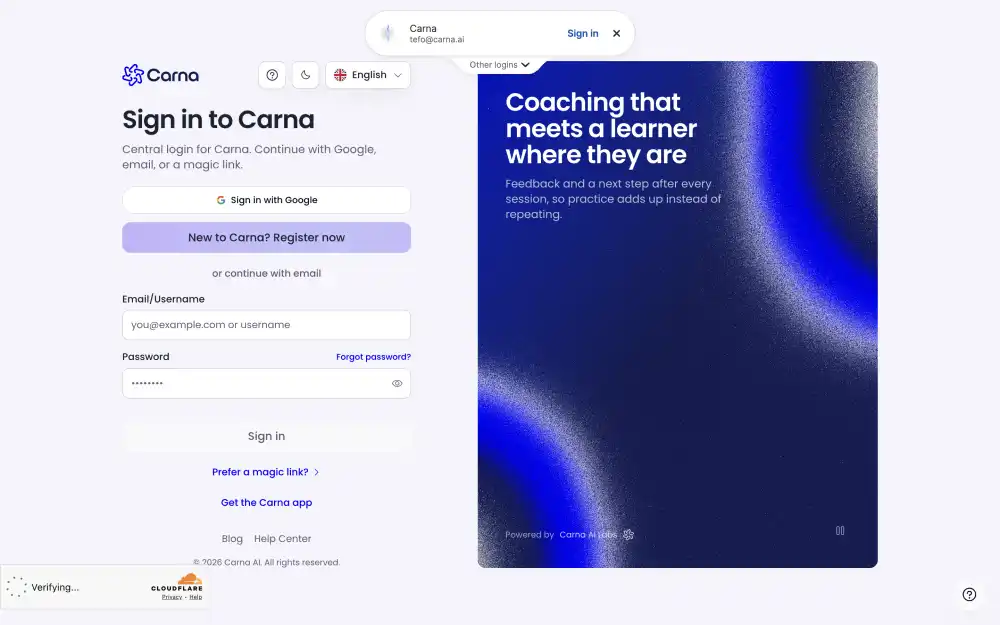
You do not need an invite code. This is how most school students get in.
- Go to www.carna.app.
- Do not register. Sign in with the username and password your school gave you.
- Your class opens by itself. There is nothing else to type.
Creating a new account instead of signing in is the single most common mistake here. A new account has no school attached to it, so it looks empty and the homework is nowhere.
If the username and password never arrived, they go to your school first, not to you — your teacher or your school office has them. Support can check whether your school has been sent them, and we need the school's name to look.
If the sign-in button does nothing when you press it, see I cannot sign in.
If your teacher gave you a short code #
Your teacher creates the code in Carna and shares it — on the board, in a message, or on paper. Carna cannot tell you your code, and support cannot look it up for you. Ask your teacher.
Open Carna, and when you are asked for a code, type it exactly as you were given it.
Two things people get wrong:
- The code is case sensitive.
aandAare different codes. If you were given a capital letter, type a capital letter. - A code never contains
0,O,1,Iorl. Those five characters are left out on purpose, so that a code read off a whiteboard cannot be mistyped. If you think you are looking at a zero, you are looking at something else.
Codes are not all the same length, so do not count the characters. Type what you were given and press continue.
"Waiting for approval" #
Some classes let you in straight away. Others need your teacher to approve you first, and then you see a waiting screen.
You do not have to refresh the page. The screen checks for you every ten seconds, and there is a refresh button if you want to check right now. When your teacher approves you, the screen moves on by itself.
If you close the page while you are waiting, nothing is lost — your request is still there when you come back.
If the code does not work #
- Check for a typo first, especially capital letters.
- Check that you need a code at all. If your school sent you a username and a password, there is no code to enter — sign in instead.
- The code may have been used up or turned off. Ask your teacher for a new one.
- Your school may be closed on Carna. If your school's access has ended, you will be told so by name. Your teacher or your school's administrator can sort this out.