


































How to get help from the Carna team
Find answers in the Help Center, chat with the Carna team, or email support when you're stuck.
Who is this for: Everyone
Summary: Find answers in the Help Center, chat with the Carna team, or email support when you're stuck.
Before you start: You can open Support from any page once you're signed in. If you can't sign in, see the last tip below.
Steps #
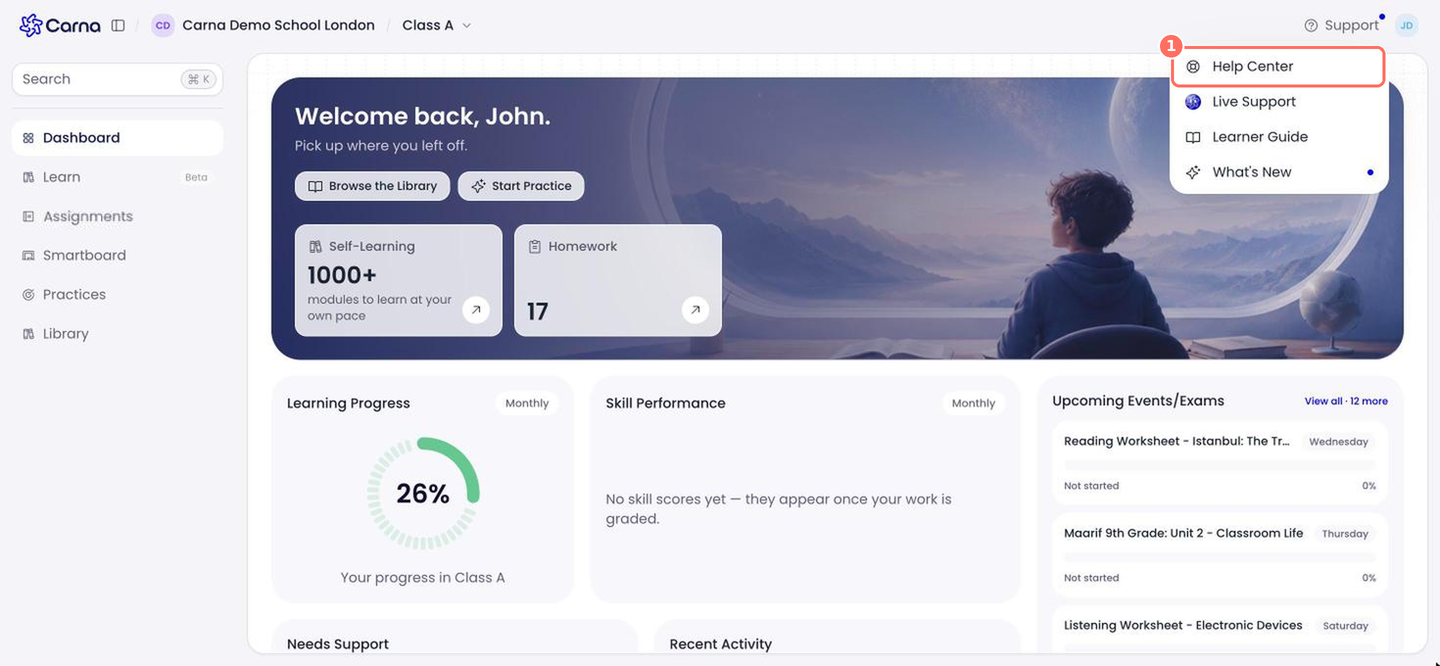
Click Support in the top right, then Help Center to search step-by-step guides like this one. It opens in a new tab.
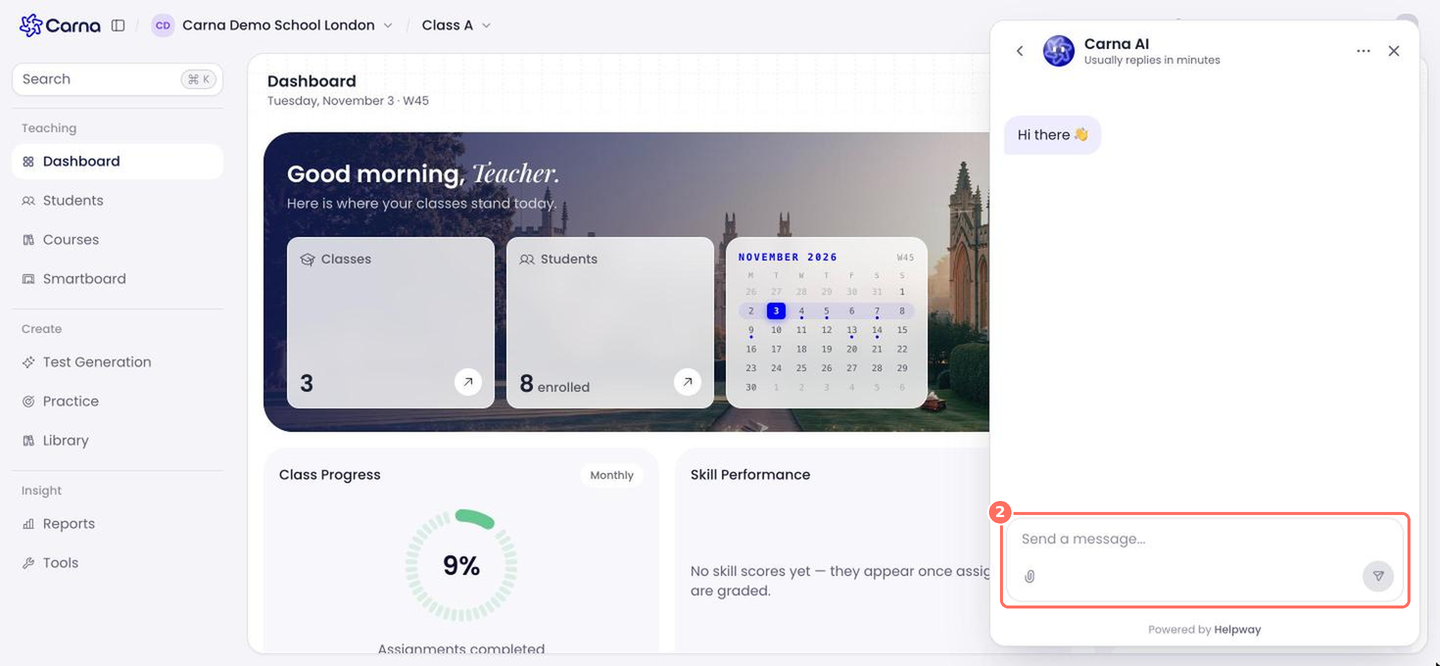
To talk to the Carna team, click Live Support. A chat window opens at the side of the page. Type your question in Send a message and send it. The team usually replies within a few minutes.
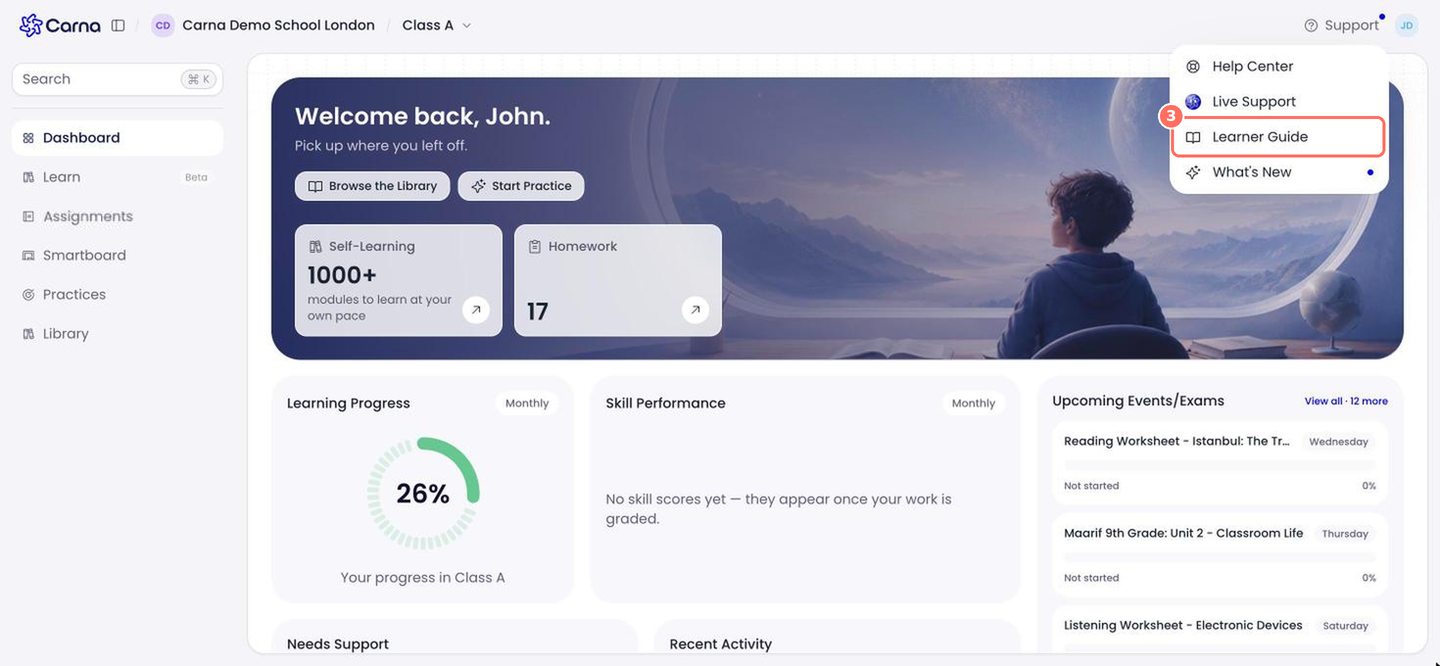
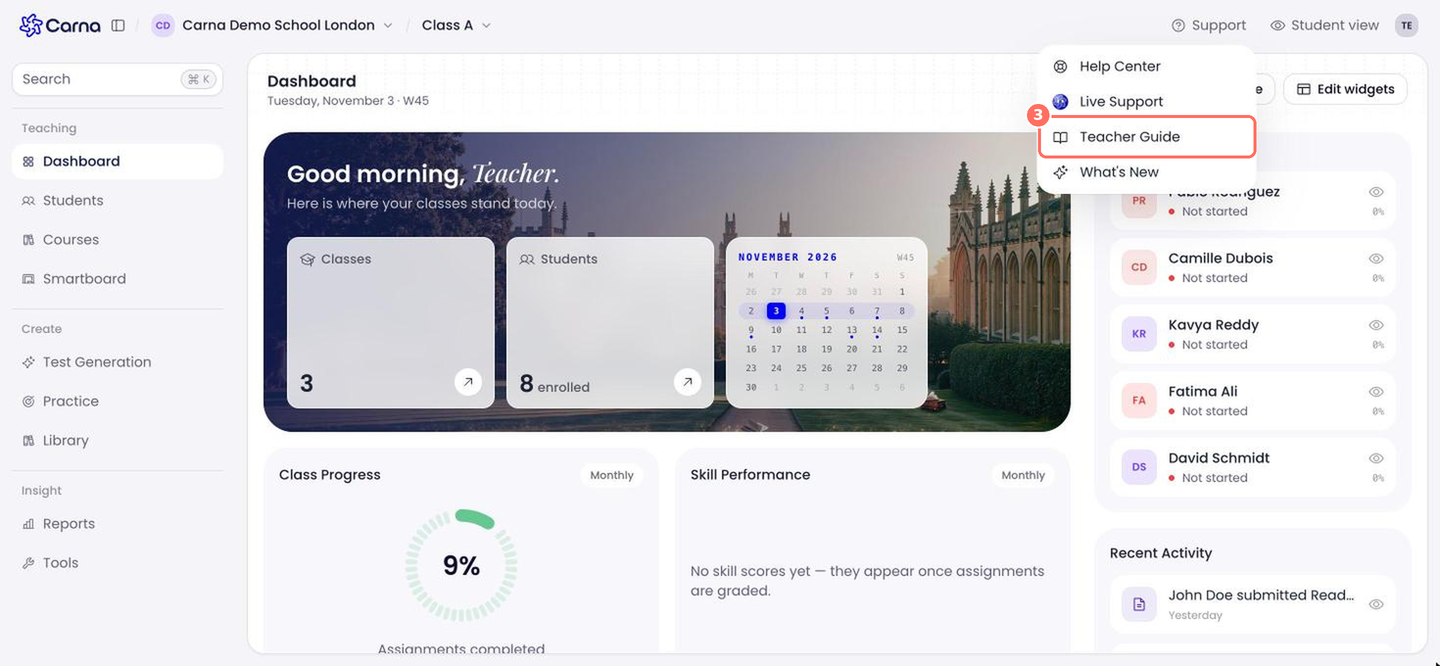
To read the full guide for your role, click the guide in the same menu: Learner Guide for students, Teacher Guide for teachers.
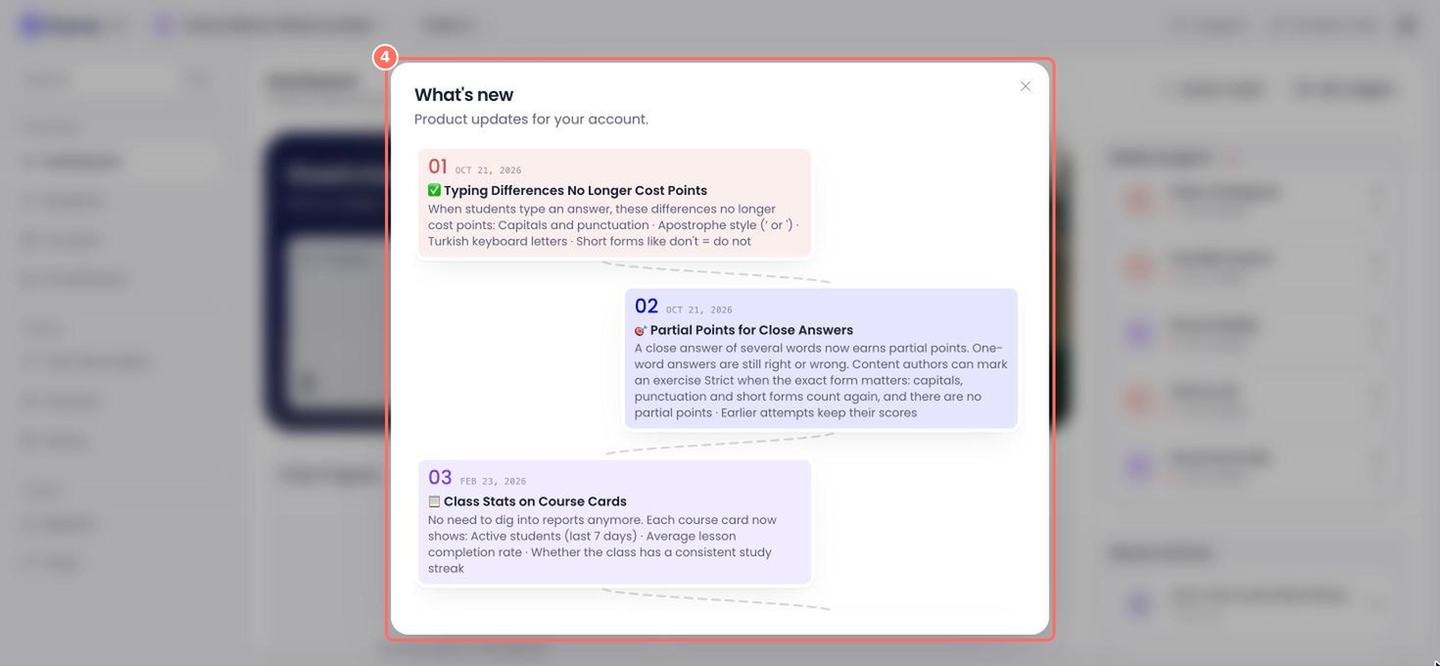
To see what has changed in Carna, click What's New. A blue dot next to it shows there are new updates to read.
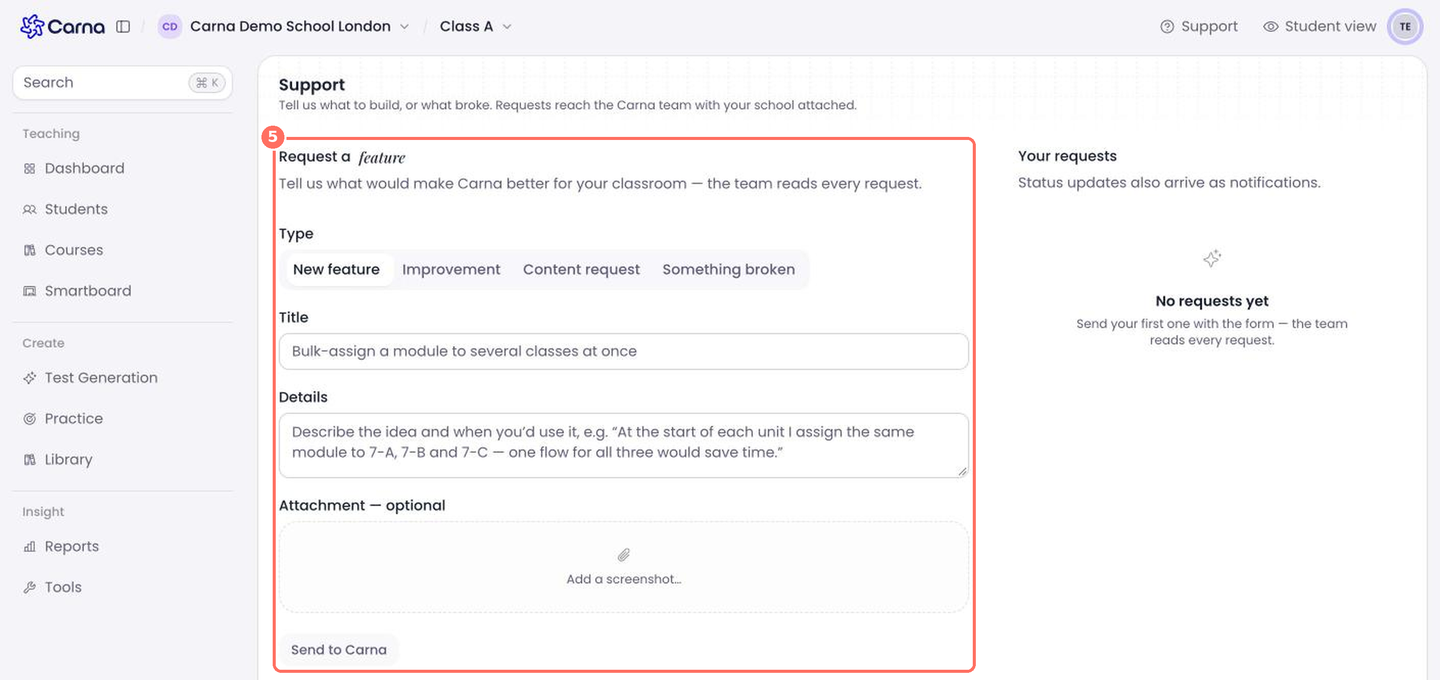
Teachers: to suggest a feature or report a problem, click your initials in the top right and choose Submit a Request. Choose a Type (New feature, Improvement, Content request or Something broken), add a Title and Details, attach a screenshot if you like, and click Send to Carna. Your requests and their status appear under Your requests, and status updates also arrive as notifications.
Tips & Good to know #
- When you write to support, tell us your school, your class and what you were trying to do. A screenshot helps a lot.
- You can also email support@carna.ai.
- Your earlier chats are saved in the chat window, so you can close it and come back later.
- If you can't sign in, click the ? button at the top of the sign-in page. It has Help Center, Live Support and Email support.
- Students: for questions about homework, due dates or grades, ask your teacher first.
Troubleshooting #
- The chat window doesn't open: turn off ad blockers or privacy extensions for Carna and reload the page.
- I can't find my answer: use Live Support or email support@carna.ai.
Related articles #
- What is Carna? A 2-minute tour
- How to sign in and reset your password
- How to change the app language