


































How to use Smartboard in class
Open your school's interactive coursebooks on the classroom board. Smartboard shows the student editions, without answer keys.
Who is this for: Teachers
Summary: Open your school's interactive coursebooks on the classroom board. Smartboard shows the student editions, without answer keys.
Before you start: You need a teacher account and a classroom board or projector connected to your computer. Smartboard shows only the packages your school has a licence for.
Steps #
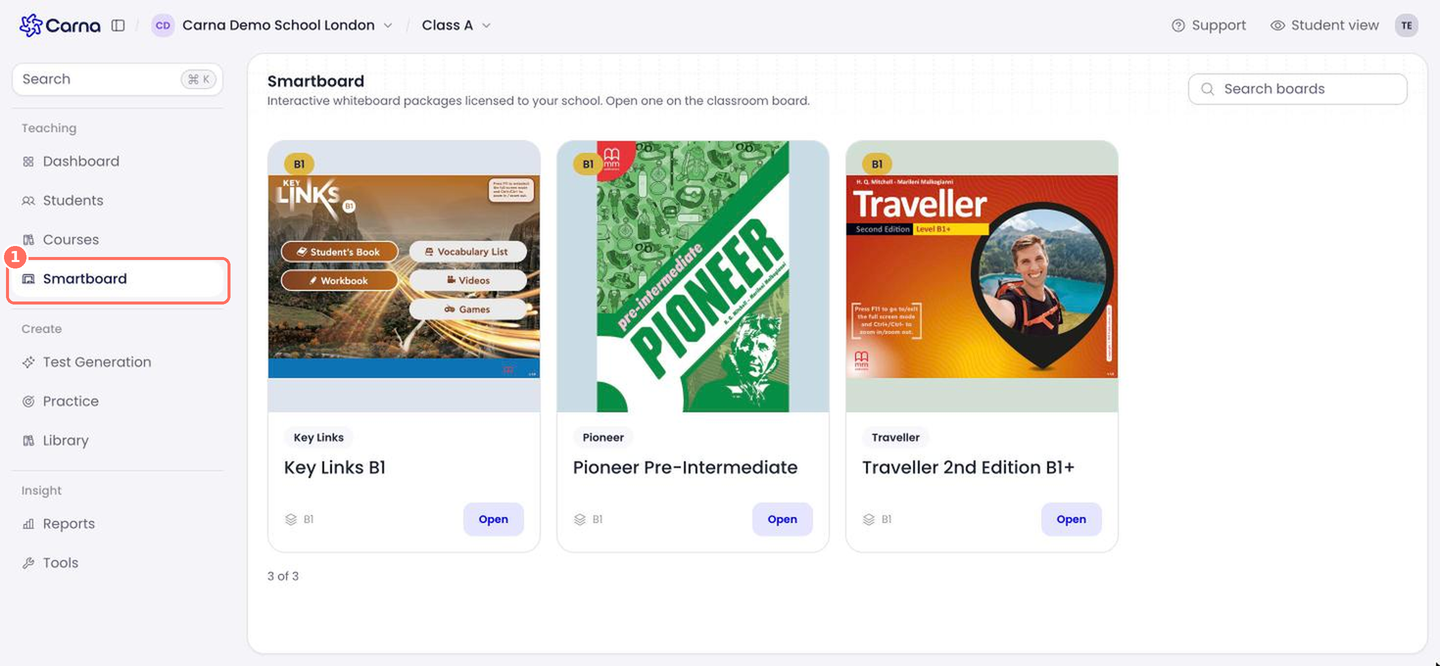
- In the left menu, click Smartboard to see the interactive coursebooks (student editions) for your school.
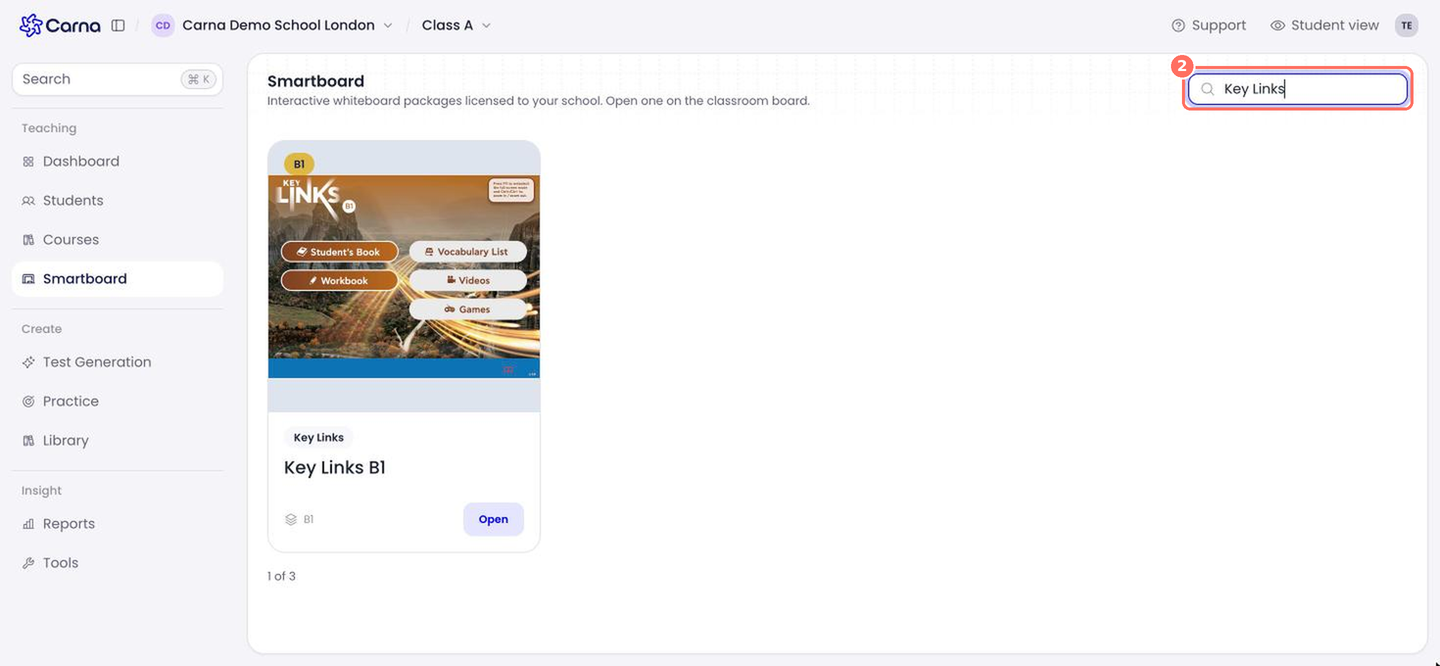
- To find a book, type its name in Search boards (for example, Key Links).
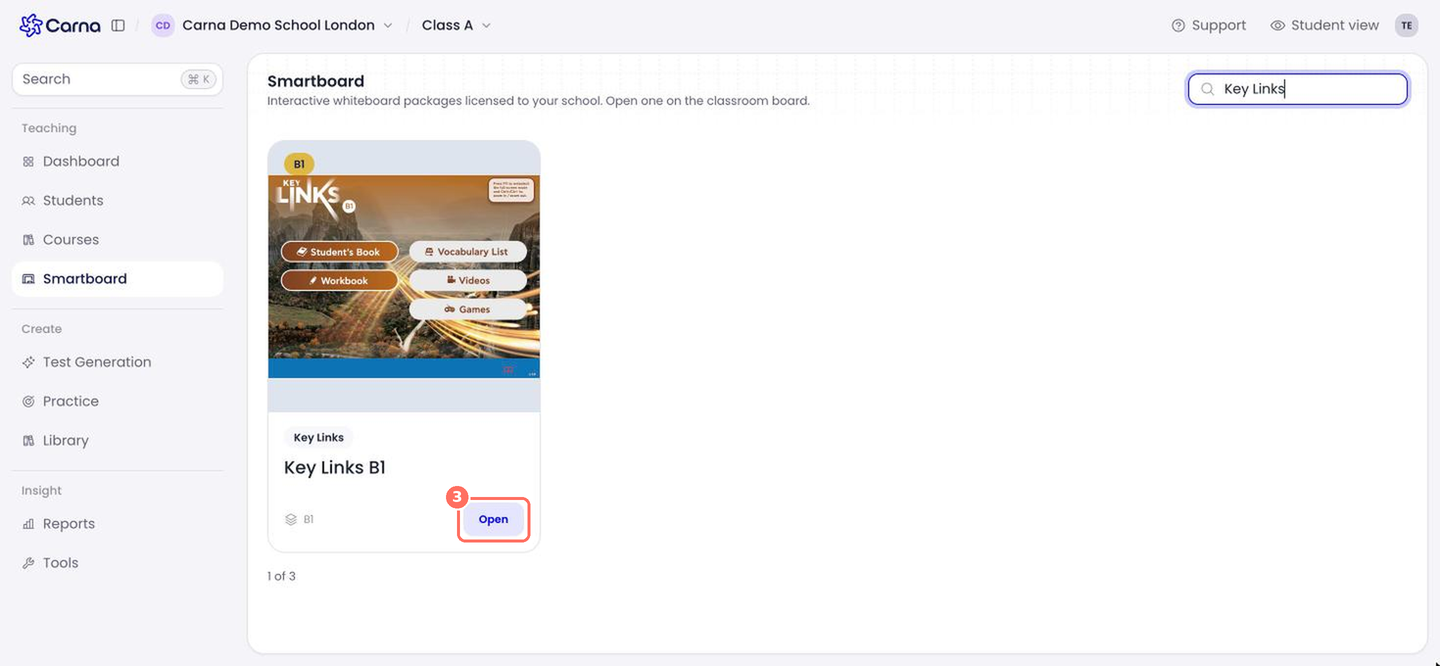
- Click Open on the book you want to use.
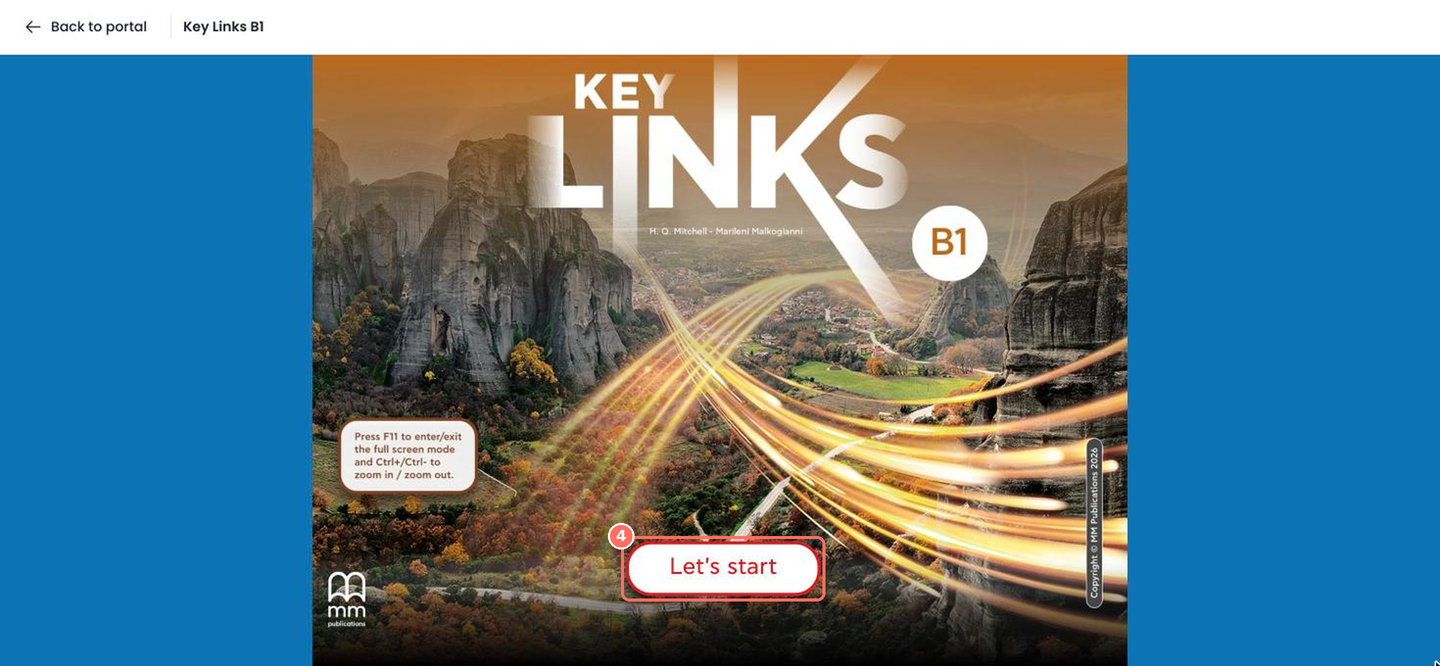
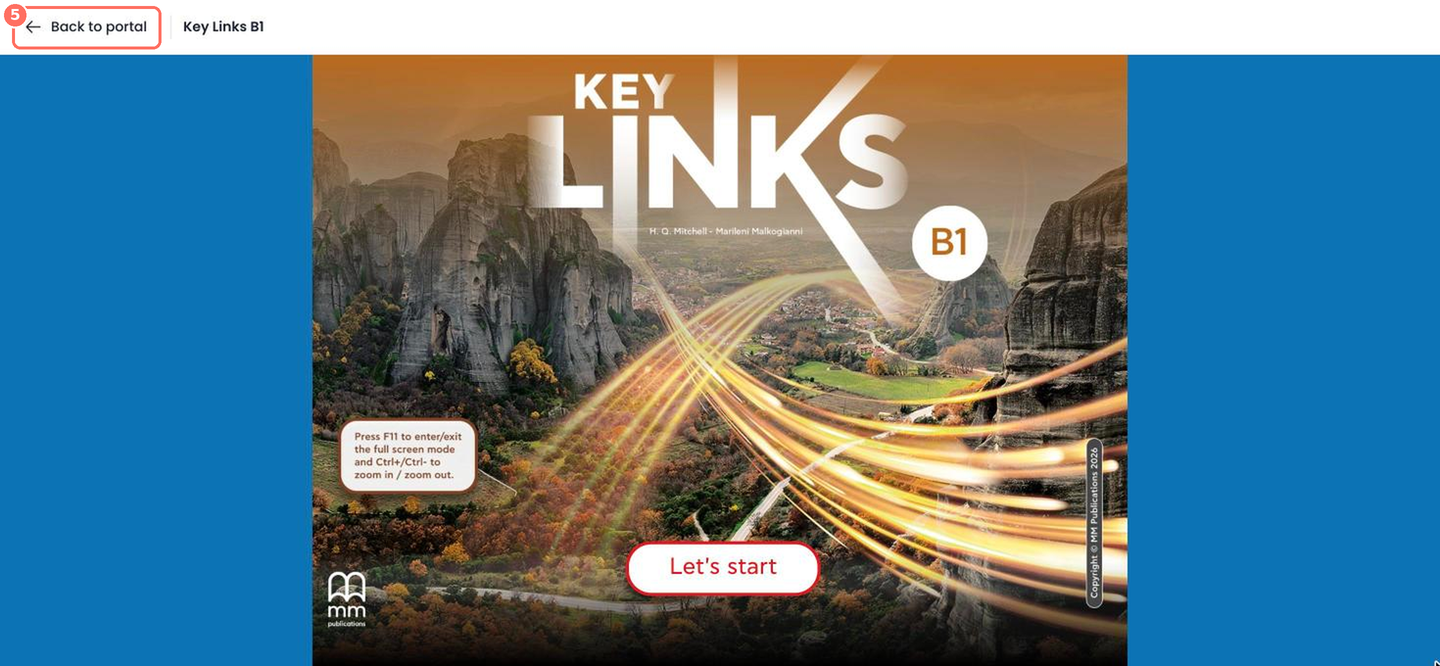
- The book opens in Carna. Click Let's start to begin and use the book's own menus on the board.
- When you're done, click Back to portal to return to Carna.
Tips & Good to know #
- Press F11 to show the book in full screen, and Ctrl + / Ctrl − (Cmd + / Cmd − on Mac) to zoom in or out.
- Open the book before the lesson so it's ready when class starts.
- These are the same student editions your students can open in their own accounts, so answer keys aren't shown. It's safe to keep the book on the board while students work.
Troubleshooting #
- I can't find my coursebook: Smartboard only shows books your school has a licence for. Ask your school admin or contact support@carna.ai.
- Part of the book is cut off on the screen: press F11 for full screen, or zoom out with Ctrl −.
- No sound in class: check that the board or projector is set as your computer's sound output.