


































How to find modules in Courses
Find the right module for your class by searching and filtering the Courses catalog by type, level, skill and grammar rule, then preview it before you assign.
Who is this for: Teachers
Summary: Find the right module for your class by searching and filtering the Courses catalog by type, level, skill and grammar rule, then preview it before you assign.
Before you start: You need a teacher account.
Steps #
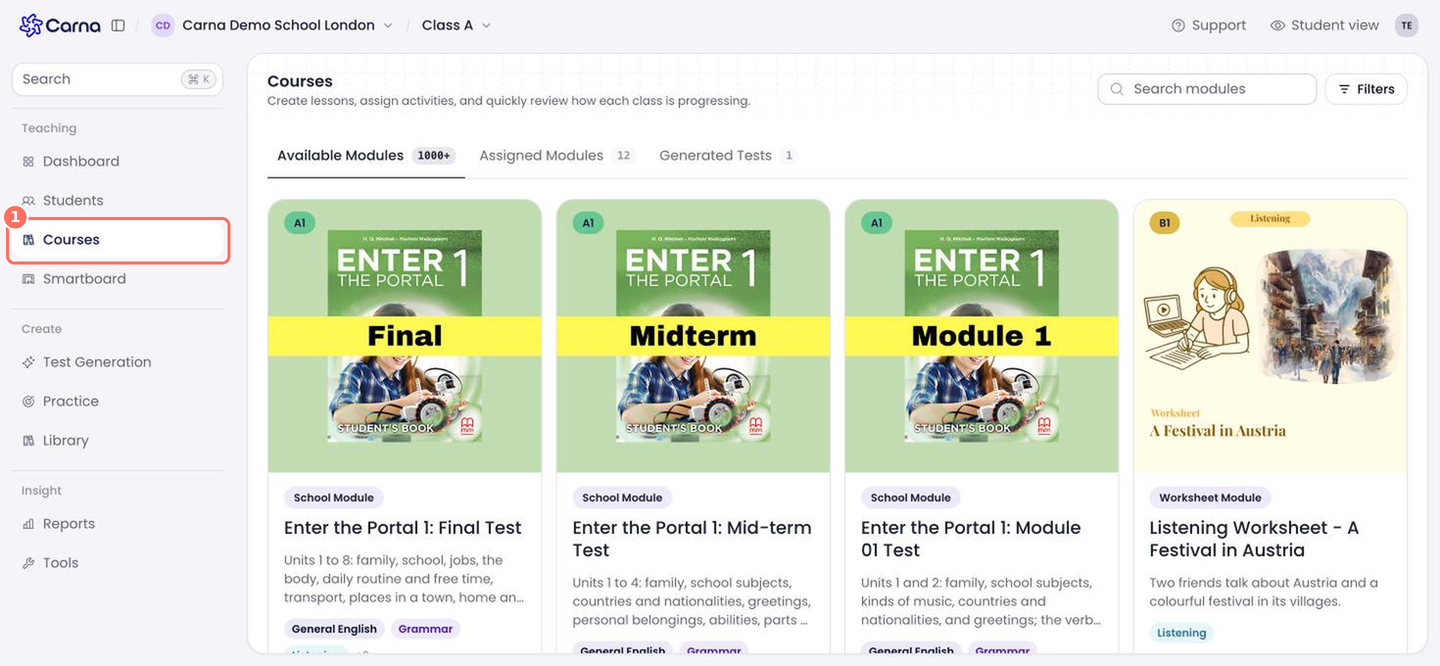
In the left menu, click Courses. The Available Modules tab shows every module your school can assign.
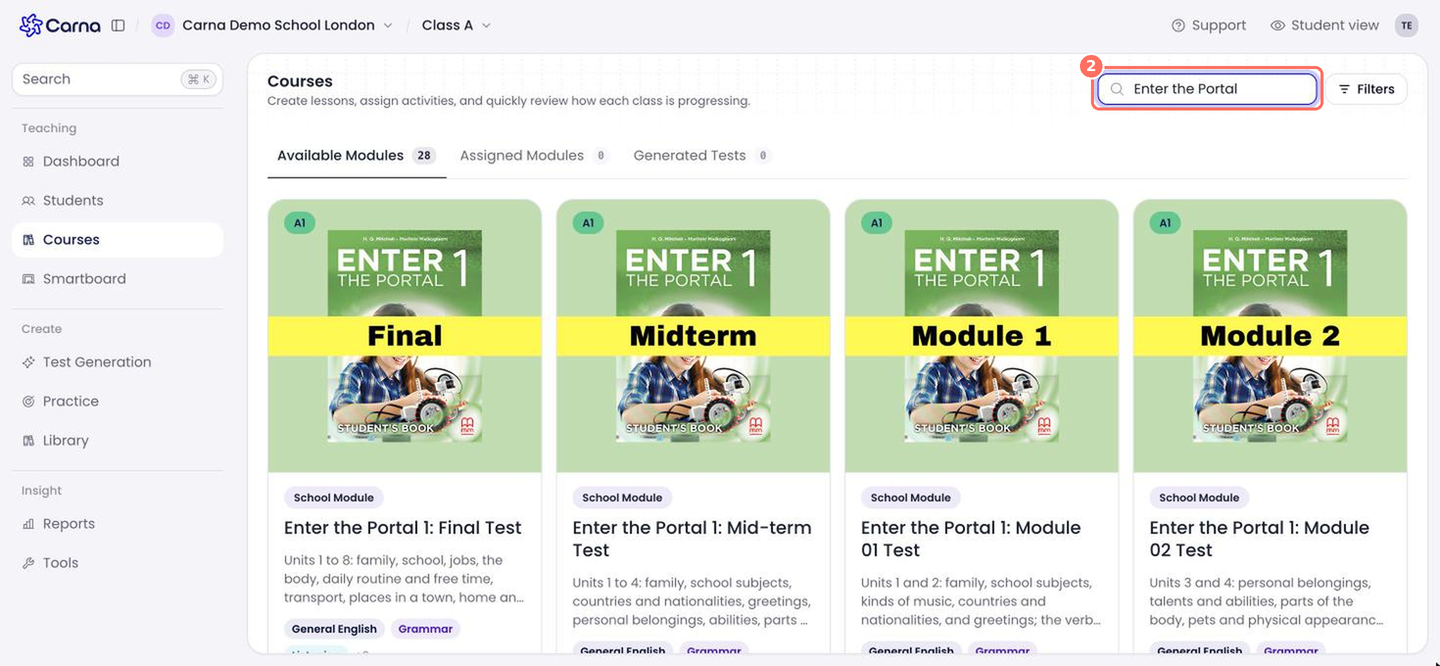
To look for a book or topic, type it in Search modules (for example, Enter the Portal).
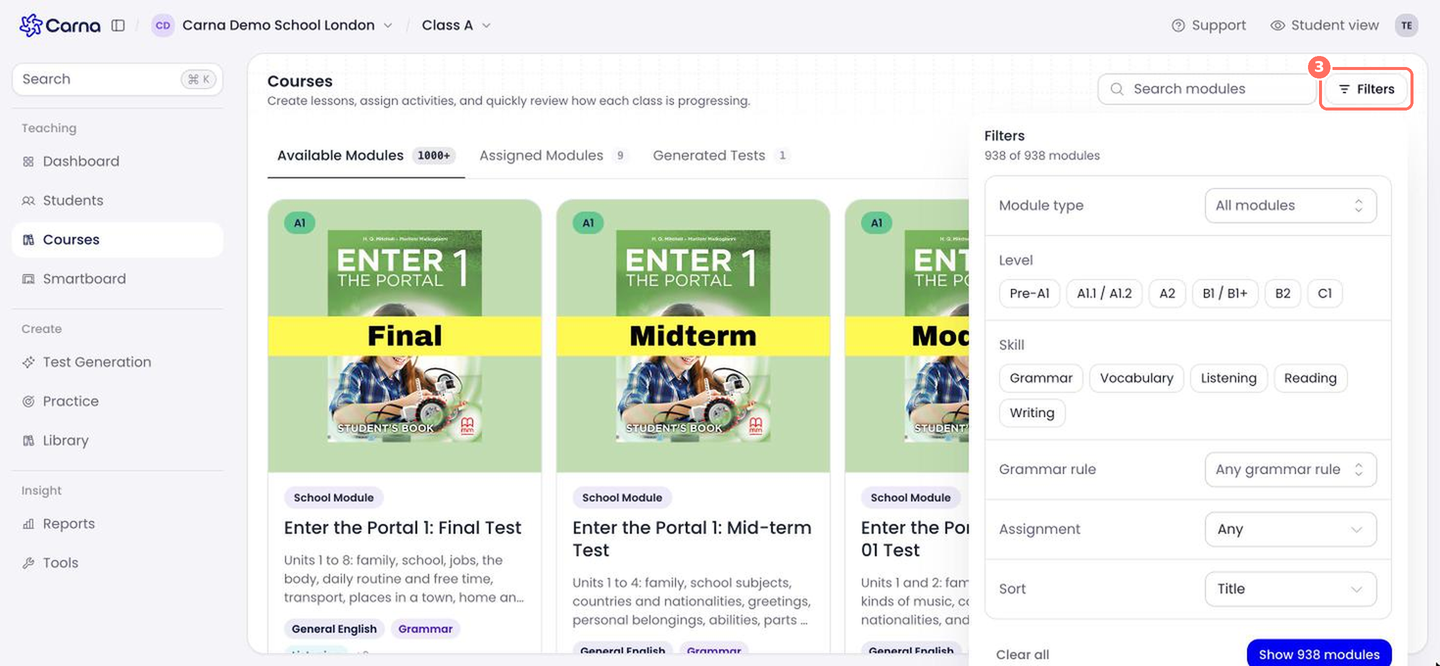
To narrow the list further, click Filters.
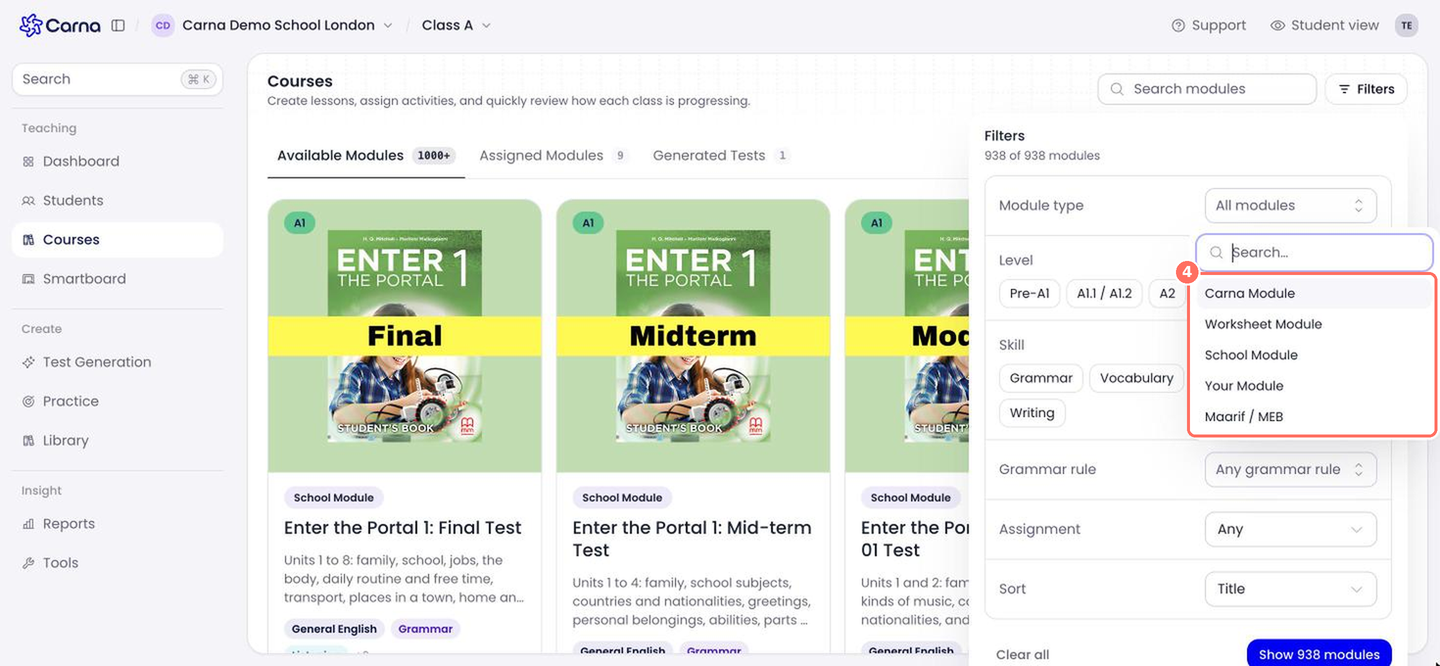
Under Module type, choose the kind of module you need:
- Carna Module: ready-made Carna lessons
- Worksheet Module: short practice worksheets for one skill
- School Module: tests and units that match your school's coursebooks
- Your Module: modules made for your school on request
- Maarif / MEB: modules aligned with the MEB curriculum
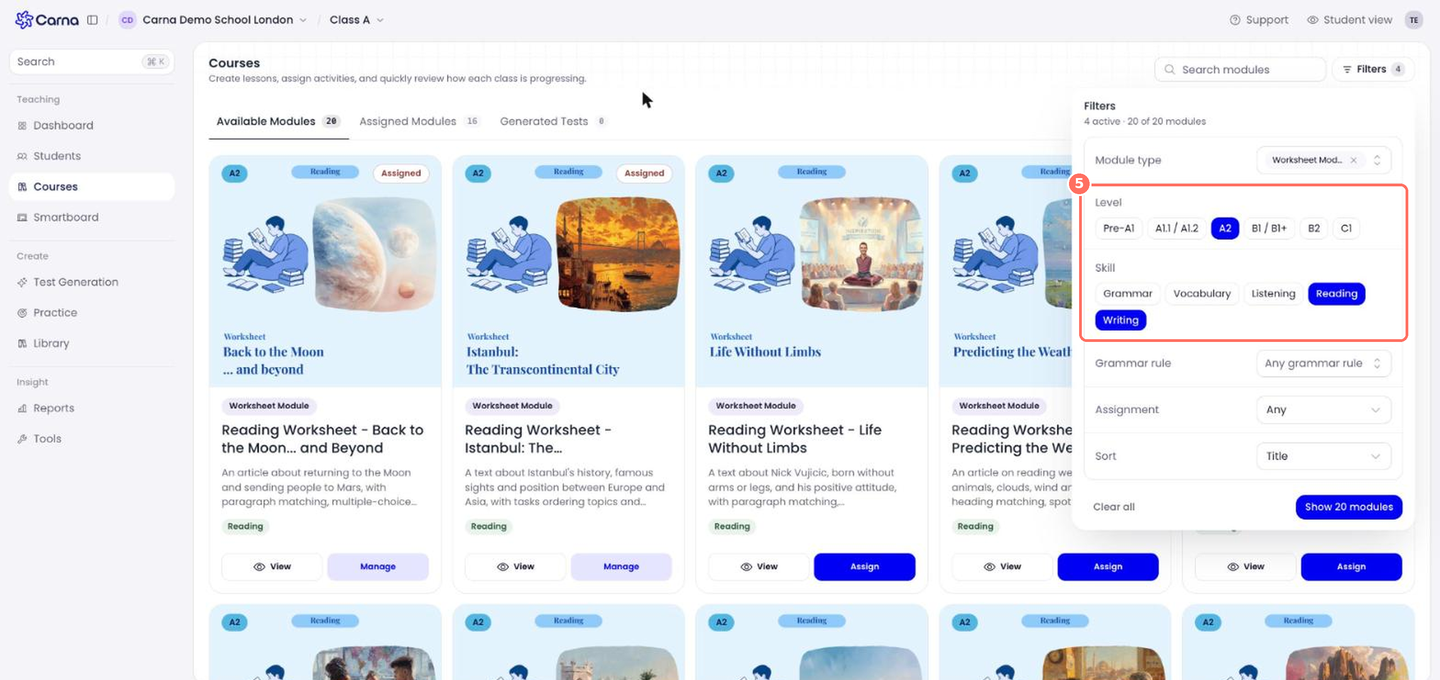
Under Level and Skill, click one or more options. For example, choose A2, then Reading and Writing to see both kinds of worksheet at that level. Click an option again to remove it.
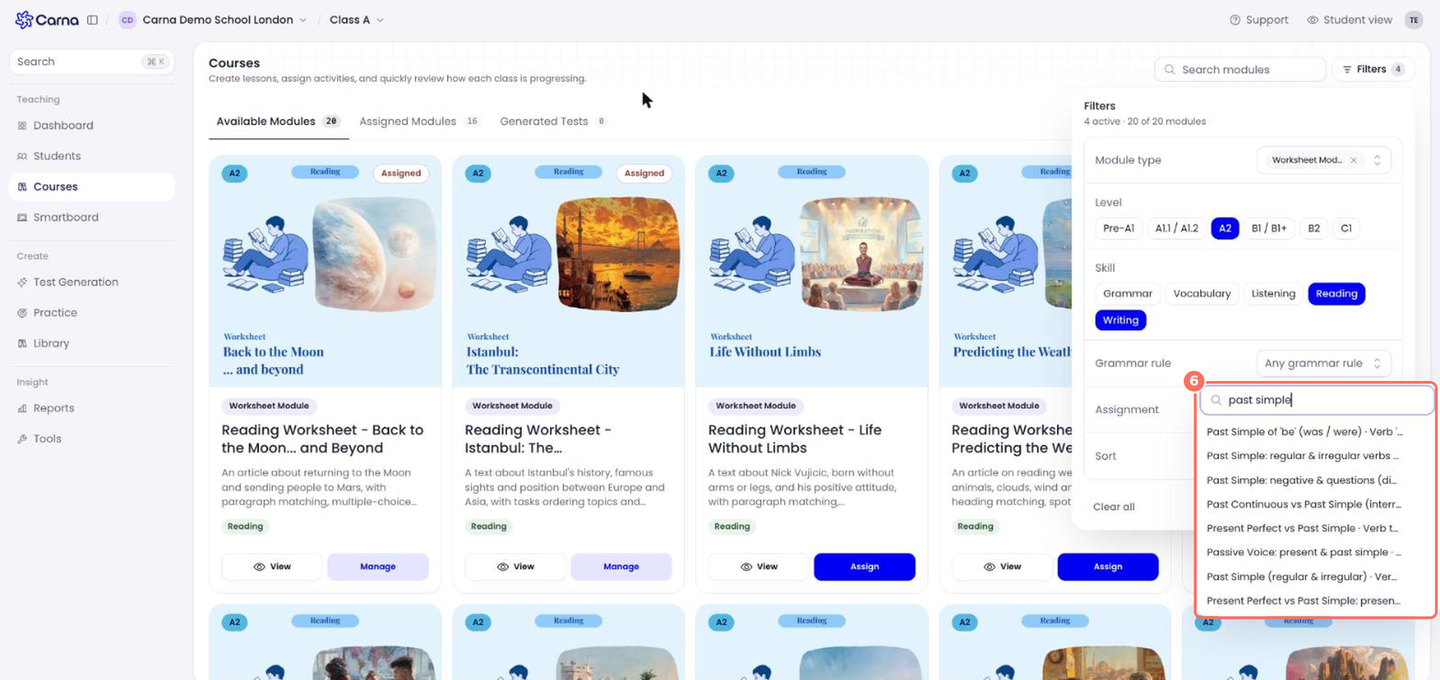
To find modules that practise a specific structure, open Grammar rule and type part of its name (for example, past simple), then pick a rule from the list.
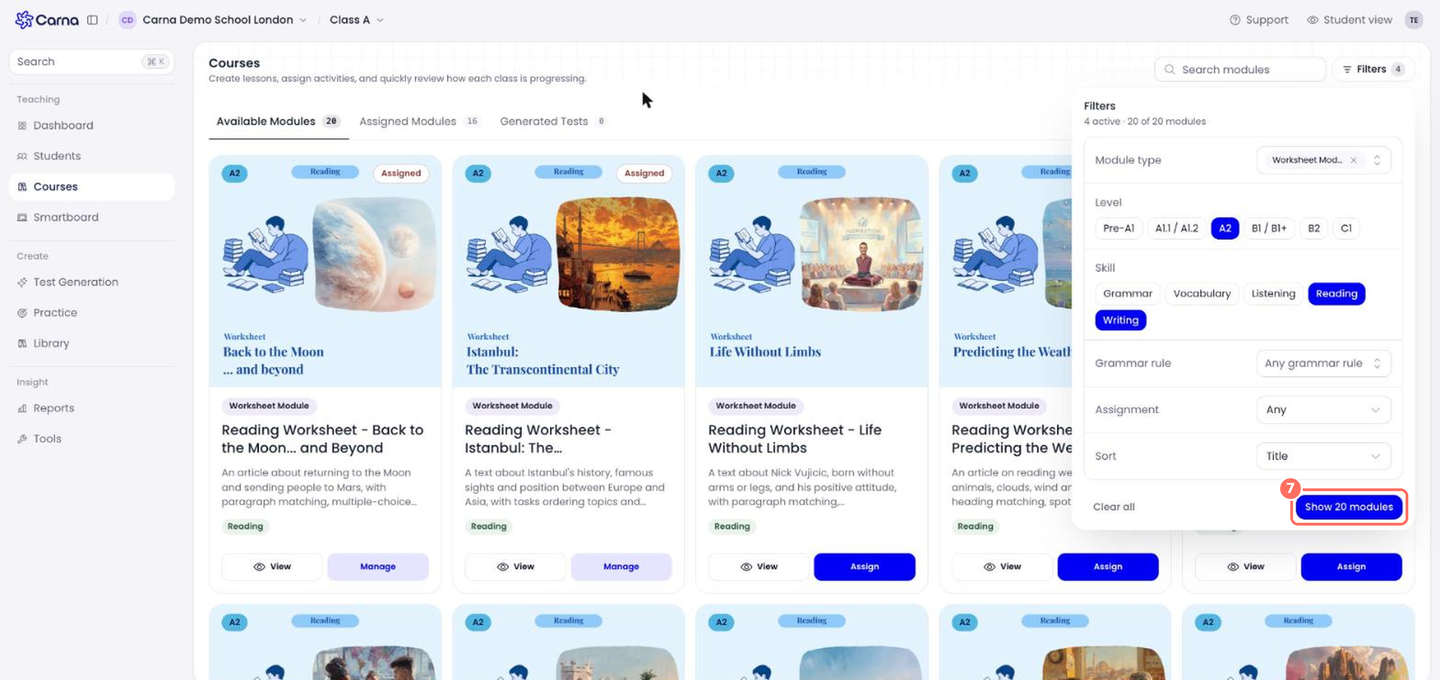
The list updates as you choose. Click Show … modules to close the panel and see the results.
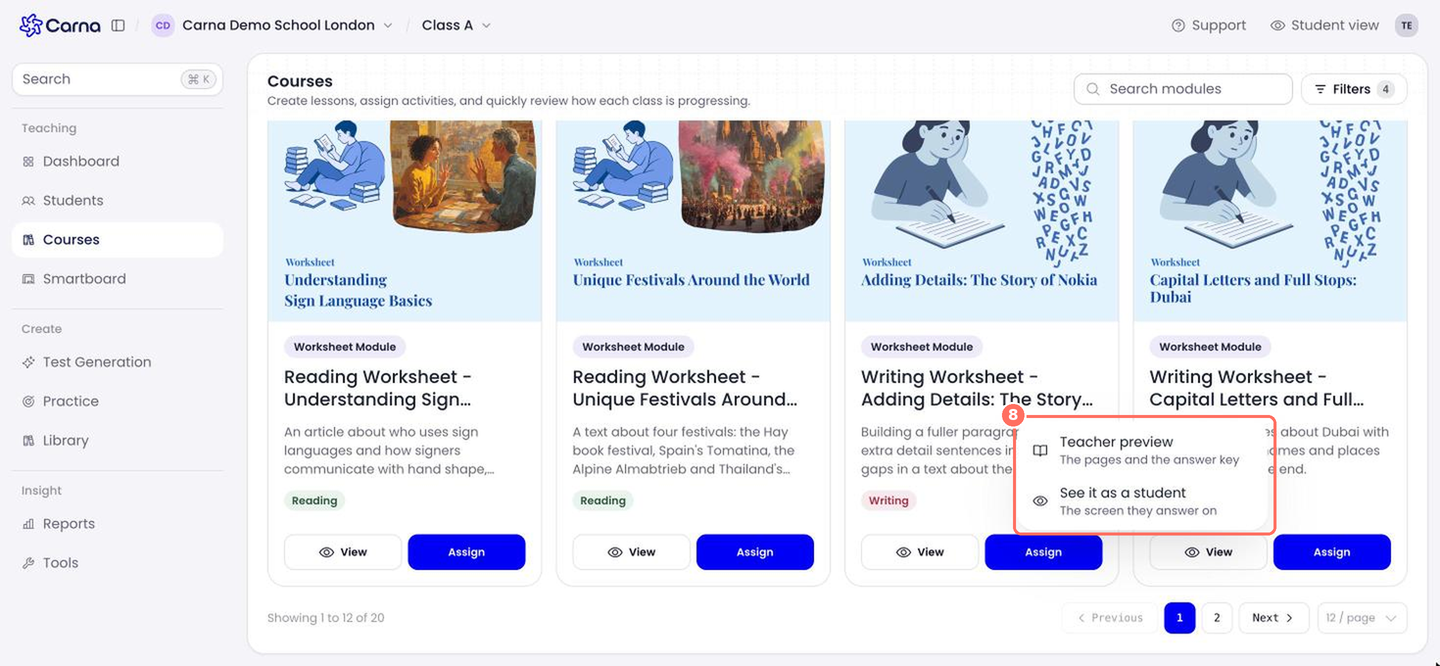
Before assigning, click View on a module card and choose Teacher preview to see the pages with the answer key, or See it as a student to see the screen students answer on.
When you've found the right module, click Assign on its card. See How to assign a module to one or more classes.
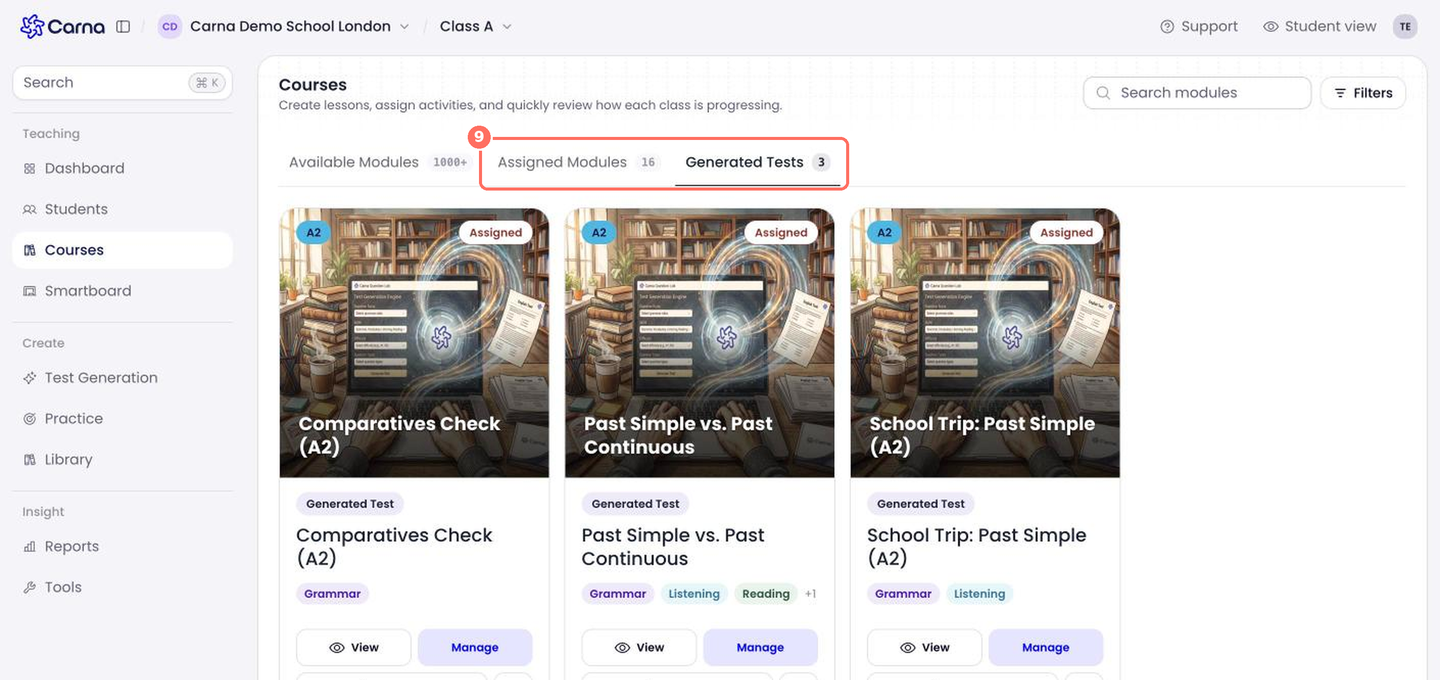
- Besides Available Modules, Courses has two more tabs. Assigned Modules lists the modules you have assigned to the class; see How to manage, close and restore assignments. Generated Tests lists the tests you made with Test Generation; see How to assign a generated test to classes or students.
Tips & Good to know #
- The list shows a page of modules at a time. Use the page numbers and Previous / Next at the bottom to see more.
- The number next to Filters shows how many filters are on. Use Clear all at the bottom of the panel to start again.
- Assignment lets you show only modules you have Not assigned yet, or only those already Assigned. Sort orders the list by Title, Level or Length.
- A module that is already assigned to your current class shows an Assigned badge on its card.
- In Teacher preview, use Answer key on to show or hide the correct answers, and Previous / Next to move between pages.
- The search and filters work on the class you have selected at the top of the page. Switch class there if you're planning for another class.
Troubleshooting #
- "No modules match": your filters are too narrow. Remove one filter at a time, or click Clear all.
- I can't find my coursebook: search by the book's name (for example, Enter the Portal) without the level or unit. If it still doesn't appear, your school may not have that book yet; contact your school admin or support@carna.ai.
- A grammar rule returns few or no modules: not every module is tagged with grammar rules. Try the Grammar skill filter with a level instead.