


































How to read your teacher Dashboard
Understand each card on your Dashboard so you can see at a glance what's due, how your class is doing and who needs help, and arrange the cards the way you like.
Who is this for: Teachers
Summary: Understand each card on your Dashboard so you can see at a glance what's due, how your class is doing and who needs help, and arrange the cards the way you like.
Before you start: You need a teacher account. The Dashboard shows the class selected at the top of the page.
Steps #
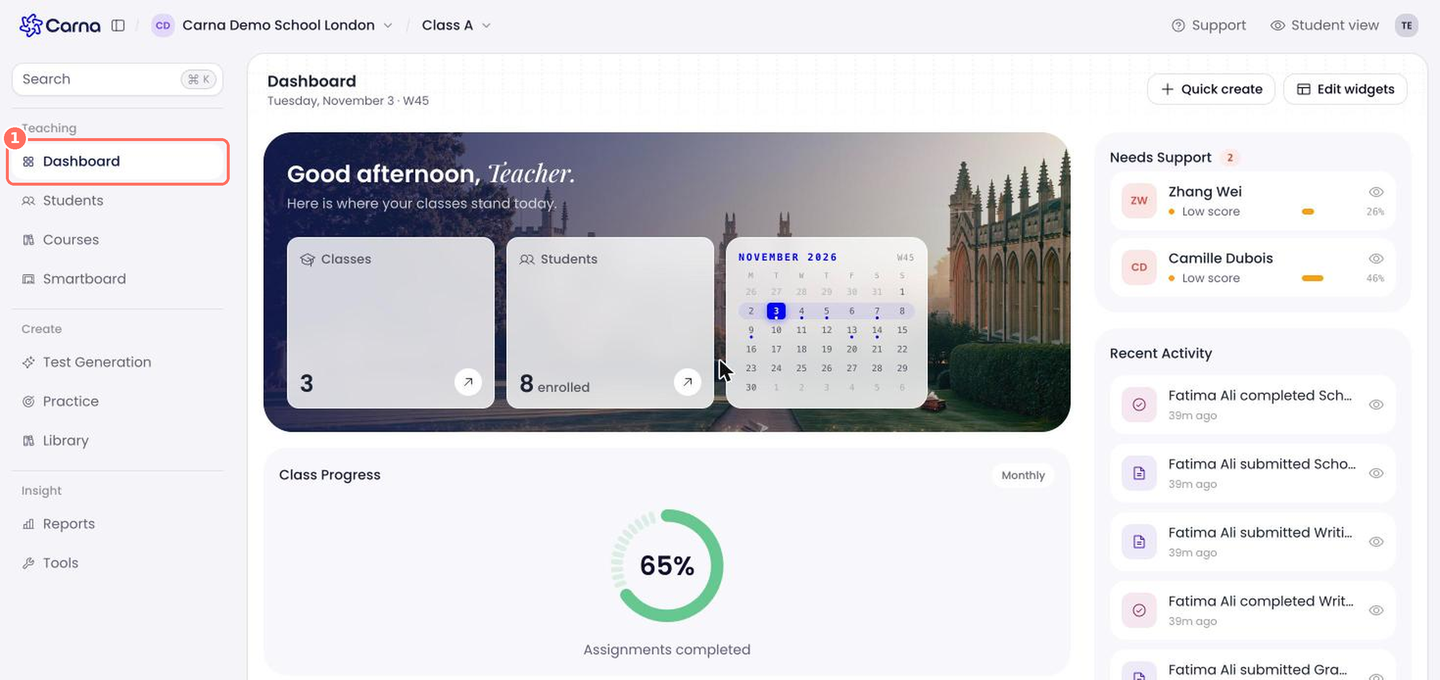
- In the left menu, click Dashboard. This is the first page you see after signing in.
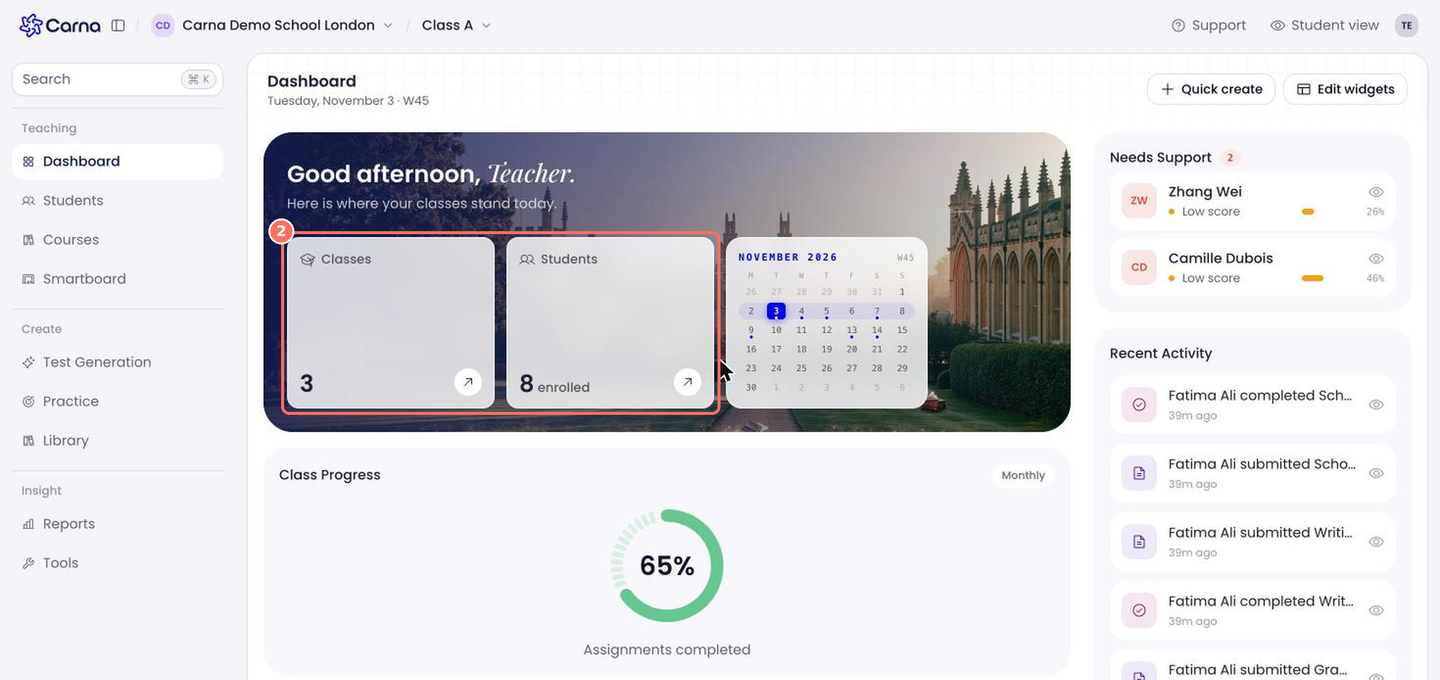
- Classes and Students show how many classes you teach and how many students are enrolled. Click the arrow on a card to open the full list.
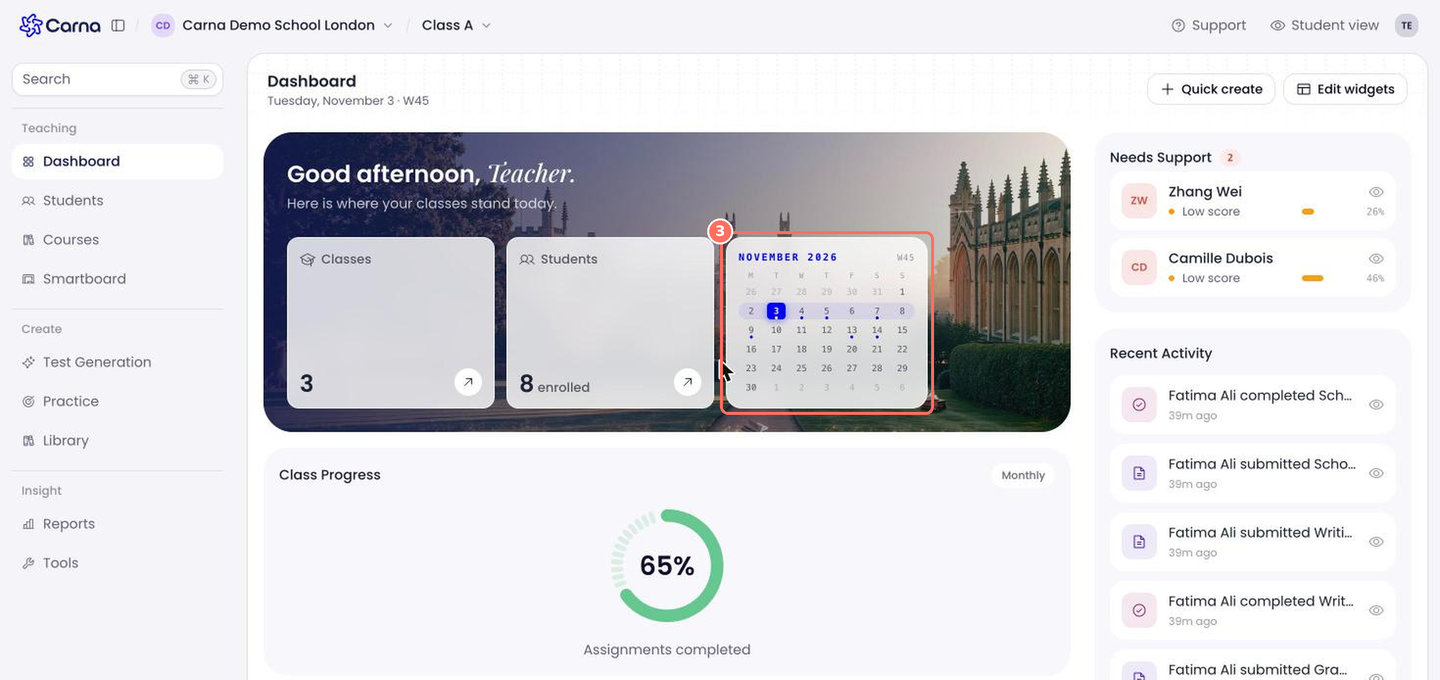
- The calendar marks the days when assignments are due with a dot. Today is highlighted.
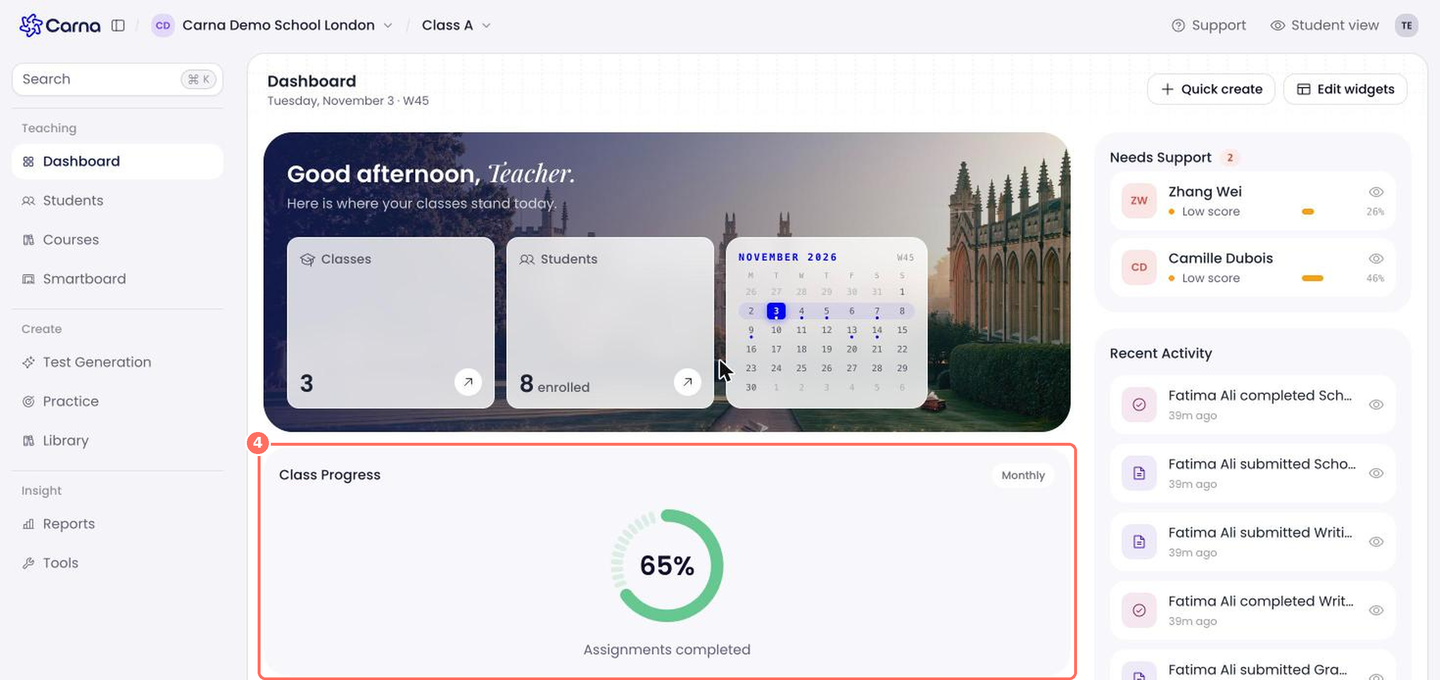
- Class Progress shows how much of the assigned work your class has completed this month. Skill Performance shows scores by skill (grammar, reading, vocabulary, writing, listening) once assignments are graded. If you don't see it, it's hidden: see step 9 to show it.
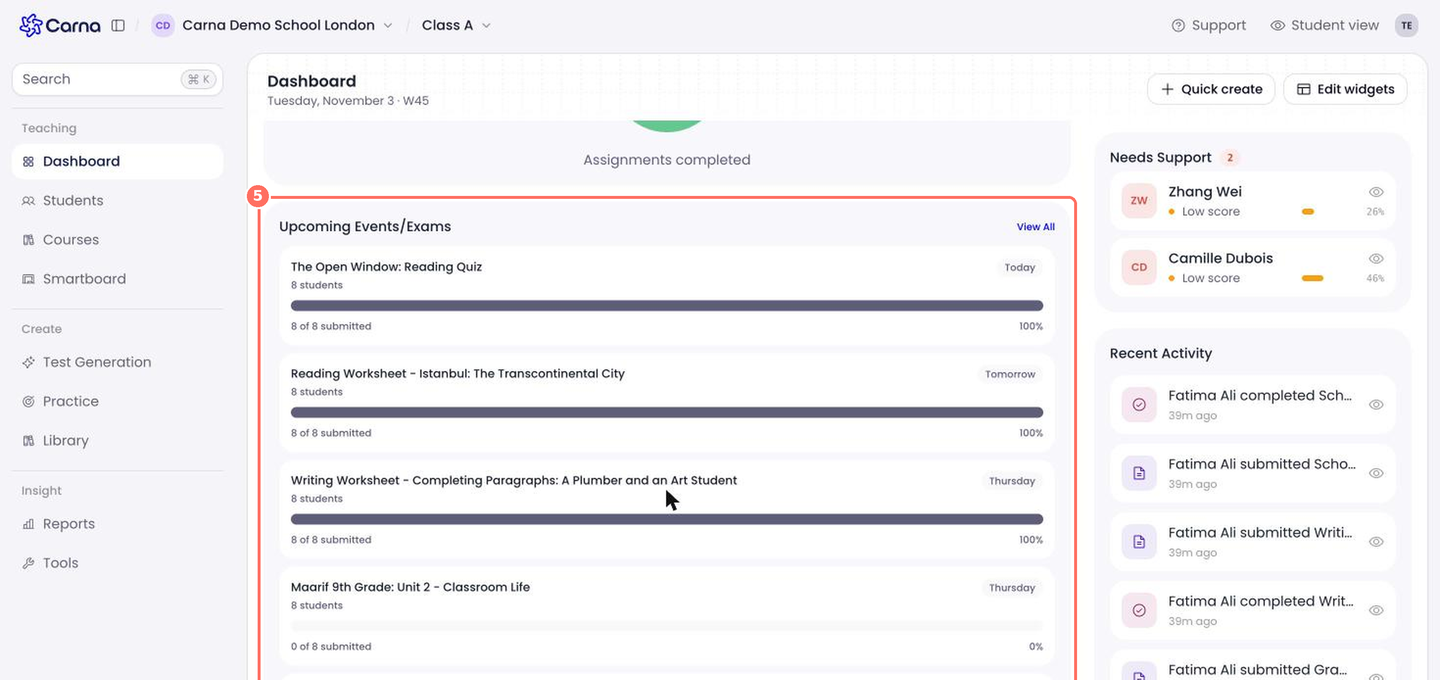
- Upcoming Events/Exams lists what is due next, how many students it went to and how many have submitted. Click View All to see everything that's coming up.
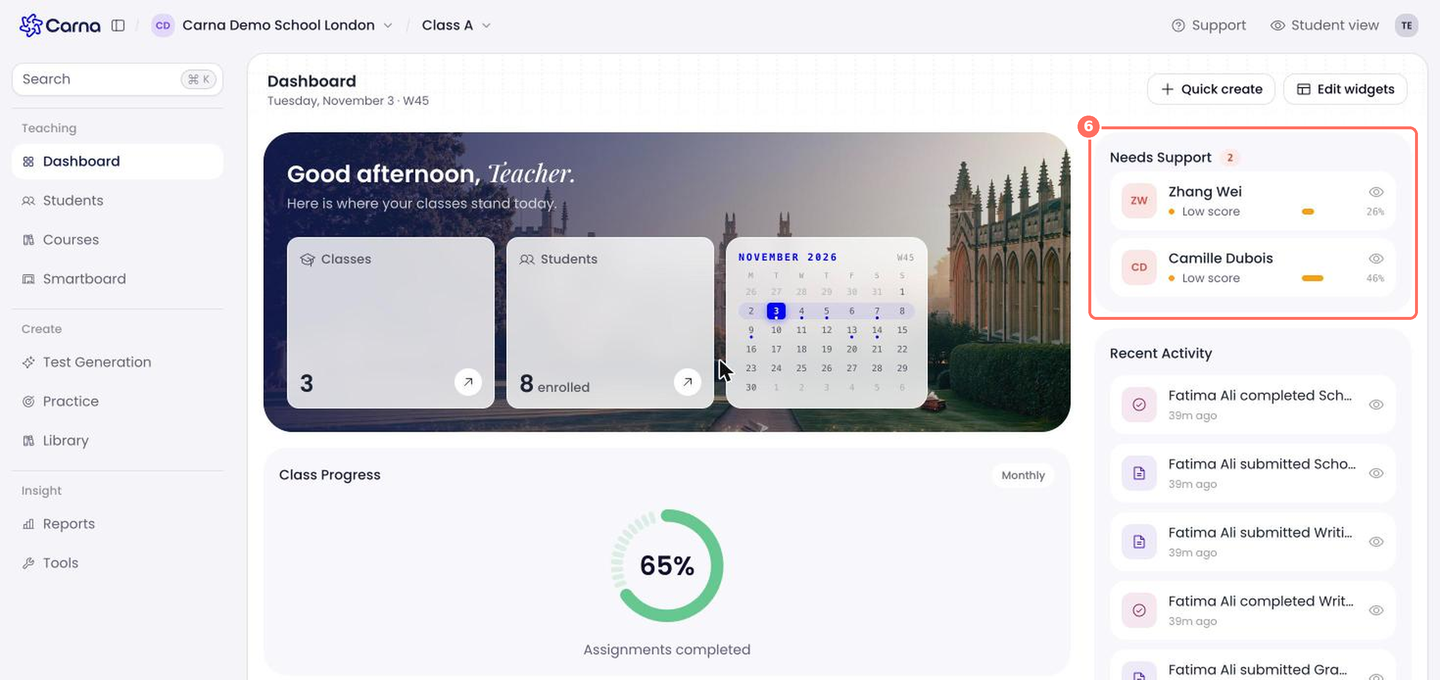
- Needs Support lists students who are falling behind, for example Low score, Not started or Overdue, with their progress. Click the eye icon next to a student to open their report.
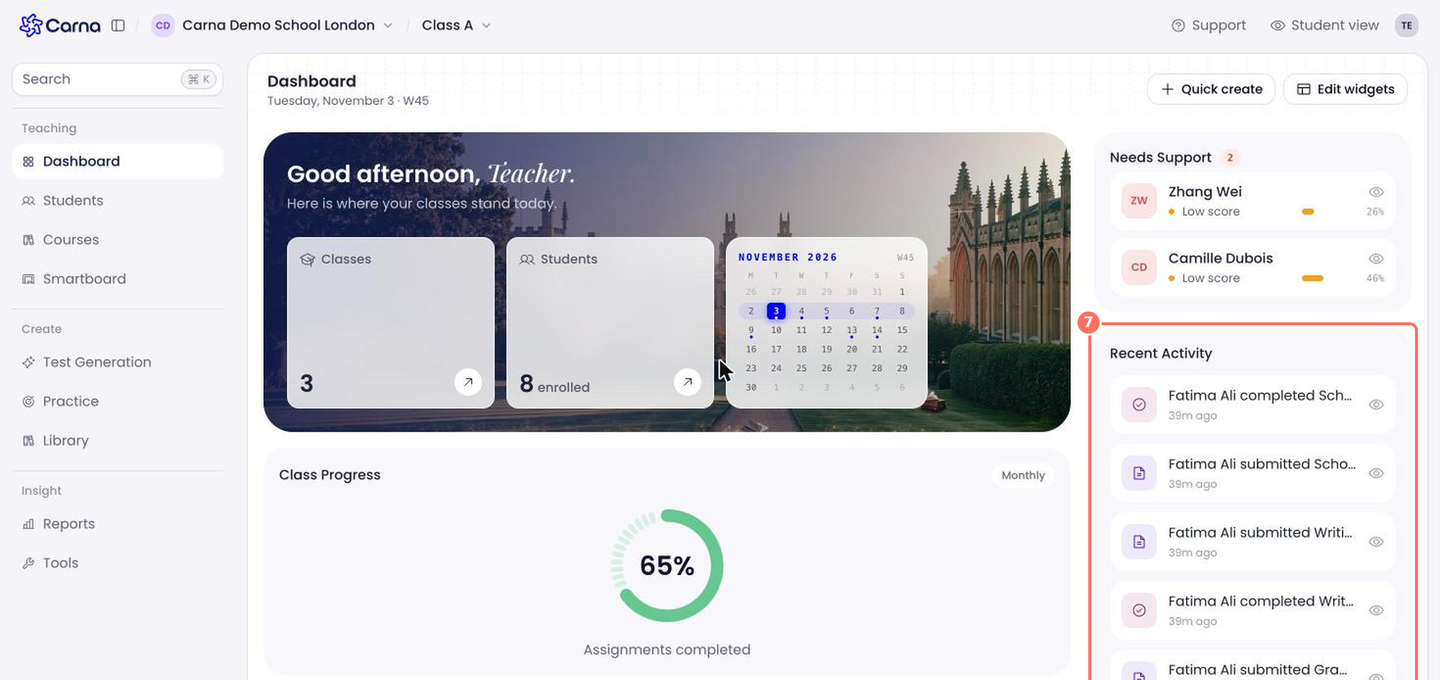
- Recent Activity shows the latest submissions and completions in your class. Click All Activity at the bottom to see more.
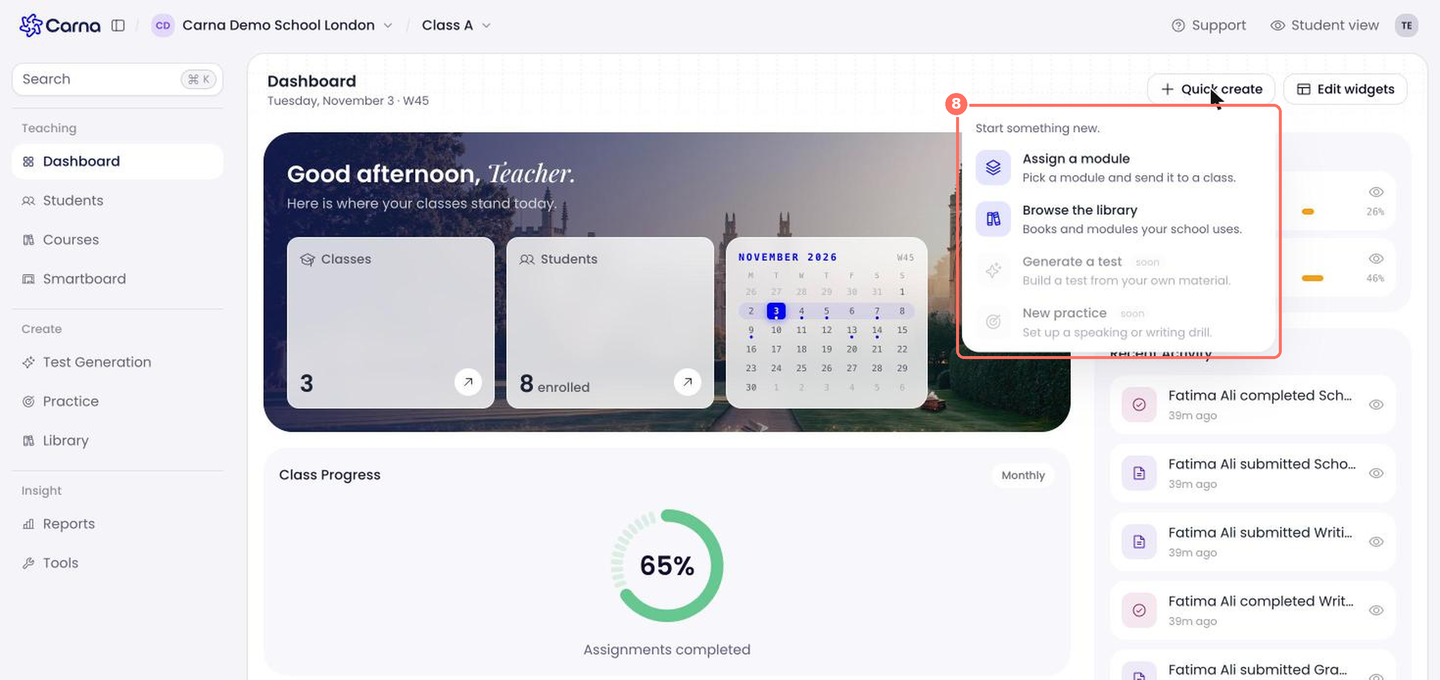
- Click Quick create at the top right for shortcuts: Assign a module or Browse the library. Generate a test and New practice are marked soon and aren't available here yet; use Test Generation and Practice in the left menu instead.
- Click Edit widgets to choose which cards you see and where. The window lists the cards in the Main column and the Side rail. Drag a card by its handle to change its order.
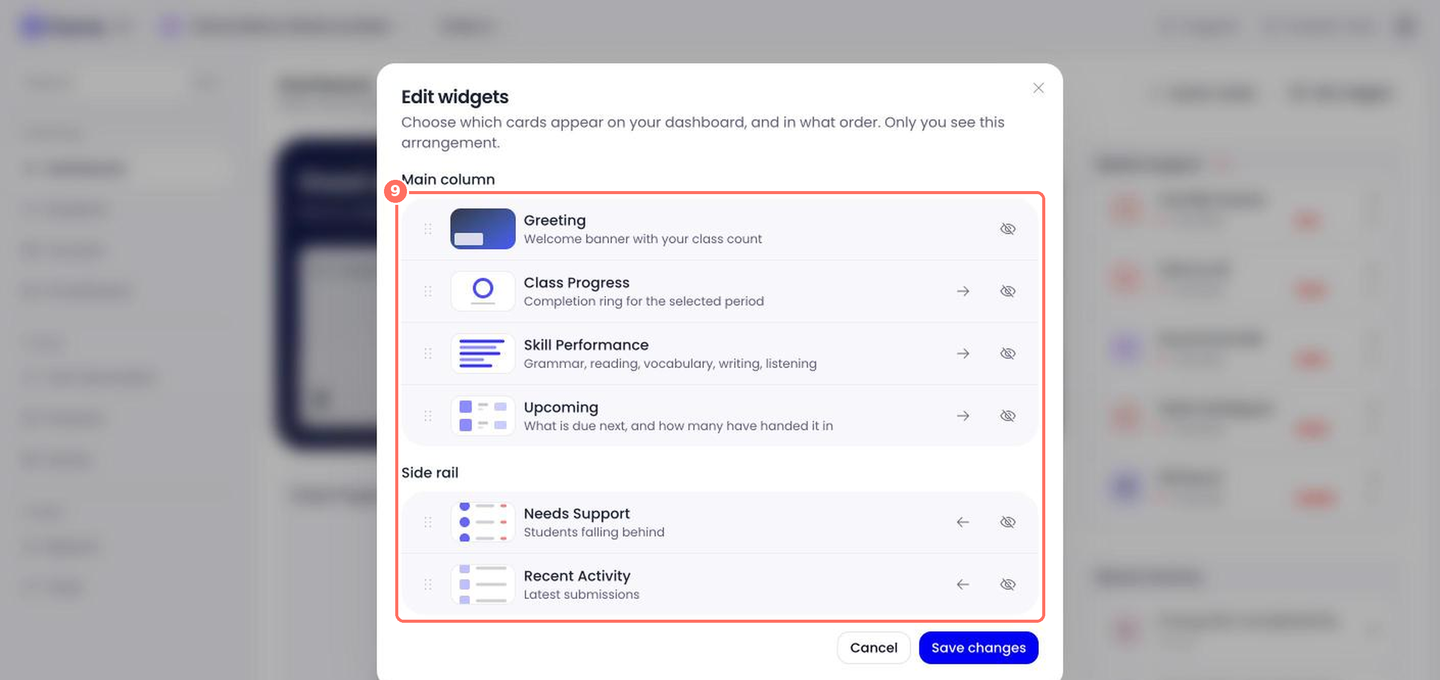
- To hide a card, click the eye icon next to it. The card moves to Hidden. To bring it back, click Show. Reset to default layout puts every card back where it started.
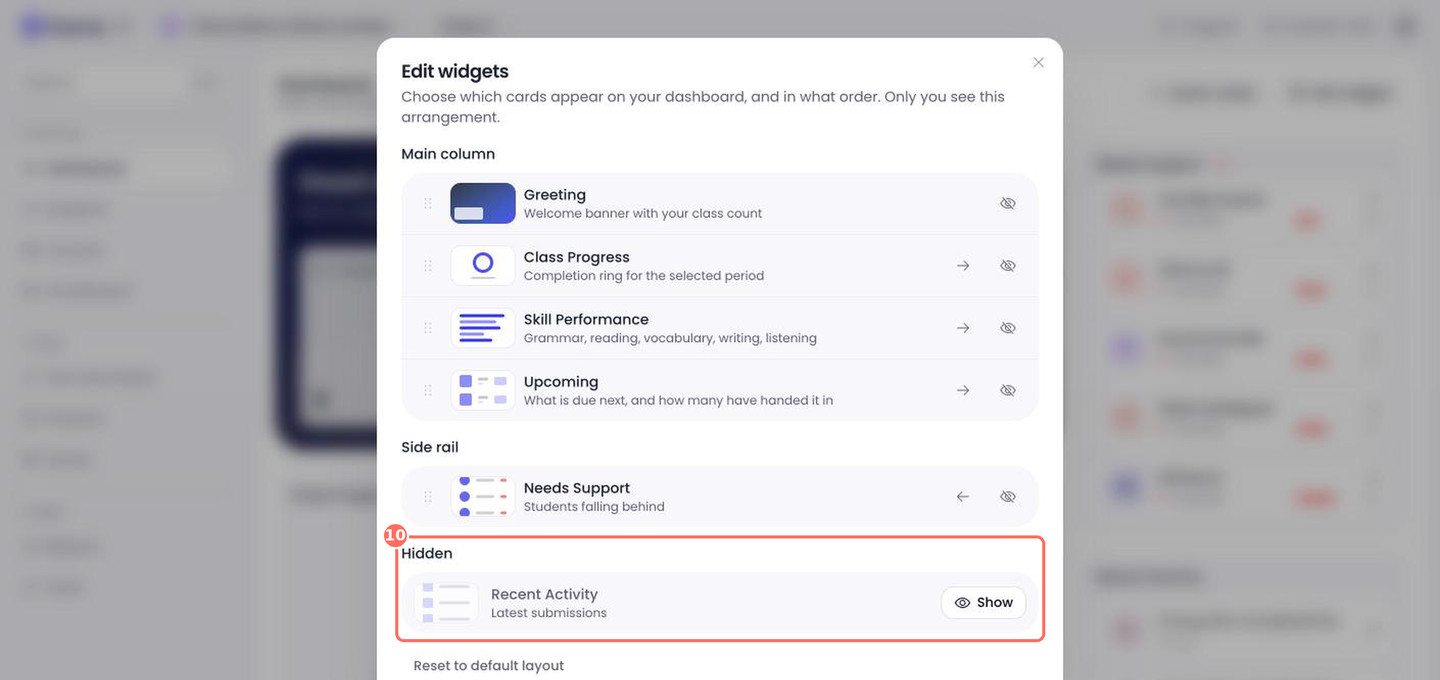
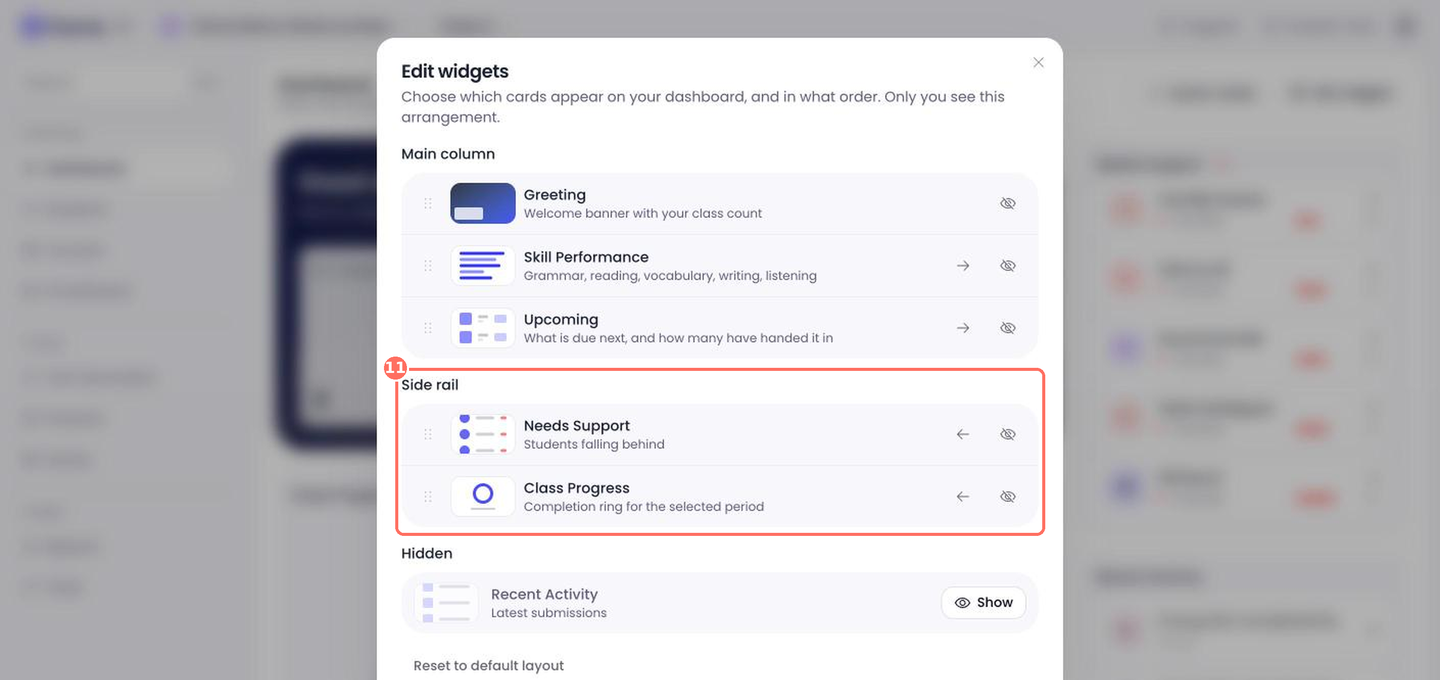
- To move a card to the other column, click the arrow next to it. For example, the arrow on Class Progress moves it from the main column to the side rail. Click Save changes to keep your layout, or Cancel to leave it as it was.
Tips & Good to know #
- Your widget layout is personal; other teachers and your students don't see it.
- The Dashboard shows one class at a time. Switch class at the top of the page, or use Reports to compare classes.
- A card that's empty, like Skill Performance before anything is graded, fills in as your students hand in work.
Troubleshooting #
- The numbers look wrong or empty: check that the right class is selected at the top of the page.
- A card is missing: you may have hidden it. Open Edit widgets and click Show next to it under Hidden.