


































How to read class and student reports
See how your class is doing overall, course by course and student by student, and find each report tab: Courses, Mistakes and the practice reports.
Who is this for: Teachers
Summary: See how your class is doing overall, course by course and student by student, and find each report tab: Courses, Mistakes and the practice reports.
Before you start: You need a teacher account and a class with handed-in work. Reports fill up as students hand in modules and quizzes.
Steps #
Overview and Students tabs
In the left menu, under Insight, click Reports.
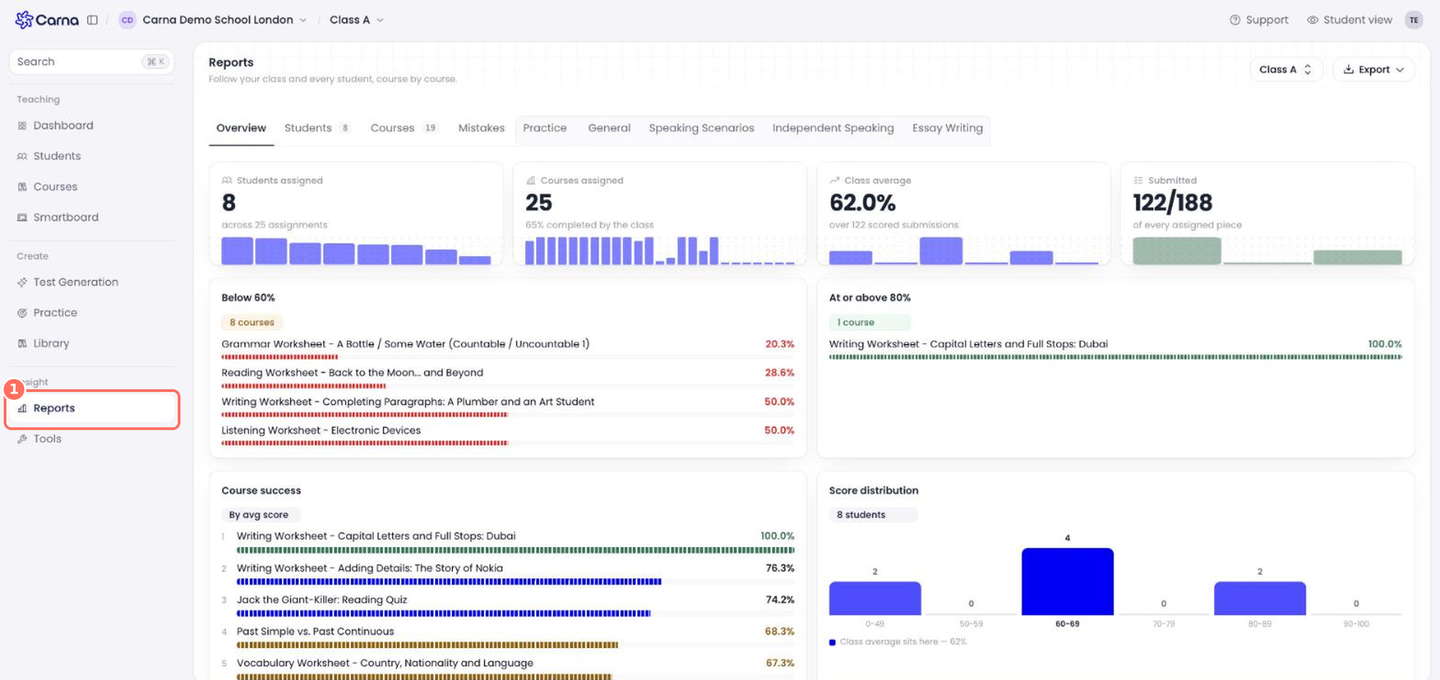
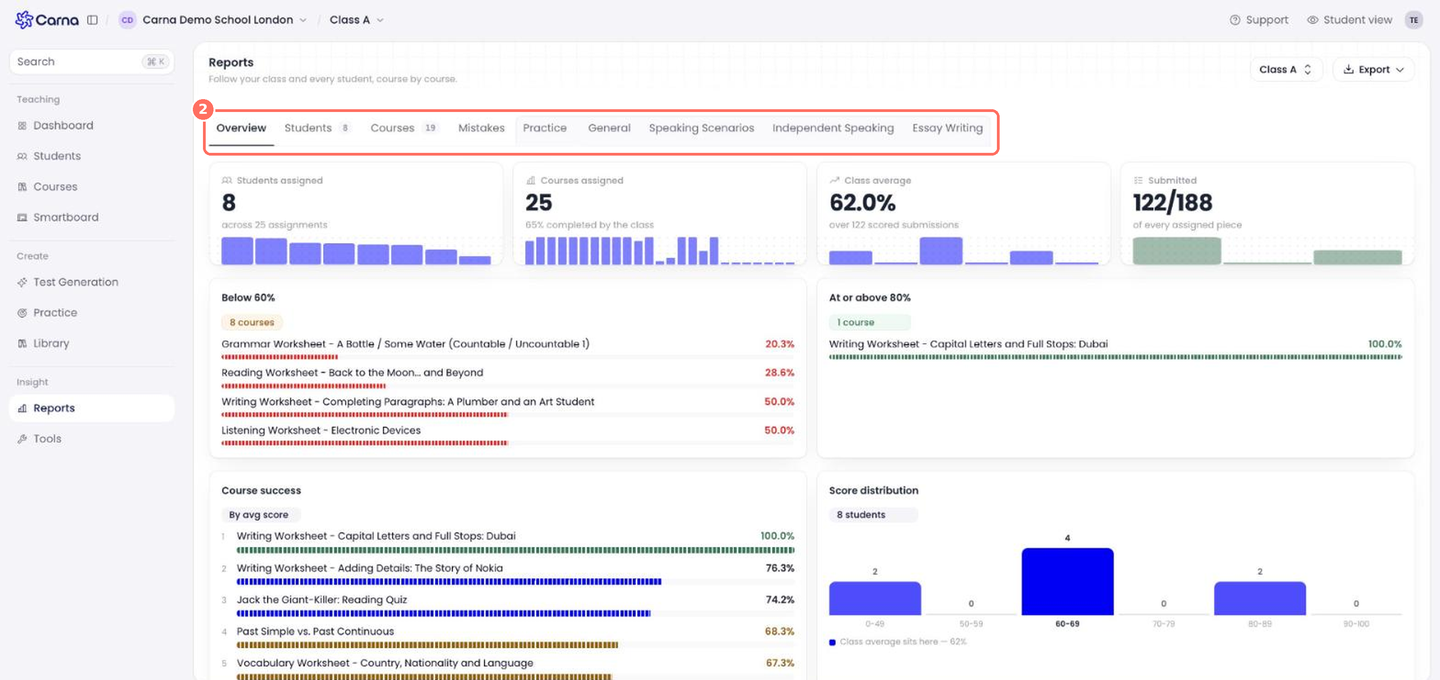
The Overview tab opens first. Make sure the right class is selected at the top right of the page (for example, Class A). The other tabs are Students, Courses, Mistakes, Practice, General, Speaking Scenarios, Independent Speaking and Essay Writing.
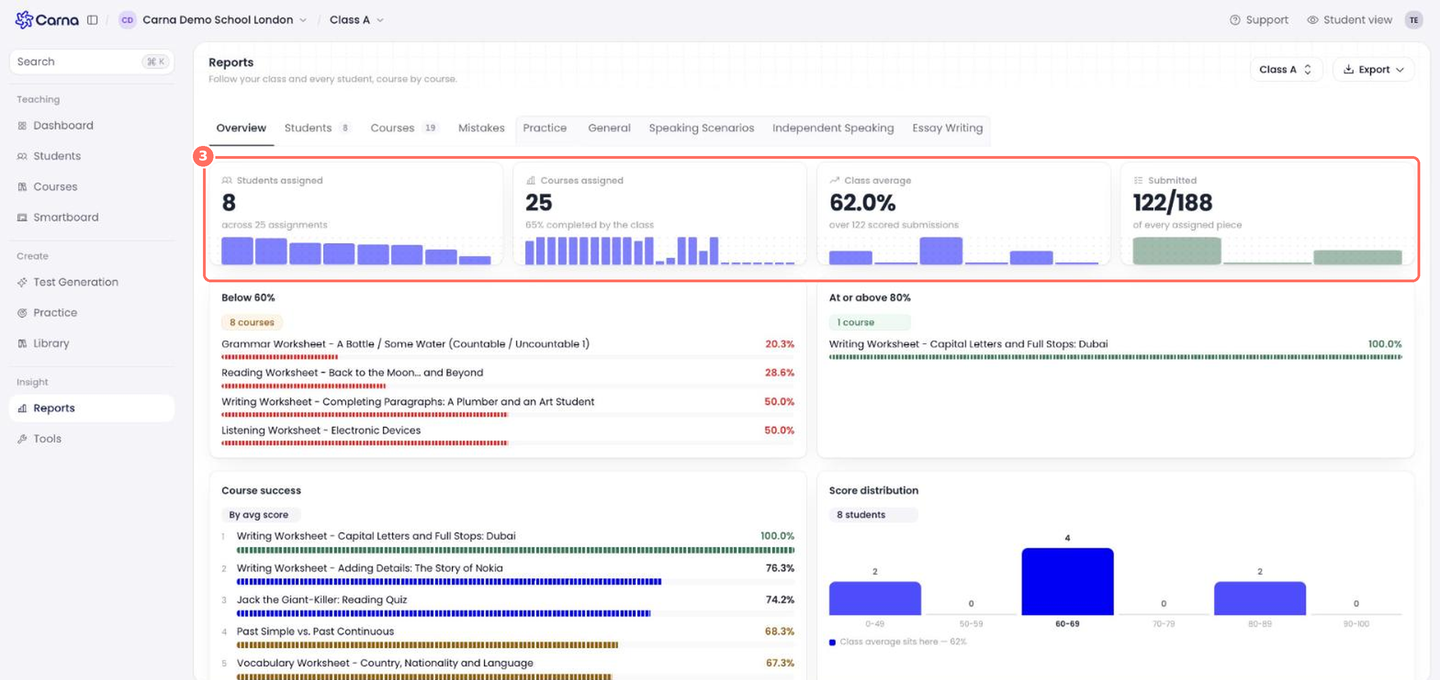
The four cards at the top sum up the class: Students assigned, Courses assigned (and how much of it the class has completed), Class average (and how many submissions it is based on) and Submitted (handed in out of everything assigned).
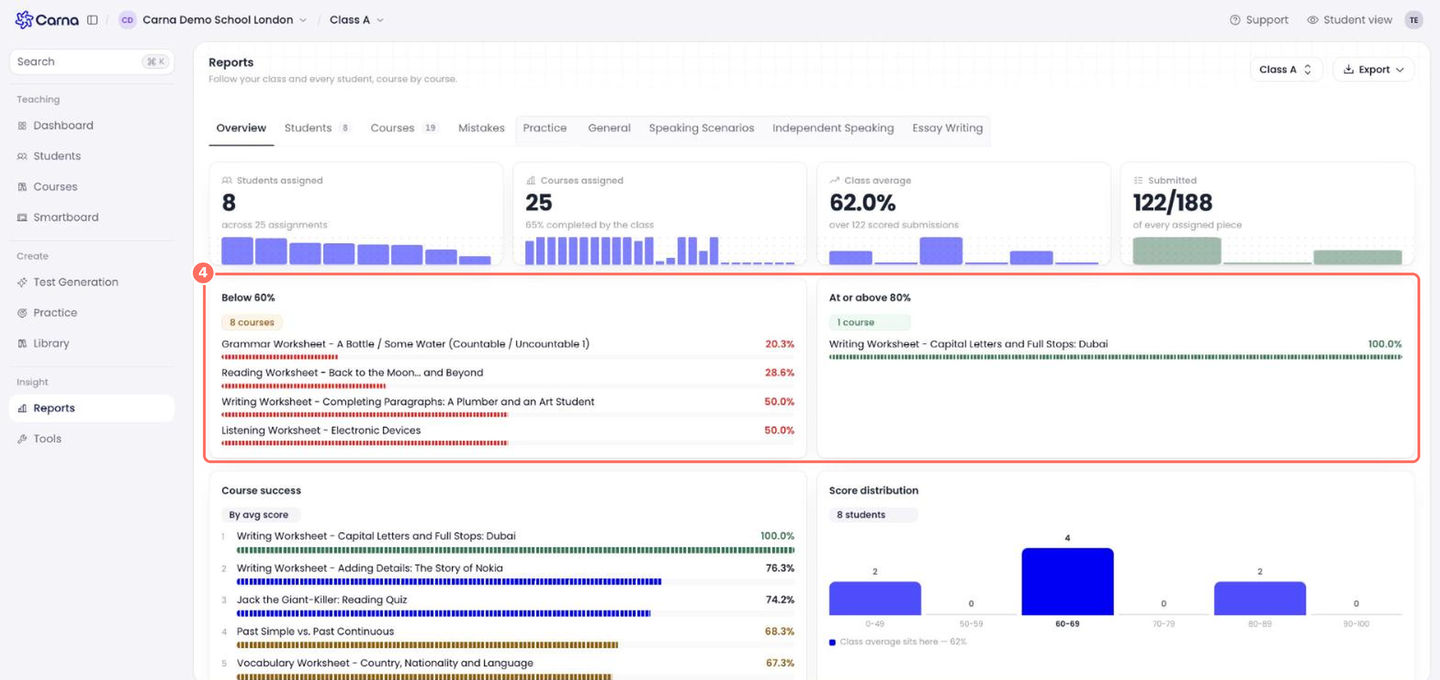
Below 60% lists the courses where the class is struggling. At or above 80% lists the courses where the class is doing well. Scroll down for Course success (courses ranked by average score) and Score distribution (how many students fall in each score band).
Click the Students tab. Needs attention · below 60% shows students with a low average, and Top performers · 80% and above shows your strongest students.
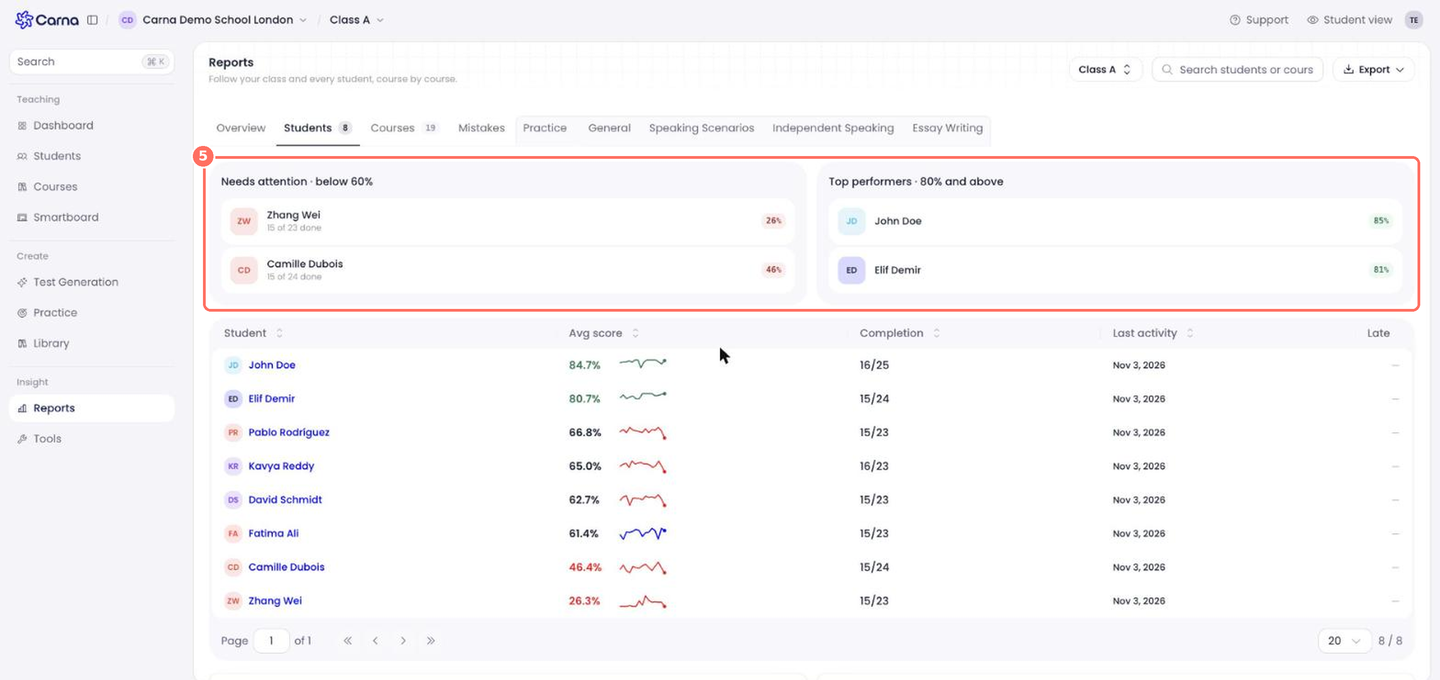
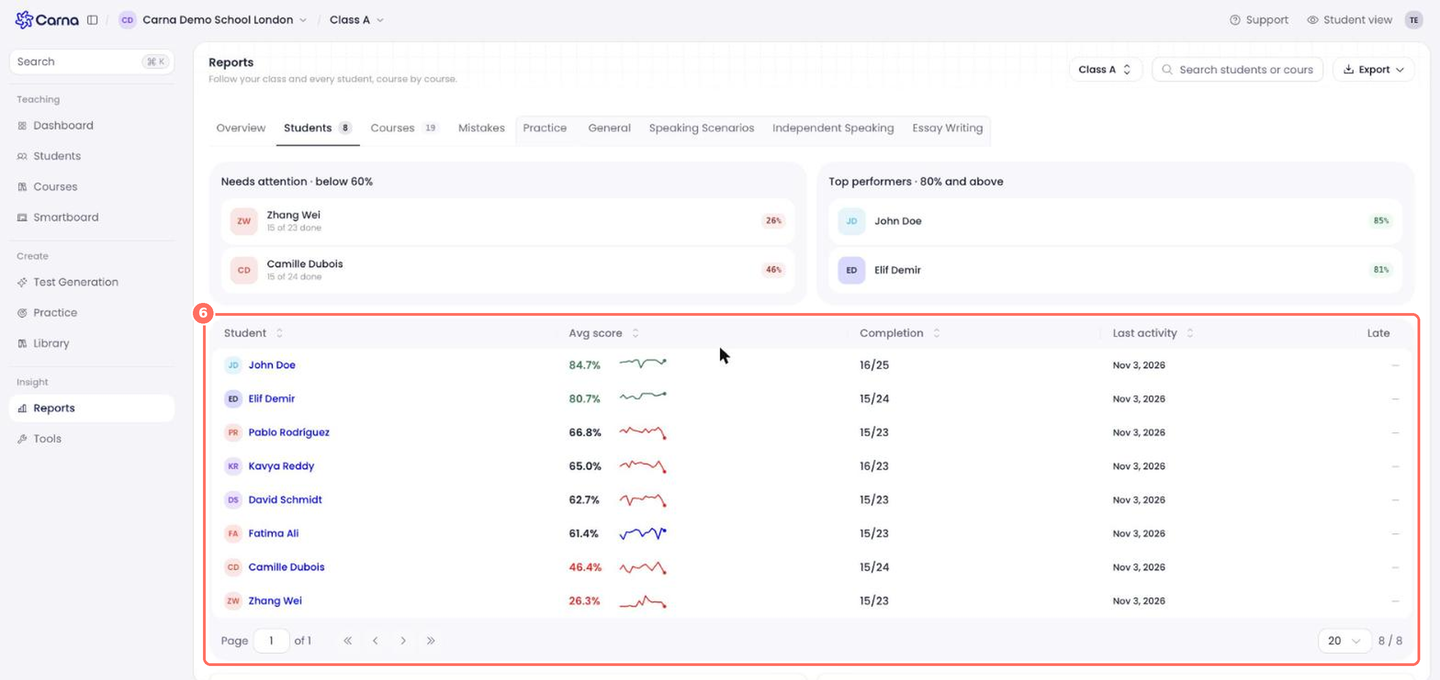
The table lists every student with their Avg score and a small trend line, their Completion (for example, 15/23), Last activity and whether any work was Late. Click a column heading to sort the table.
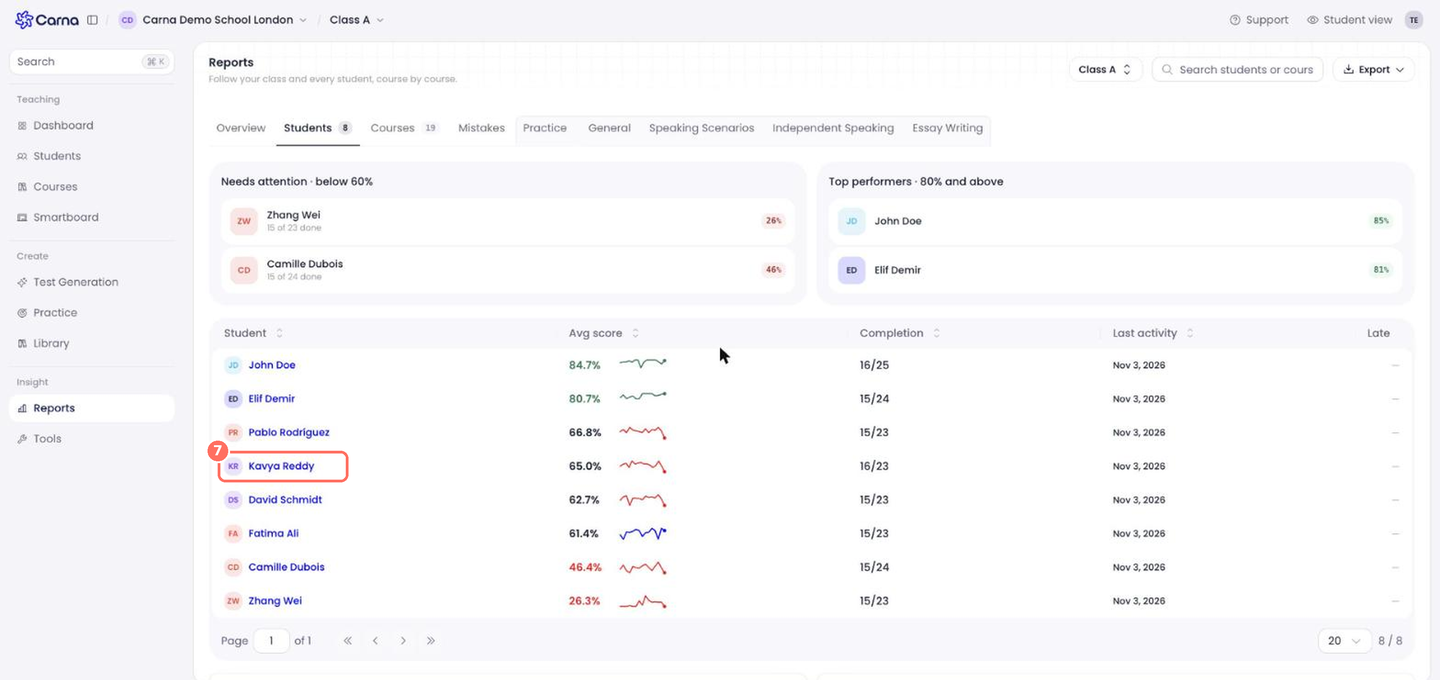
Click a student's name to open their report.
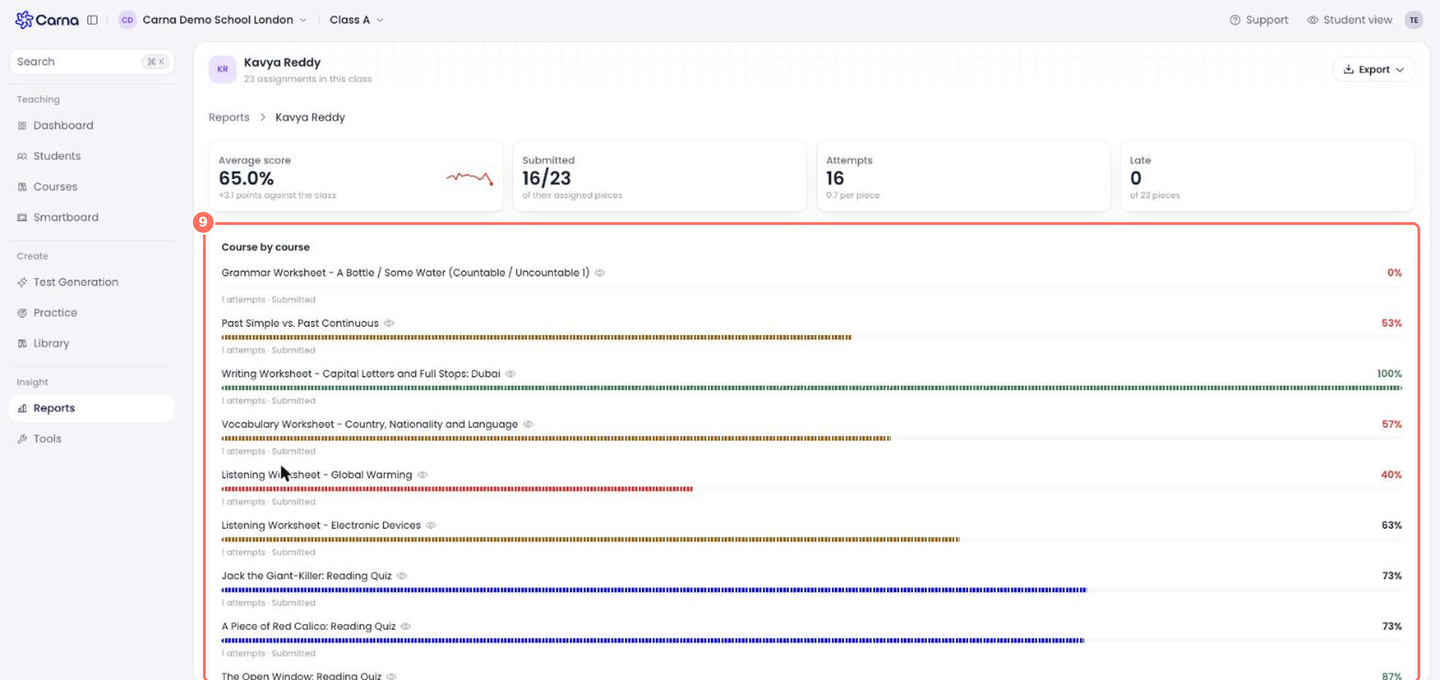
The top of the student report shows their Average score (compared with the class), how much they Submitted, their number of Attempts and how much was Late.
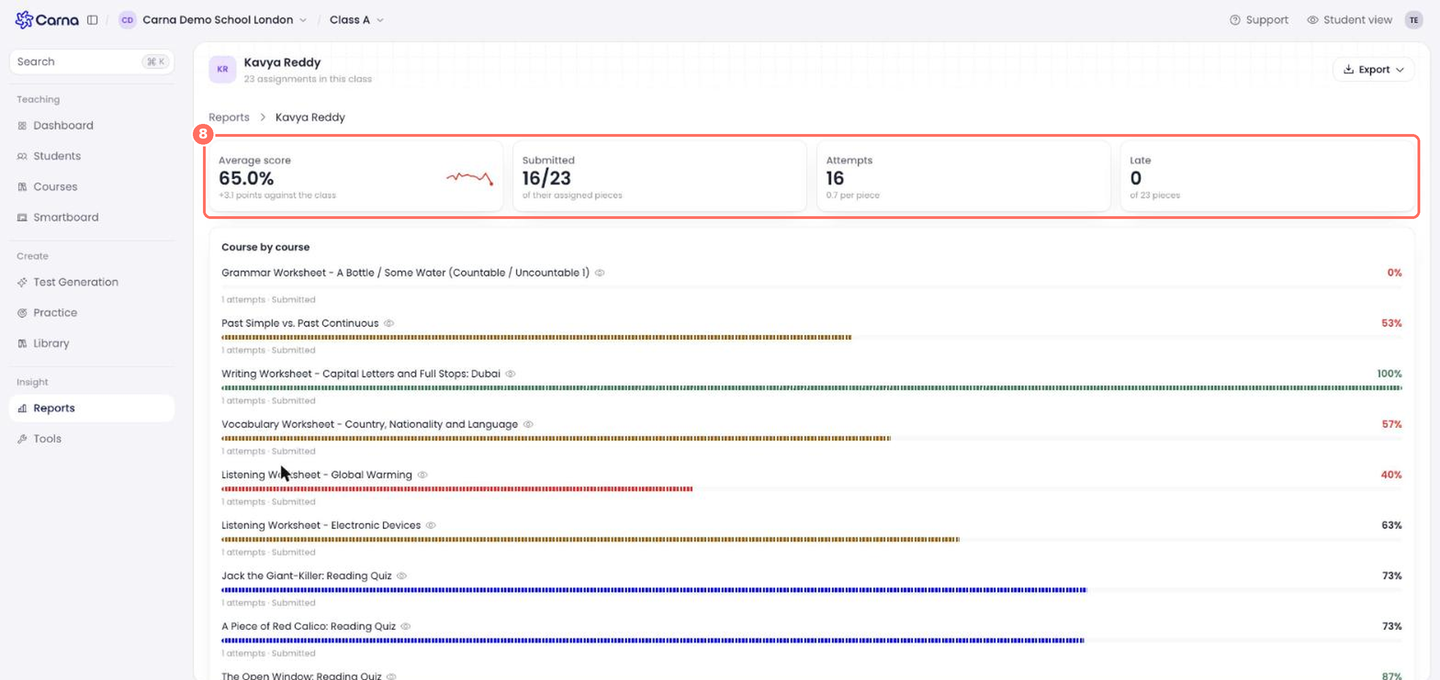
Course by course lists every assignment with the student's score and how many attempts they used. Work that hasn't been started shows No data and Not started. Click a course name (or the eye icon next to it) to open the student's answers. See How to view a student's submission and attempts.
Courses, Mistakes and Practice tabs
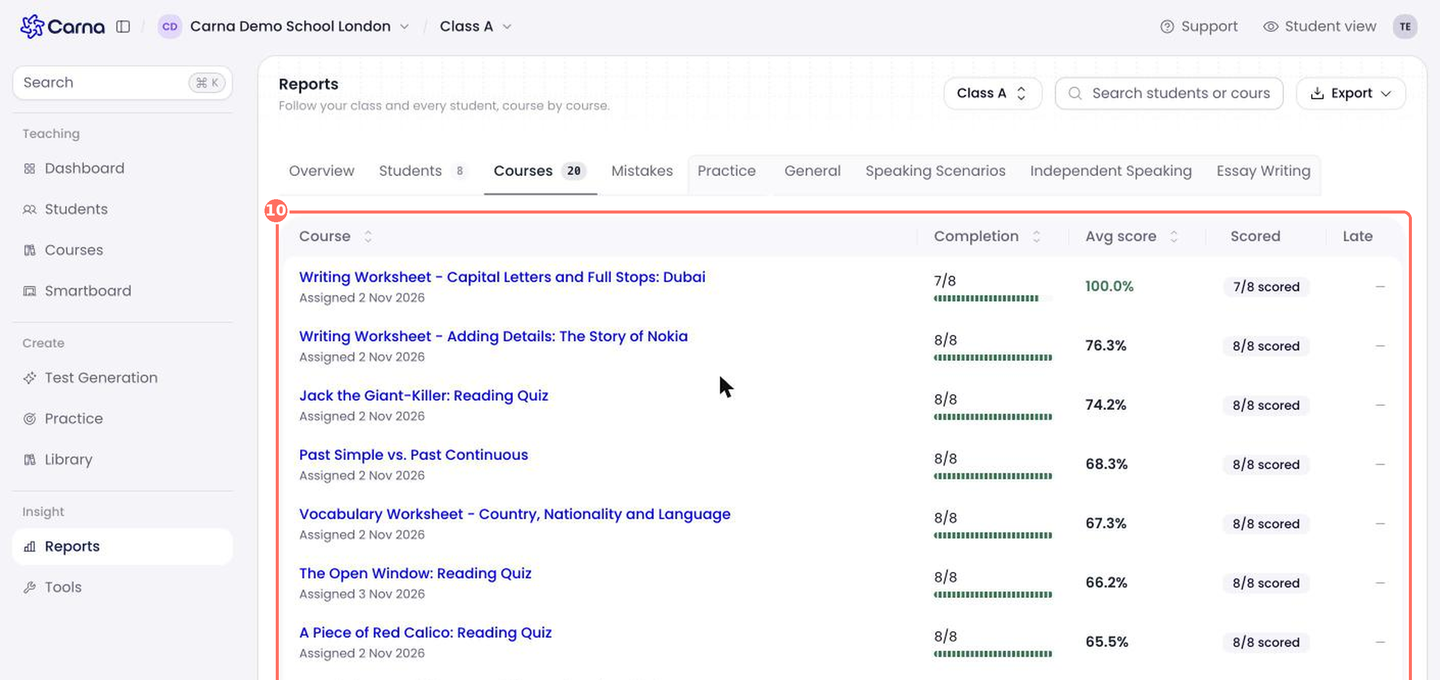
Click the Courses tab. It lists every assignment of the class with its Completion (for example, 8/8), Avg score, how many answers are Scored and whether any work was Late. Click a column heading to sort the list.
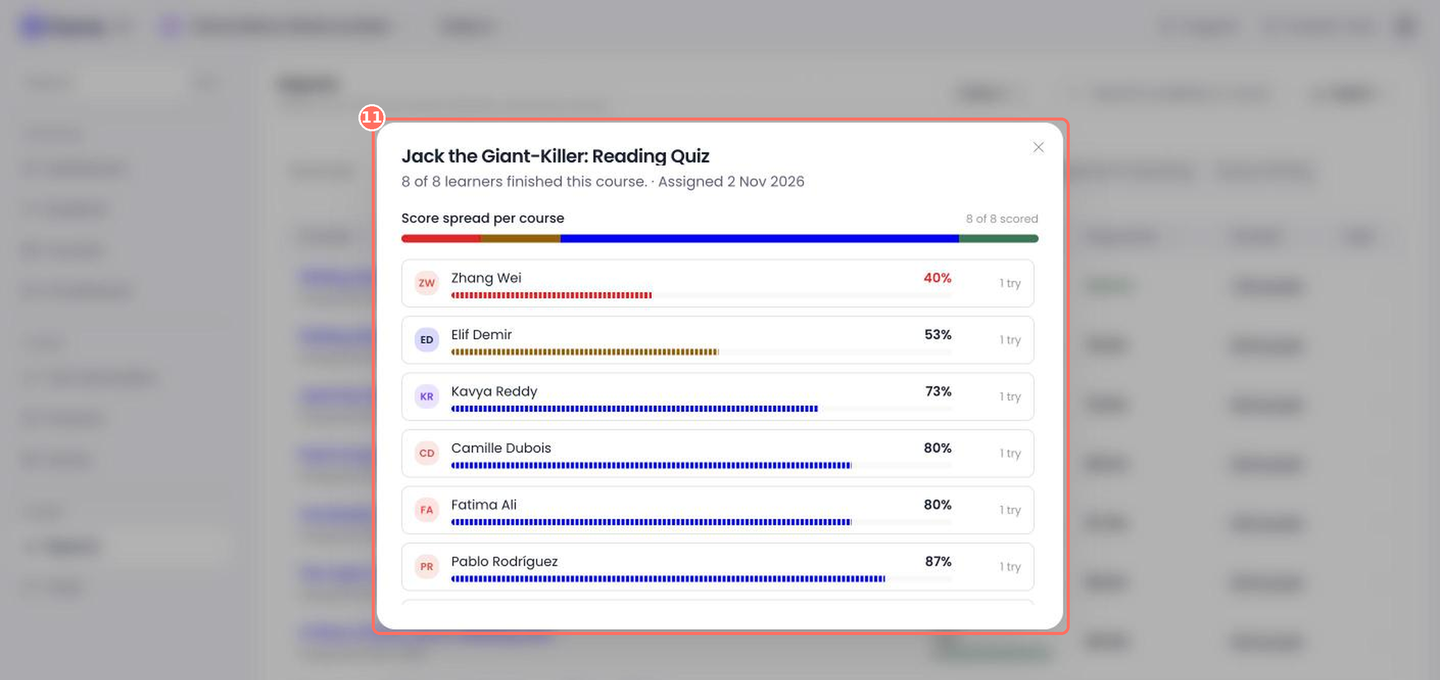
Click a course to see the Score spread per course: every student's score and how many tries they used.
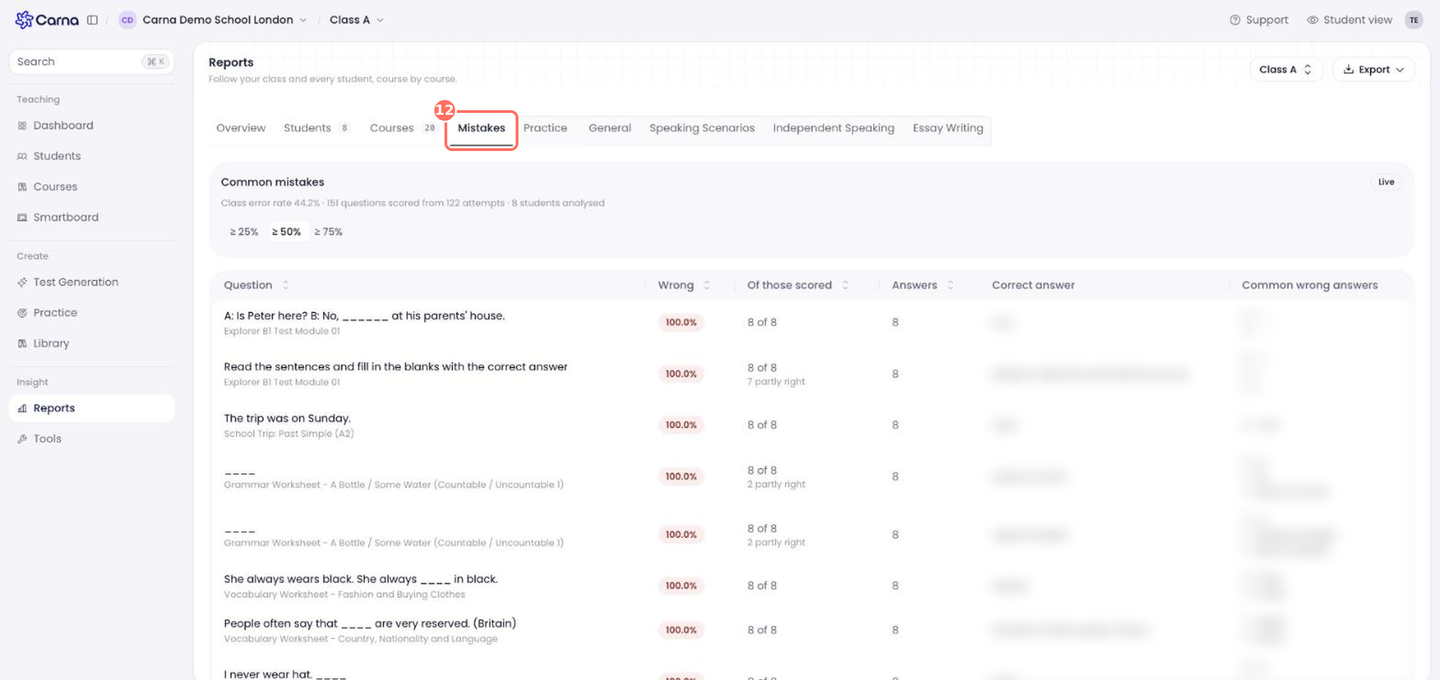
Click the Mistakes tab to see the questions the class gets wrong most often. See How to use the Mistakes tab.
Click Practice for speaking and writing practices. General sums up all practice in the class, with a card for each type under By kind.
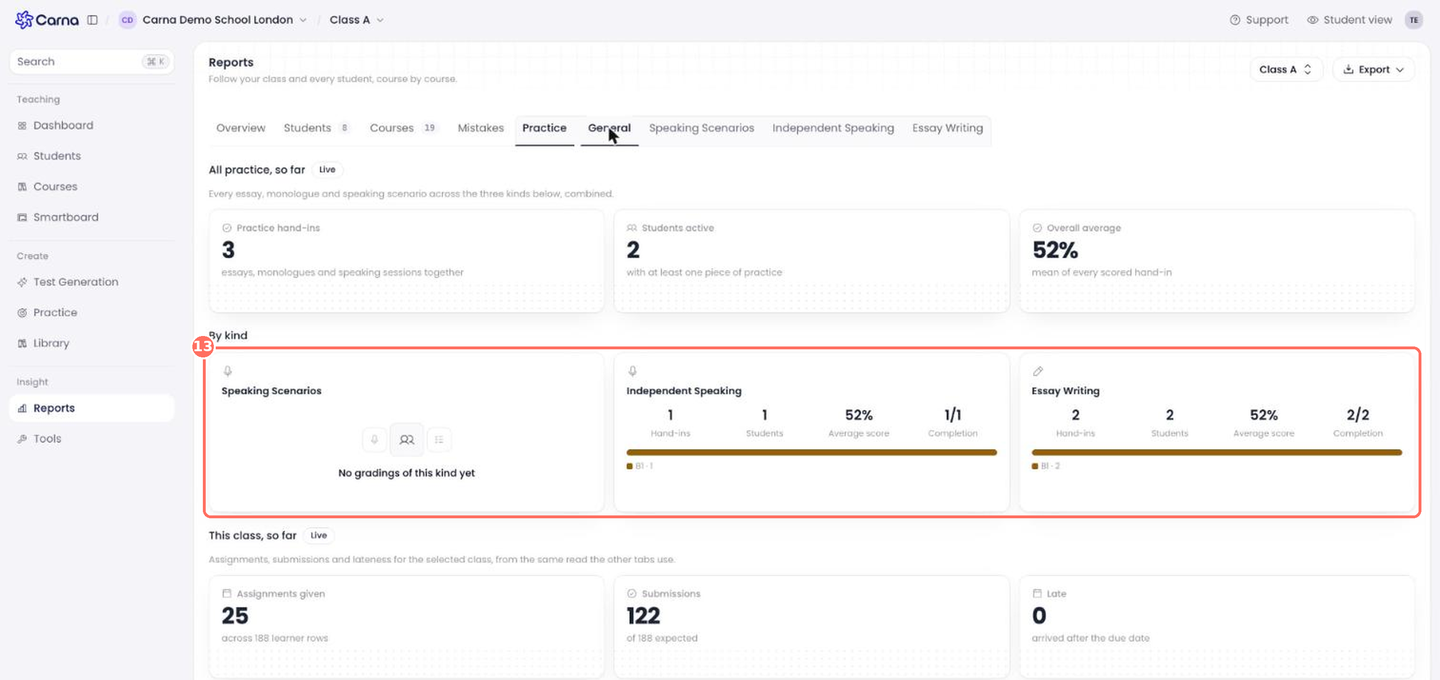
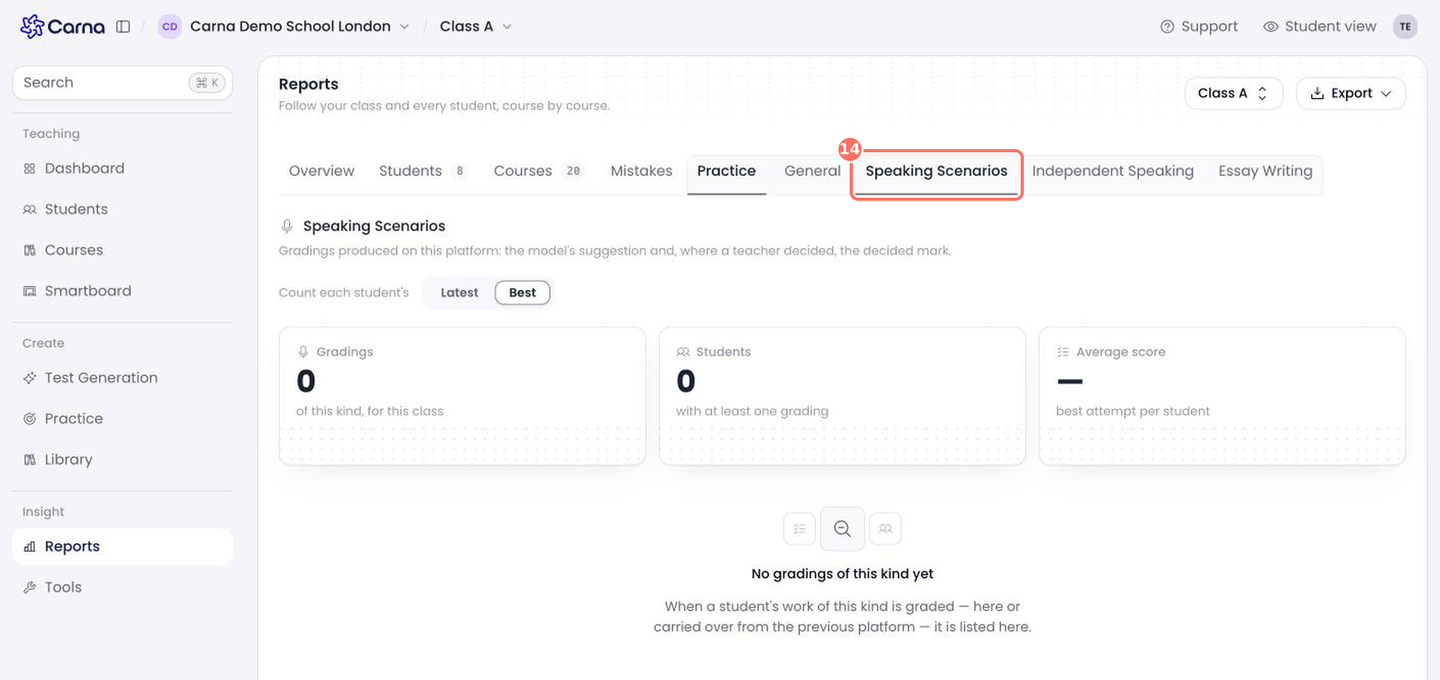
Speaking Scenarios lists the graded speaking conversations. Until a student hands one in, it shows No gradings of this kind yet.
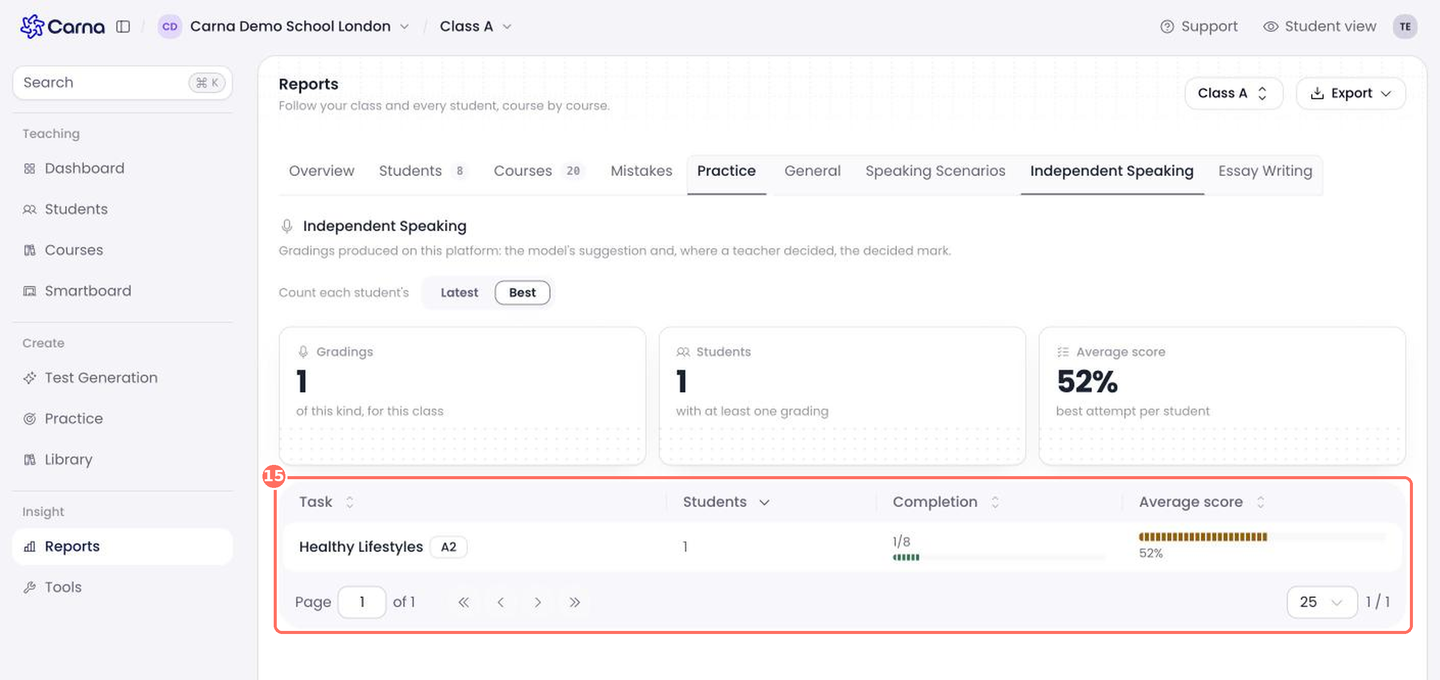
Independent Speaking lists each speaking task with the number of students, the Completion and the Average score.
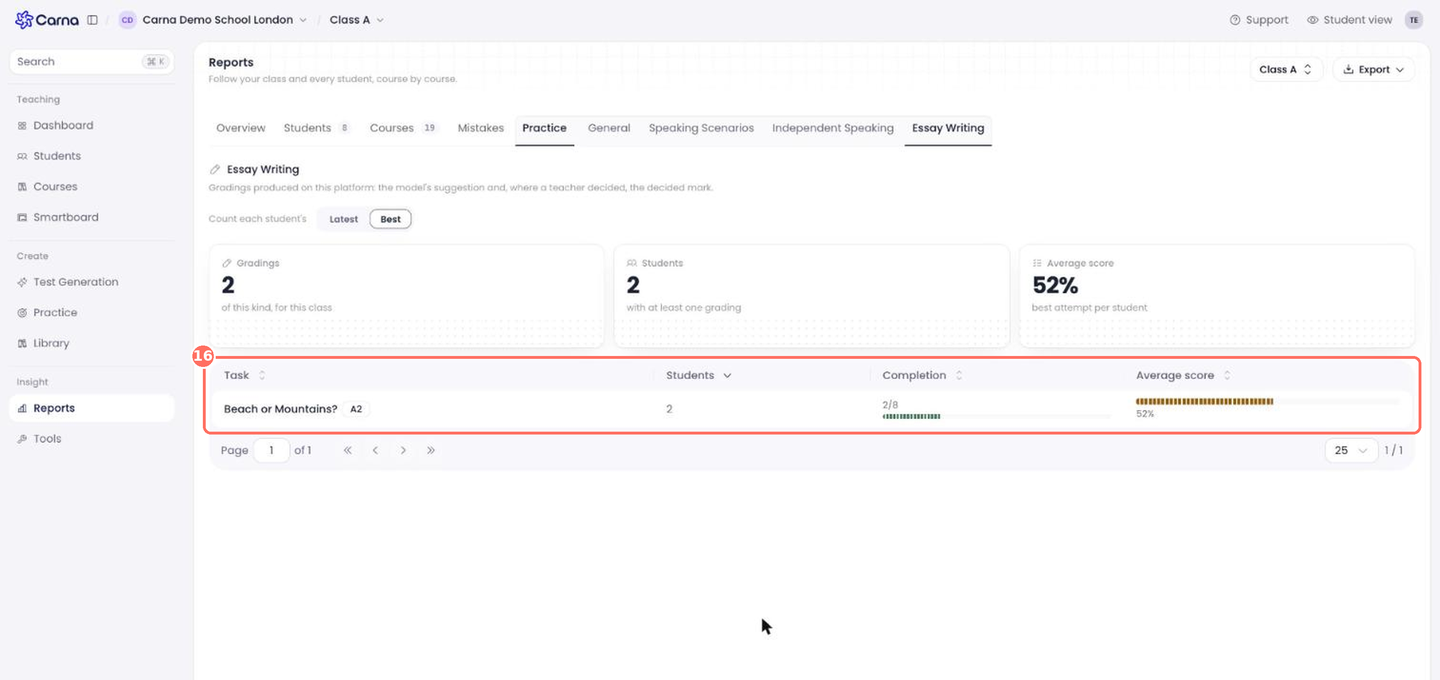
Essay Writing lists each essay task the same way. Click a task to open each student's score, feedback and rubric. See How to read practice reports and rubric scores.
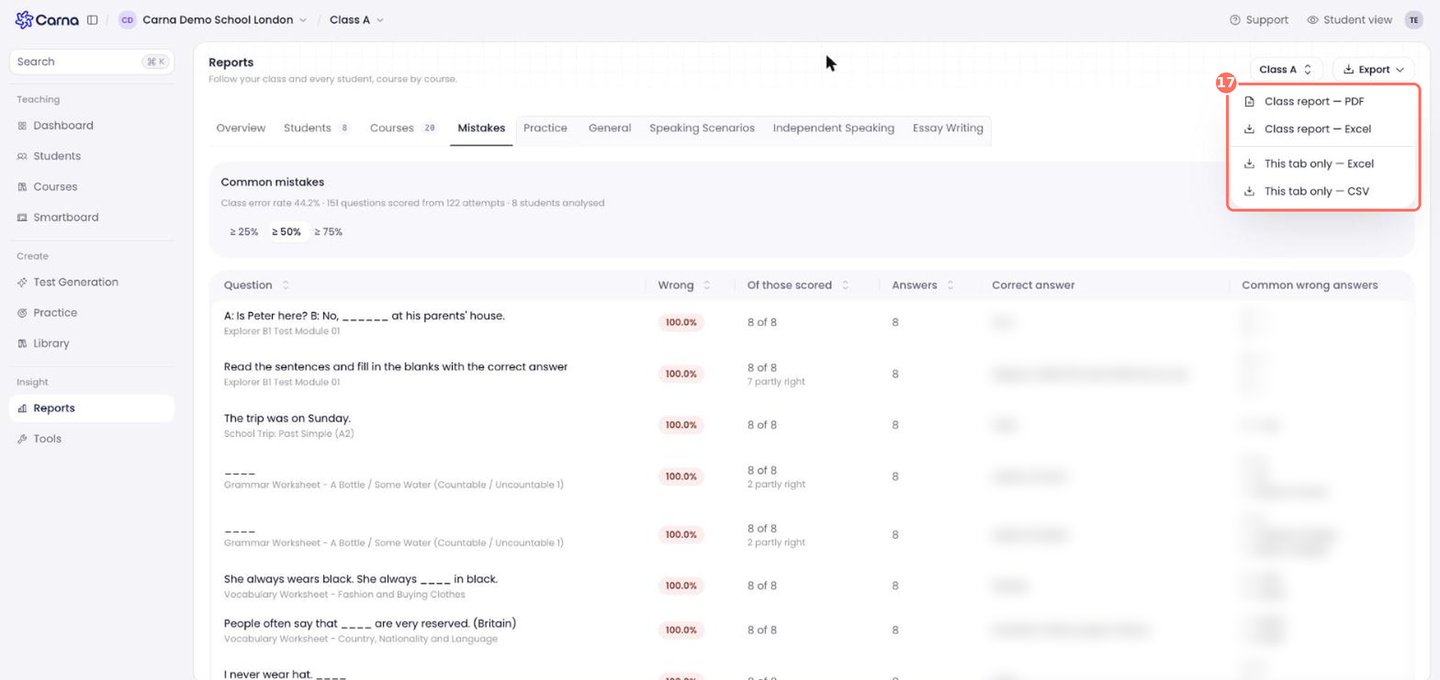
To keep a copy, click Export at the top right. Choose Class report — PDF or Class report — Excel for the whole report, or This tab only — Excel or This tab only — CSV for the tab you're on.
Tips & Good to know #
- When a student has several attempts, the report shows the best one and marks it best of 2 (or the number of attempts). See How to view a student's submission and attempts.
- Speaking and writing practices are reported in their own tabs: Practice, Speaking Scenarios, Independent Speaking and Essay Writing.
- Use the Mistakes tab to see which questions the whole class gets wrong most often.
- Use the search box on the Students tab to find a student or a course quickly.
Troubleshooting #
- The numbers look empty or wrong: check that the right class is selected at the top right of the page.
- A score is missing: the work may not be handed in yet, or the answer key hasn't unlocked. Scores for some modules appear after the due date passes for the whole class.
- A student is missing from the list: make sure they have joined the class. See How to manage your class roster and join requests.