


































How to switch between your classes
Move between the classes you teach so that your Dashboard, Students, Courses and Reports show the right class.
Who is this for: Teachers
Summary: Move between the classes you teach so that your Dashboard, Students, Courses and Reports show the right class.
Before you start: You need a teacher account with more than one class.
Steps #
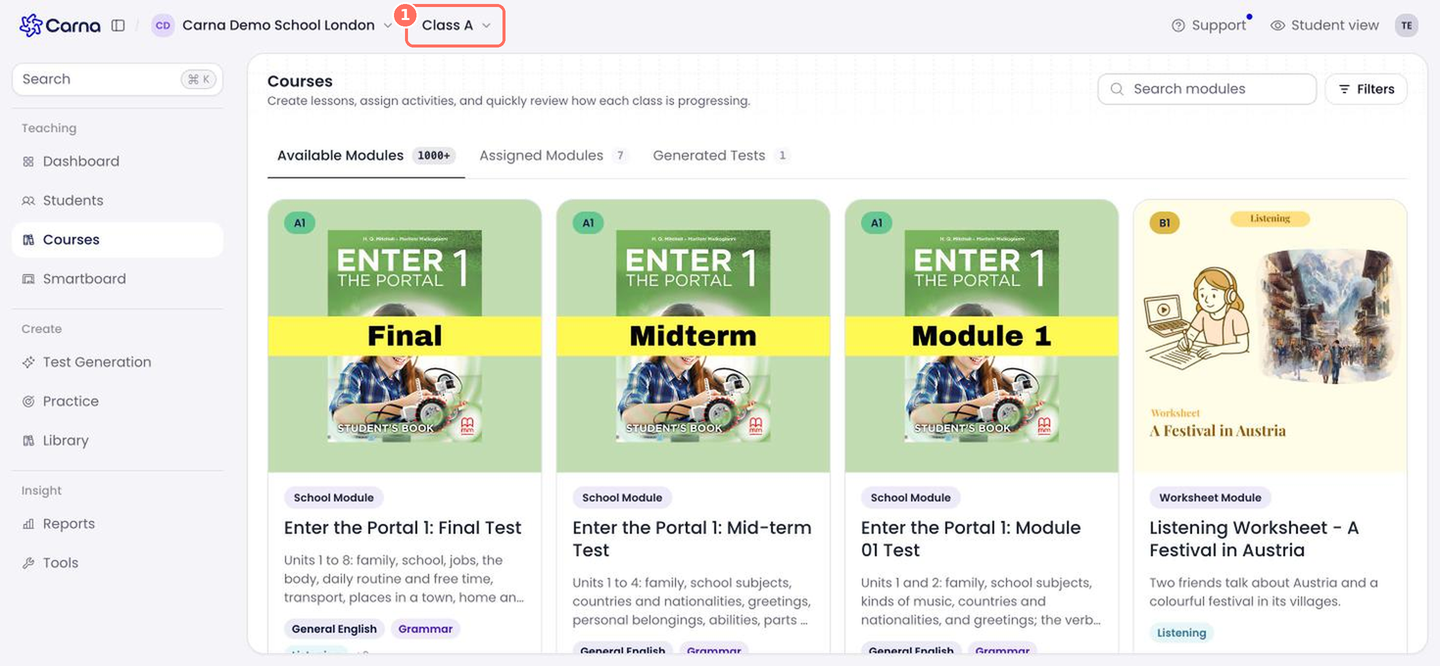
At the top of the page, next to your school's name, click the name of the class you are in.
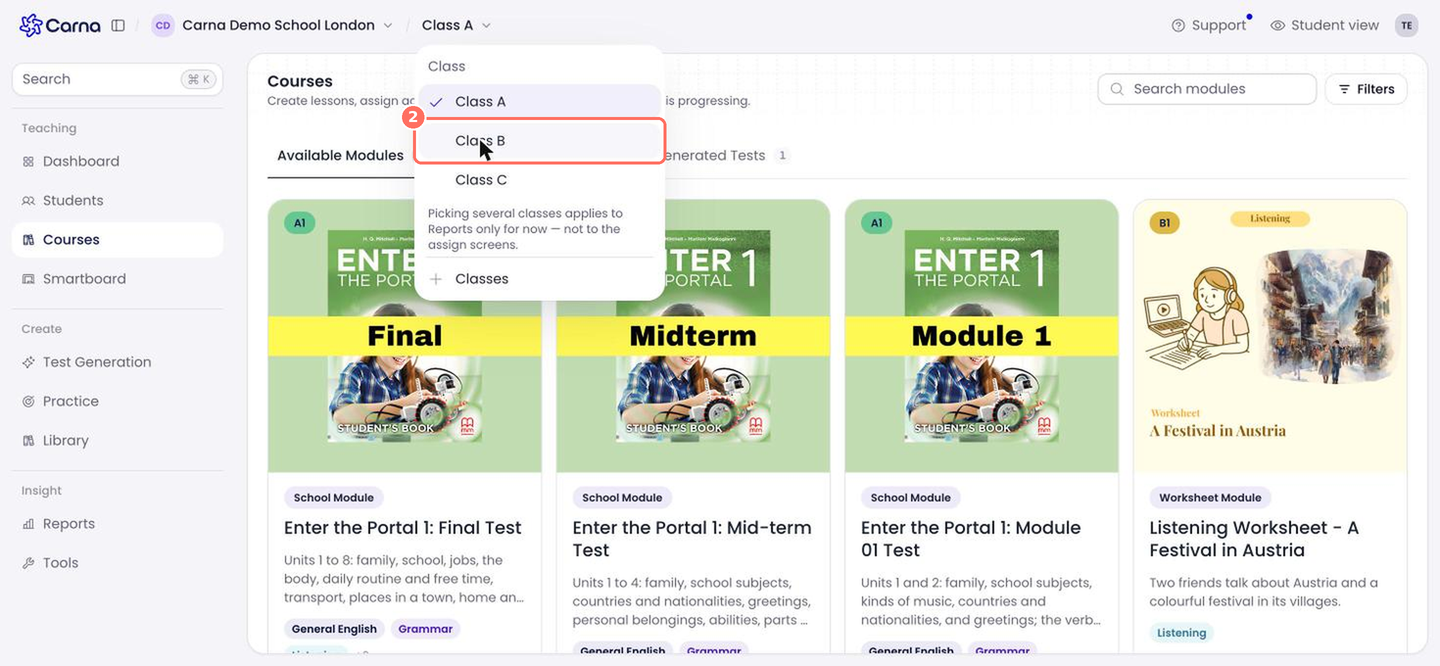
Pick the class you want from the list.
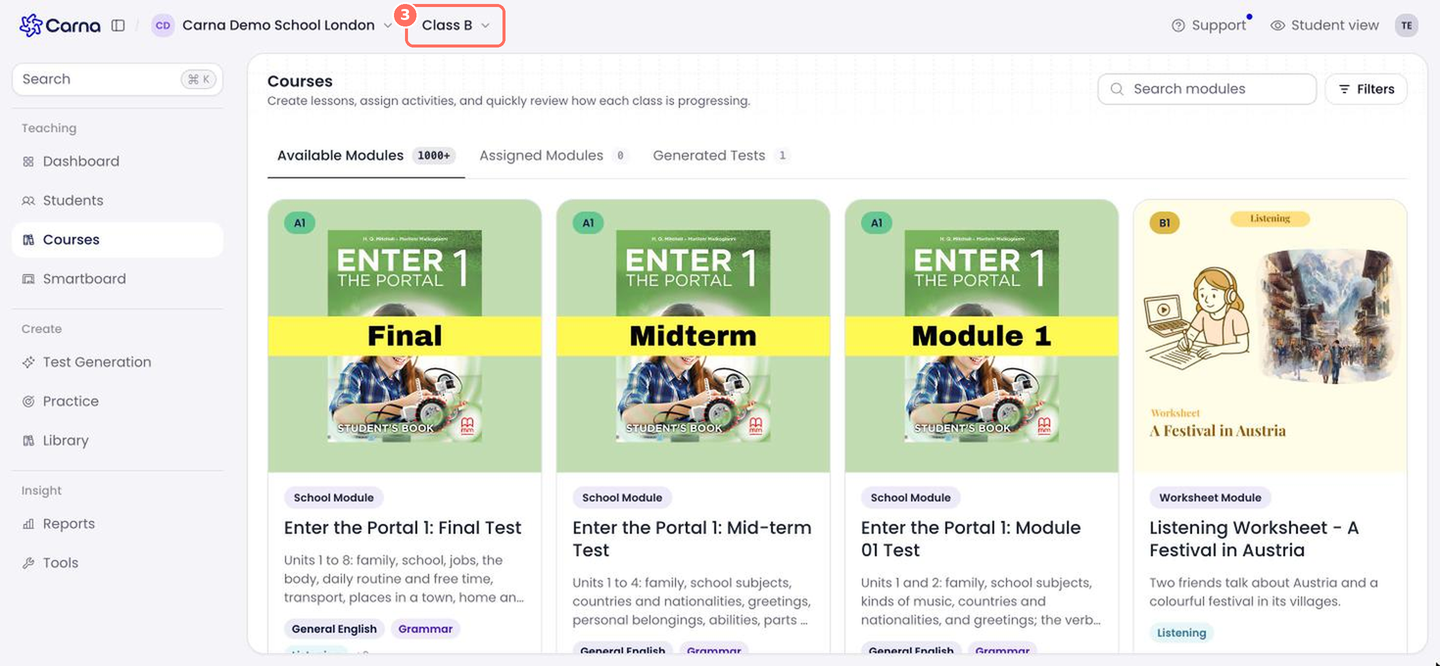
The new class name now shows at the top, and every page you open shows that class.
See all your classes on one page
Open the class list again and click Classes at the bottom.
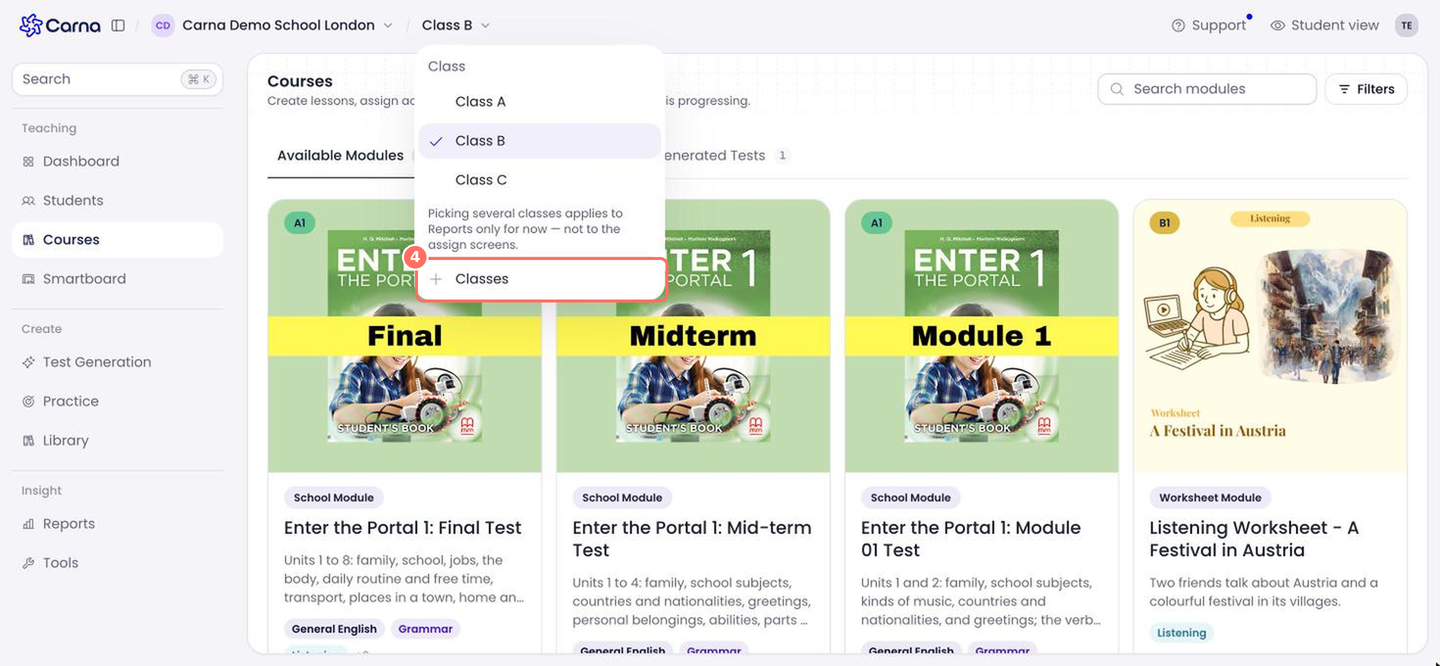
Under Your classes, click any class to open it. Classes you teach are marked You teach this.
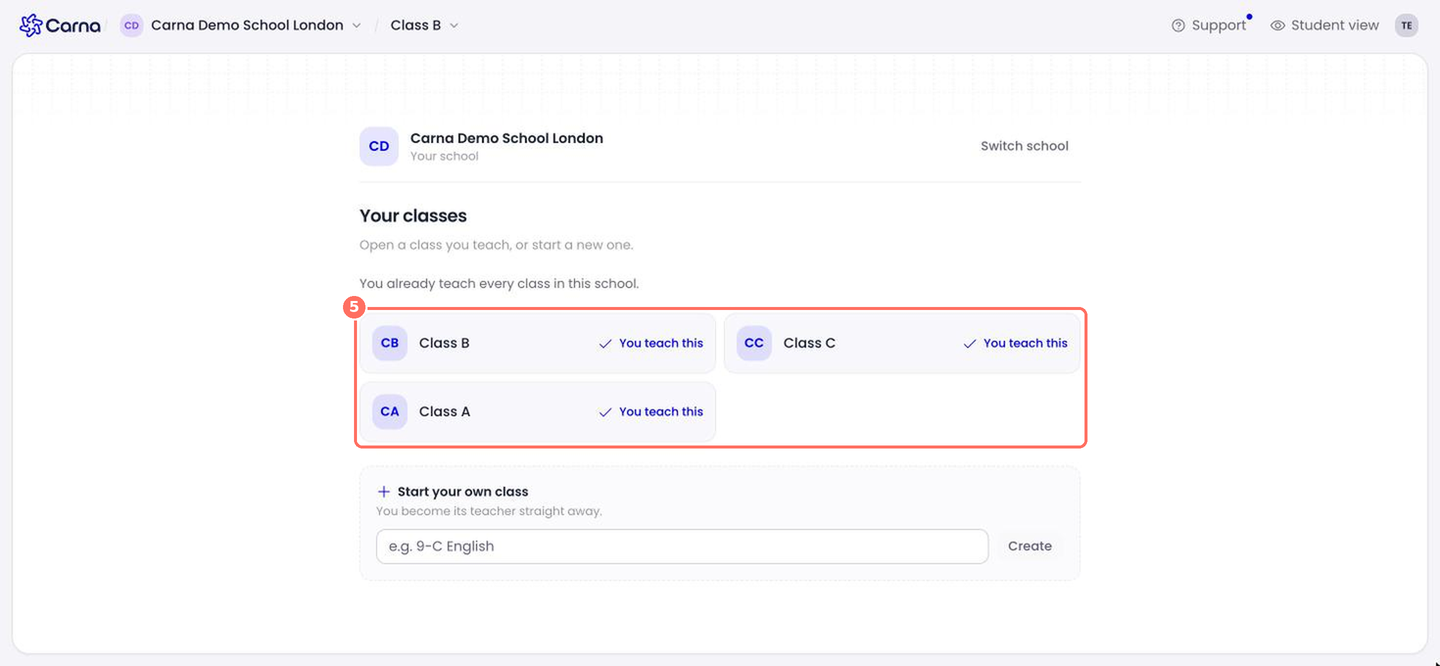
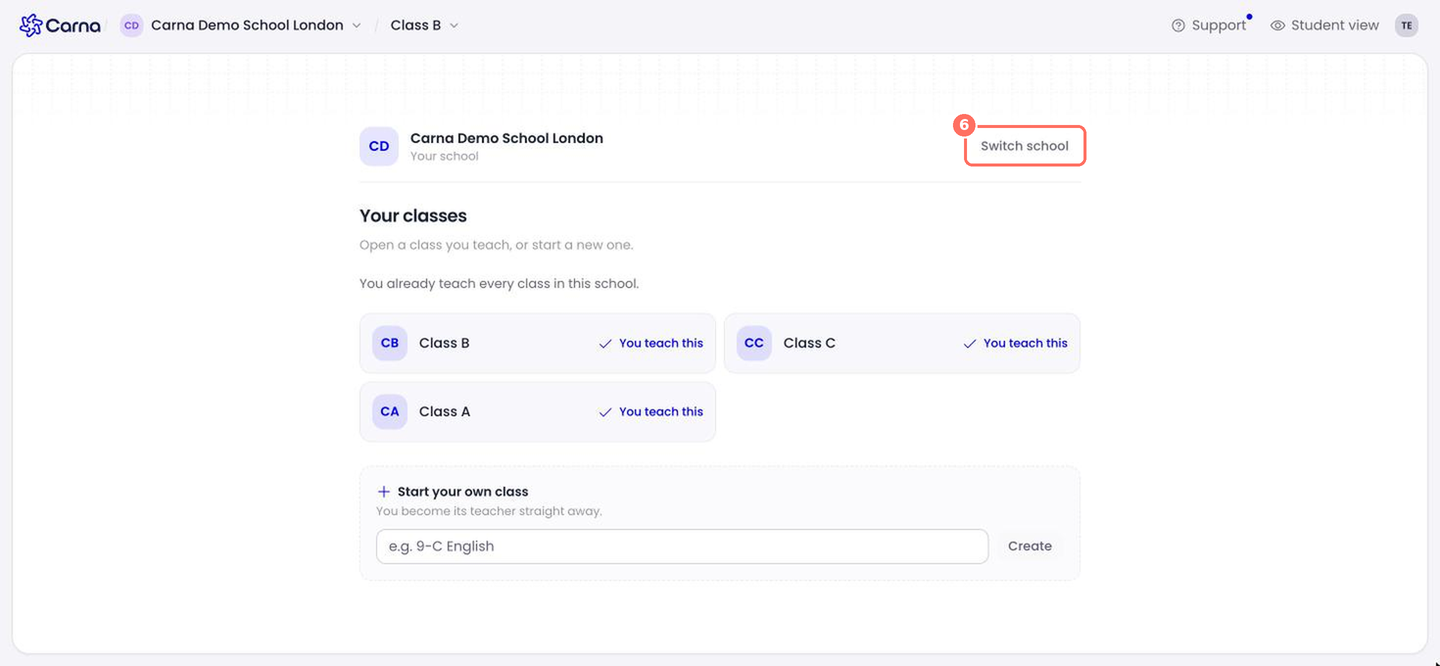
If you teach in more than one school, click Switch school to choose another school first.
Tips & Good to know #
- You can also click your school's name at the top of the page to switch school, or choose Join a new school if you also teach at another school.
- Carna shows one class at a time. To compare several classes, use the class filter in Reports.
- When you assign a module, you can still send it to several classes at once; you don't need to switch first. See How to assign a module to one or more classes.
- Need a new class? On the Your classes page, type a name under Start your own class and click Create. You become its teacher straight away.
Troubleshooting #
- A class is missing from the list: you may not be added as its teacher yet. Ask your school admin to add you.
- The page still shows old data after switching: refresh the page in your browser.