


































How to browse books and assign a book quiz
Find a book in the Library, read it or listen to it, check its quiz with the answer key, and assign the quiz to your classes.
Who is this for: Teachers
Summary: Find a book in the Library, read it or listen to it, check its quiz with the answer key, and assign the quiz to your classes.
Before you start: You need a teacher account and at least one class.
Steps #
- In the left menu, click Library. The Books tab shows the reading modules your school has published, with their level, skill and type. Carna's own graded readers (for example, the City of Secrets and Sherlock Holmes series) come first.
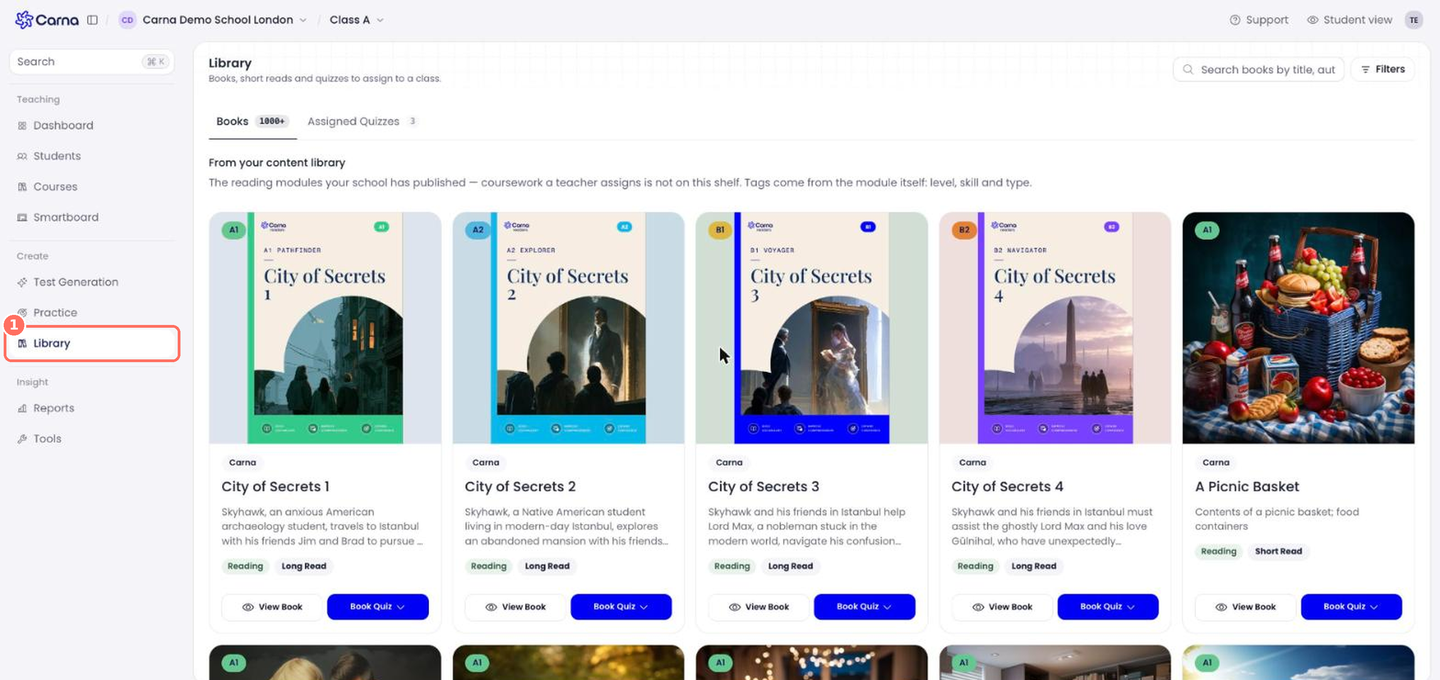
- To find a book, type its title or author in Search books by title, author… (for example, Sherlock). You can also click Filters and choose a Level (Pre-A1 to C1) and a Length: Short (under 150 minutes) or Long (150 minutes and over).
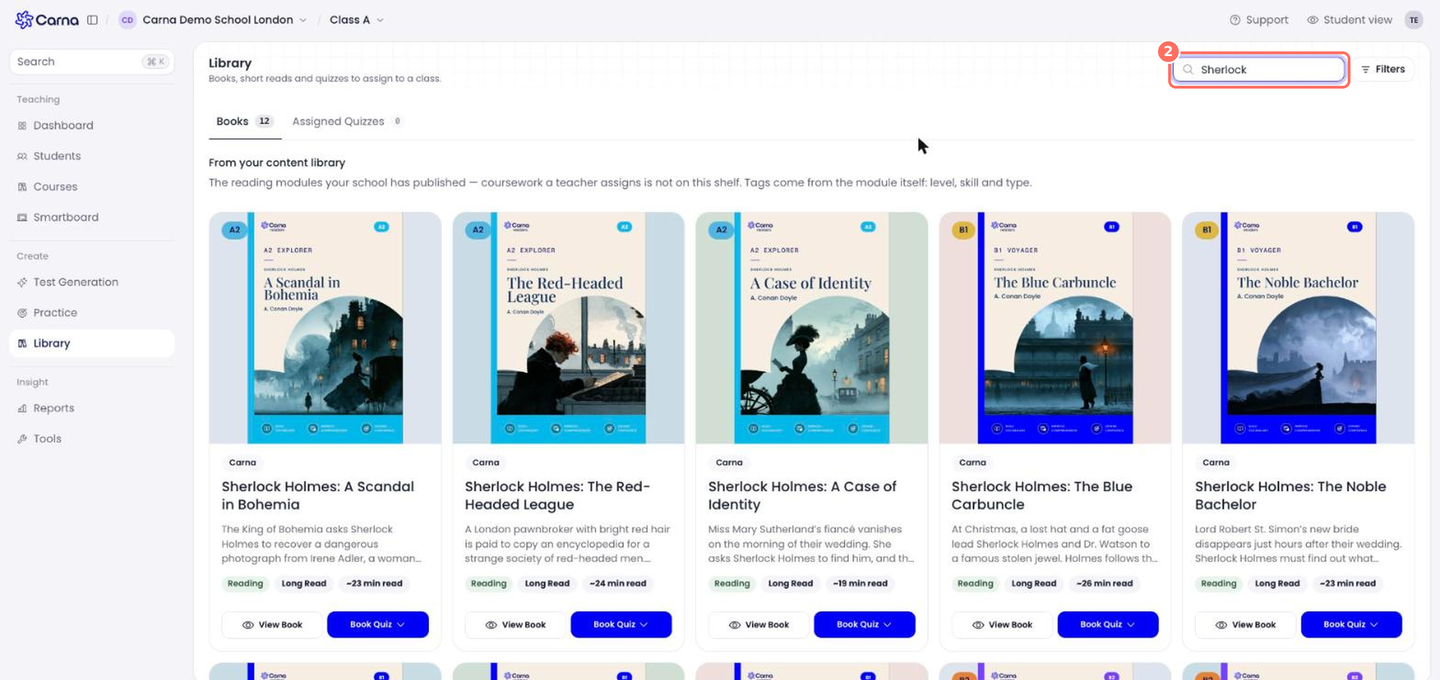
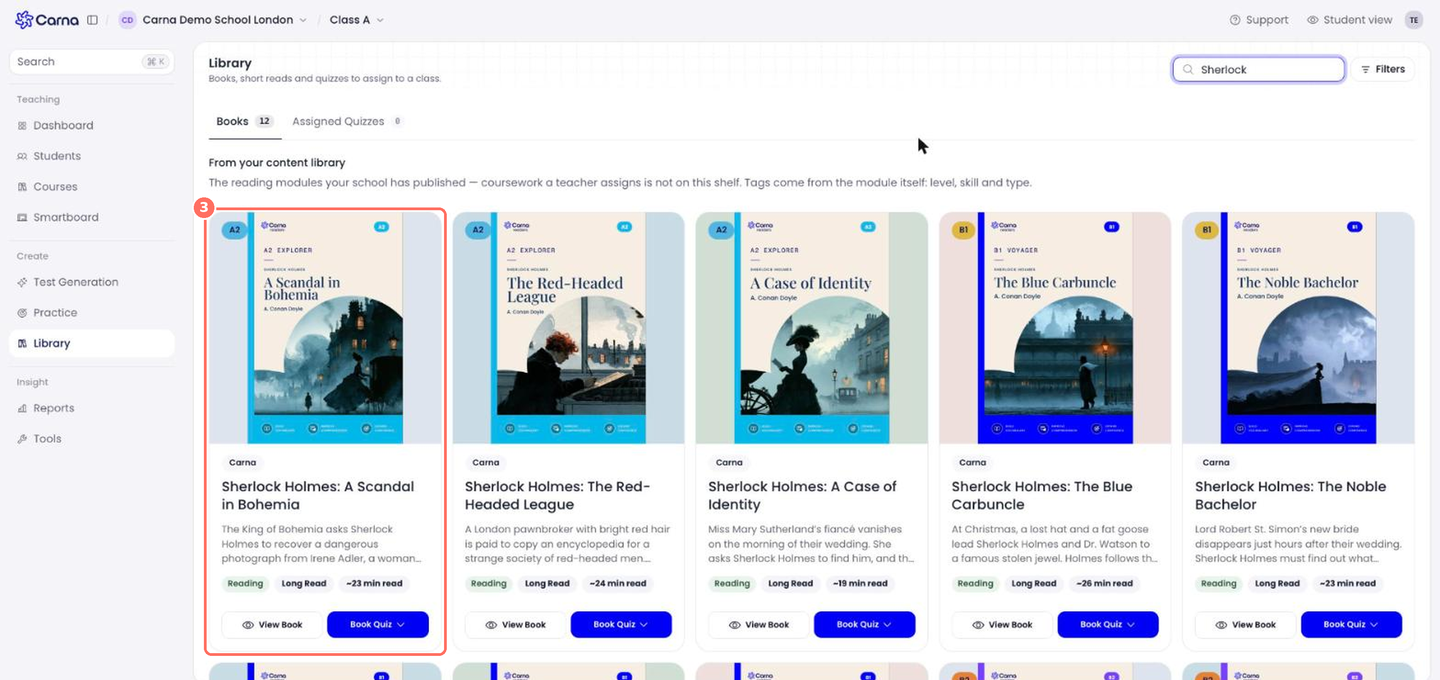
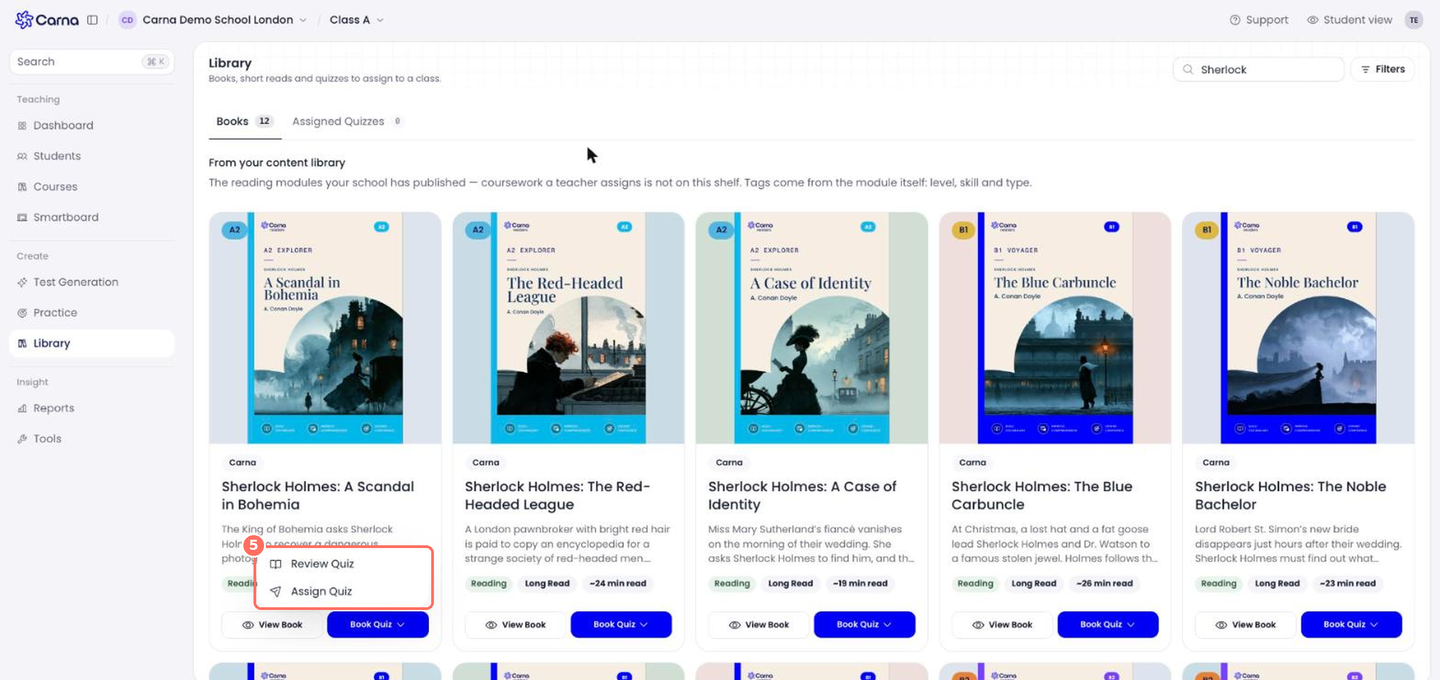
- Each card shows the level, the title, a short description and tags: Reading, Short Read or Long Read, and the reading time (for example, ~23 min read). Use View Book to read it, or Book Quiz for its quiz.
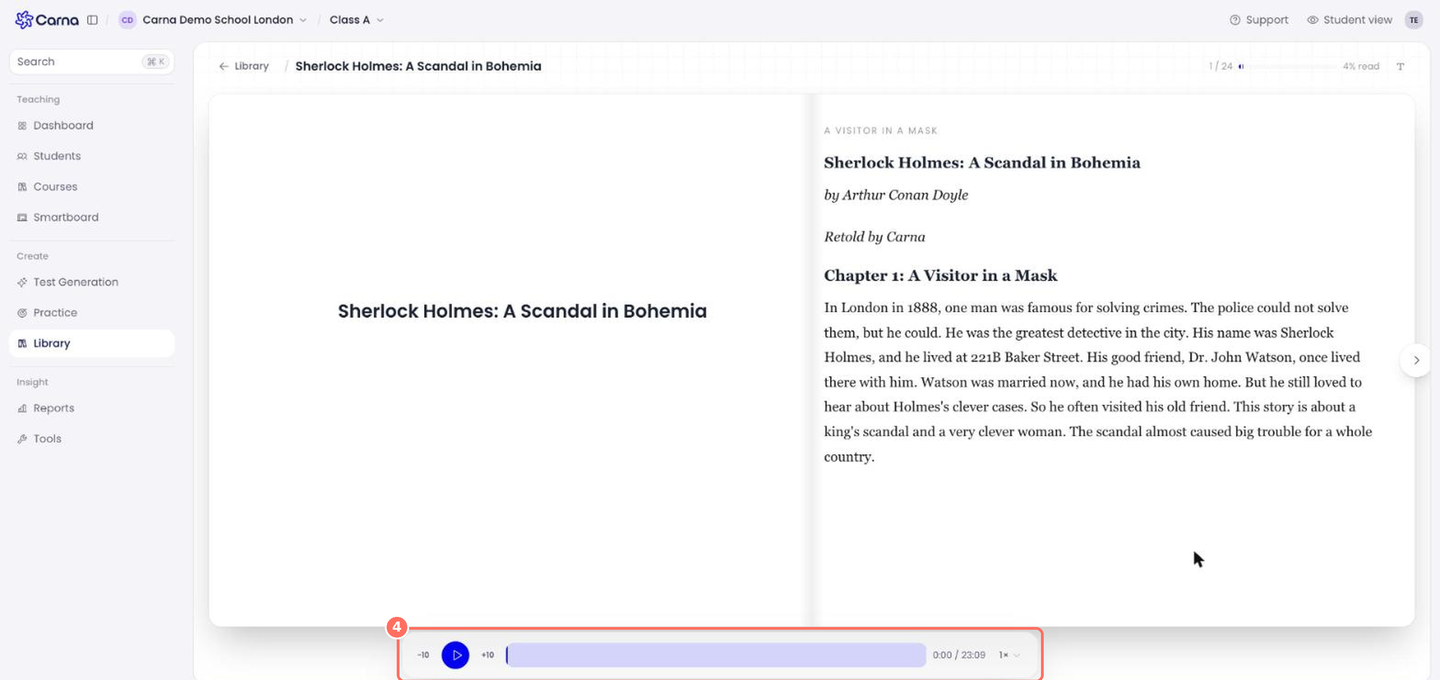
- View Book opens the reader. Use the arrows to turn pages; the top right shows your page and how much you've read (for example, 1 / 24 and 4% read). Play the audio at the bottom, skip back or forward 10 seconds, and change the speed (1×). Click T to change the font and text size.
- On the book's card, click Book Quiz and choose Review Quiz to see the quiz, or Assign Quiz to assign it straight away.
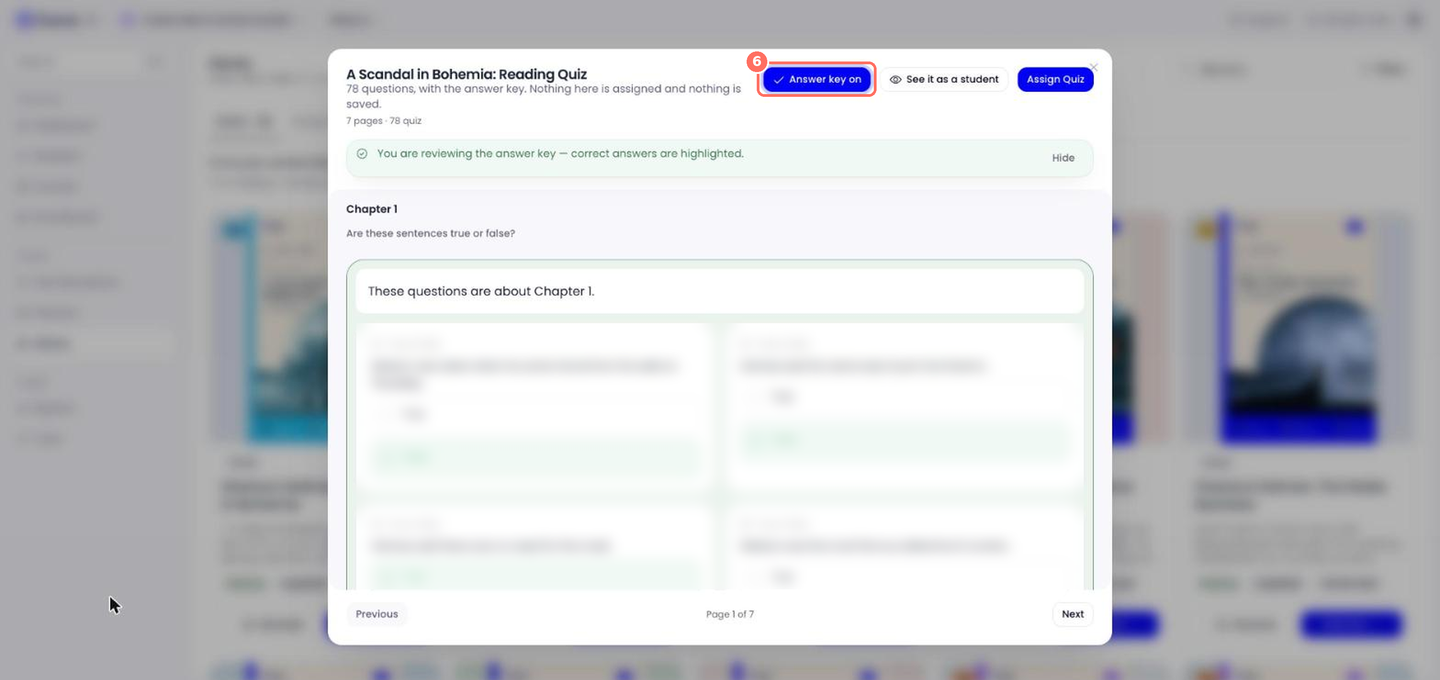
- Review Quiz shows the quiz with Answer key on, so the correct answers are highlighted. The top shows how many questions and pages the quiz has (for example, 78 questions, 7 pages). Use Previous and Next to move between pages. Click See it as a student to hide the answers. Nothing here is assigned or saved. Click Assign Quiz when you're ready.
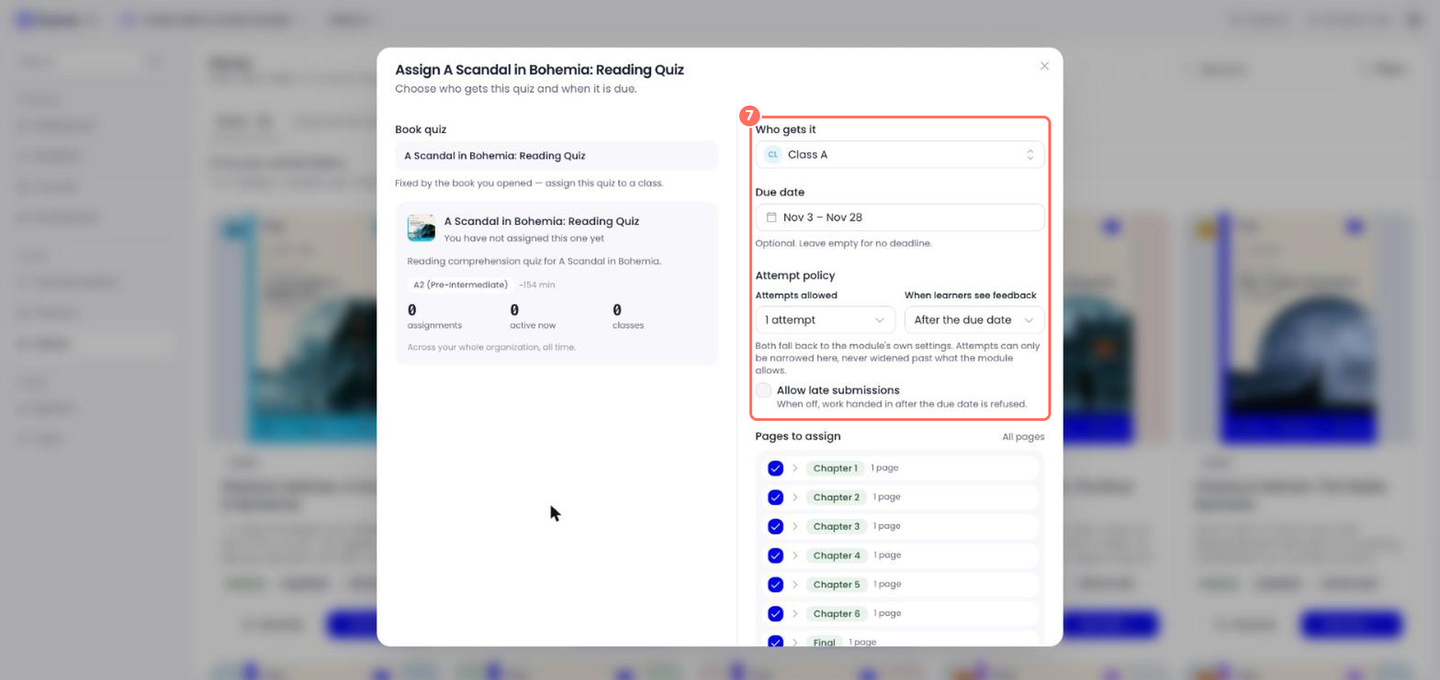
- In the Assign window, the quiz is fixed by the book you opened. On the right, choose the class under Who gets it, a Due date (for example, Nov 3 – Nov 28), Attempts allowed, When learners see feedback and, if you like, Allow late submissions. These work the same way as for modules; see How to assign a module to one or more classes. On the left, you see how often the quiz is already used in your school.
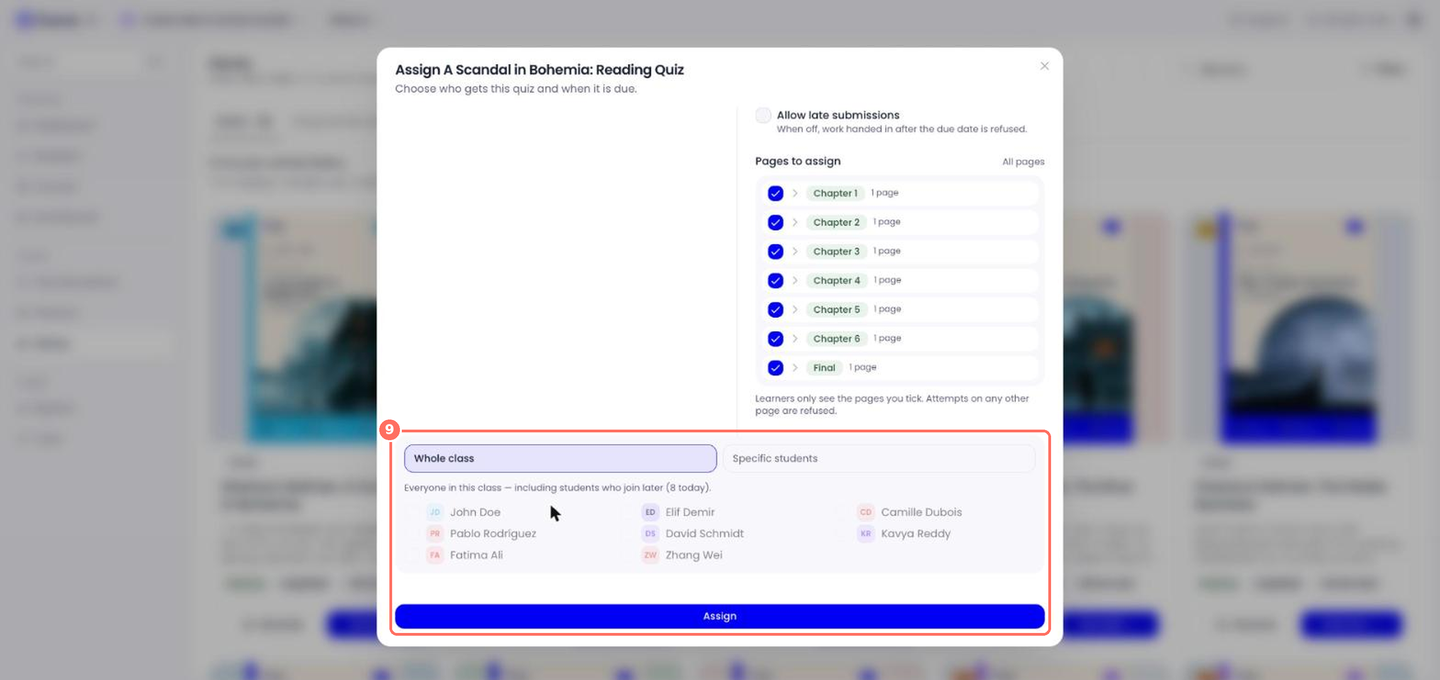
- Scroll down to Pages to assign. Each chapter of the quiz is one page, and all of them are ticked. Untick a chapter if your class hasn't read it yet. Students only see the pages you tick.
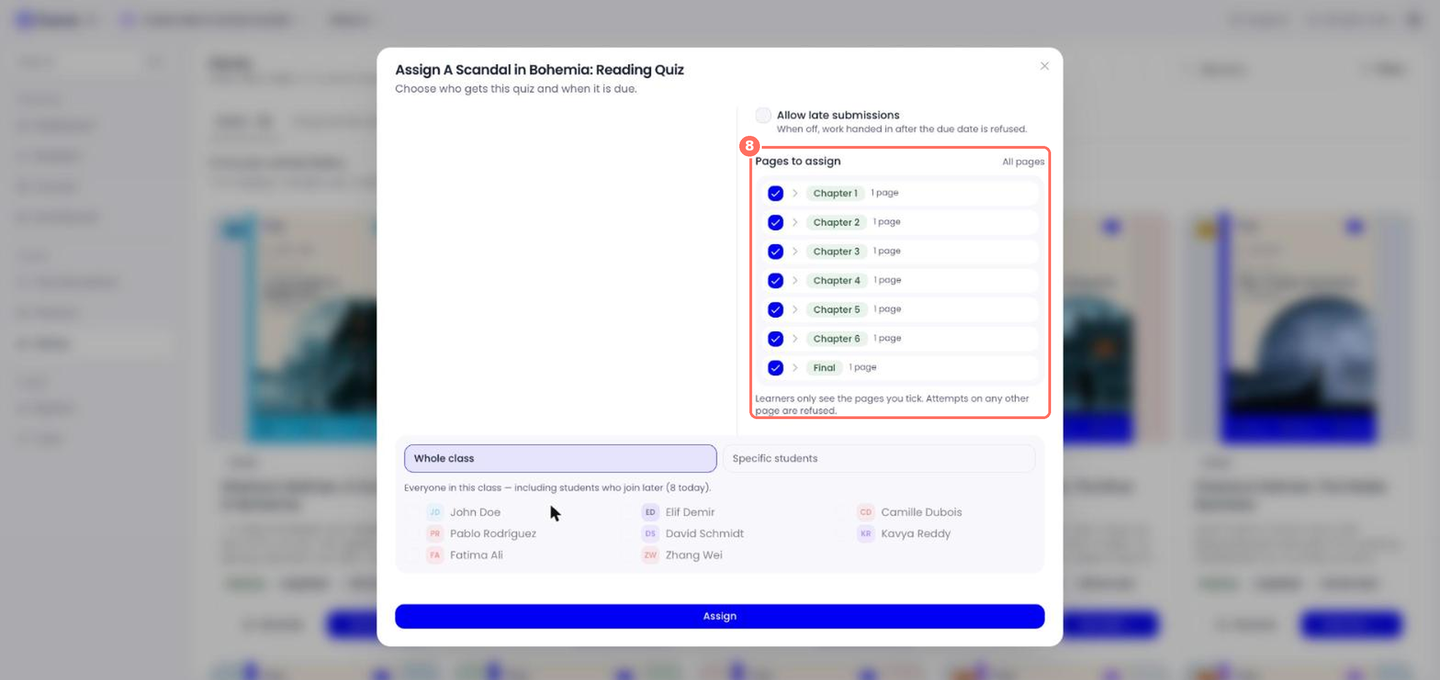
- Keep Whole class selected (everyone in the class, including students who join later), or click Specific students and tick only the students who should get the quiz. Then click Assign.
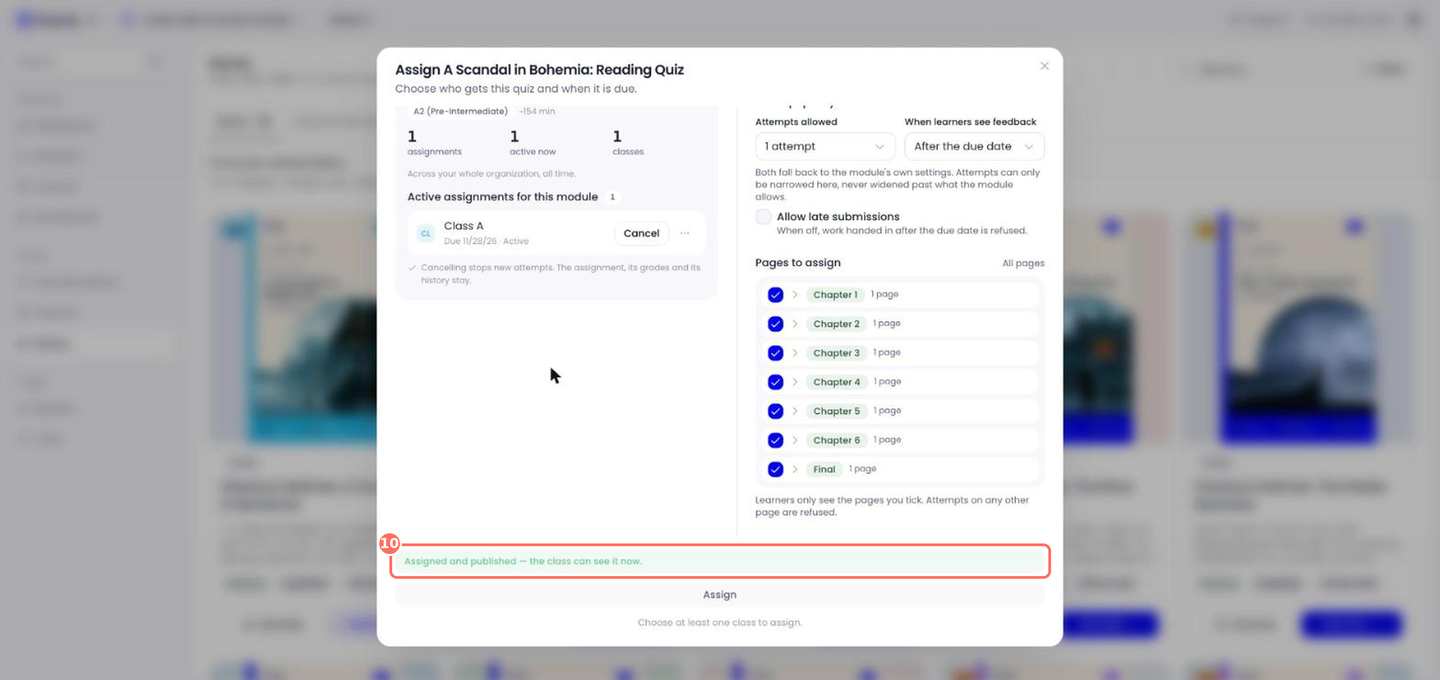
- Carna confirms Assigned and published — the class can see it now. The class appears under Active assignments for this module with its due date (for example, Due 11/28/26 · Active). Click Cancel next to it to stop new attempts.
Tips & Good to know #
- Short Read books take under 150 minutes to read; Long Read books take 150 minutes or more. Long reads such as City of Secrets are good for reading over several lessons; assign the quiz chapter by chapter with Pages to assign.
- Students can read the book in their own Library without an assignment. Assigning the quiz checks that they understood it.
- After you assign a quiz, it is listed under Assigned Quizzes. Students see it under Assignments, next to their other homework.
- Use the reader on the classroom board to read the book together, with the audio.
Troubleshooting #
- I can't find a book: clear the filters, or search by one word from the title.
- There is no sound: check your volume. On iPad or Safari, see How to fix audio that won't play on iPad or Safari.
- The Assign button is grey and says "Choose at least one class to assign": select at least one class under Who gets it.