


































How to read a Library book
Find a book at your level in the Library, read it page by page and listen to it read aloud.
Who is this for: Students
Summary: Find a book at your level in the Library, read it page by page and listen to it read aloud.
Before you start: You need a student account. Use headphones if you want to listen in class.
Steps #
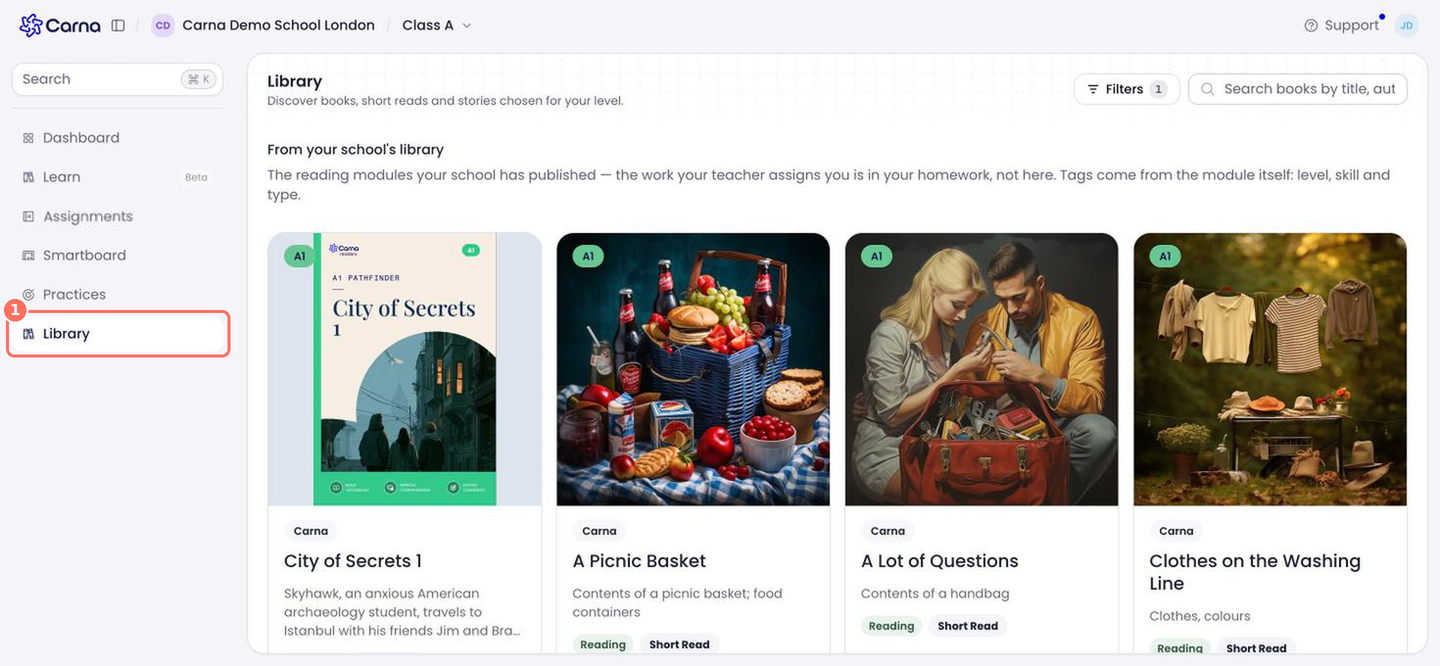
- In the left menu, click Library. You see the books, short reads and stories your school has published.
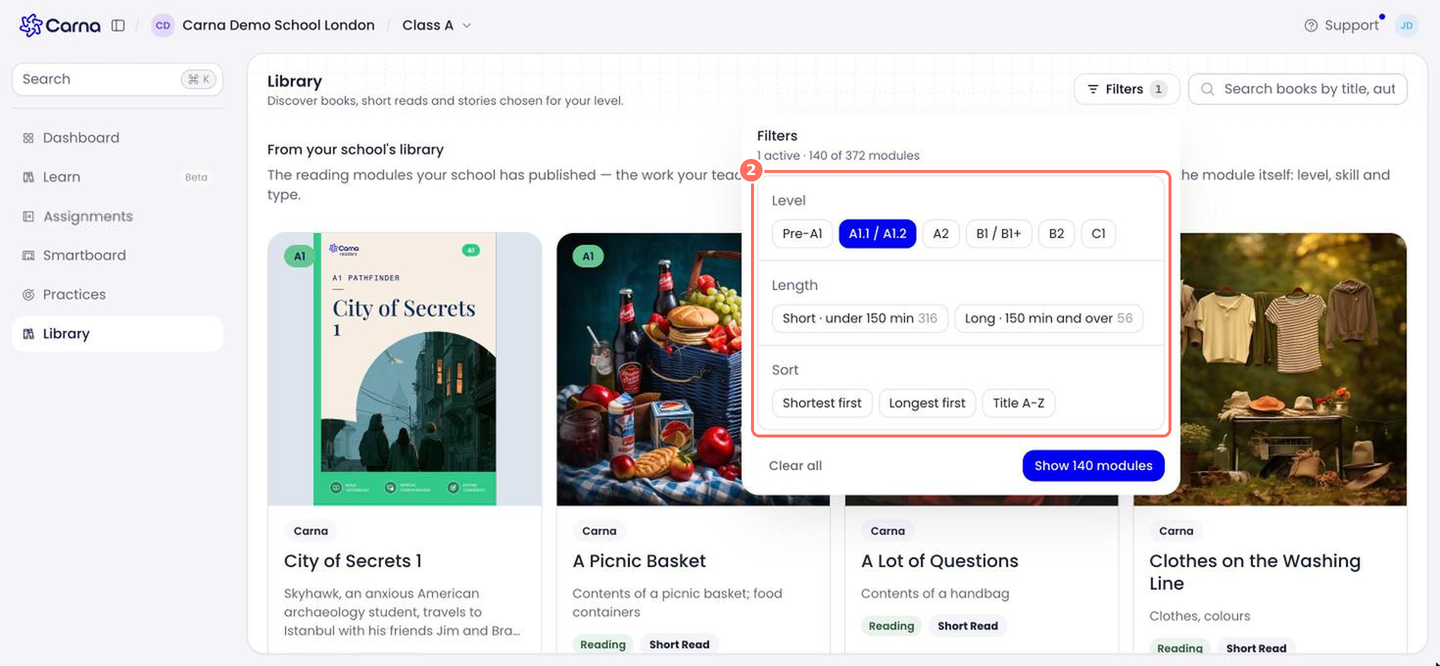
- To find a book for you, click Filters and choose a Level (for example, A1.1 / A1.2) and a Length: Short (under 150 minutes) or Long (150 minutes and over). Under Sort, choose Shortest first, Longest first or Title A-Z. Then click Show … modules. Clear all removes the filters. To look for a title or author, type it in Search books by title, author… next to Filters.
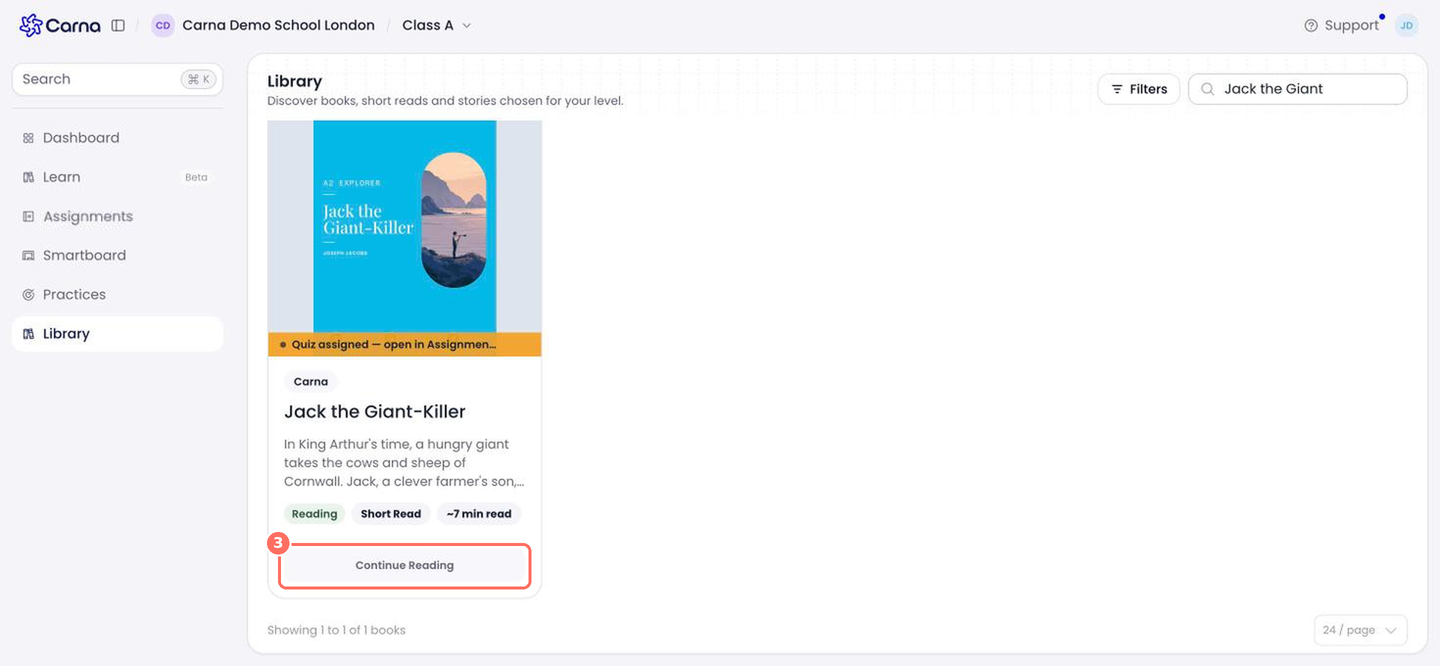
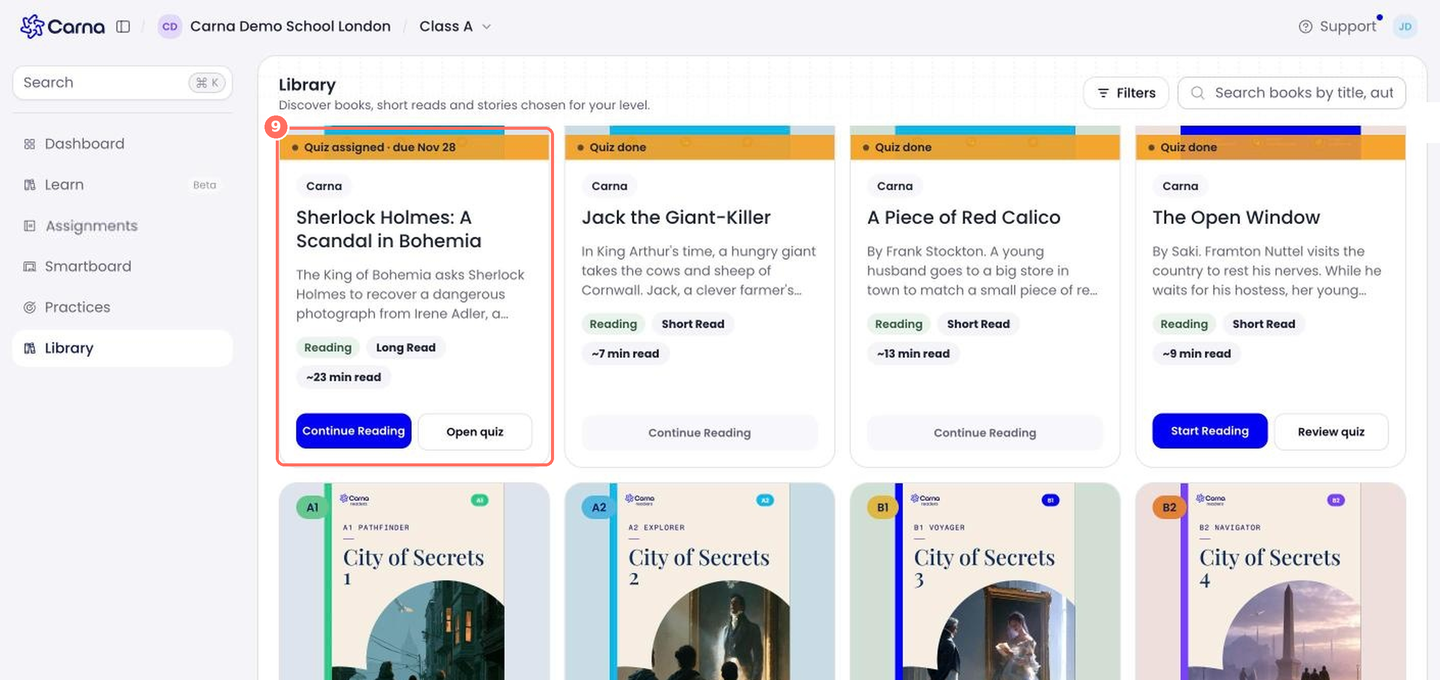
- On the book you want (for example, Jack the Giant-Killer), click Start Reading. If you've already started a book, the button says Continue Reading and opens where you stopped.
- Use the arrows on the left and right to turn the pages. The top of the page shows where you are (for example, 4 / 14) and how much you've read (for example, 36% read). On a computer you see two pages side by side.
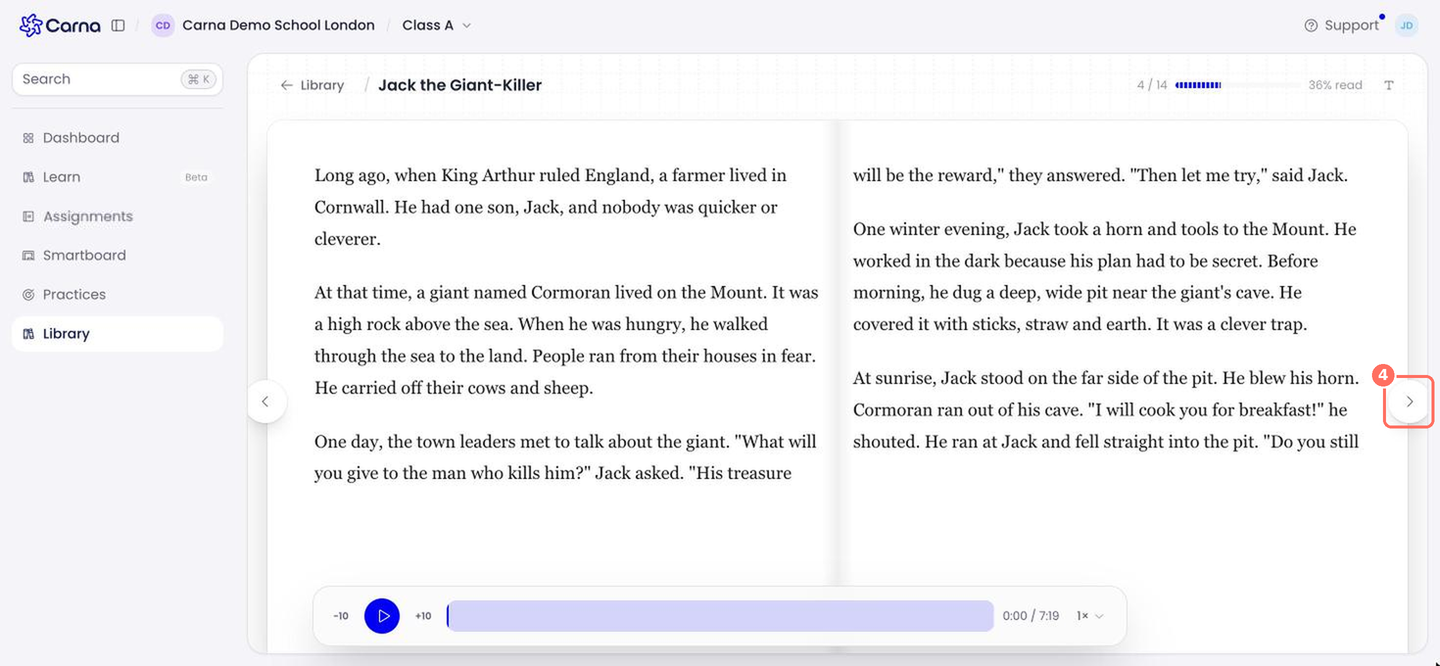
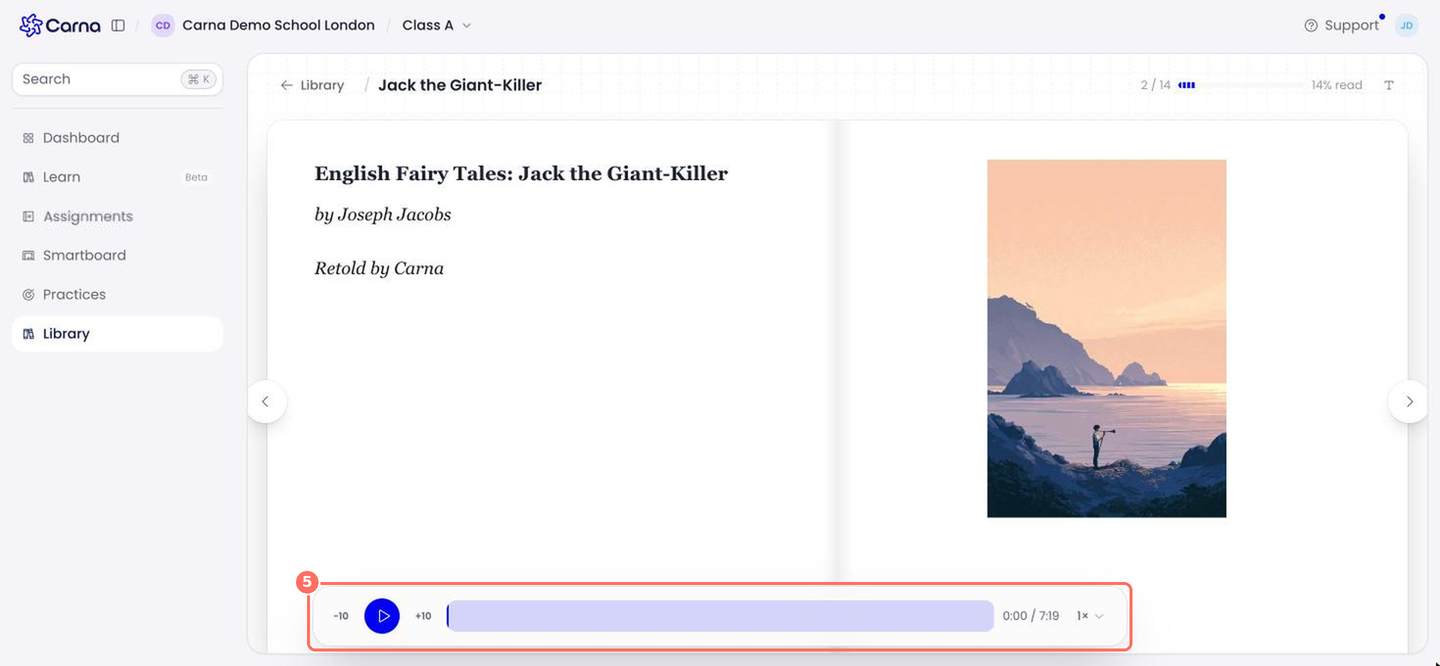
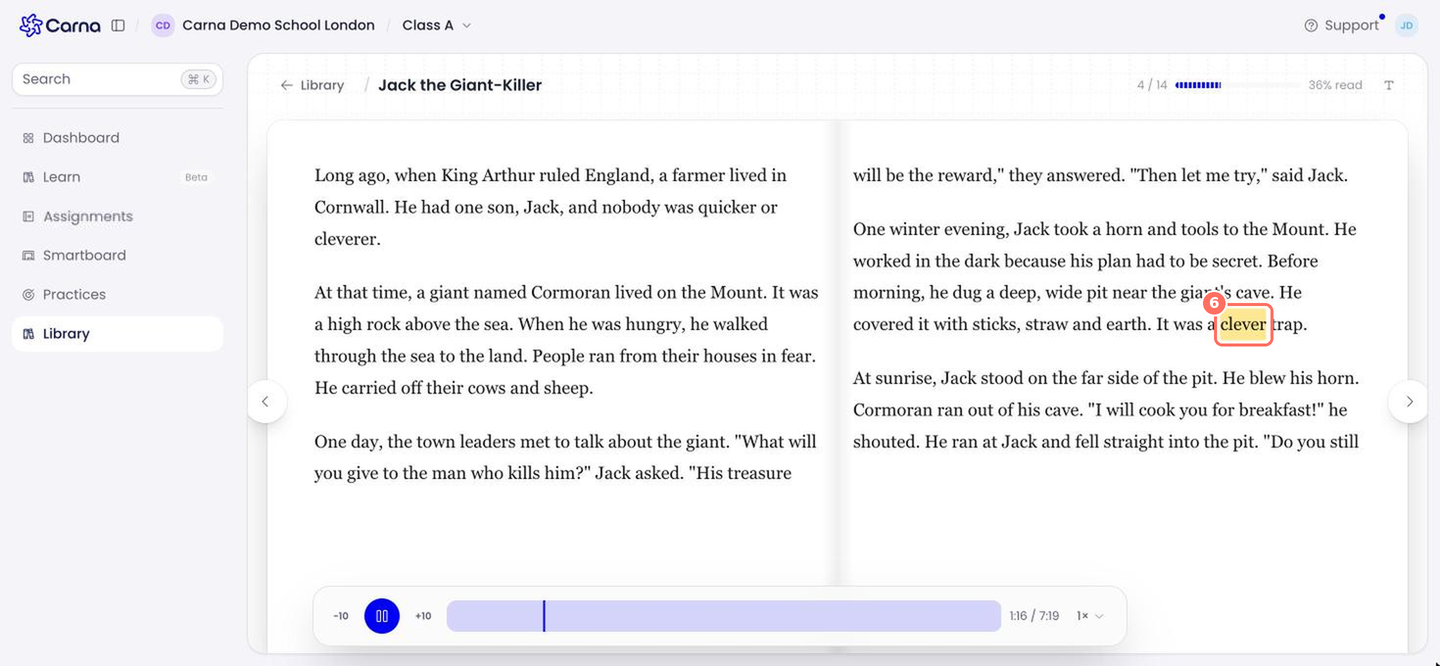
- To listen to the book, click the play button at the bottom. The time shows how far you are in the recording (for example, 0:00 / 7:19). The word being read is highlighted in yellow. Use -10 and +10 to go back or forward 10 seconds, and click the pause button to stop.
- To listen from a particular place, click any word in the text. The audio jumps to that word and continues from there.
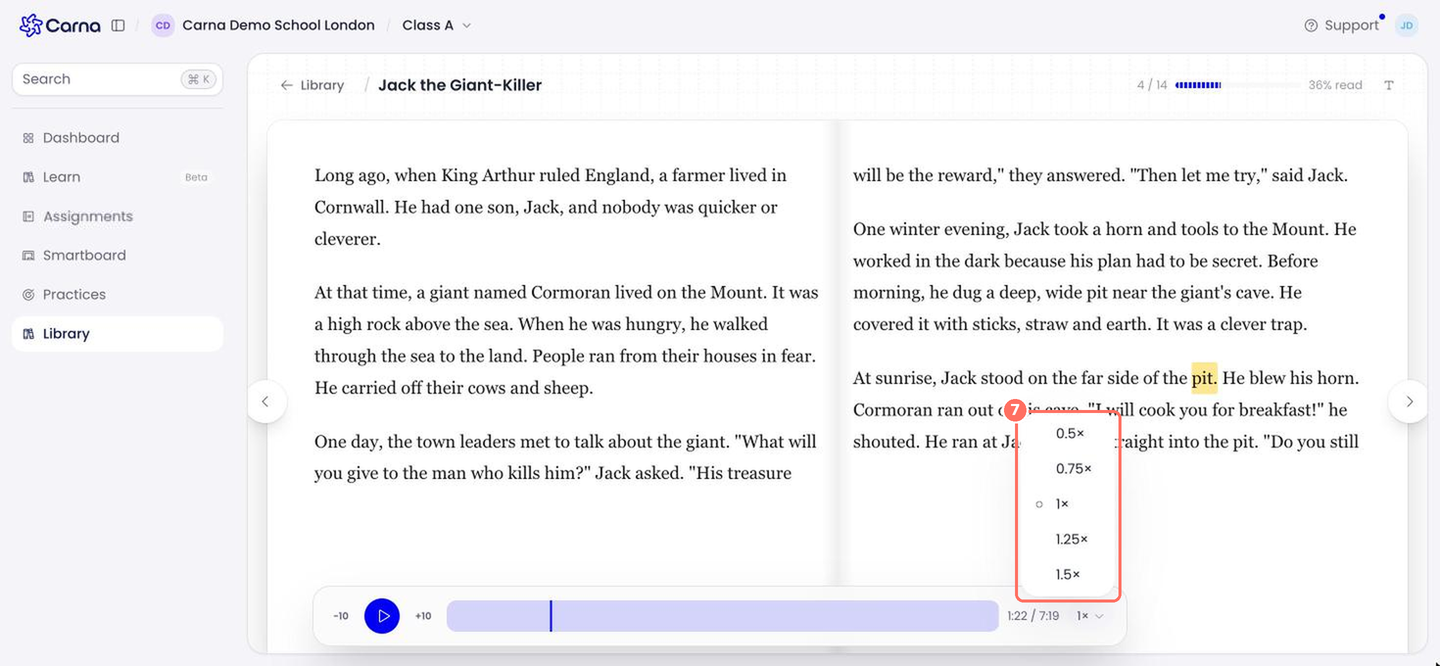
- To slow down or speed up the audio, click 1× and choose a speed: 0.5× or 0.75× to listen more slowly, 1.25× or 1.5× to listen faster.
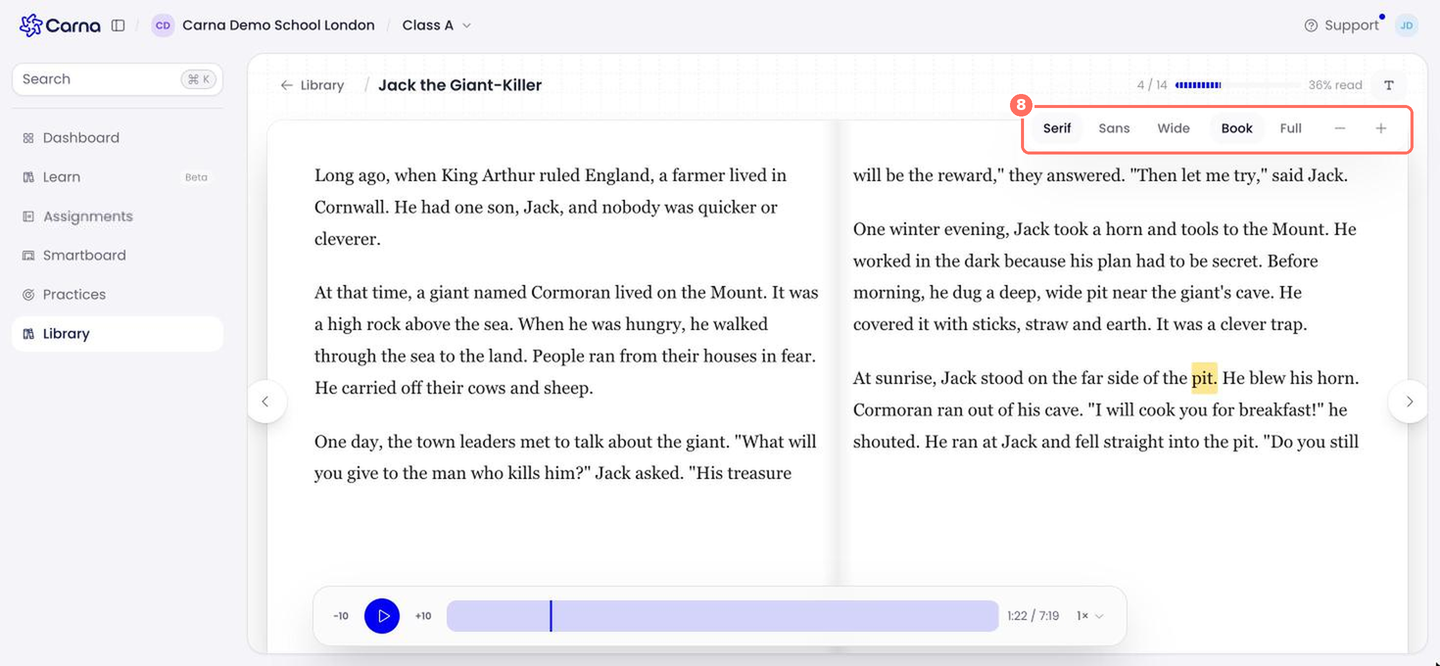
- To make reading easier, click T at the top right. Choose Serif or Sans for the font, Wide, Book or Full for the page layout, and – or + for the text size.
- If your teacher gave you a quiz about a book, its card shows Quiz assigned with the due date (for example, Quiz assigned · due Nov 28). Read the book, then click Open quiz. After you hand it in, the card says Quiz done, and Review quiz may appear so you can see your answers.
Tips & Good to know #
- The level on each cover (for example, A1 or B1) helps you choose a book you can enjoy.
- Each card shows about how long the book takes to read (for example, ~12 min read). Use the Length filter to find shorter or longer books.
- Carna remembers your page, so you can stop anytime and continue later. The card then says Continue Reading.
- There is no built-in dictionary in the book reader. Clicking a word plays the audio from that word.
- Use Previous, Next or a page number at the bottom to see more books, and change how many books you see per page (for example, 24 / page).
- Book quizzes are also listed under Assignments, next to your other homework.
- Click Library at the top left of the book to go back to the list.
Troubleshooting #
- I can't hear anything: check your volume and headphones. On iPad or Safari, see How to fix audio that won't play on iPad or Safari.
- I can't find the book quiz: look for Open quiz on the book's card, or open Assignments. See How to find your assignments on the home screen.
- The text is too small or too big: click T and use – or +.