


































How to track and manage assigned practices
See who has done a practice, change its due date or attempts, choose which students get it, and close, archive or restore it.
Who is this for: Teachers
Summary: See who has done a practice, change its due date or attempts, choose which students get it, and close, archive or restore it.
Before you start: You need a teacher account and at least one assigned practice. See How to assign a practice to your classes.
Steps #
Go to Practice and click the Assigned Practices tab. You see the practices assigned to the class selected at the top of the page.
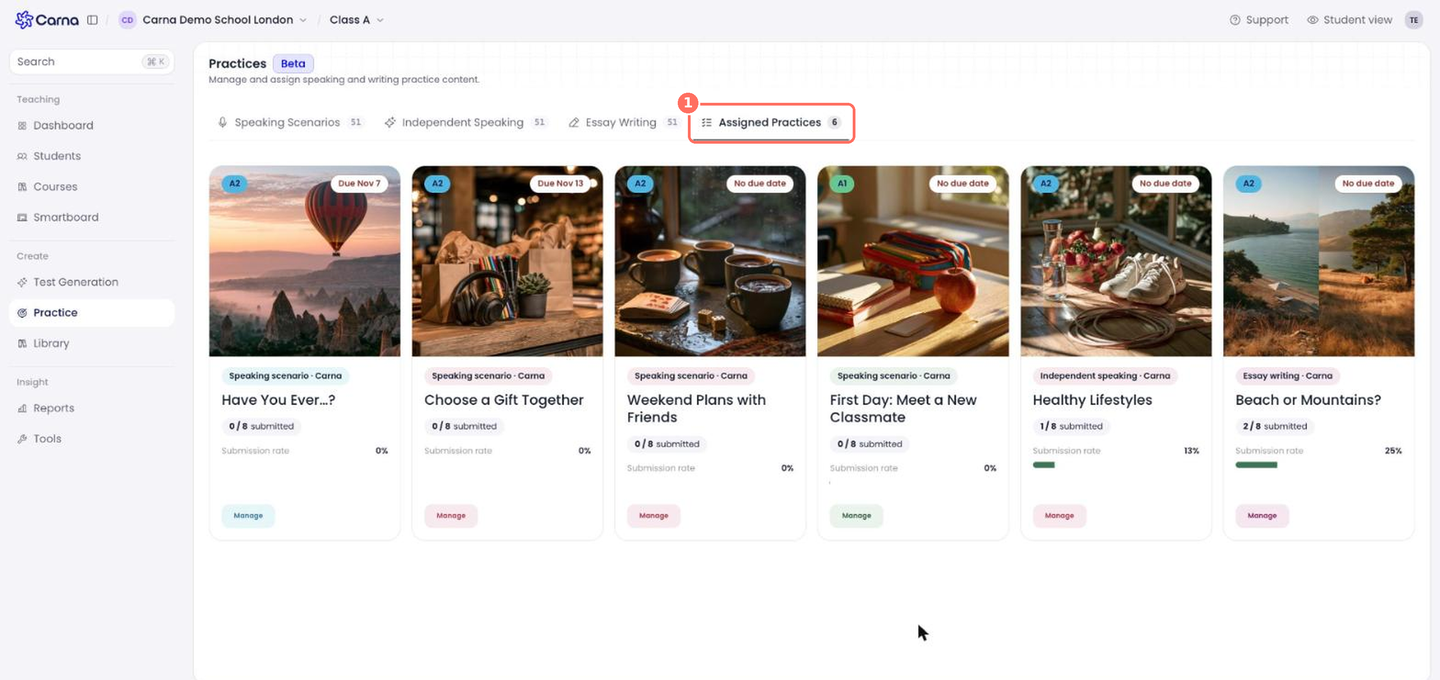
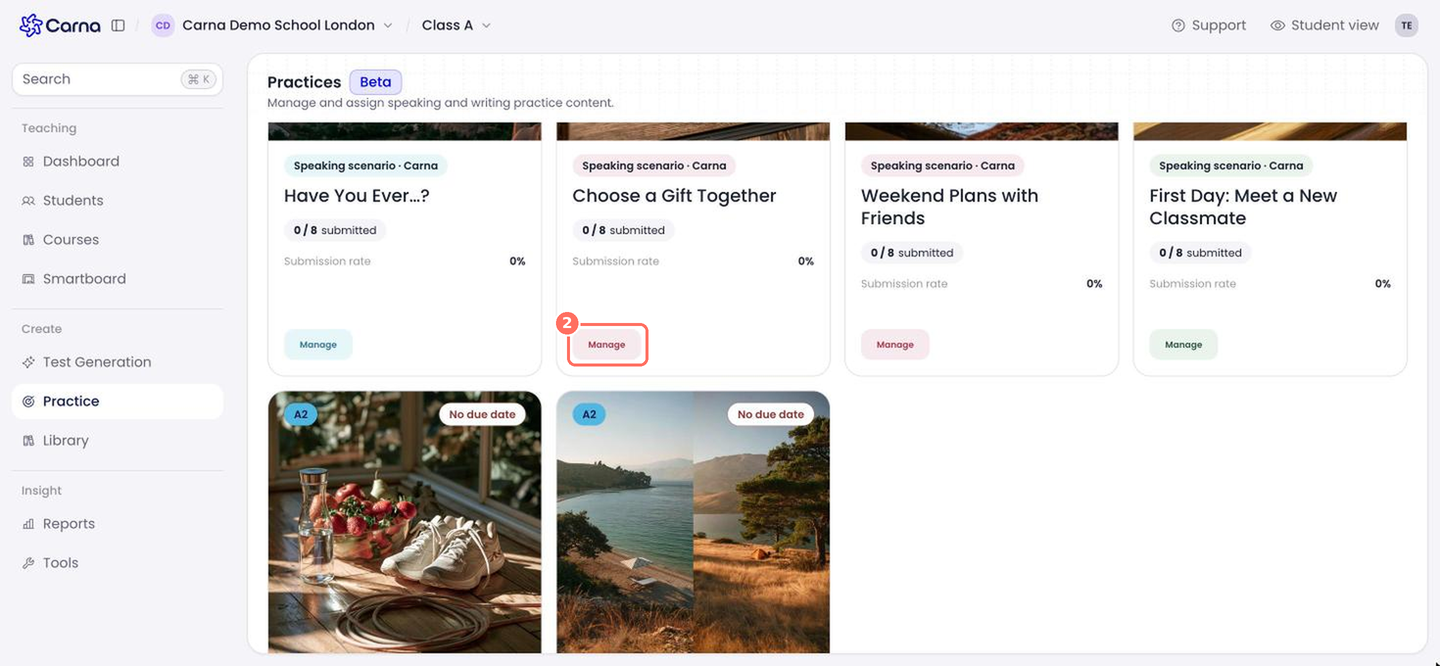
Each card shows the level, the due date (or No due date), the practice type, how many students have handed in (for example, 0 / 8 submitted) and the Submission rate. Click Manage on a card.
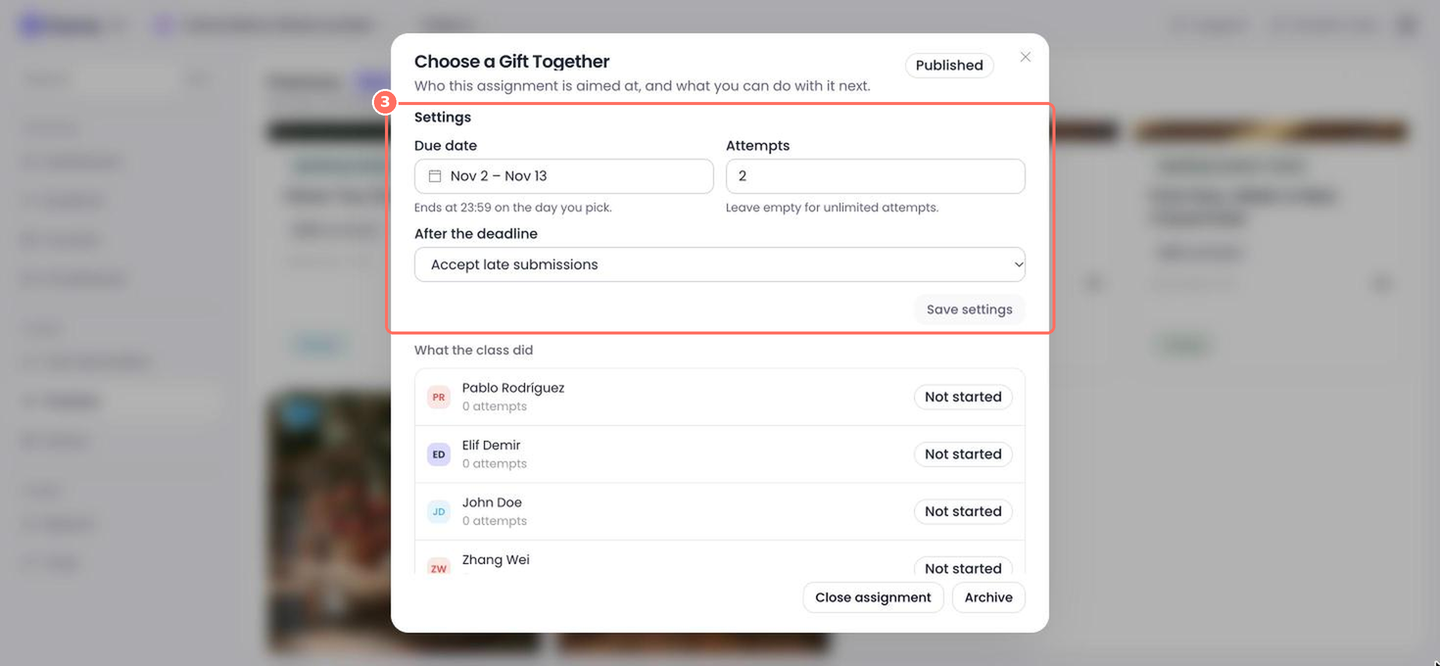
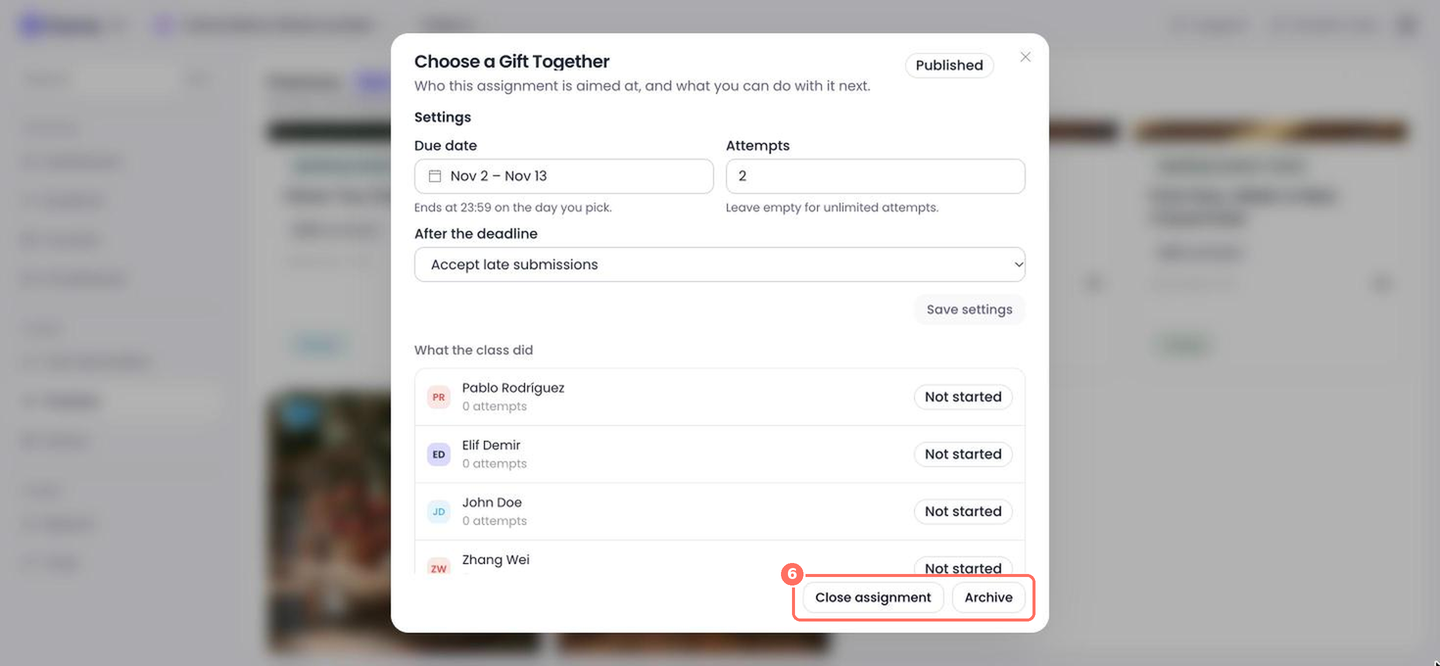
Under Settings, change what you need, then click Save settings:
- Due date: click the dates to pick a new range. The practice ends at 23:59 on the due day.
- Attempts: type how many times each student can do it. Leave it empty for unlimited attempts.
- After the deadline: Accept late submissions or Refuse late submissions.
Under What the class did, check each student's progress:
- Completed: the student has handed in and their work has been graded. You see the score (for example, 52/100), how many attempts they used and the date of their last attempt.
- Not started: the student hasn't done the practice yet (0 attempts).
To read a student's feedback and rubric, go to Reports. See How to read practice reports and rubric scores.
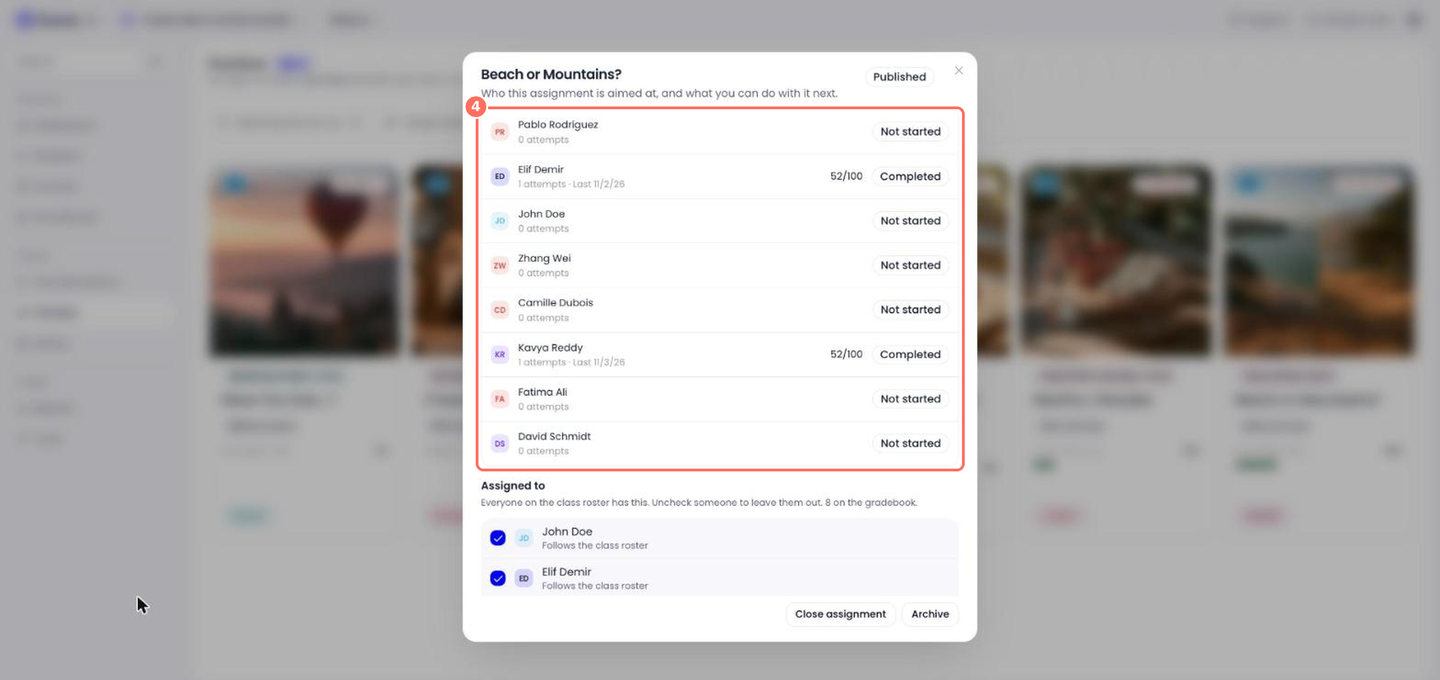
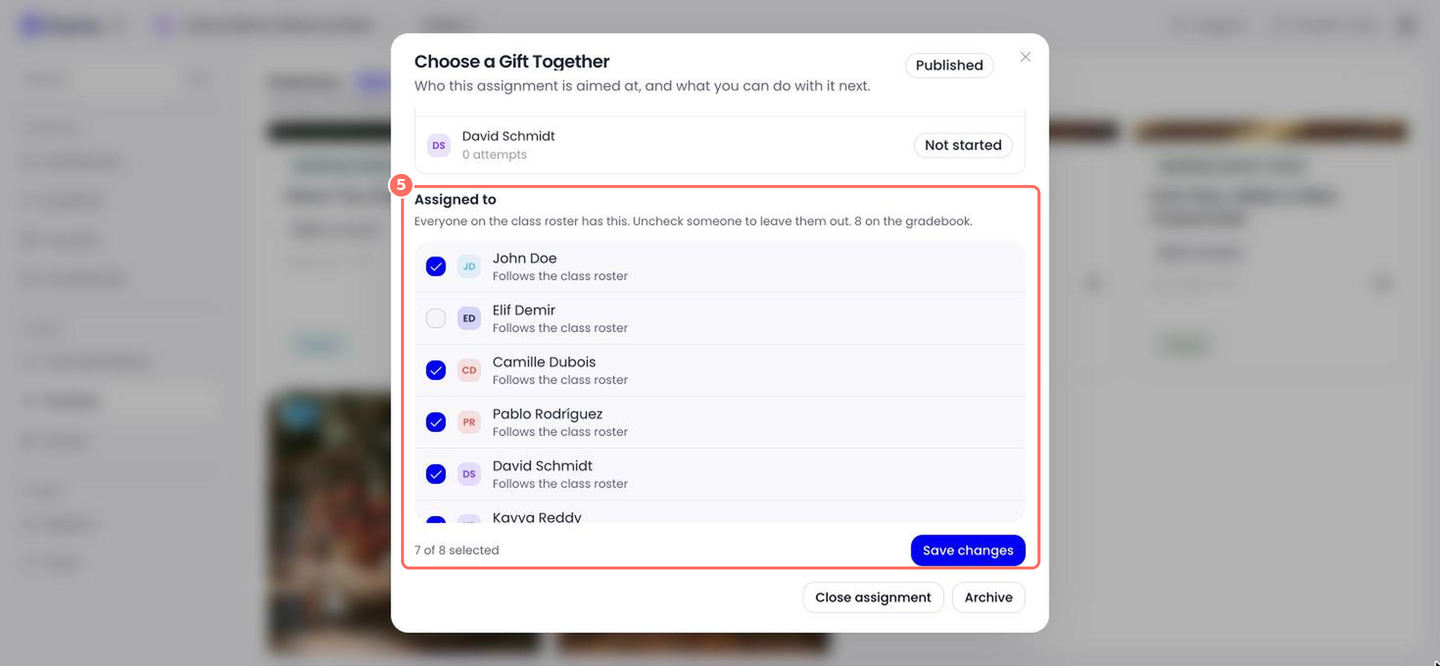
Under Assigned to, everyone on the class roster is ticked (Follows the class roster). Untick a student to leave them out, then click Save changes. The counter shows how many are selected (for example, 7 of 8 selected).
At the bottom of the window:
- Close assignment ends the practice now, before the due date. Students no longer see it.
- Archive unassigns the practice. Students no longer see it, and it leaves your active list and your reports until you restore it. Confirm with Archive.
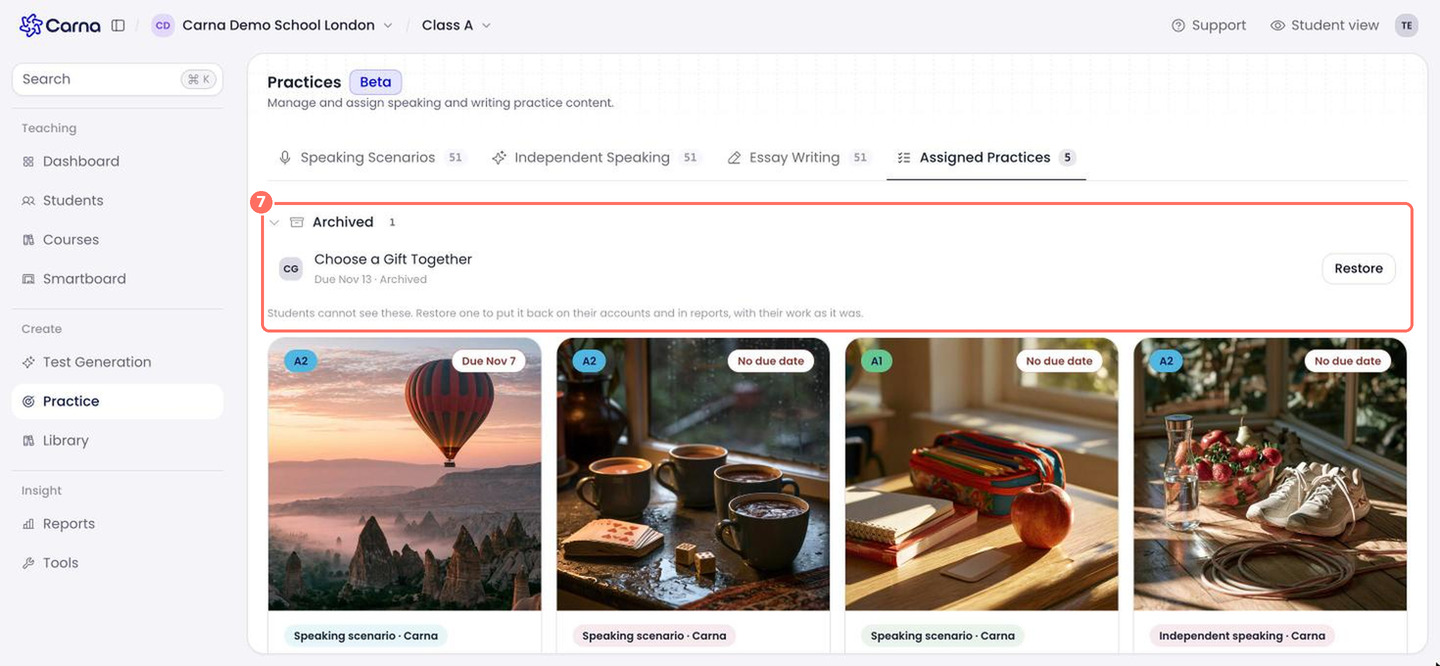
To bring an archived practice back, open Archived at the top of Assigned Practices, click Restore next to it, then Yes, restore. Students see it again, with their work as it was.
Tips & Good to know #
- Close assignment keeps the practice in your reports; Archive removes it from your reports until you restore it. Neither one deletes students' work. For a full comparison, see How to manage, close and restore assignments.
- A practice assigned to several classes has a separate card for each class. Switch class at the top of the page to see another class's practices.
- The Manage window shows a Published badge while the practice is active.
- To see each student's recordings, essays and scores, go to Reports. See How to read practice reports and rubric scores.
Troubleshooting #
- I can't see a practice I assigned: check that the right class is selected at the top of the page, and look under Archived.
- A student still sees a practice I took away: make sure you clicked Save changes under Assigned to.
- Students can't hand in after the due date: set After the deadline to Accept late submissions and click Save settings.