


































How to read practice reports and rubric scores
See how your class did in Speaking Scenarios, Independent Speaking and Essay Writing, and open each student's score, assessment, feedback and rubric.
Who is this for: Teachers
Summary: See how your class did in Speaking Scenarios, Independent Speaking and Essay Writing, and open each student's score, assessment, feedback and rubric.
Before you start: You need a teacher account and a class where at least one student has handed in a practice.
Steps #
- In the left menu, under Insight, click Reports, then click Practice. The practice reports have four tabs: General, Speaking Scenarios, Independent Speaking and Essay Writing.
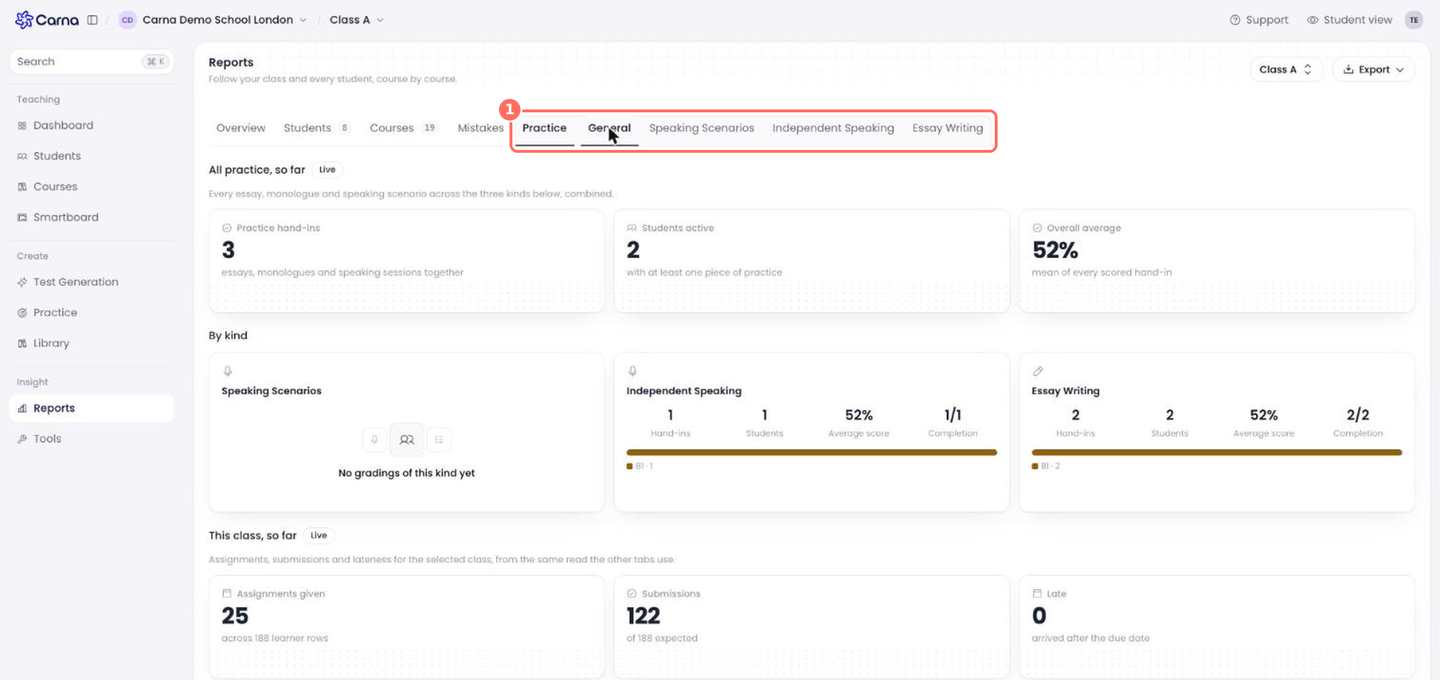
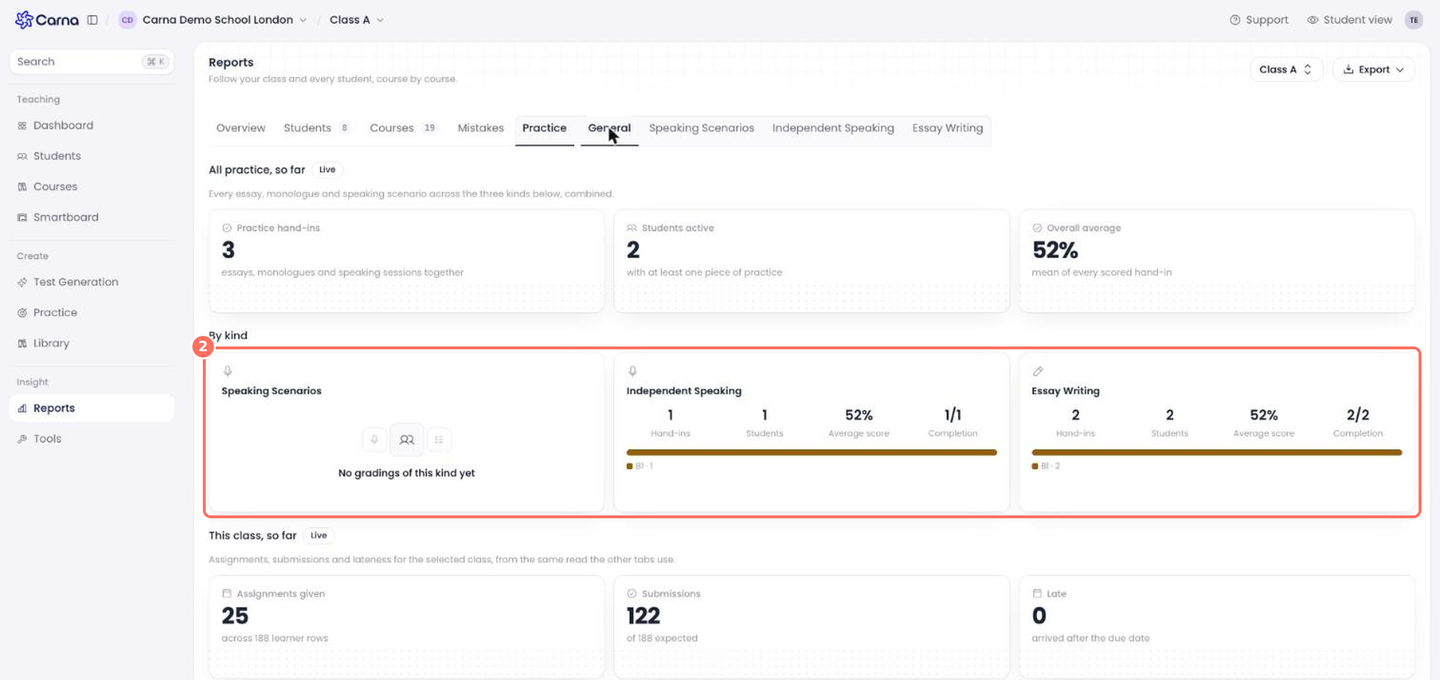
- General sums up all practice in the class: how many pieces were handed in, how many students took part and the overall average. By kind shows the hand-ins, students, average score and completion for each practice type.
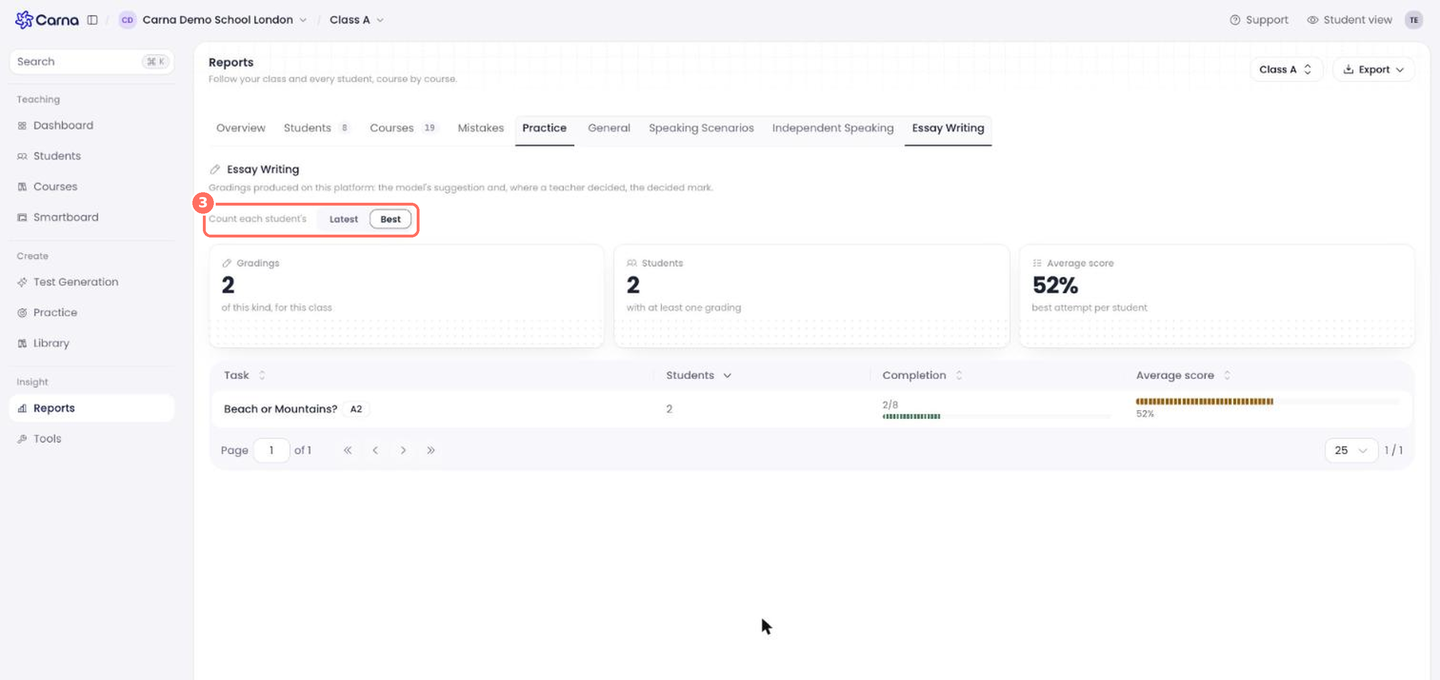
- Open a practice type, for example Essay Writing. Use Count each student's to choose whether the numbers use each student's Latest or Best attempt.
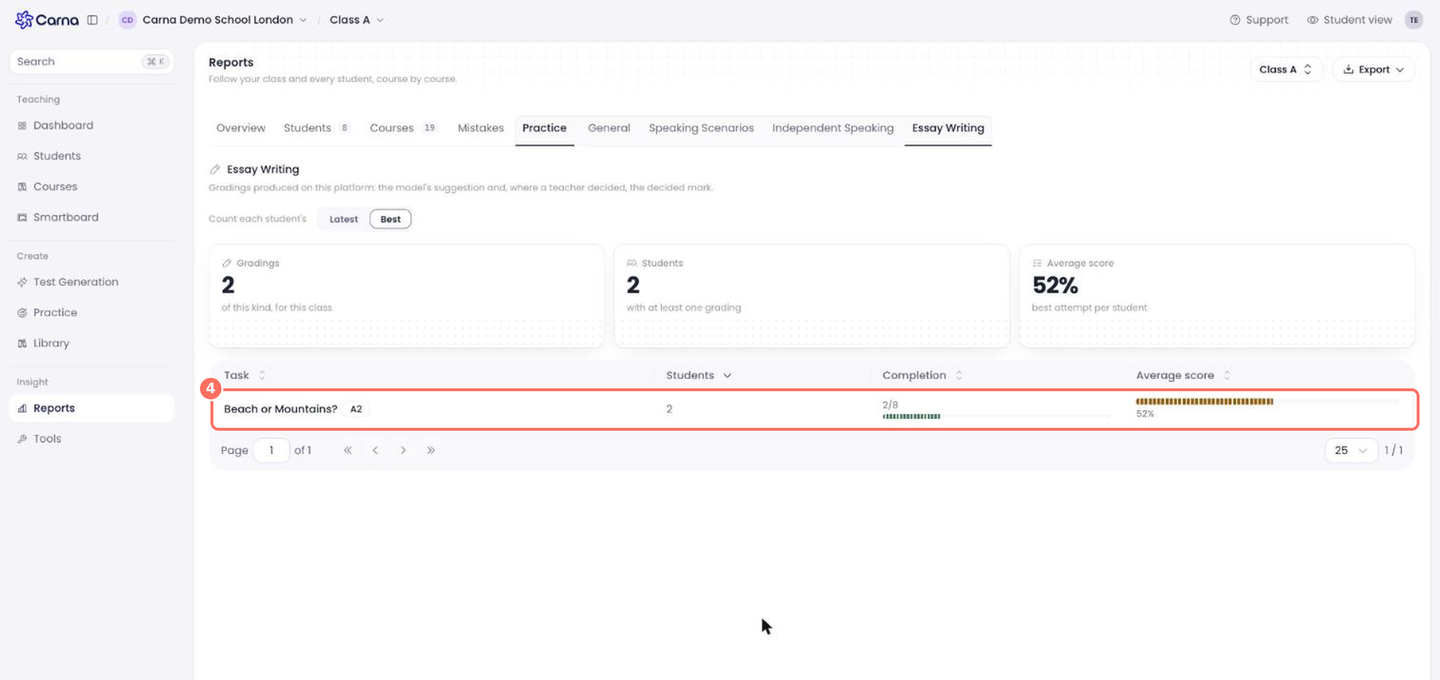
- The table lists each task with its level, how many students it was graded for, the Completion and the Average score. Click a task to open it.
- The window lists the students who handed in the task, most recent first, with their score, level and rubric total. Click a student to see their work.
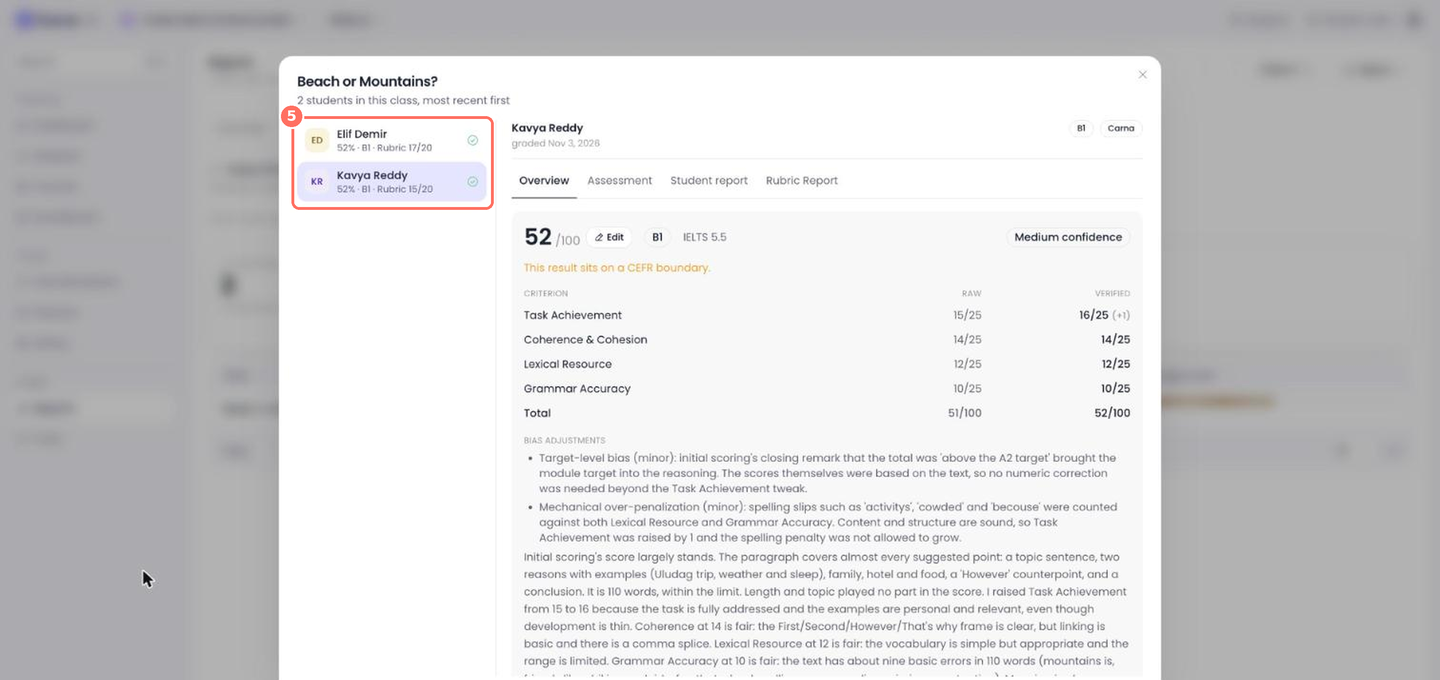
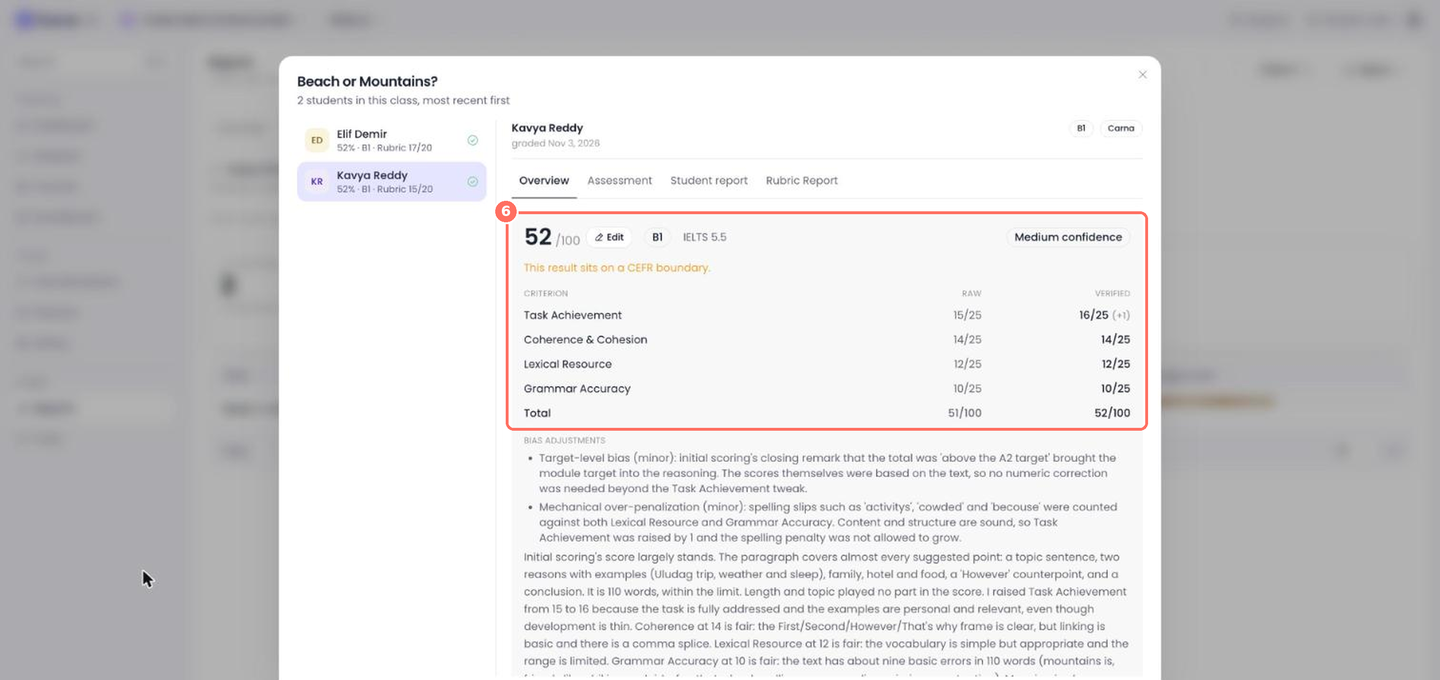
- Overview shows the score out of 100, the CEFR level, the IELTS estimate and how confident the grading is. The table compares the first (Raw) and checked (Verified) score for each criterion, and the notes below explain any changes. To change the score, click Edit.
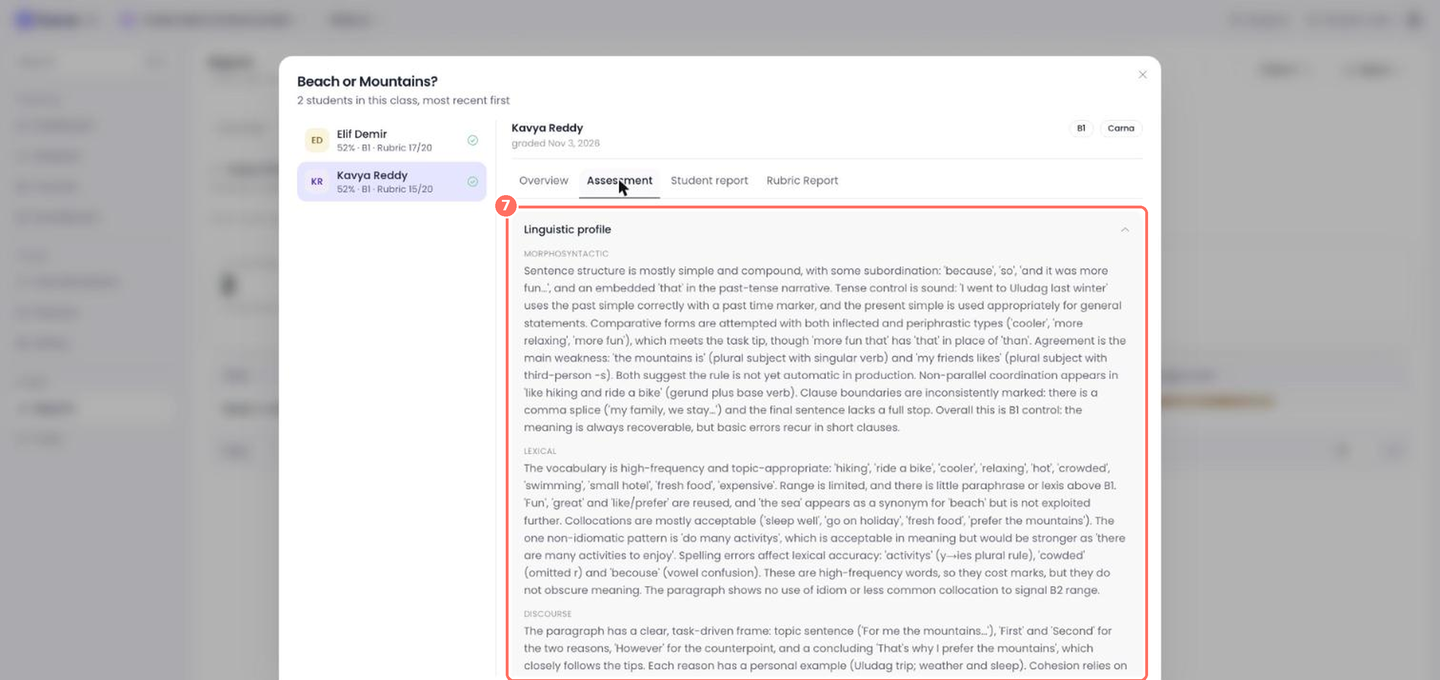
- Assessment gives a detailed language profile of the student's work, for example grammar, vocabulary and how the ideas are organised.
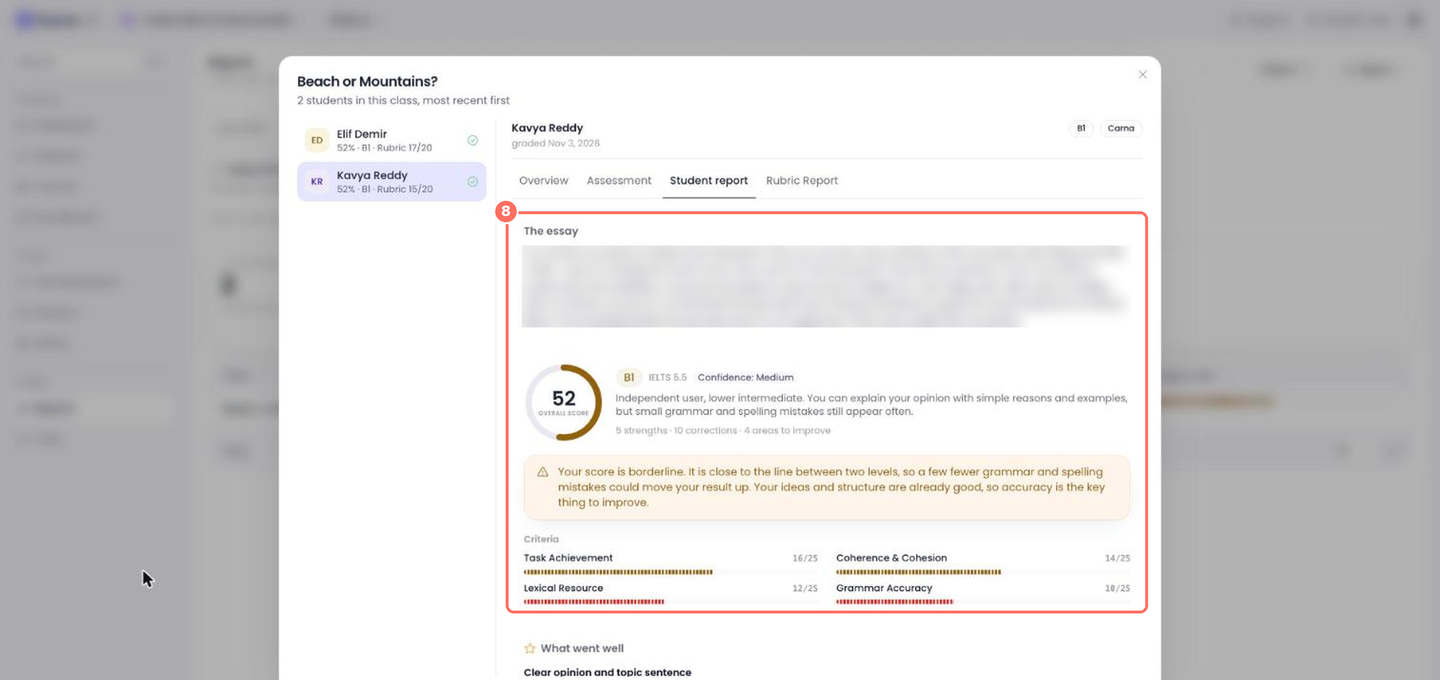
- Student report shows the feedback written for the student: their essay (or, for speaking, a recording and transcript under What was heard), the overall score, a short explanation of their level and their scores for each criterion. Scroll down for what went well and what to improve.
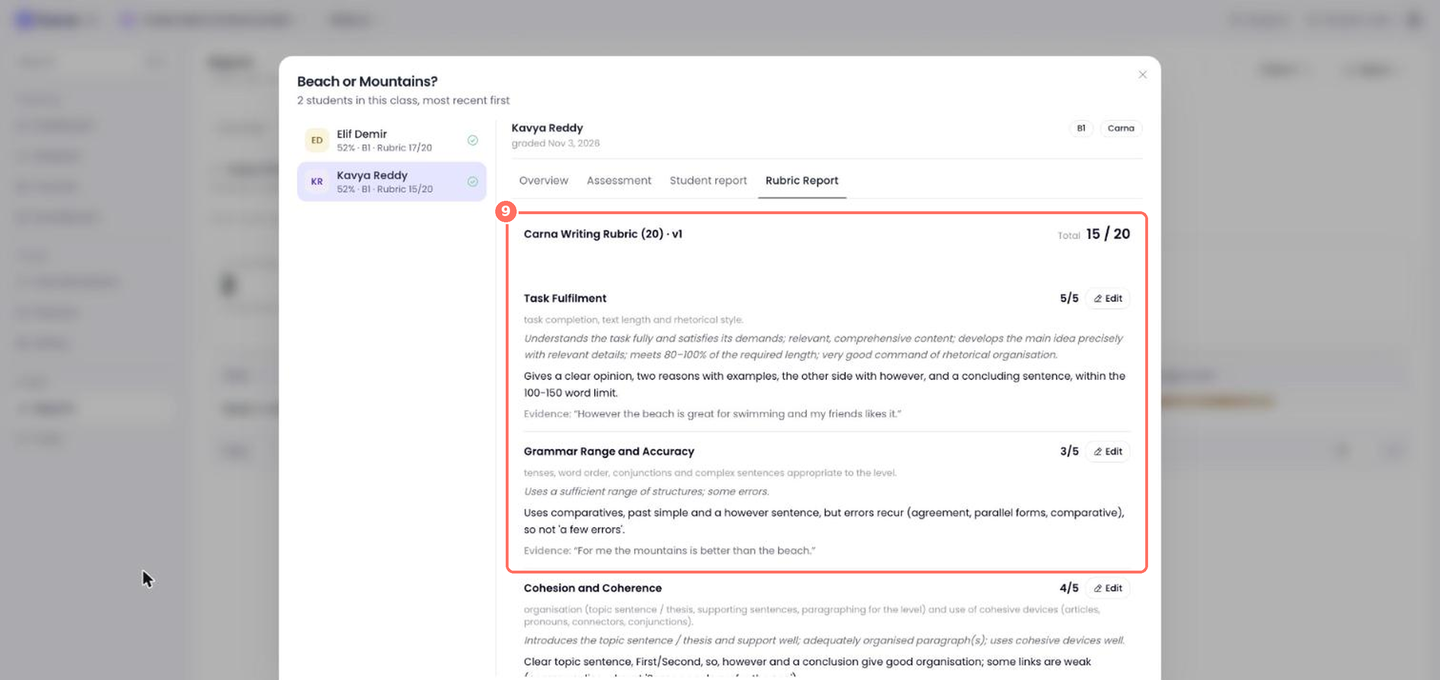
- Rubric Report scores the work against the Carna rubric, with a short reason and an evidence quote for each criterion. Click Edit next to a criterion to change its score.
- Click × at the top right of the window to close it.
Tips & Good to know #
- Scores are suggested by AI and checked automatically. You stay in control: you can change the overall score or any rubric criterion with Edit.
- A note like This result sits on a CEFR boundary means the student is close to the next level. Fewer mistakes could move them up.
- Independent Speaking reports have the same four tabs. Student report adds a player so you can listen to the student.
- For quizzes and modules, use Overview, Students and Mistakes instead. See How to read class and student reports.
Troubleshooting #
- A practice tab says "No gradings of this kind yet": no student has handed in that practice type yet, or the work hasn't been graded.
- A student is missing from the task: they haven't handed it in. Check the task's Completion column.
- The numbers changed: check whether Count each student's is set to Latest or Best.