


































How to fix a microphone that isn't working
Test your microphone before a speaking practice and allow Carna to use it, so your answer is recorded.
Who is this for: Students
Summary: Test your microphone before a speaking practice and allow Carna to use it, so your answer is recorded.
Before you start: You need a microphone: the one built into your laptop, tablet or phone, or a headset. Use Chrome or Edge on a computer, Safari on iPhone and iPad.
Steps #
- Open your speaking practice under Practices. Before you start, click Check microphone.
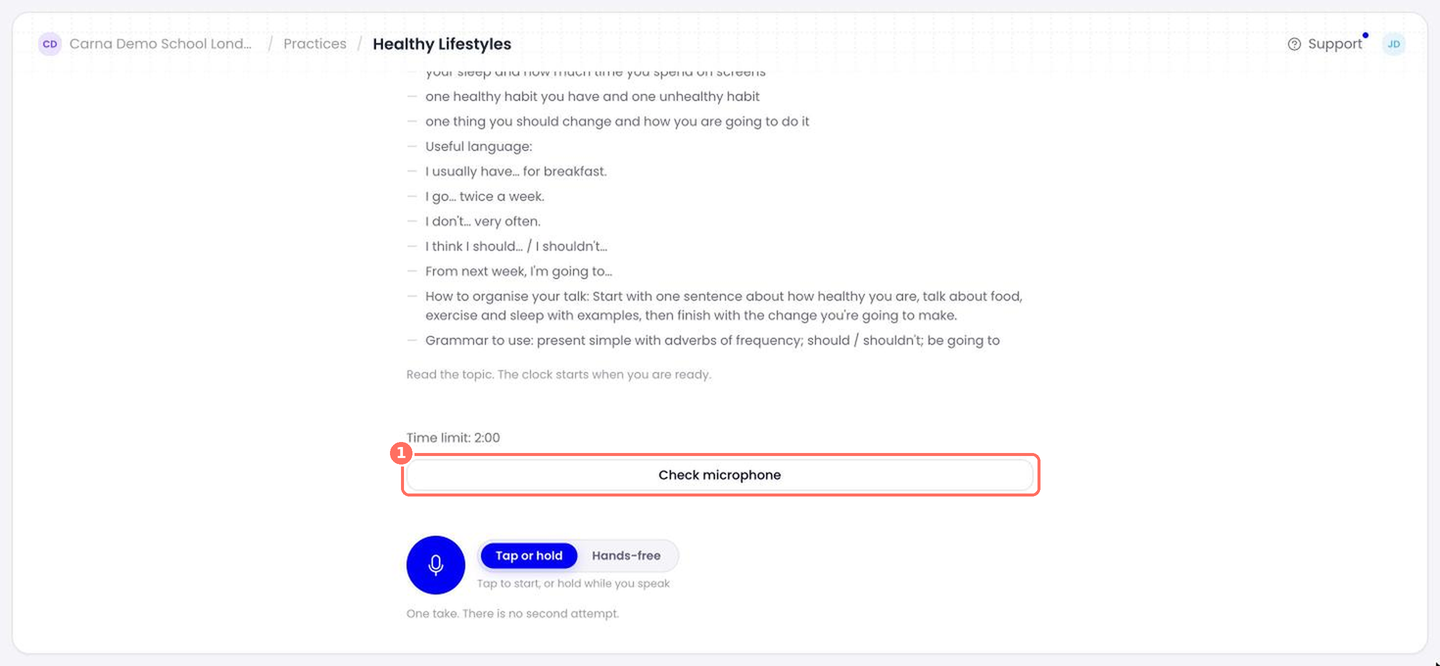
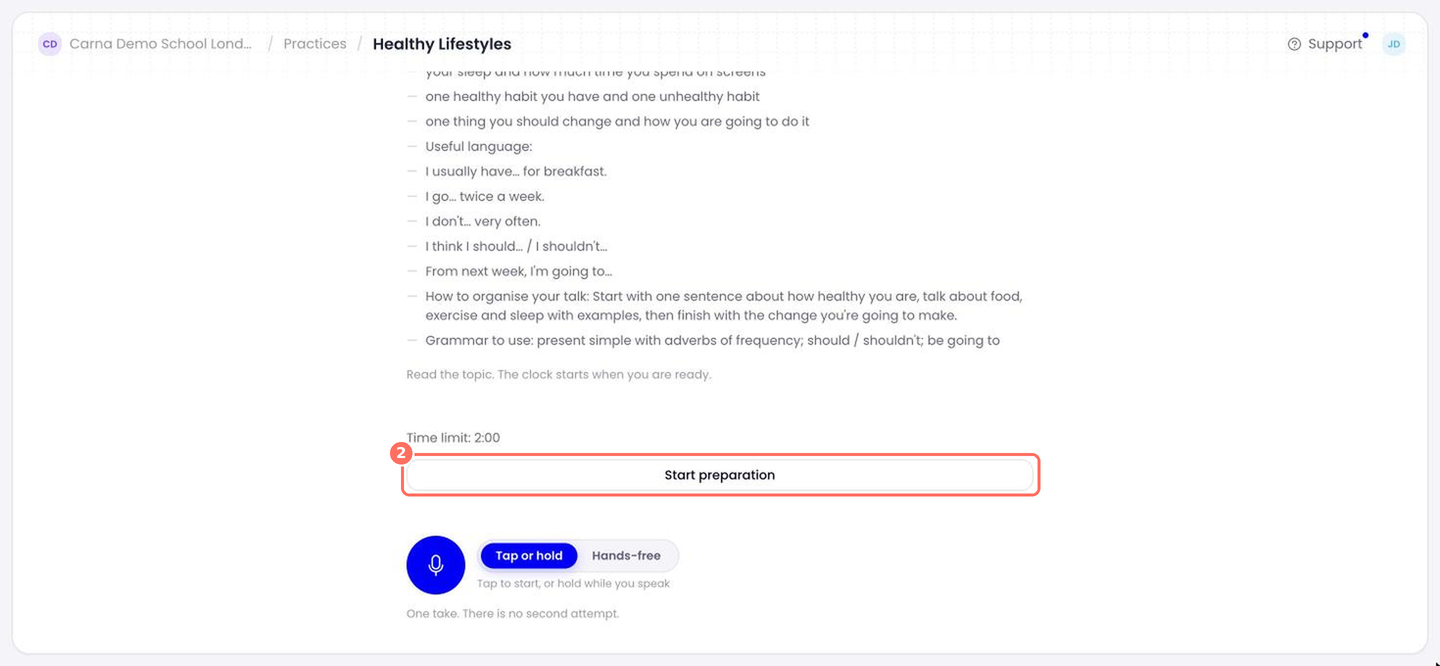
- If your browser asks to use your microphone, click Allow. When the check works, the button changes to Start preparation and you're ready to speak.
- If you clicked Block by mistake, allow the microphone again:
- Chrome or Edge (computer): click the icon at the left end of the address bar, turn Microphone on (or choose Allow), then reload the page.
- Safari (Mac): open Safari › Settings for org.carna.app, set Microphone to Allow, then reload the page.
- iPhone or iPad: open Settings › Apps › Safari › Microphone and choose Ask or Allow. Then open Carna again.
- Android (Chrome): tap the icon at the left end of the address bar › Permissions › Microphone › Allow.
- Click Check microphone again. If it still doesn't work, go through the troubleshooting list below.
Tips & Good to know #
- Each speaking practice has one take: there is no second attempt. Always check your microphone before you click Start preparation.
- Tap or hold: tap the microphone to start and tap again to stop, or hold it while you speak. Hands-free: you don't need to keep the button pressed while you speak.
- Find a quiet place and speak close to the microphone.
- Headsets with a microphone usually give the clearest recording.
Troubleshooting #
- Another app is using the microphone: close Zoom, Teams, Meet or other recording apps, then reload Carna.
- The wrong microphone is used: on a computer, choose the right microphone in your system sound settings (Windows: Settings › System › Sound; Mac: System Settings › Sound › Input).
- My headset microphone is muted: check the mute switch on the headset cable or earcup.
- On a school computer the microphone is blocked: your school may have turned it off. Ask your teacher or IT team.
- The page is in another app's browser (for example, inside a messaging app): open org.carna.app in Chrome, Edge or Safari instead.
- Still not working: contact us through Support › Live Support or email support@carna.ai.