


































How to do a Speaking Scenario
Talk with Mia in a role-play your teacher assigned, complete the goals one by one and read your report with your score and feedback.
Who is this for: Students
Summary: Talk with Mia in a role-play your teacher assigned, complete the goals one by one and read your report with your score and feedback.
Before you start: You need a student account in a class, a Speaking Scenario assigned by your teacher, and a working microphone. Use headphones in a noisy room.
Steps #
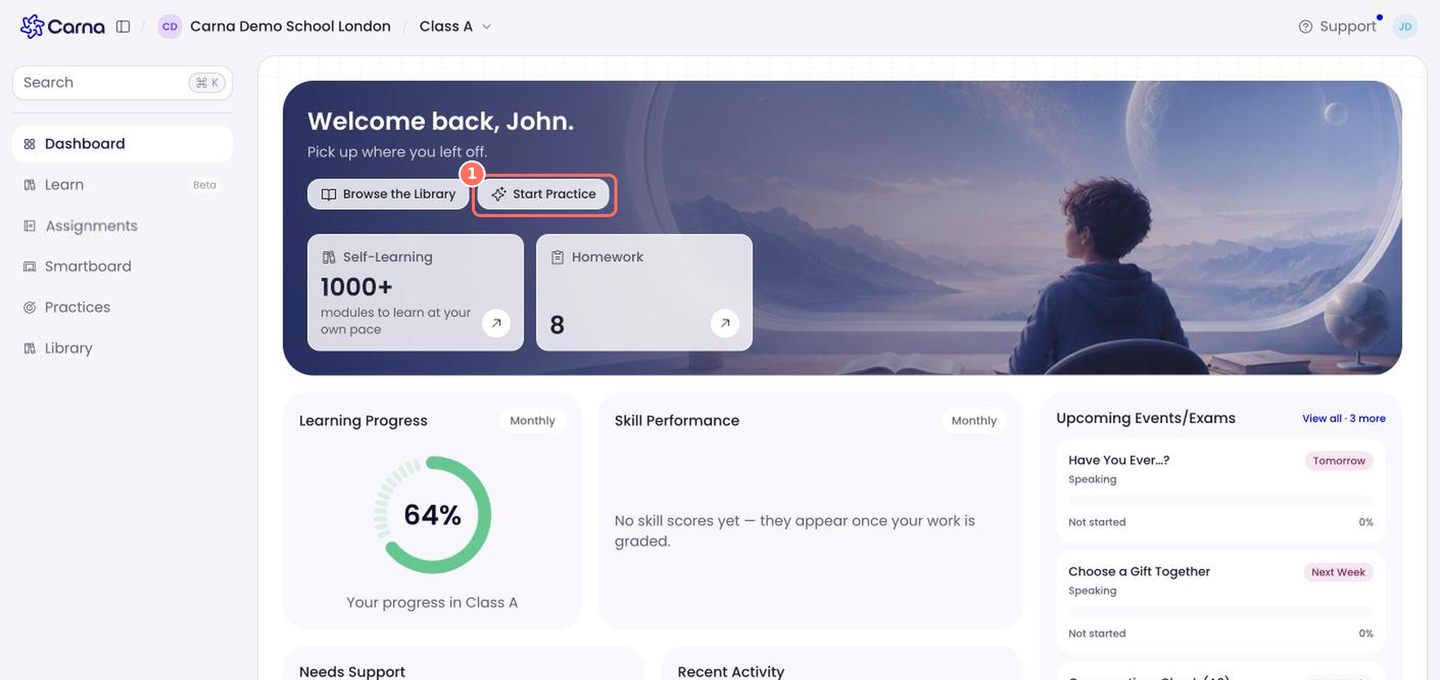
On your Dashboard, click Start Practice. You can also click Practices in the left menu.
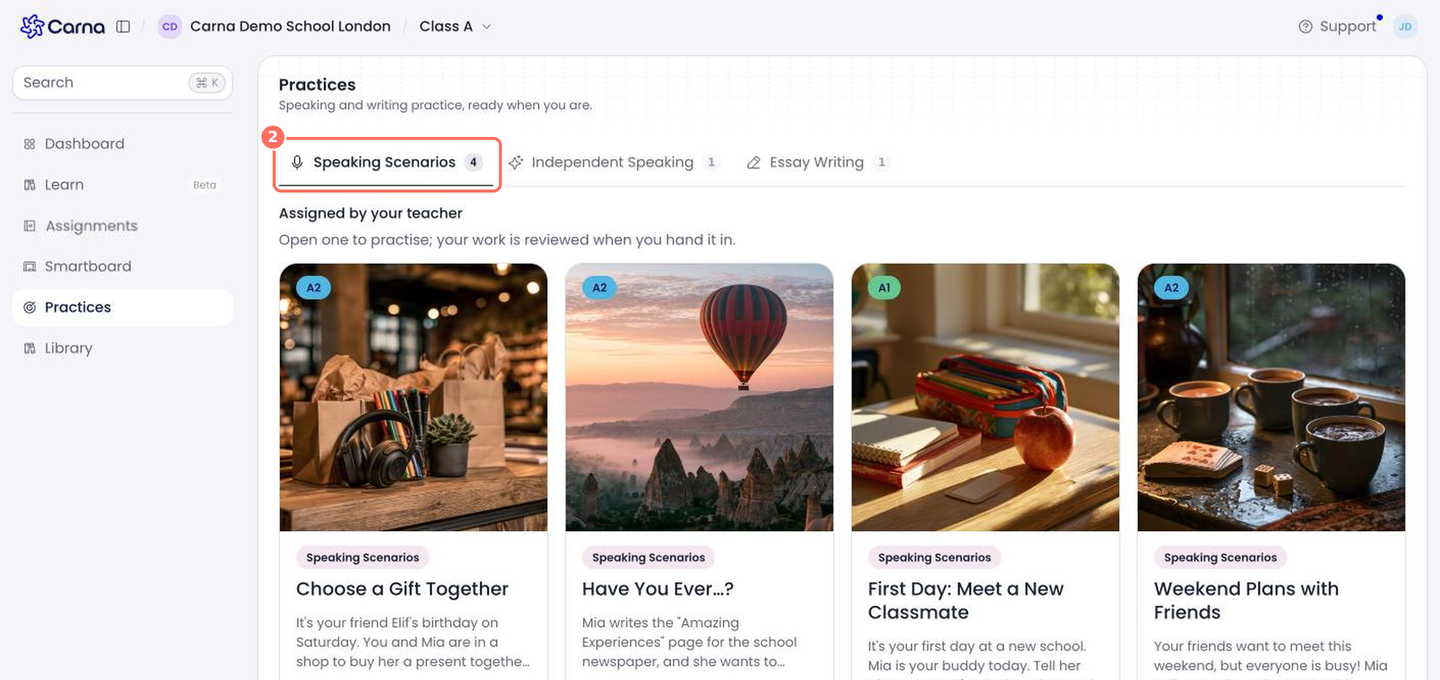
Open the Speaking Scenarios tab. The number next to it shows how many scenarios your teacher assigned.
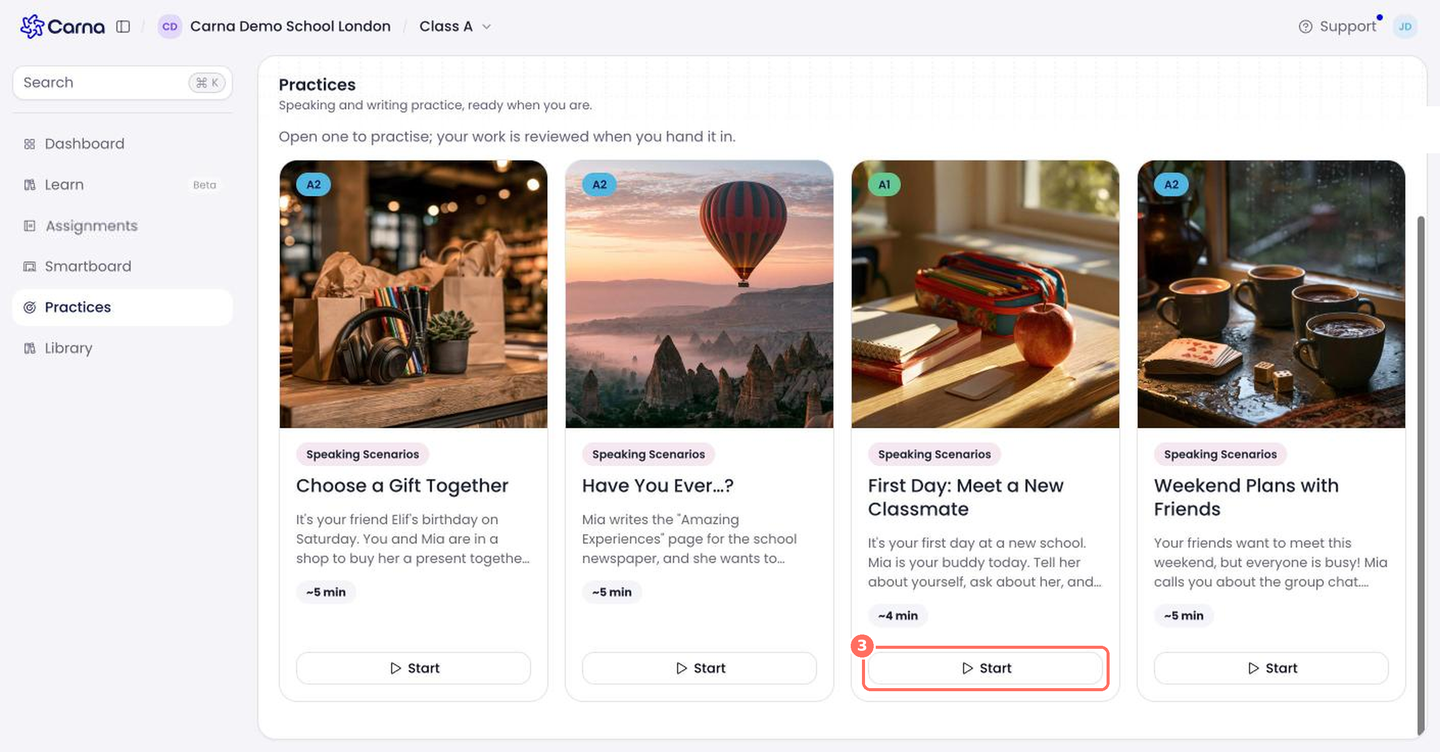
Each card shows the level (for example, A1), the title, a short description of the situation and about how long it takes (for example, ~4 min). Click Start on the scenario you want to do.
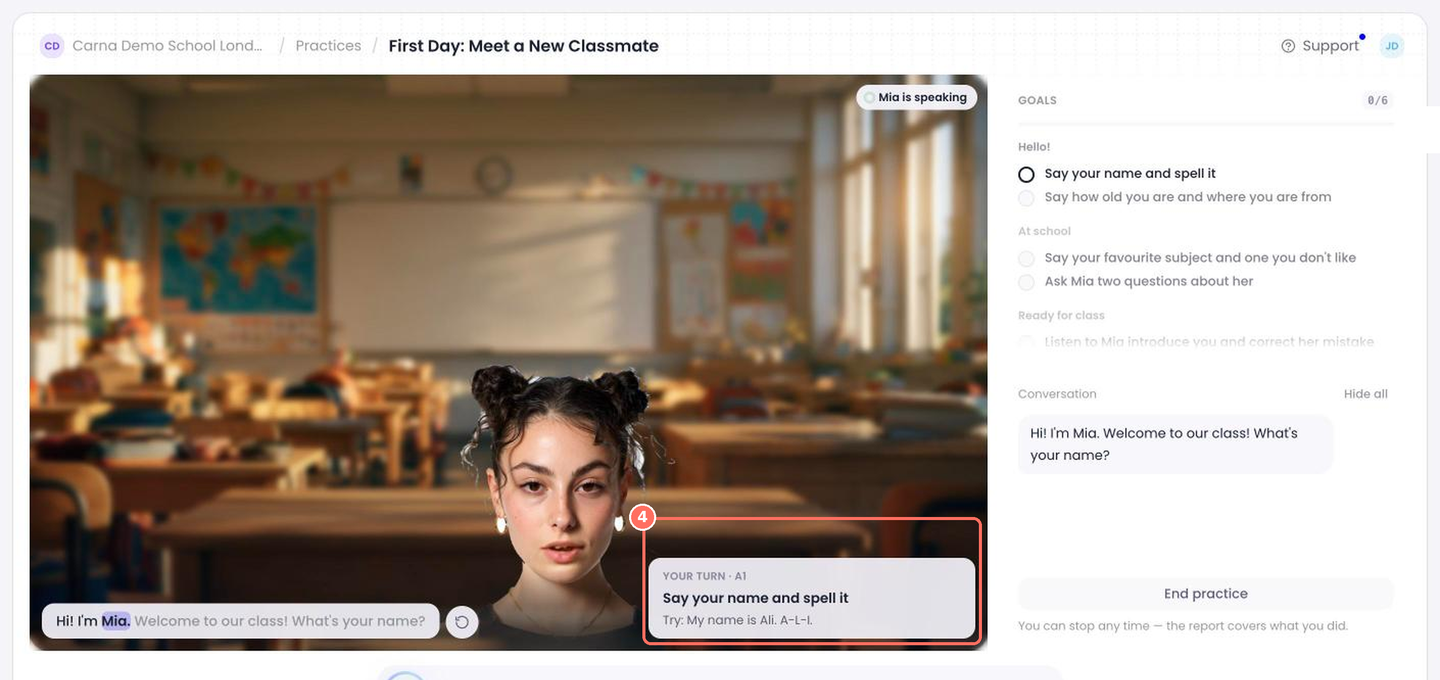
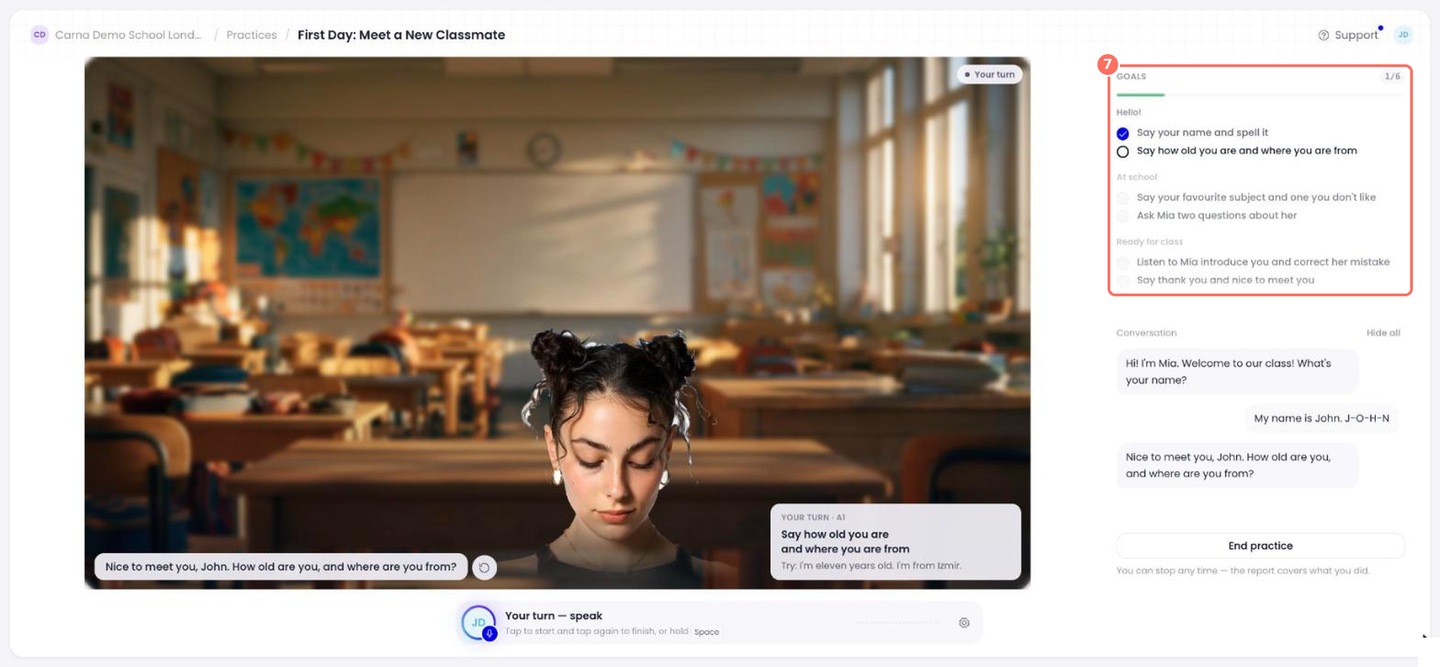
Mia starts the conversation. Her words appear at the bottom of the video, and the Your turn card tells you what to do next, with an example sentence (for example, Try: My name is Ali. A-L-I.). The Goals on the right list everything you need to do in the conversation.
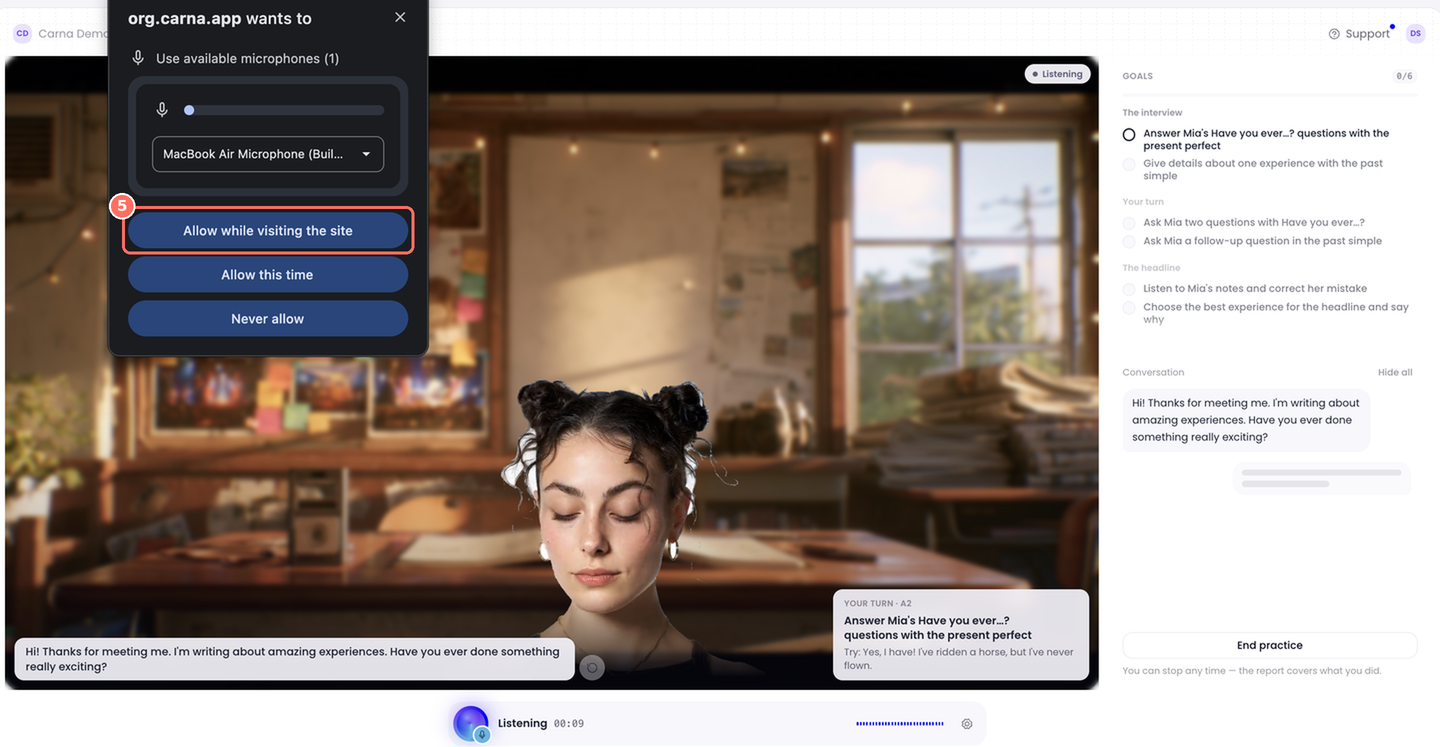
The first time you speak, your browser asks to use your microphone. Click Allow while visiting the site, so you don't have to allow it again next time.
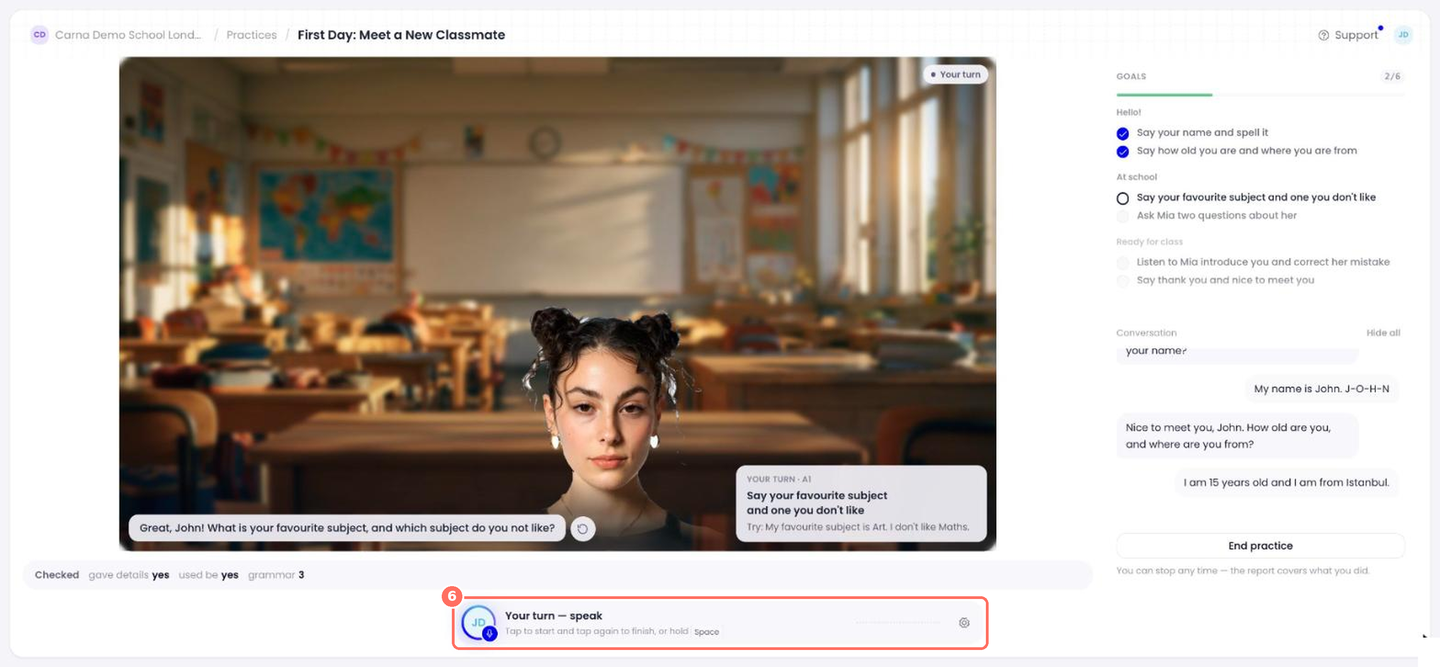
When you see Your turn — speak, click the microphone button and say your answer. Click it again when you finish. You can also hold the Space key while you speak and let go when you finish.
When your answer completes a goal, it gets a tick and the counter goes up (for example, 1/6). Mia then moves on to the next goal.
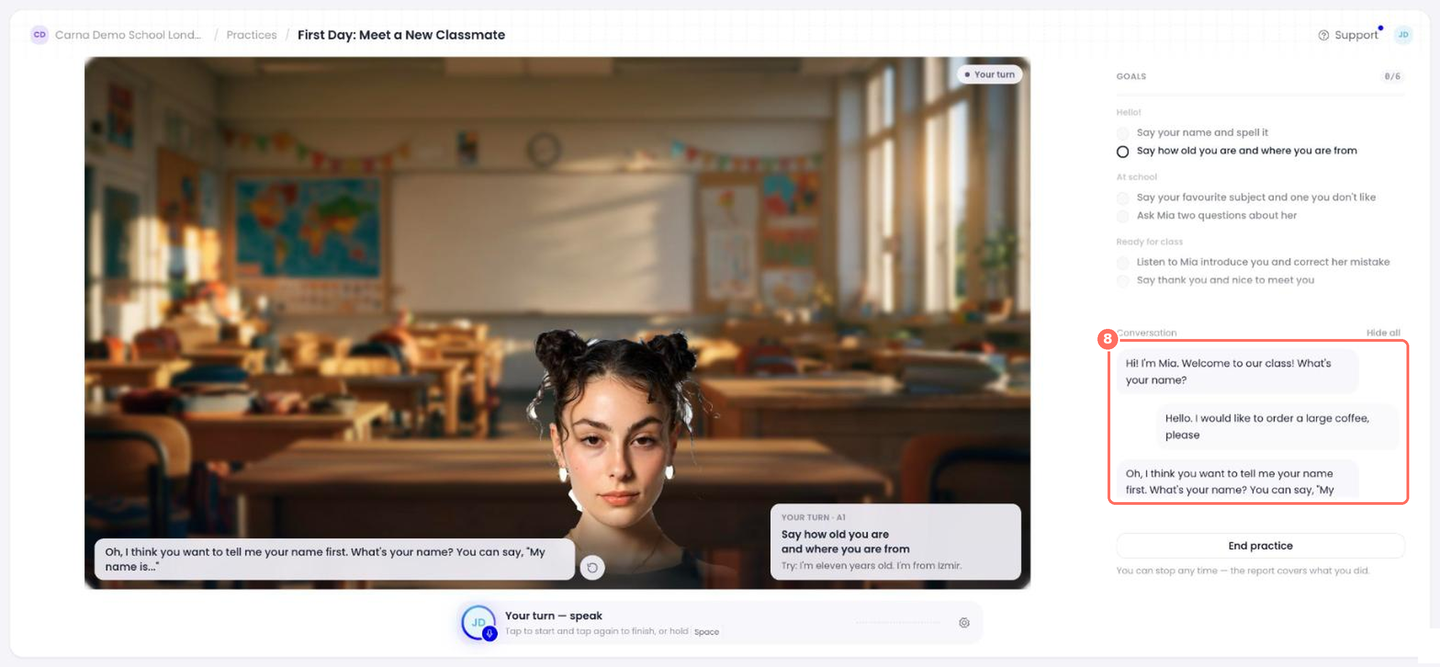
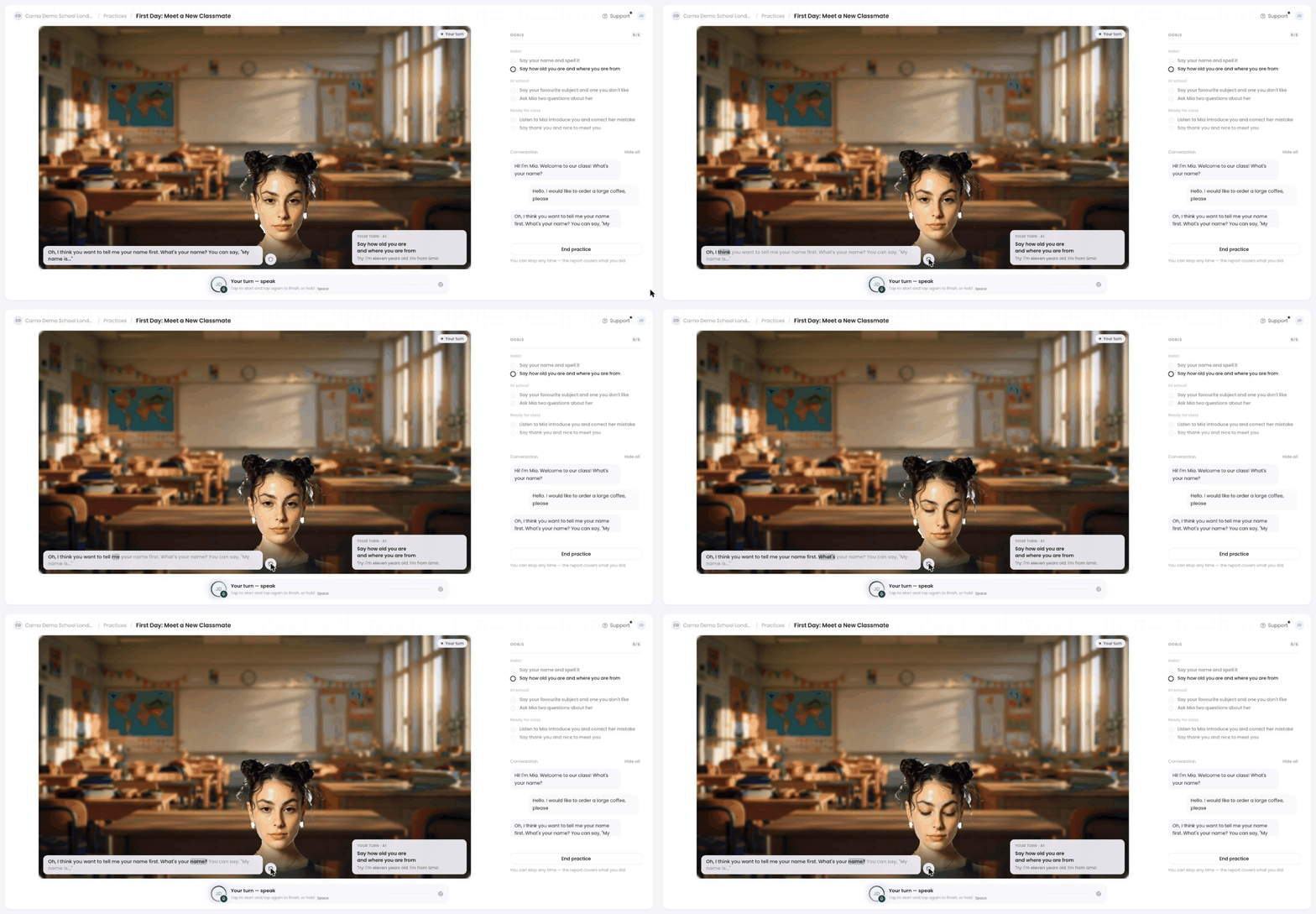
If your answer doesn't fit the goal, the goal stays open and Mia asks again. For example, if Mia asks your name and you order a coffee, she says Oh, I think you want to tell me your name first. Answer her question to move on.
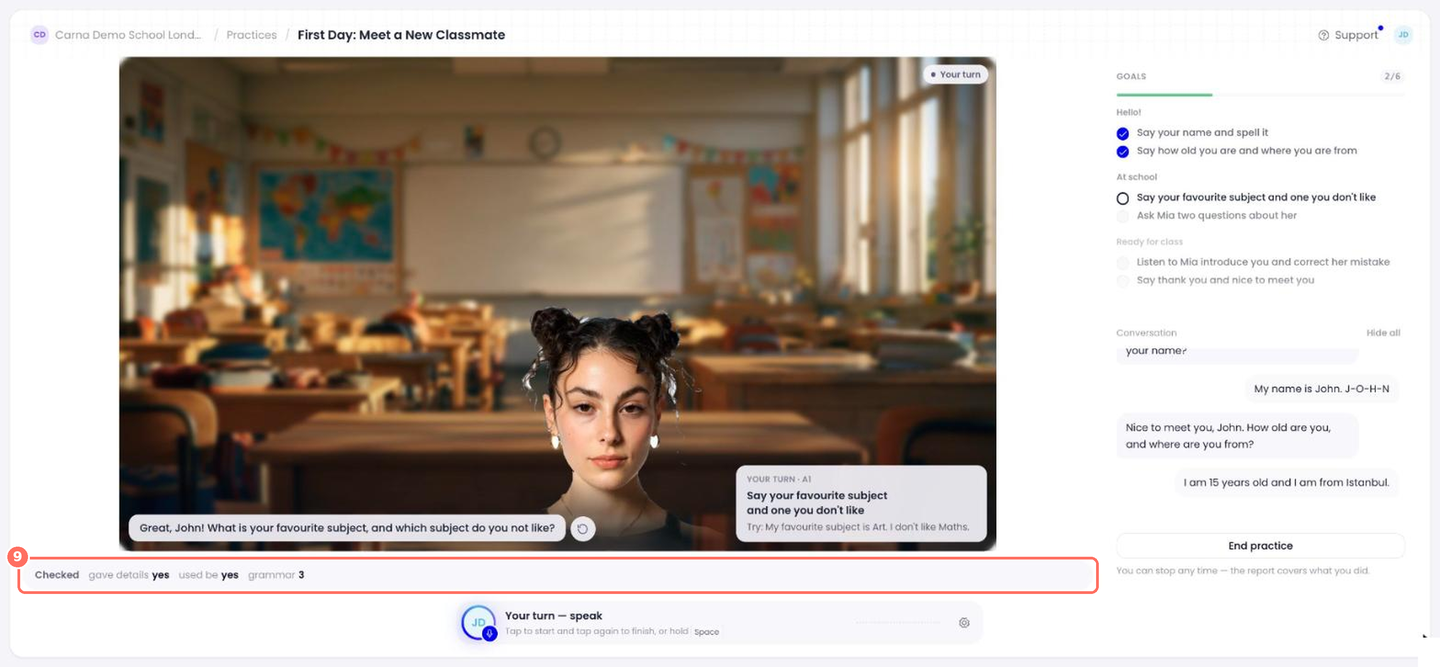
After each answer, the Checked line under the video shows what Carna noticed in it, for example whether you gave details, used be and a grammar score.
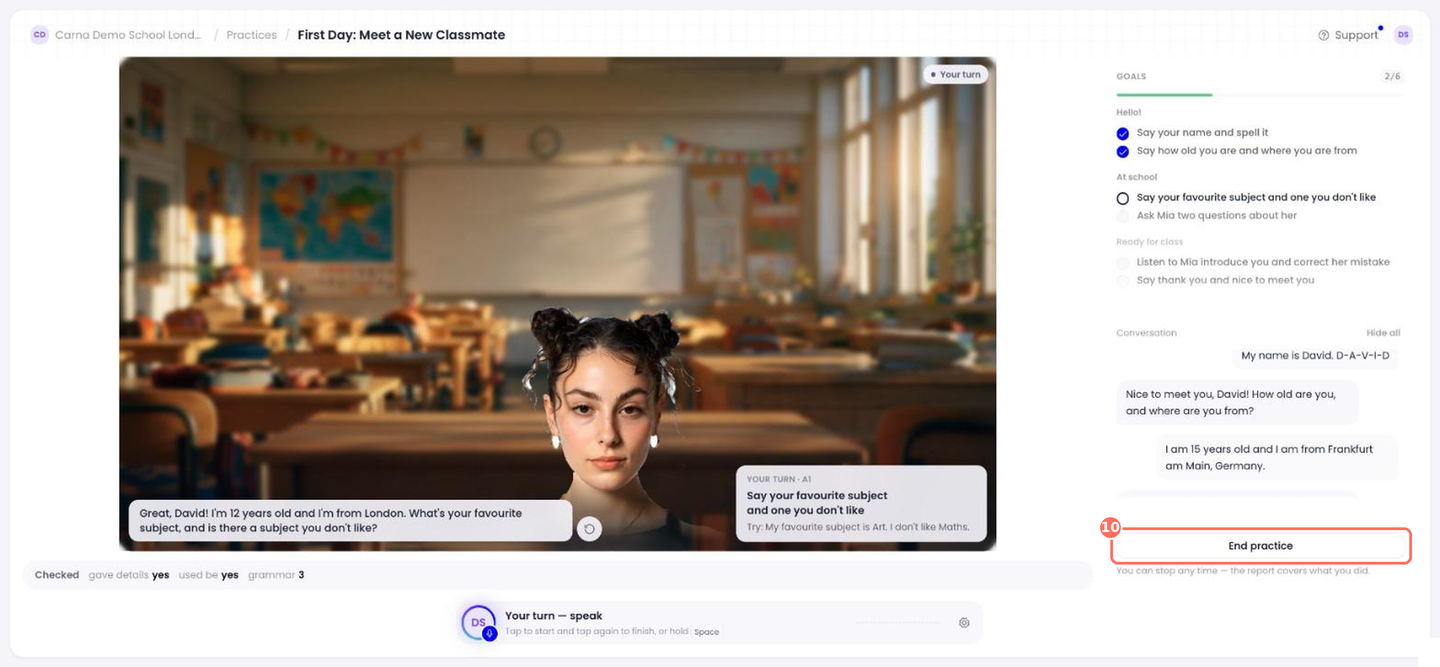
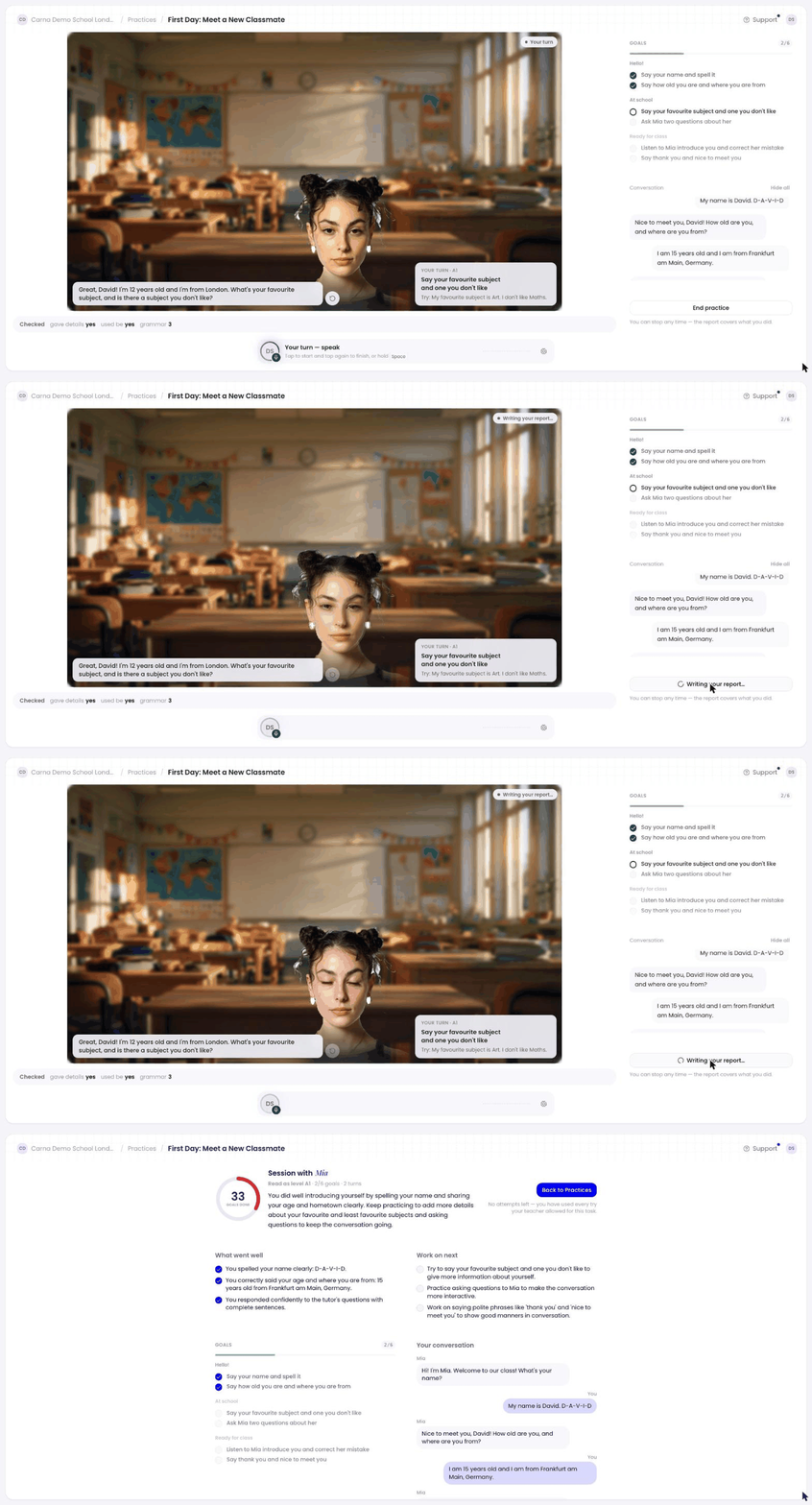
The conversation ends by itself when you complete every goal. To stop earlier, click End practice. The button changes to Writing your report…, and your report opens a few seconds later.
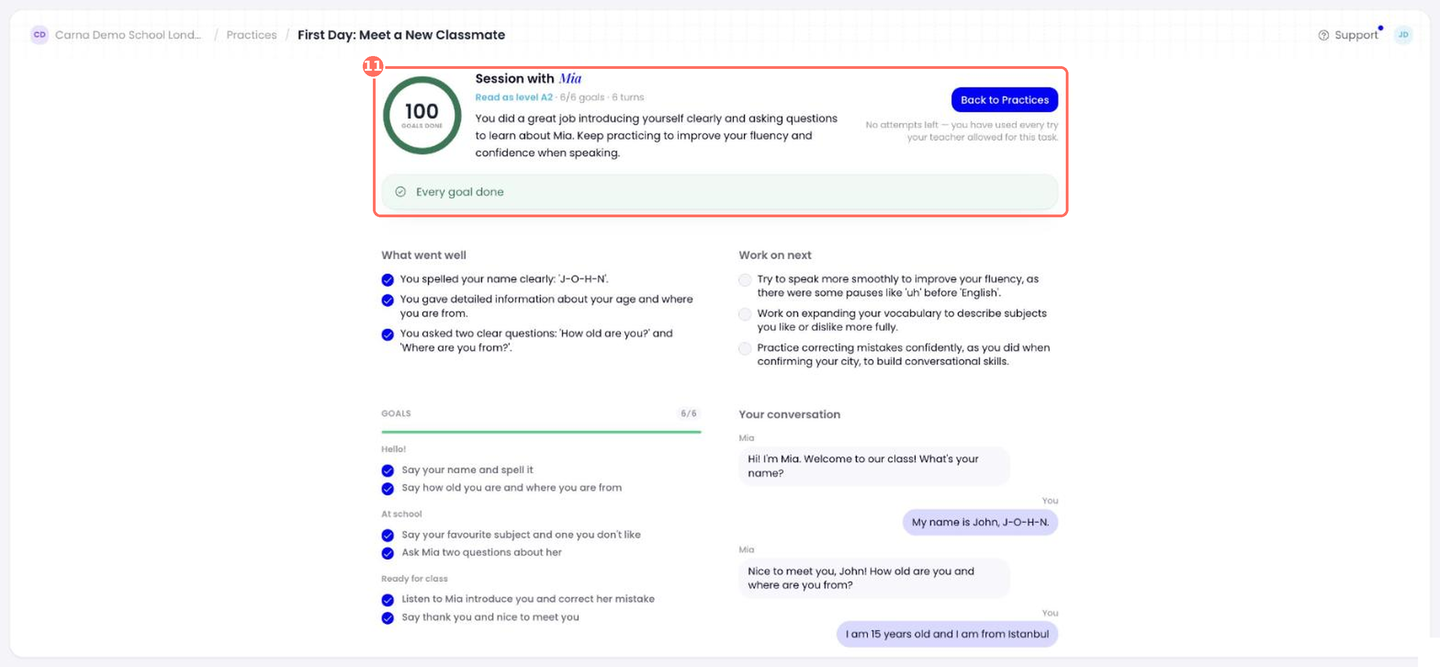
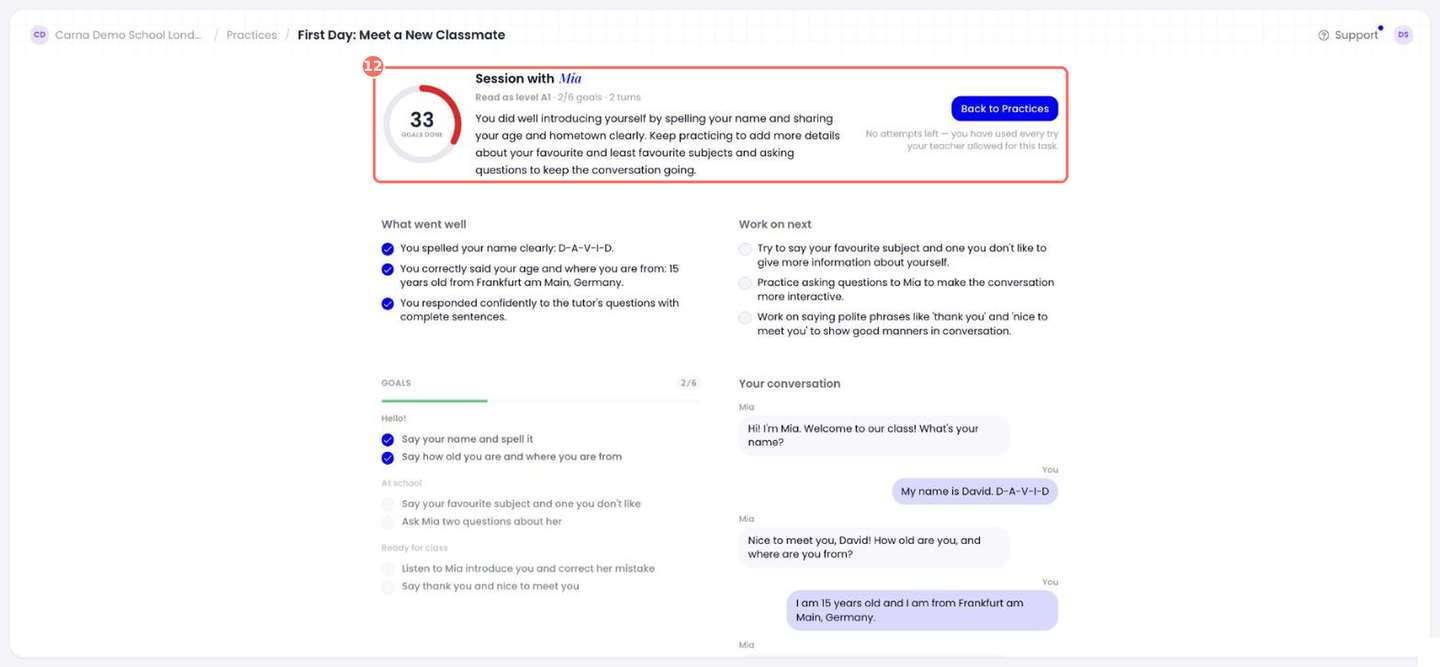
At the top of the report you see your score, the level Carna heard (for example, Read as level A2), how many goals you completed and a short summary. What went well shows your strong points with your own sentences, and Work on next gives tips. Further down are your Goals and Your conversation, the full conversation in writing.
Your score is the share of goals you completed. If you stop early, Carna reviews only what you did. For example, 2 of 6 goals gives a score of 33, and the goals you didn't reach appear under Work on next.
Tips & Good to know #
- Read the Your turn card before you speak. The example sentence shows the kind of answer Mia expects.
- To hear Mia's last sentence again, click the round arrow button next to her words. The word she is saying is highlighted as she speaks.
- End practice can't be undone, and you can't add goals afterwards. The report covers what you did up to that point.
- After you finish, the card under Speaking Scenarios says Review. Click it to open your report again.
- Your teacher sees your report and your score in Reports.
Troubleshooting #
- Mia doesn't hear me, or the browser didn't ask for the microphone: see How to fix a microphone that isn't working.
- I clicked Never allow by mistake: turn the microphone back on for org.carna.app in your browser settings. See How to fix a microphone that isn't working.
- Mia keeps asking the same question: your answer didn't complete the goal. Read the Your turn card and answer exactly what Mia asked.
- I can't find the scenario: check the Speaking Scenarios tab under Practices and that you're in the right class. See How to find an assignment you can't see.