


































How to fix a page shown in the wrong language
Get Carna's menus back in the language you chose when a page appears in another language or mixes two languages.
Who is this for: Everyone
Summary: Get Carna's menus back in the language you chose when a page appears in another language or mixes two languages.
Before you start: Carna sets its own language and asks your browser not to translate its pages, so the English in your exercises stays as it is.
Steps #
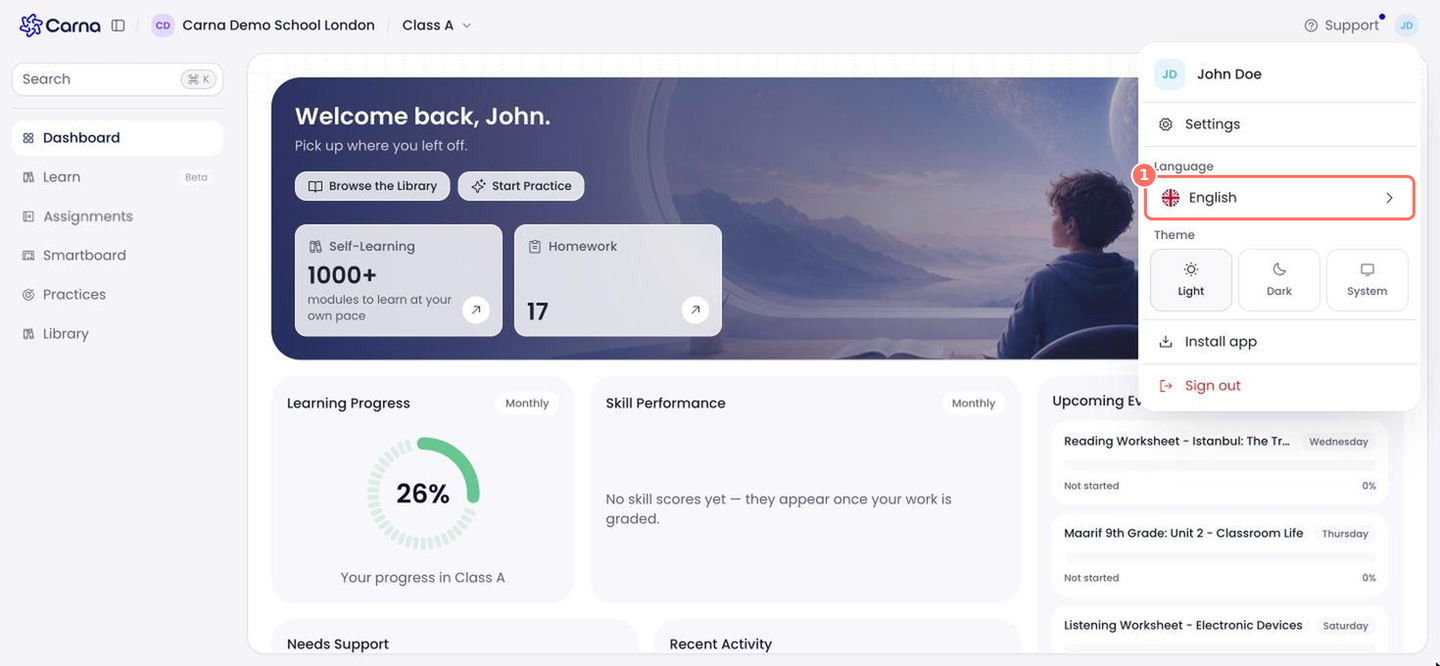
- Click your initials in the top right and check the language under Language. If it isn't the one you want, point to it and choose your language from the list.
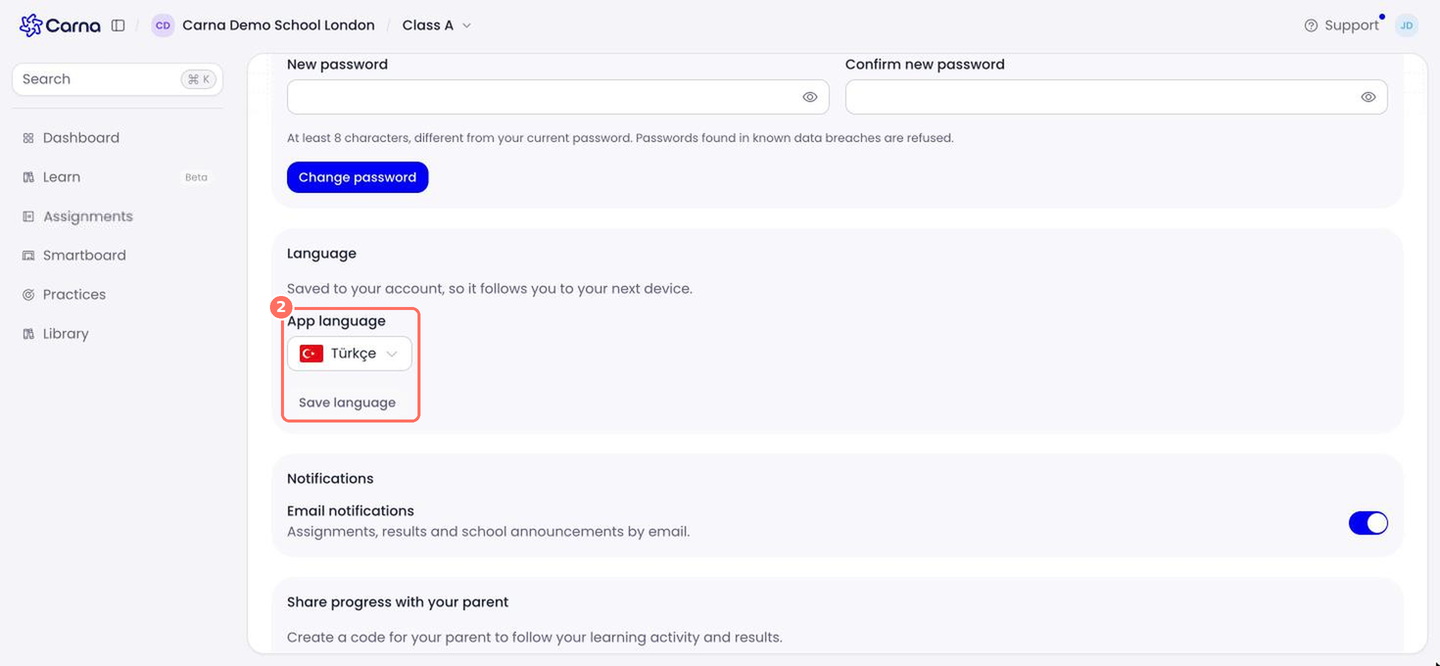
- If the language changes back when you sign in on another device, click Settings in the same menu. Under Language, choose your language in App language and click Save language.
- If some words are still in the old language, reload the page to get the latest version of Carna:
- Windows: press Ctrl + Shift + R.
- Mac: press Cmd + Shift + R.
- iPhone, iPad or Android: close the browser tab, then open org.carna.app again.
- Installed app: close the Carna app completely and open it again.
- If your browser still shows a translate bar or icon, choose Show original (or View Original in Safari) so you see Carna without browser translation.
Tips & Good to know #
- Changing the app language changes Carna's menus and buttons. Your lessons and exercises stay as they are.
- See How to change the app language for all the language options.
- Translation extensions (add-ons) in your browser can also change the page. Turn them off for org.carna.app.
Troubleshooting #
- The menus switch between two languages: the language in the menu under your initials and the one saved in Settings may be different. Choose the same language in both places.
- The sign-in page is in another language: use the language menu at the top of the sign-in page.
- It still looks wrong: take a screenshot and send it to us through Support › Live Support or support@carna.ai.