


































How to change your account settings
Change your profile photo, your name, your email address or your password in Settings, and resend the link to verify your email.
Who is this for: Everyone
Summary: Change your profile photo, your name, your email address or your password in Settings, and resend the link to verify your email.
Before you start: You need to be signed in to Carna. Settings look the same for teachers and students.
Steps #
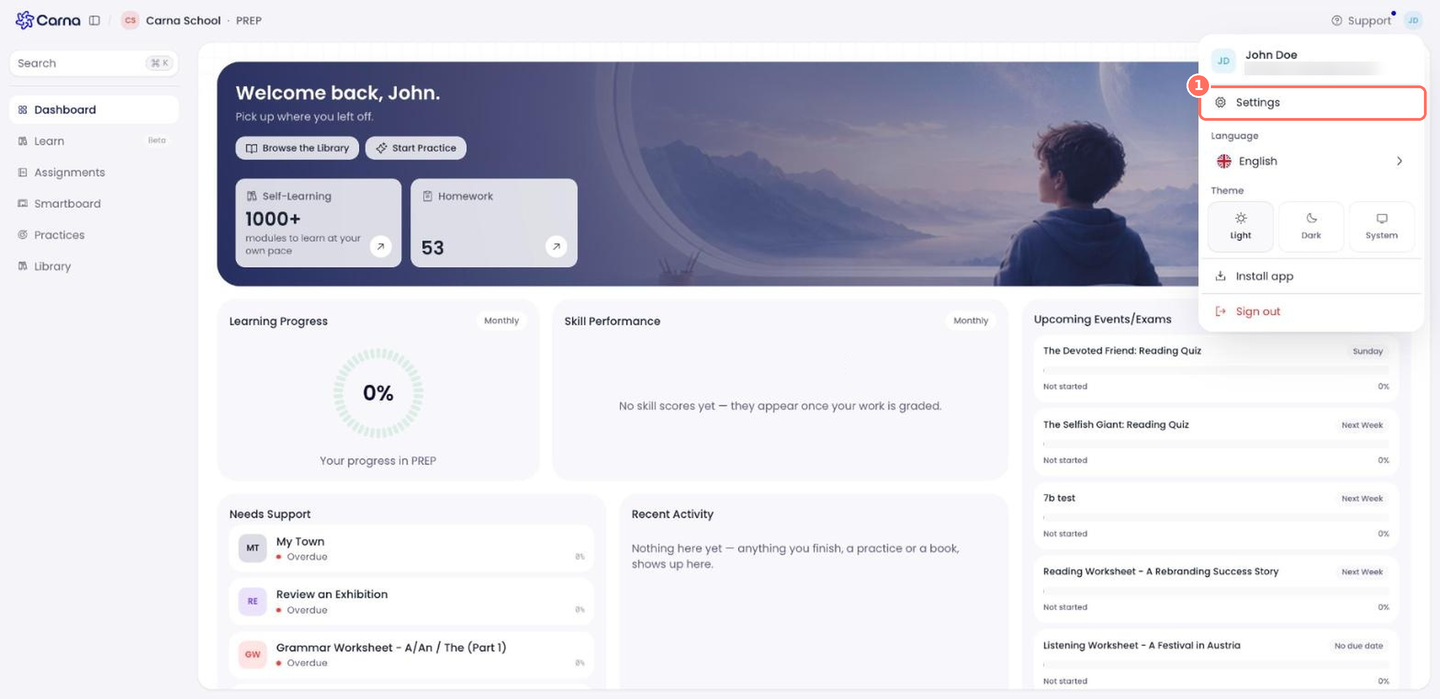
Open Settings
Click your initials at the top right of the page and choose Settings.
Change your photo
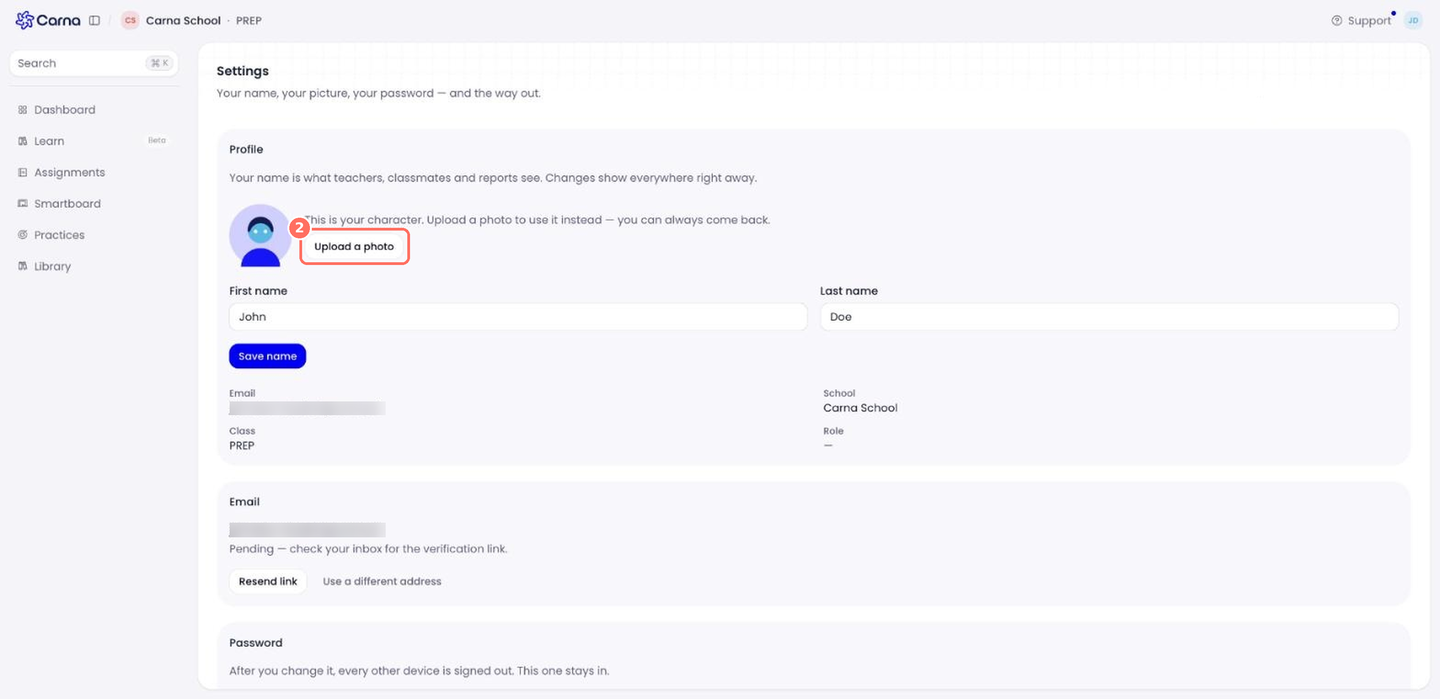
Under Profile, click Upload a photo and choose a picture. Until you add a photo, Carna shows your character. Photos are checked automatically before they go live, and you can always go back to your character.
Change your name
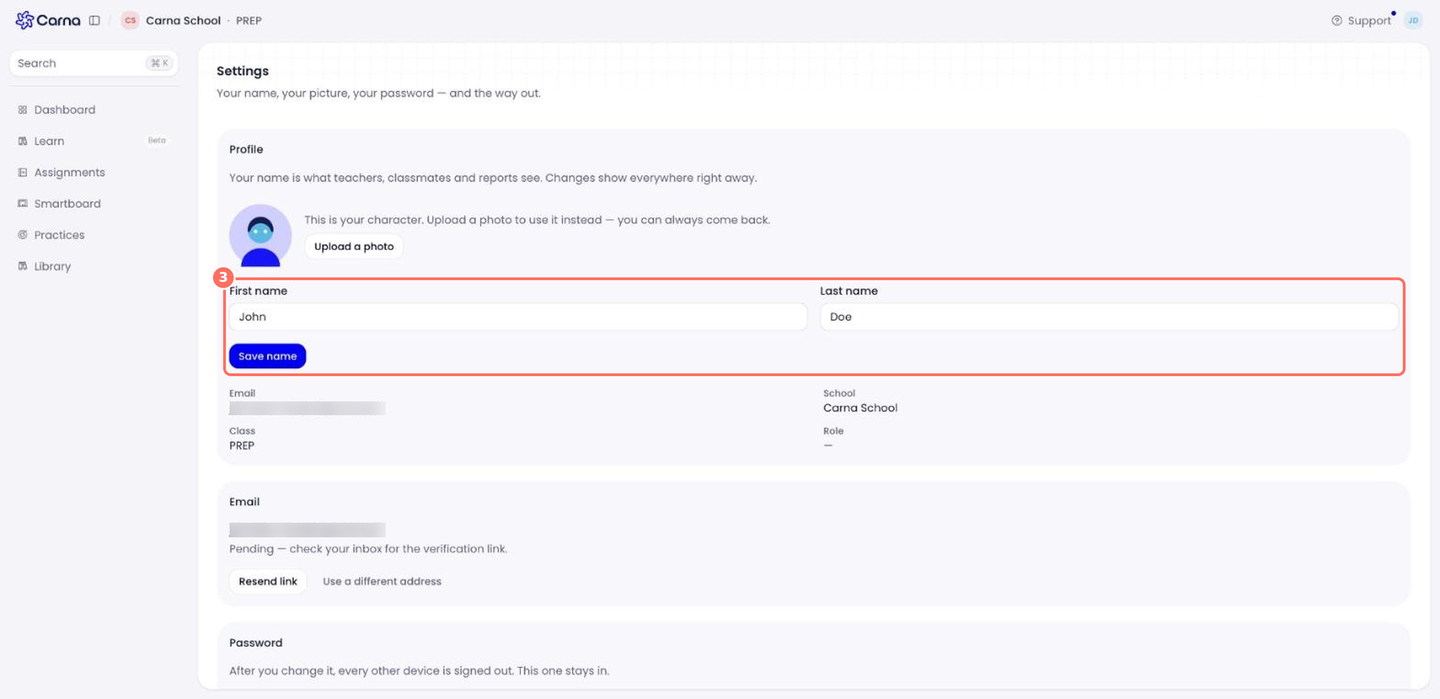
Type your First name and Last name and click Save name. Your name is what teachers, classmates and reports see, and the change shows everywhere right away.
Verify or change your email
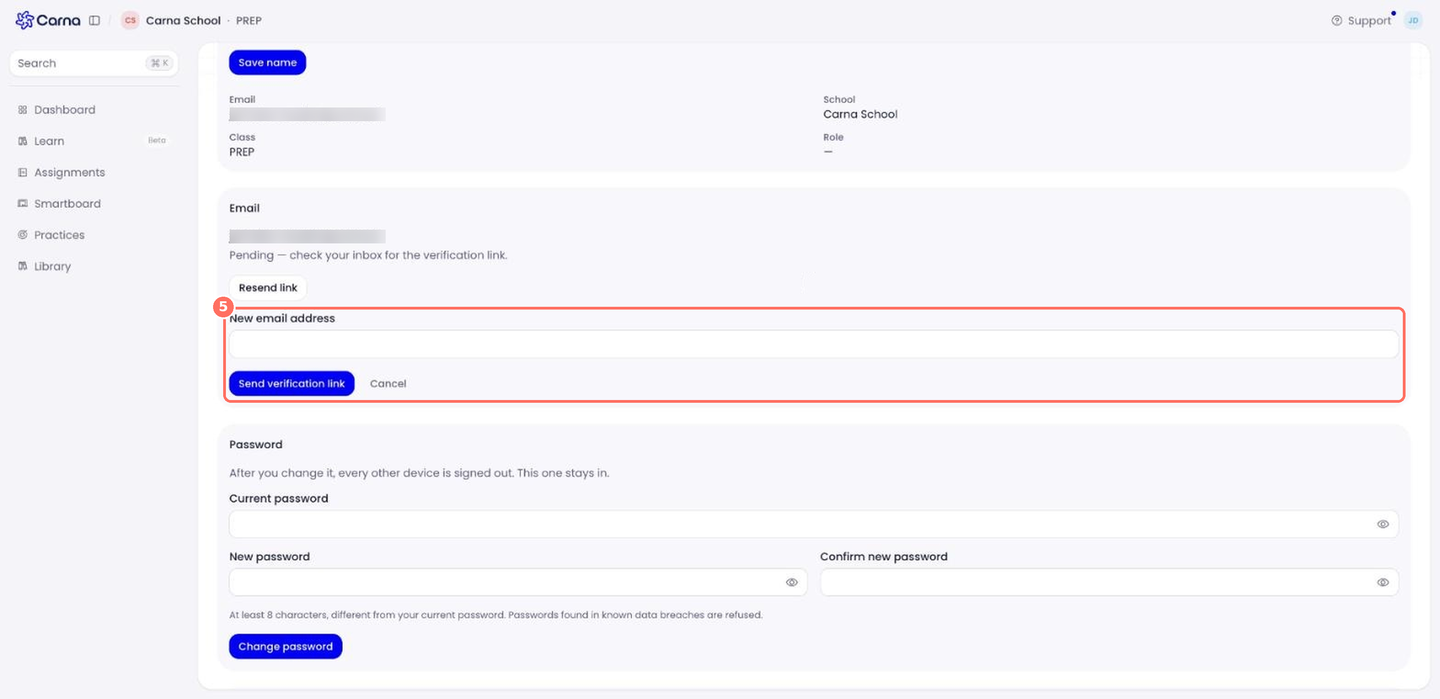
If the Email section says Pending — check your inbox for the verification link, open the email from Carna and click the link. If you can't find it, click Resend link to get a new one.
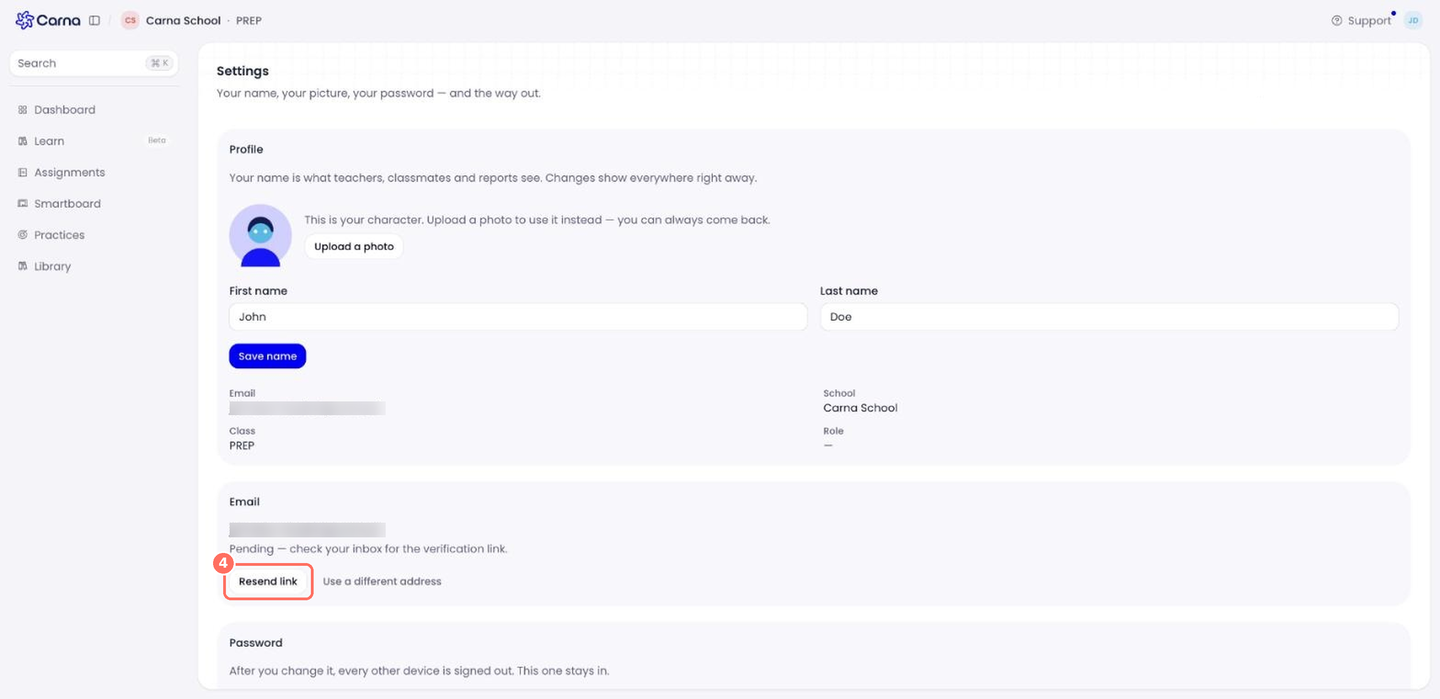
To use another email address, click Use a different address. Type it under New email address and click Send verification link, then open the link in your inbox. Click Cancel to keep your current address.
Change your password
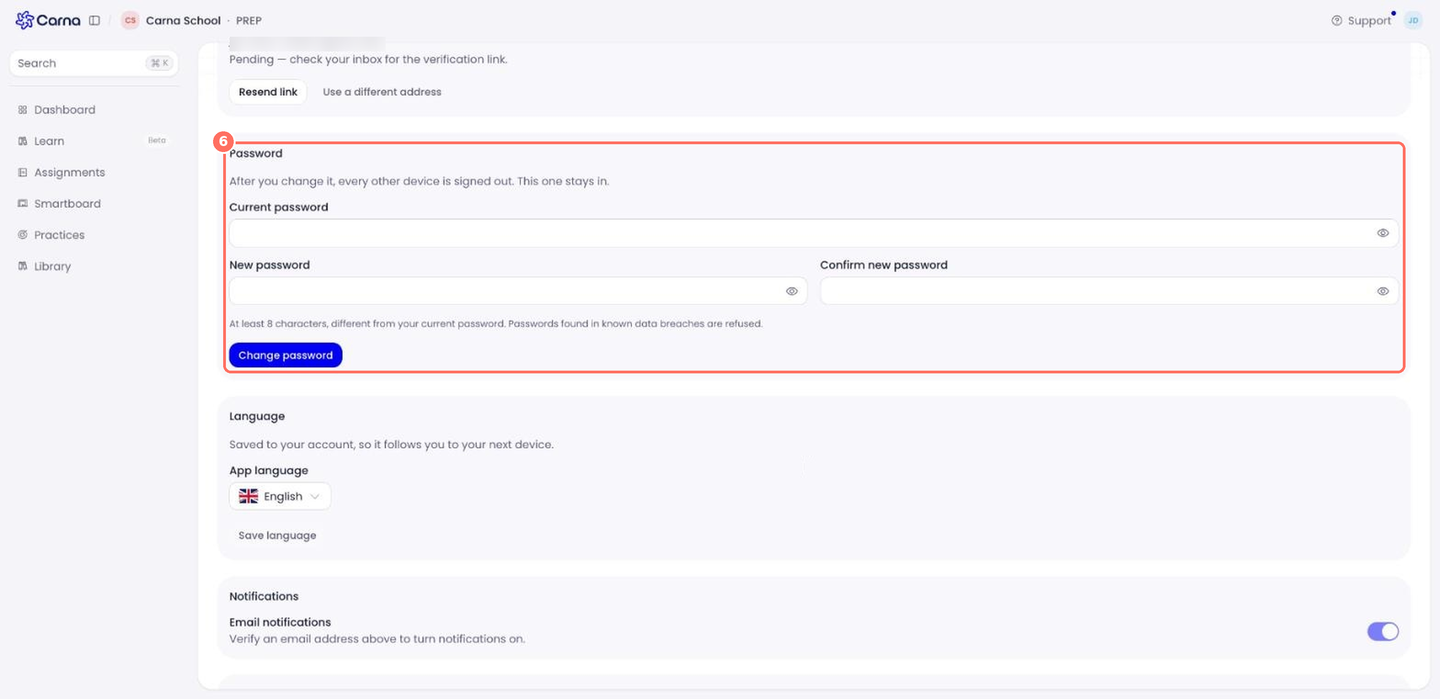
Under Password, type your Current password, then your New password and type it again under Confirm new password. Click Change password. Your other devices are signed out; the one you're using stays signed in.
Tips & Good to know #
- Your new password needs at least 8 characters and must be different from your current one. Passwords found in known data breaches are refused.
- Once your email is verified, the Email section shows Change email instead of Resend link.
- If you sign in with a username and have no email yet, type your email in Email address and click Add email. You can then reset your password yourself if you forget it. Your username keeps working for sign-in.
- Profile also shows your School, your Class and your Role.
- Further down in Settings you can change the App language (see How to change the app language), turn Email notifications on or off once your email is verified, and click Sign out to end your session on this device only.
- Students: under Share progress with your parent, click Create pairing code to make a code your parent can use to follow your learning activity and results.
Troubleshooting #
- The verification email doesn't arrive: check your spam or junk folder, wait a few minutes and click Resend link. Make sure the address shown in the Email section is spelled correctly; if not, click Use a different address.
- I can't turn on Email notifications: verify your email address first.
- Carna doesn't accept my new password: check that it has at least 8 characters, that it is different from your current password and that both new password boxes match. Try a less common password.
- I don't know my current password: sign out and use Forgot password? on the sign-in page. See How to sign in and reset your password.
- My new name doesn't show: make sure you clicked Save name, then refresh the page.
- Still stuck: write to the Carna team through Live Support. See How to get help from the Carna team.