


































How to install the Carna app on your devices
Add Carna to your computer, phone or tablet so it opens in its own window with one tap, without the browser bar.
Who is this for: Everyone
Summary: Add Carna to your computer, phone or tablet so it opens in its own window with one tap, without the browser bar.
Before you start: You need a Carna account and an up-to-date browser: Chrome or Edge on a computer or Android device, Safari on iPhone and iPad. There is nothing to download from an app store.
Steps #
On a computer (Chrome or Edge)
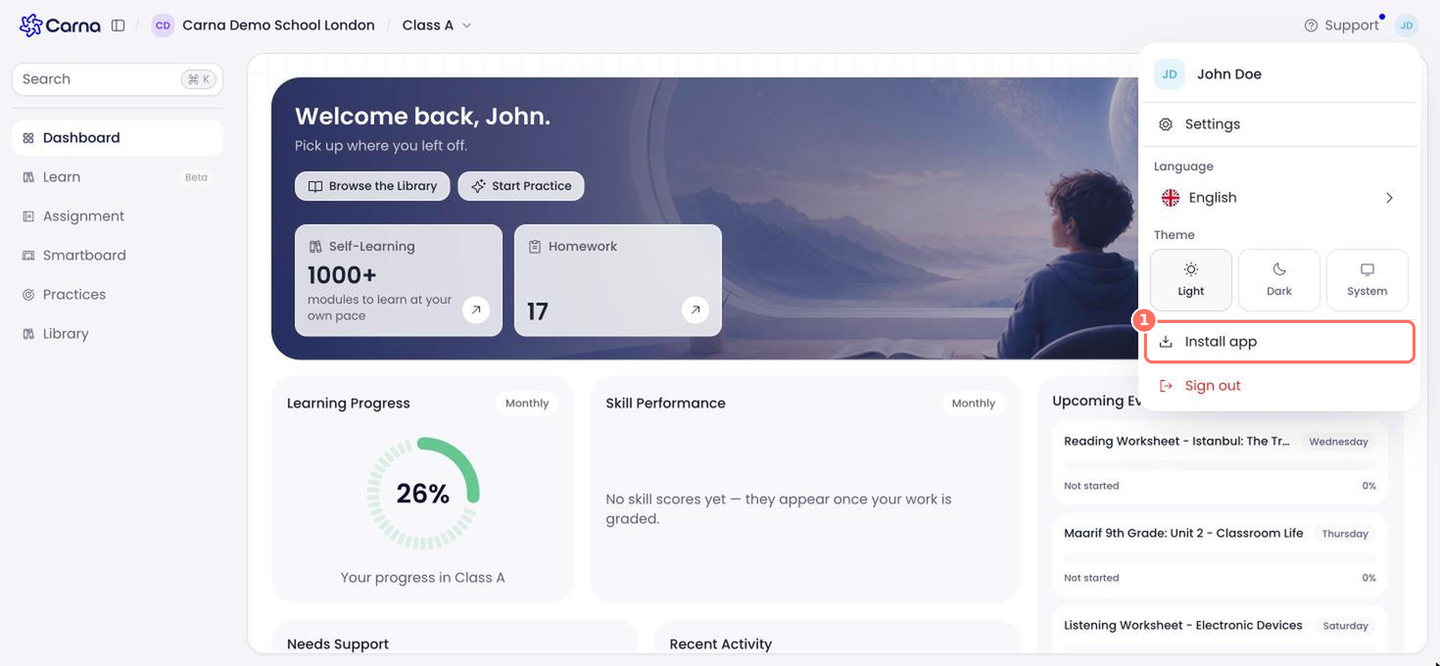
Sign in at org.carna.app. Click your initials in the top right and choose Install app.
In the Get the Carna app box, click Install.
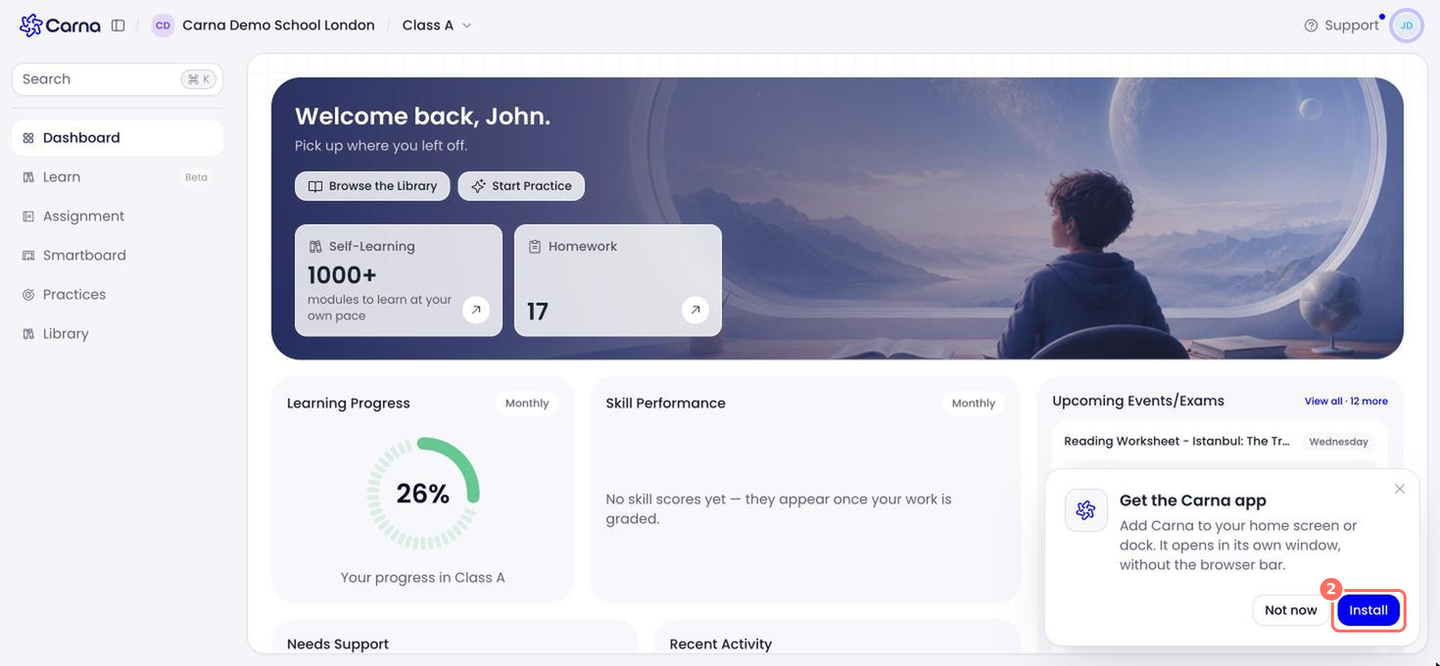
Your browser asks you to confirm. Click Install again. Carna opens in its own window, and its icon is added to your desktop, Start menu or Dock.
On iPhone or iPad (Safari)
Open org.carna.app in Safari and sign in.
Tap the Share button (the square with an arrow pointing up), then tap Add to Home Screen.
Check the name, then tap Add. The Carna icon appears on your home screen.
On an Android phone or tablet (Chrome)
Open org.carna.app in Chrome and sign in.
Tap the menu (⋮) in the top right, then tap Install app or Add to Home screen.
Tap Install to confirm. The Carna icon appears on your home screen.
Tips & Good to know #
- The app is the same Carna you use in the browser. Your work, assignments and settings stay the same.
- You stay signed in after you install, so you can open Carna straight from its icon.
- If you click Not now, you can install later from Install app in the same menu.
- In Chrome and Edge, you can also click the install icon at the right end of the address bar (a screen with a down arrow).
- On a shared school computer, ask your IT team before installing.
Troubleshooting #
- I don't see Install app or the Install button does nothing: your browser may not support installing apps. Use Chrome or Edge on a computer, or Safari on iPhone and iPad.
- There is no Add to Home Screen on my iPhone: make sure you opened Carna in Safari, not in another app's built-in browser. Scroll down in the Share menu to find it.
- The app is already installed: look for the Carna icon on your desktop or home screen. In Chrome, an Open in app icon appears at the right end of the address bar.
- Sound doesn't play in the app on iPad: see How to fix audio that won't play on iPad or Safari.