


































How to find your assignments on the home screen
See what your teacher has assigned, what is due next and what you've already handed in.
Who is this for: Students
Summary: See what your teacher has assigned, what is due next and what you've already handed in.
Before you start: You need a student account and to be in a class. If you haven't joined a class yet, see How to create your Carna account.
Steps #
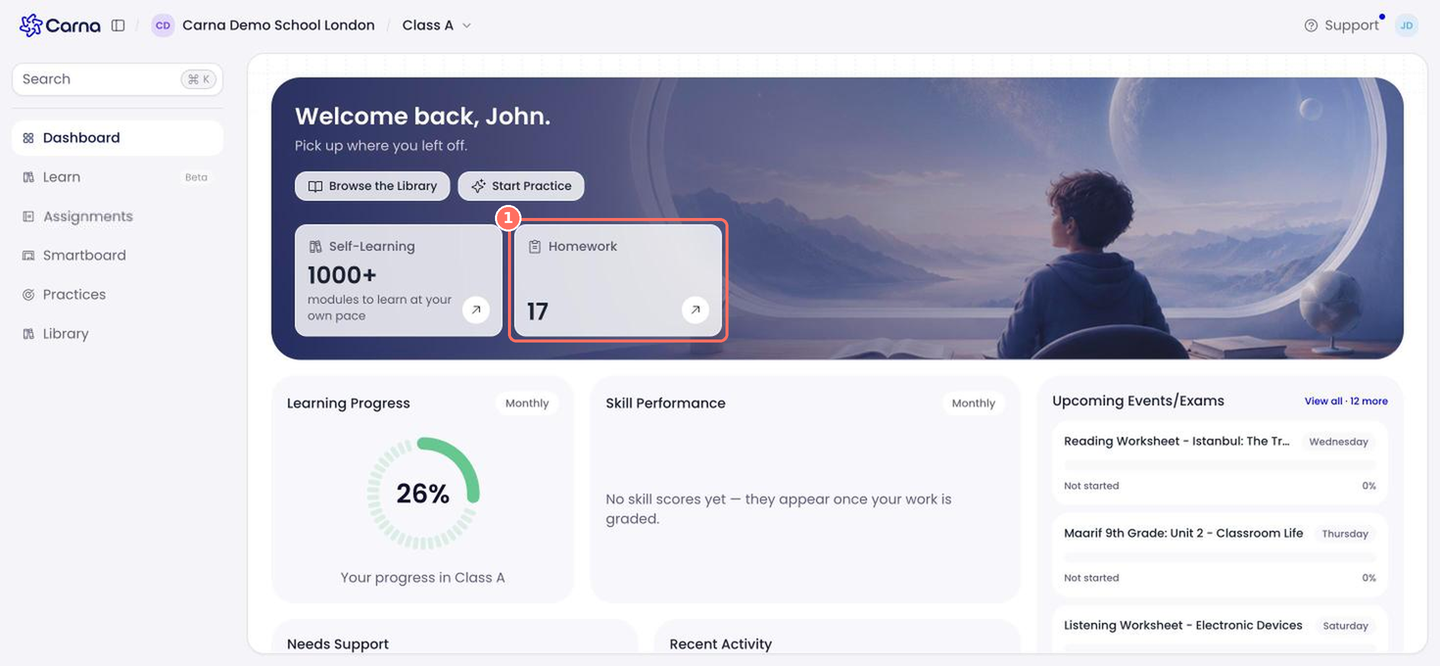
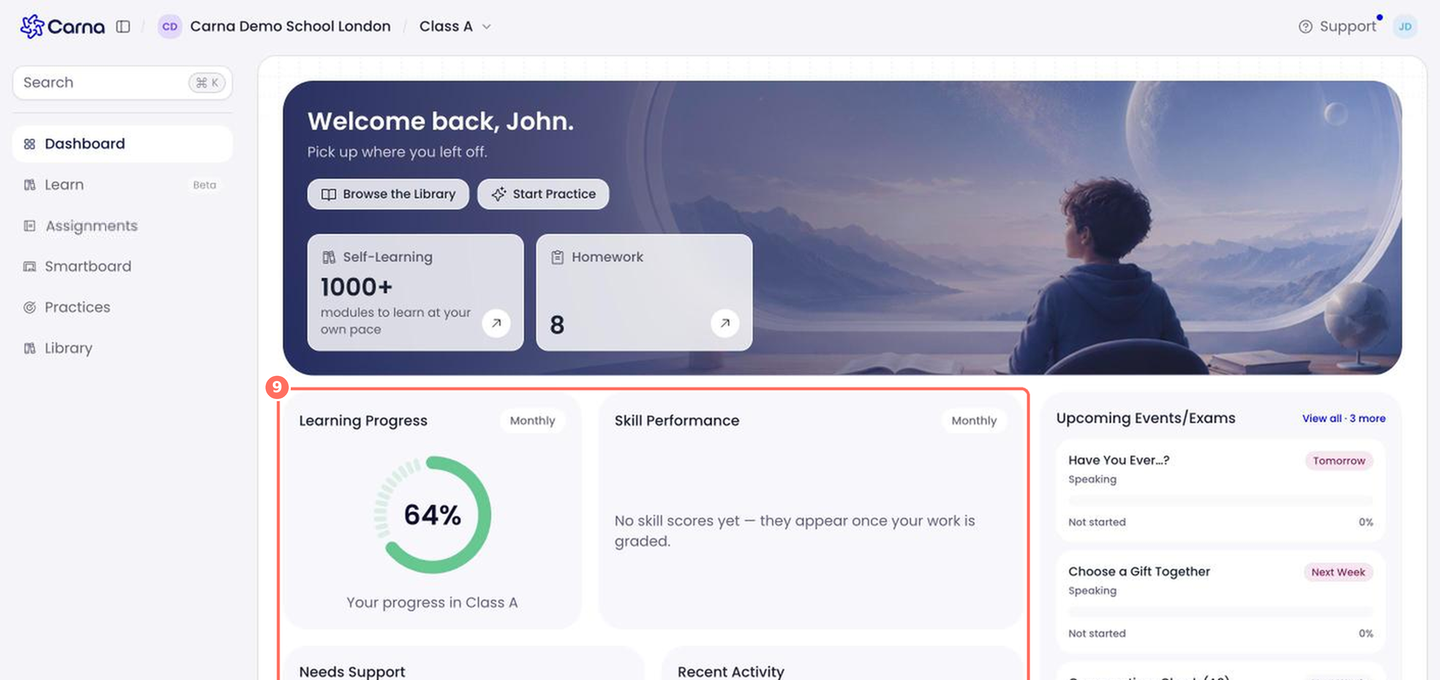
After you sign in, you land on your Dashboard. The Homework card shows how many assignments you have. Click its arrow to open them.
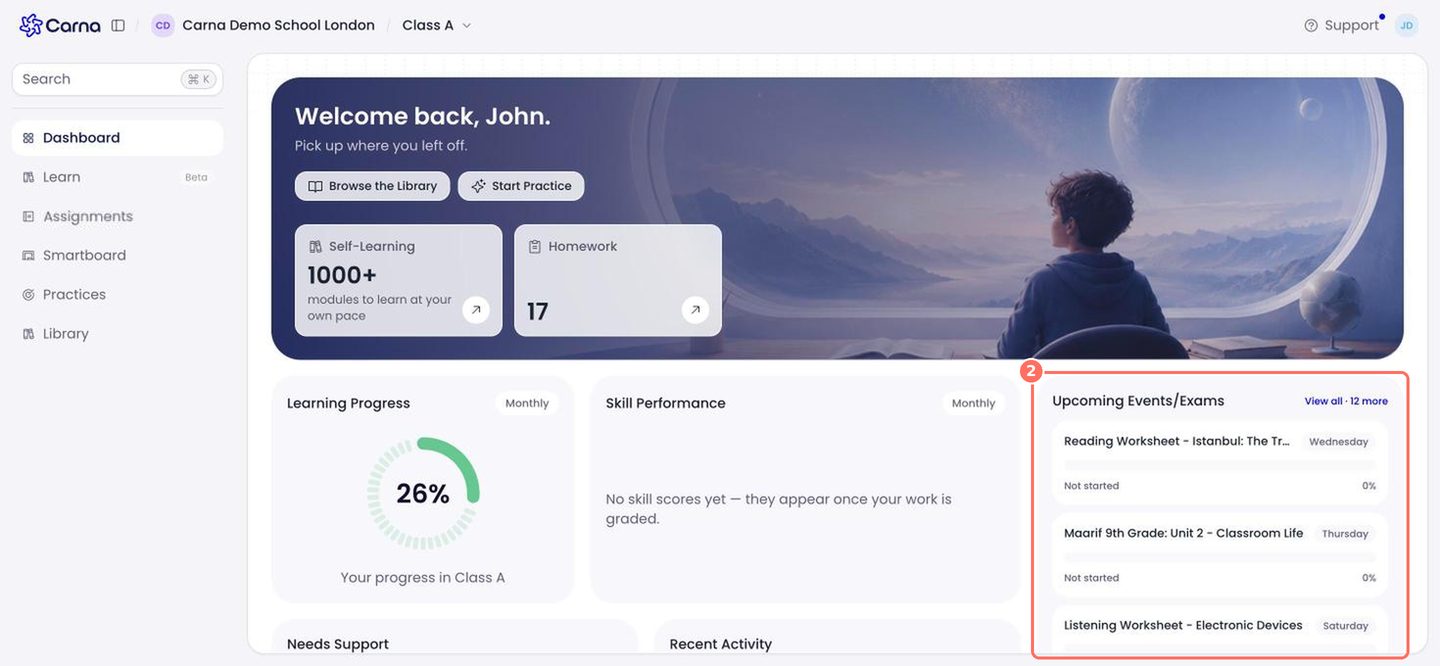
Upcoming Events/Exams lists what is due next, with the day it is due (for example, Wednesday), whether you've started it (Not started) and how much you've done (0%). Click View all to see the full list.
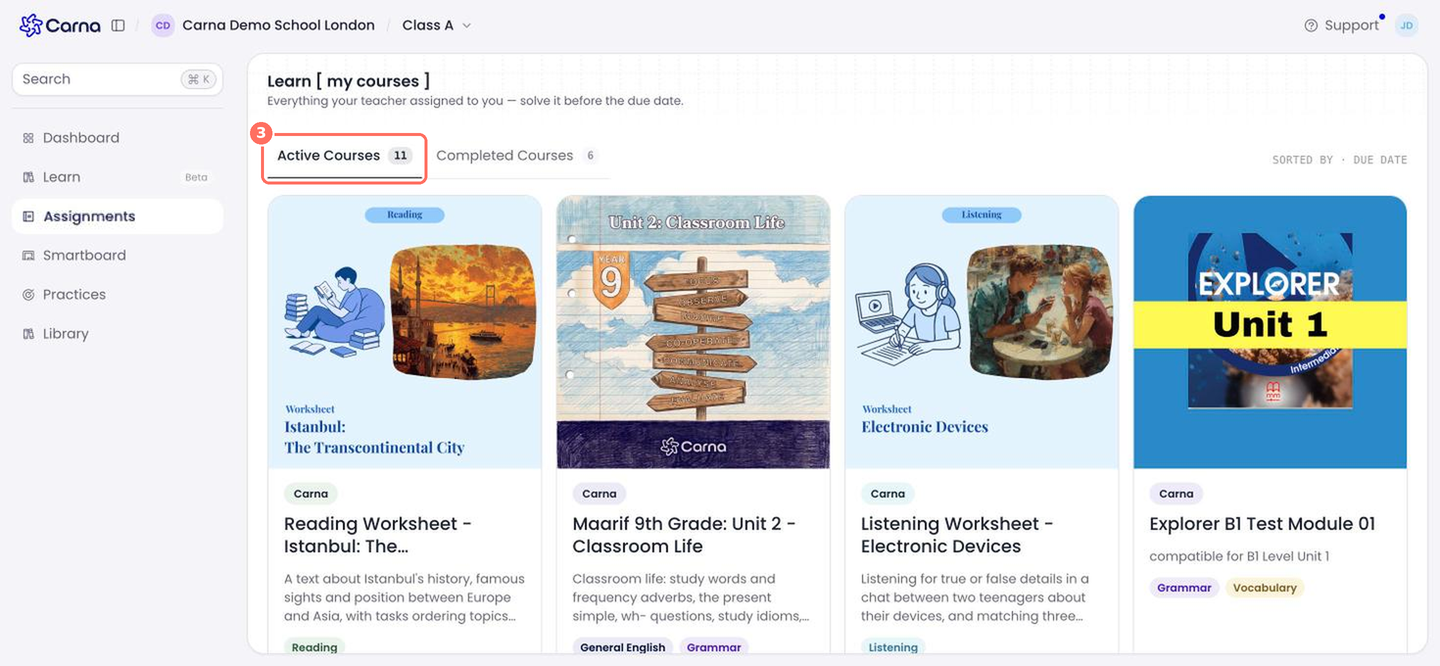
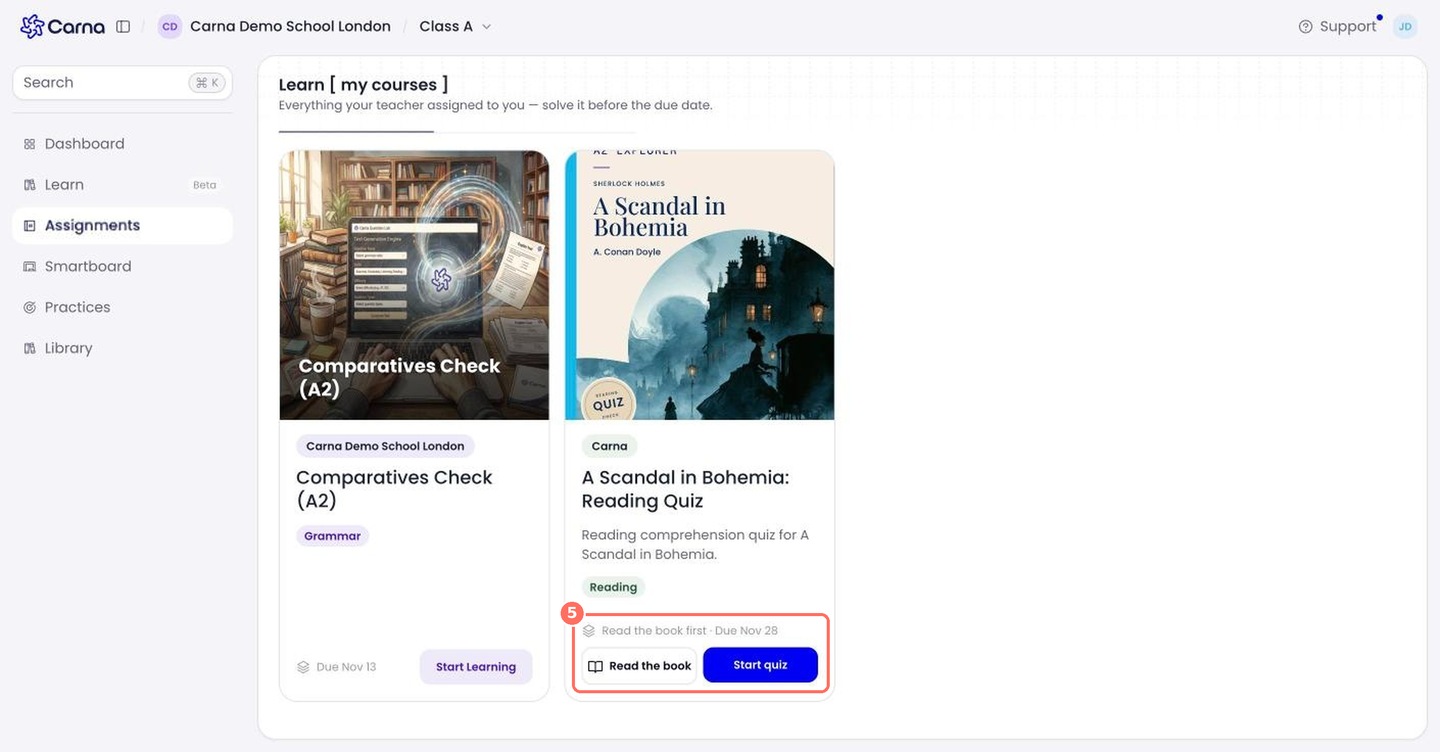
In the left menu, click Assignments. The page is called Learn [ my courses ]. The Active Courses tab lists everything you still need to do, sorted by due date. The number next to the tab shows how many there are.
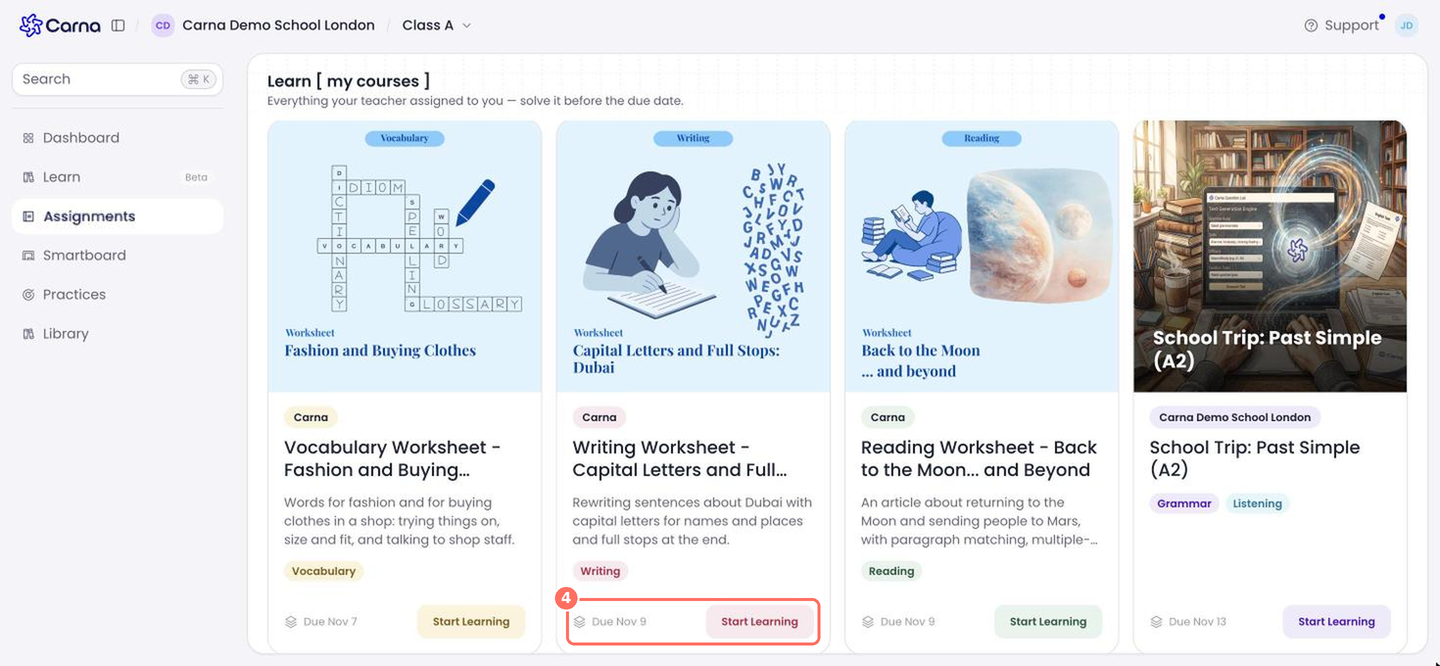
Each card shows who made it (Carna or your school), the title, a short description, the skill (for example, Writing) and the due date (for example, Due Nov 9). Click Start Learning to begin.
A book quiz from the Library has its own card with Read the book first and the due date. Click Read the book to open the book, then click Start quiz when you're ready.
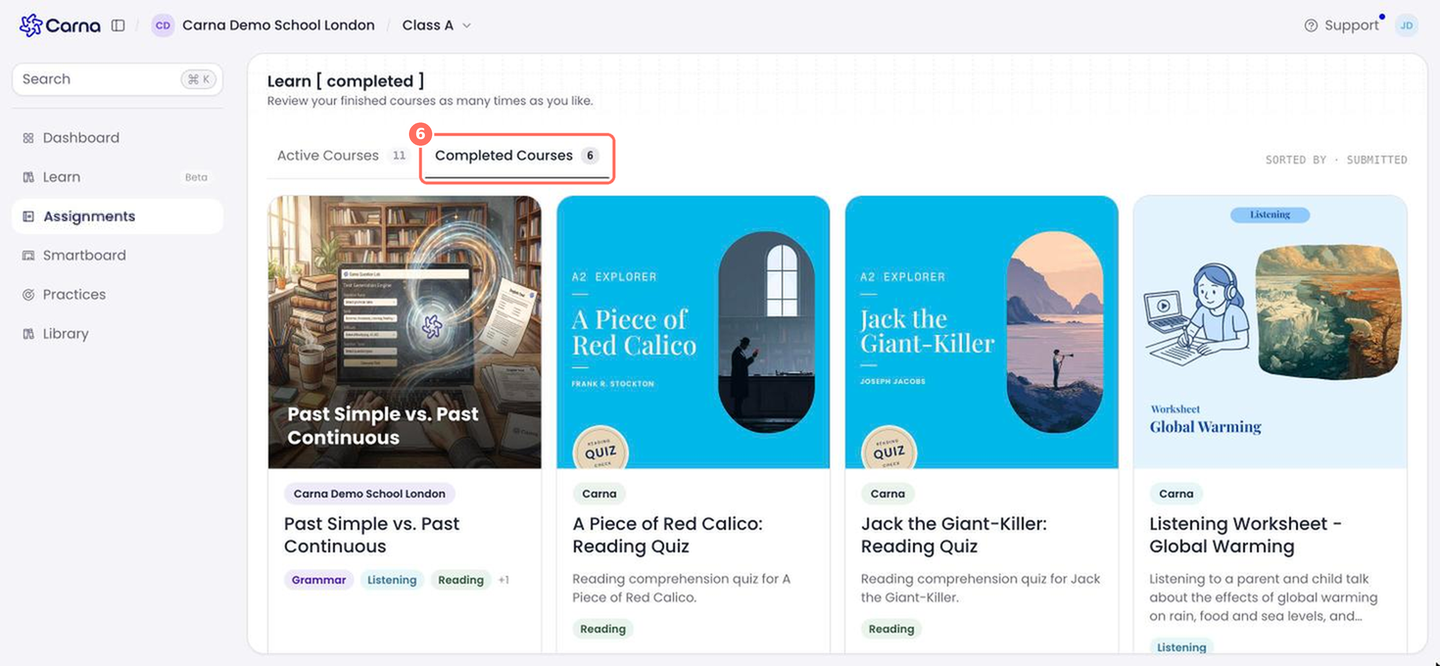
Click the Completed Courses tab to see the work you've already handed in, newest first.
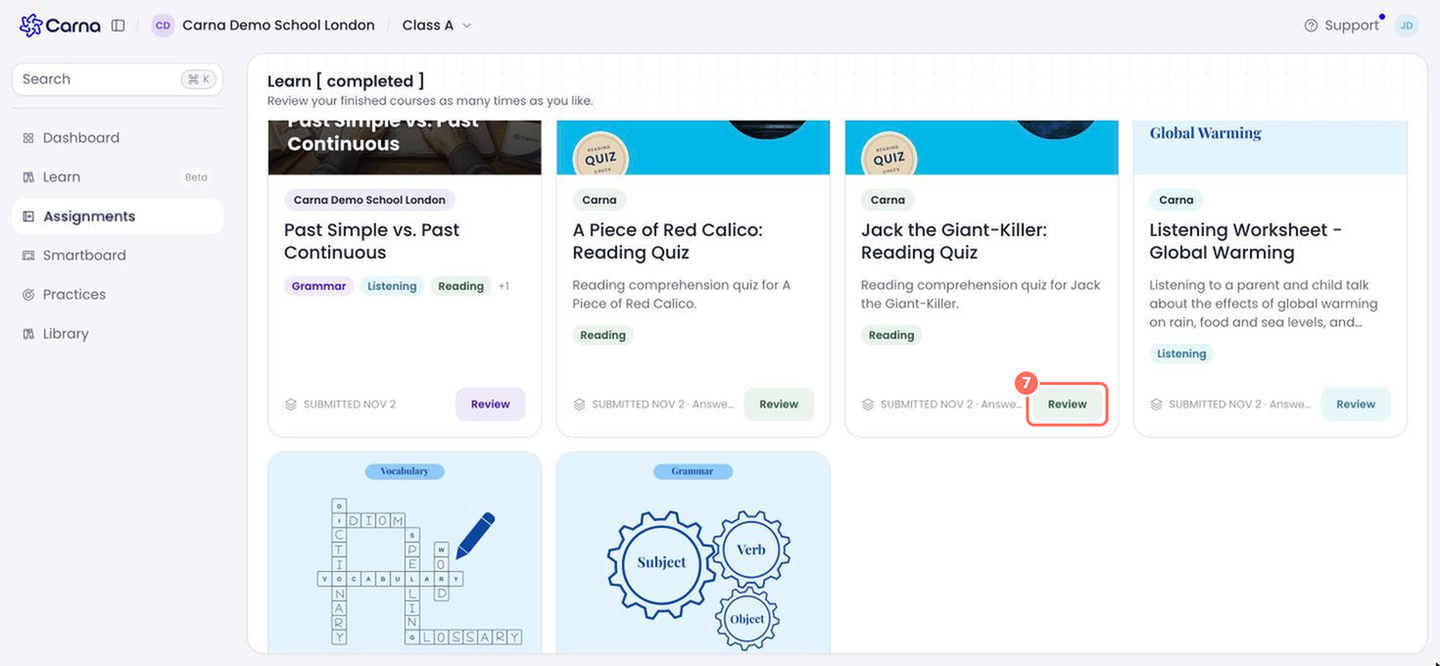
Each completed card shows when you handed it in (for example, SUBMITTED NOV 2) and, if the answers aren't out yet, when they unlock. Click Review to see your work again. If your teacher gave you more than one attempt and you have a try left, the card also shows Try again and No, finish now. See How to review your answers and try again.
More on your Dashboard
At the top of your Dashboard there are shortcuts: Browse the Library opens the books, Start Practice opens your speaking and writing practices, and the Self-Learning card opens Learn, where you can practise on your own.
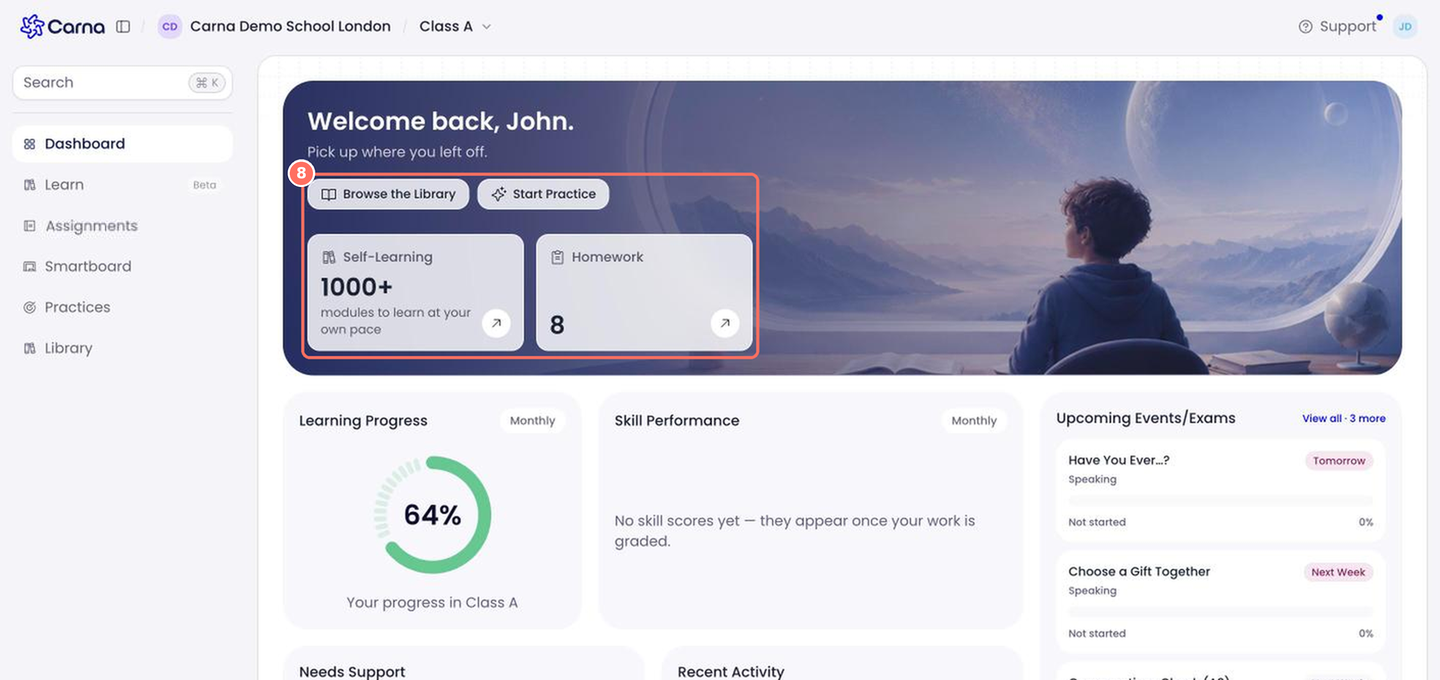
Further down, Learning Progress shows how much of your work in this class you've done this month, and Skill Performance shows your scores by skill once your work is graded. Needs Support lists assignments that need your attention, for example Overdue ones, and Recent Activity shows what you handed in lately.
Tips & Good to know #
- Start with the work due soonest; Active Courses is already sorted that way.
- Speaking and writing tasks from your teacher are under Practices, not Assignments.
- Learn in the left menu is for practising on your own, and Library is for reading books.
Troubleshooting #
- I can't see an assignment my teacher gave: check Completed Courses and Practices. See How to find an assignment you can't see.
- The list is empty: you may not be in a class yet, or your join request is still waiting for your teacher.
- The number on the Homework card is higher than my Active Courses: the Homework card counts all your assignments, including the ones you've already handed in under Completed Courses.