


































How to review your answers and try again
See which answers were right after you hand in a module, compare them with the correct answers, and use your remaining attempts to improve your score.
Who is this for: Students
Summary: See which answers were right after you hand in a module, compare them with the correct answers, and use your remaining attempts to improve your score.
Before you start: You need a student account and a module you have already handed in.
Steps #
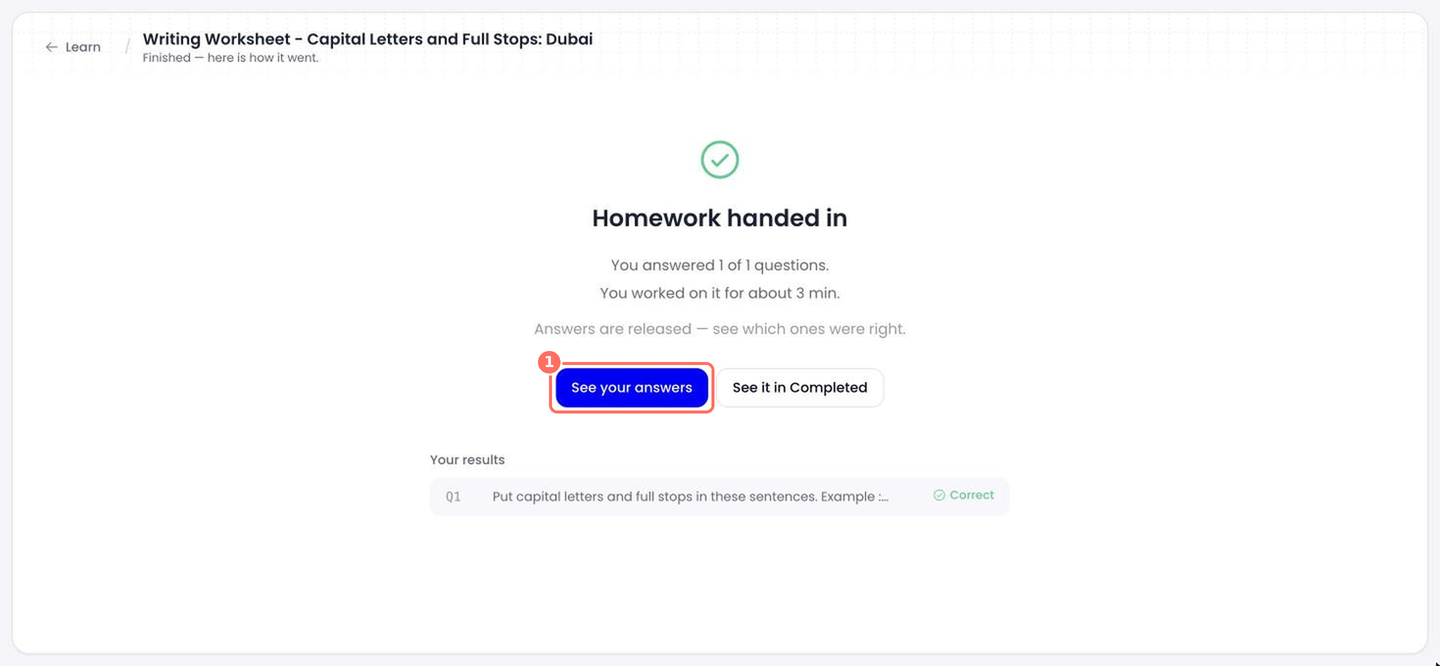
When you click Finish course, the Homework handed in screen shows how many questions you answered and about how long you worked on it. If the answers are already out, Your results lists every question with its mark. Click See your answers to look at them, or See it in Completed to go back to your list.
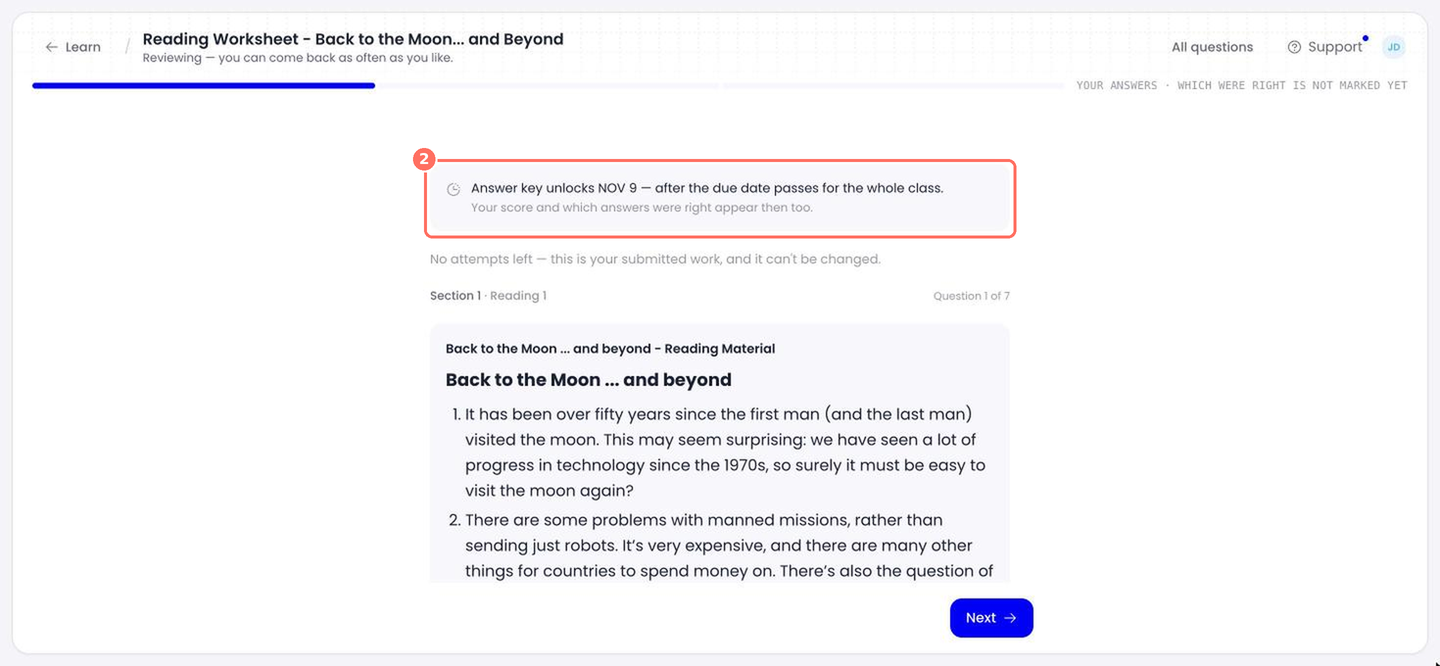
If your teacher chose to show the answers after the due date, you see Answer key unlocks with a date (for example, Answer key unlocks NOV 9 — after the due date passes for the whole class.). Your score and which answers were right appear on that date.
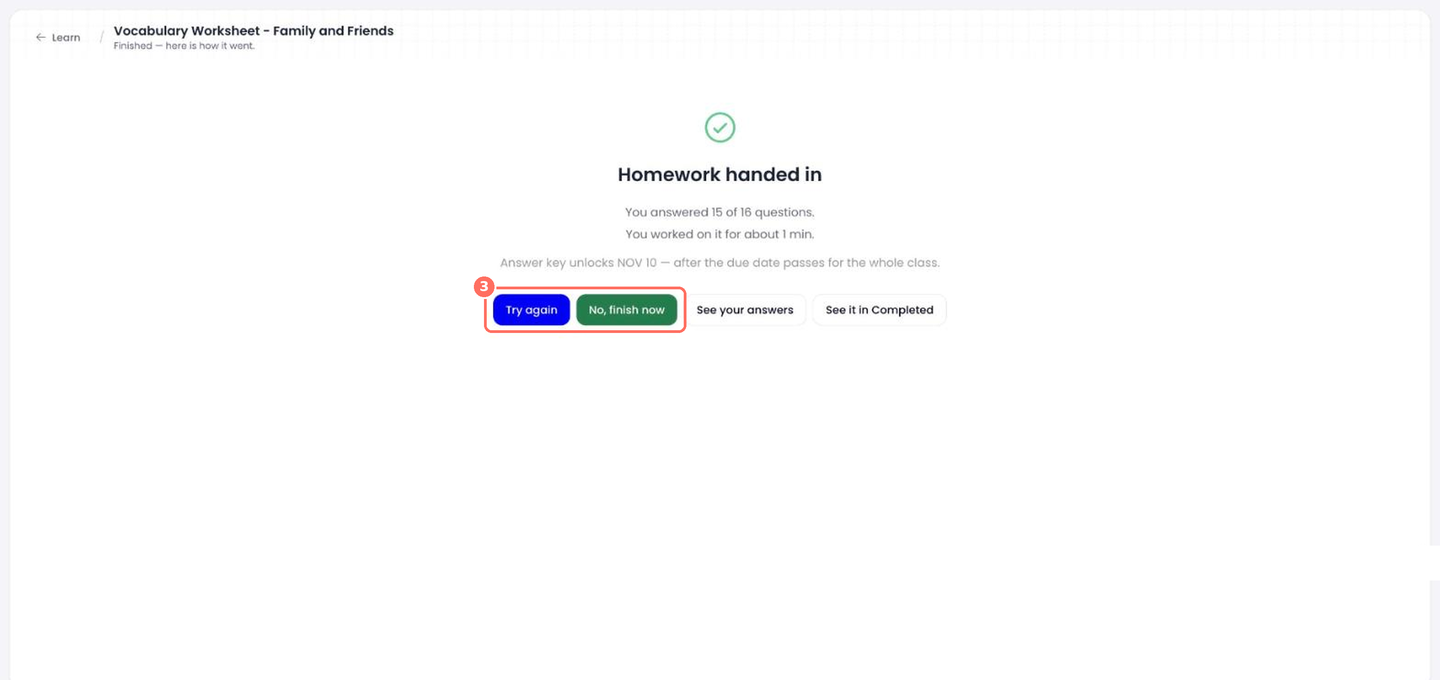
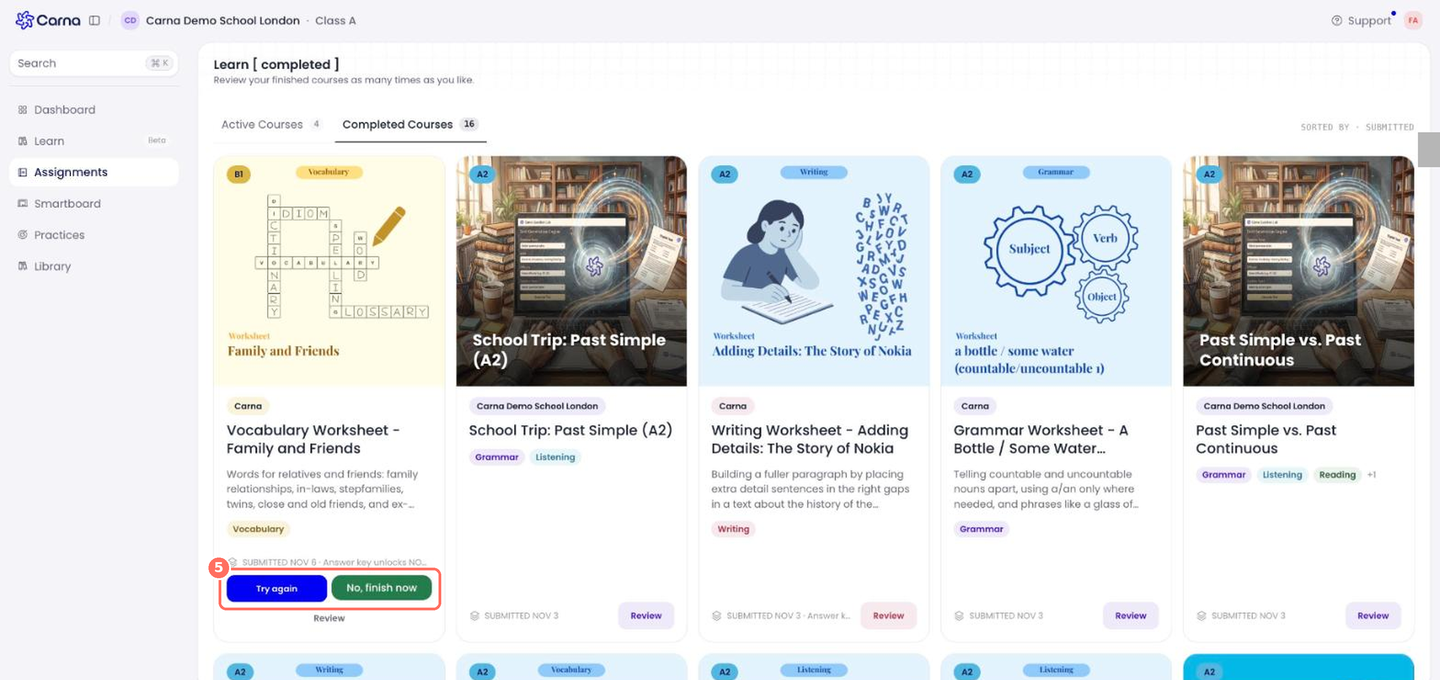
If your teacher gave you more than one attempt, the Homework handed in screen also shows Try again and No, finish now. Click Try again to start a new attempt right away, or No, finish now if you're happy with your work.
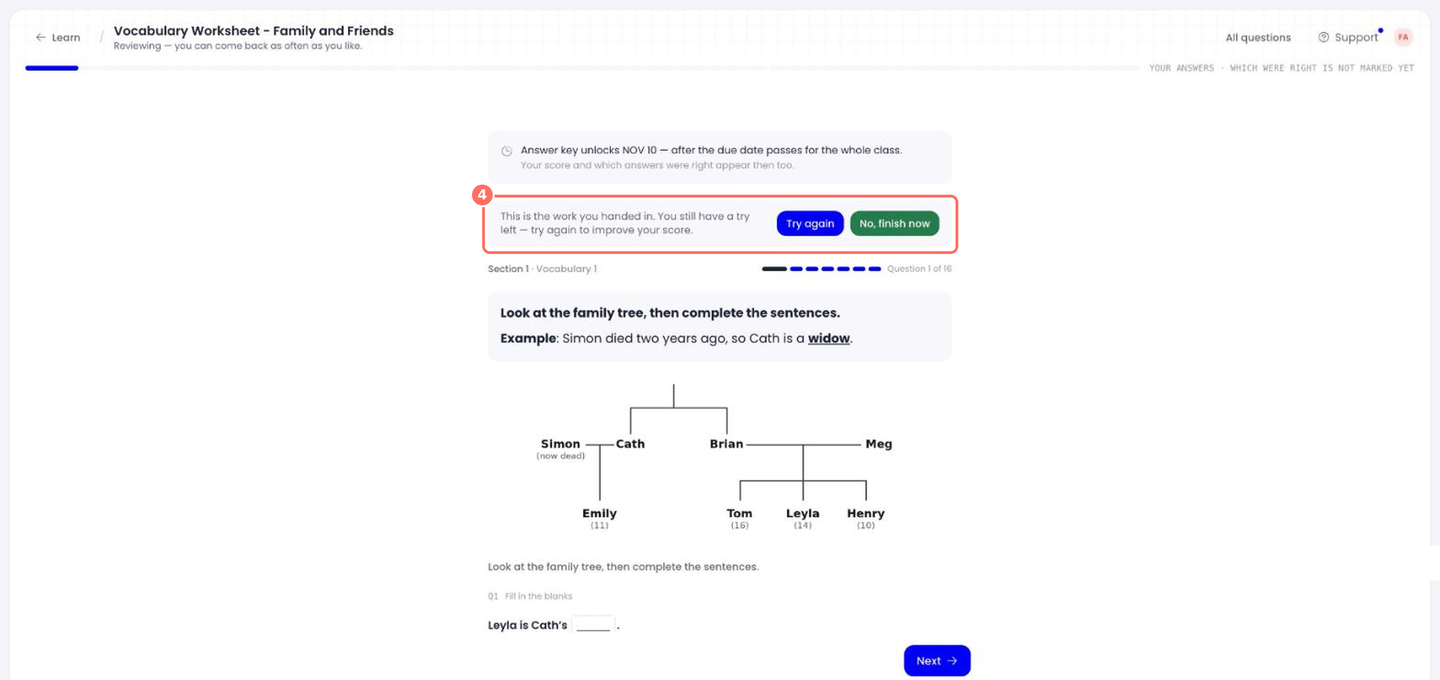
When you open your answers before your last attempt, Carna shows This is the work you handed in. You still have a try left — try again to improve your score. Click Try again to start a new attempt. Your earlier answers are not carried over, so you answer every question again.
You can also decide later. The card in Assignments › Completed Courses keeps the Try again and No, finish now buttons until you choose.
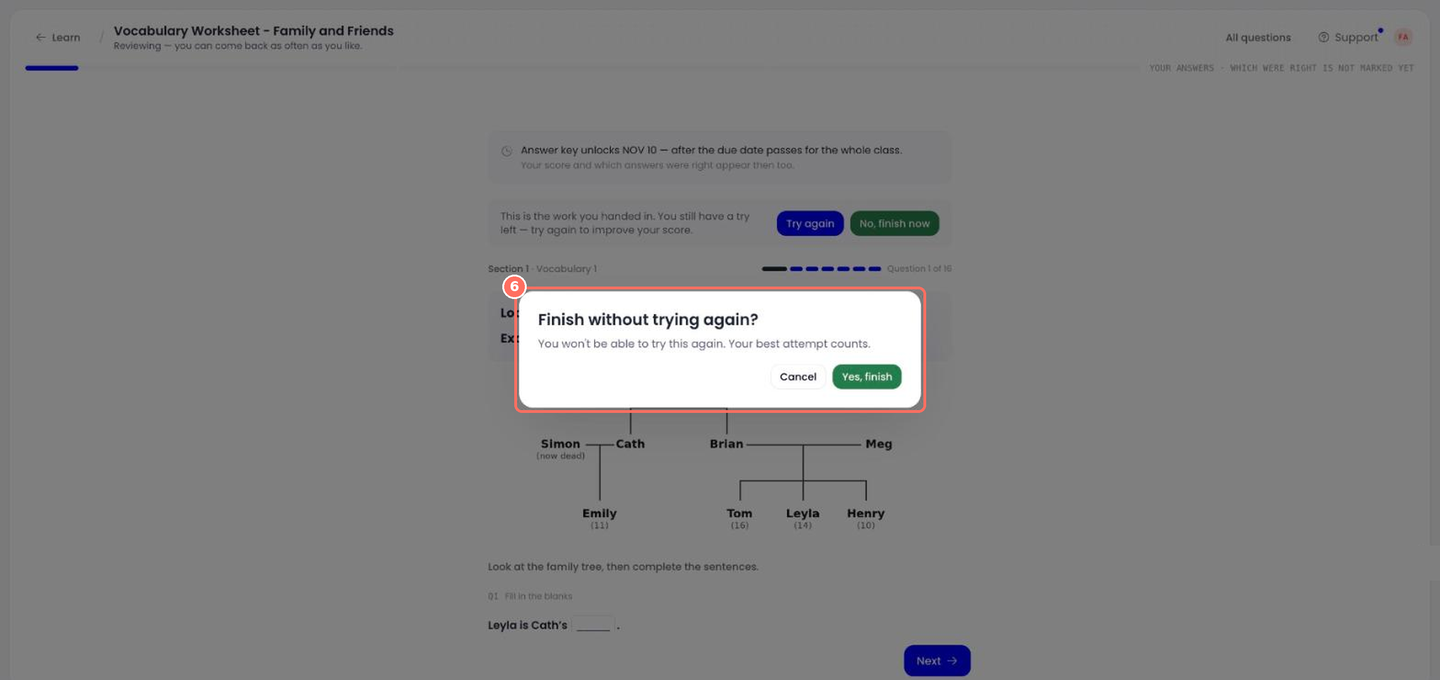
If you click No, finish now, Carna asks Finish without trying again? Click Yes, finish to hand in your work as final, or Cancel to keep your tries. After that, the review says No attempts left — this is your submitted work, and it can't be changed.
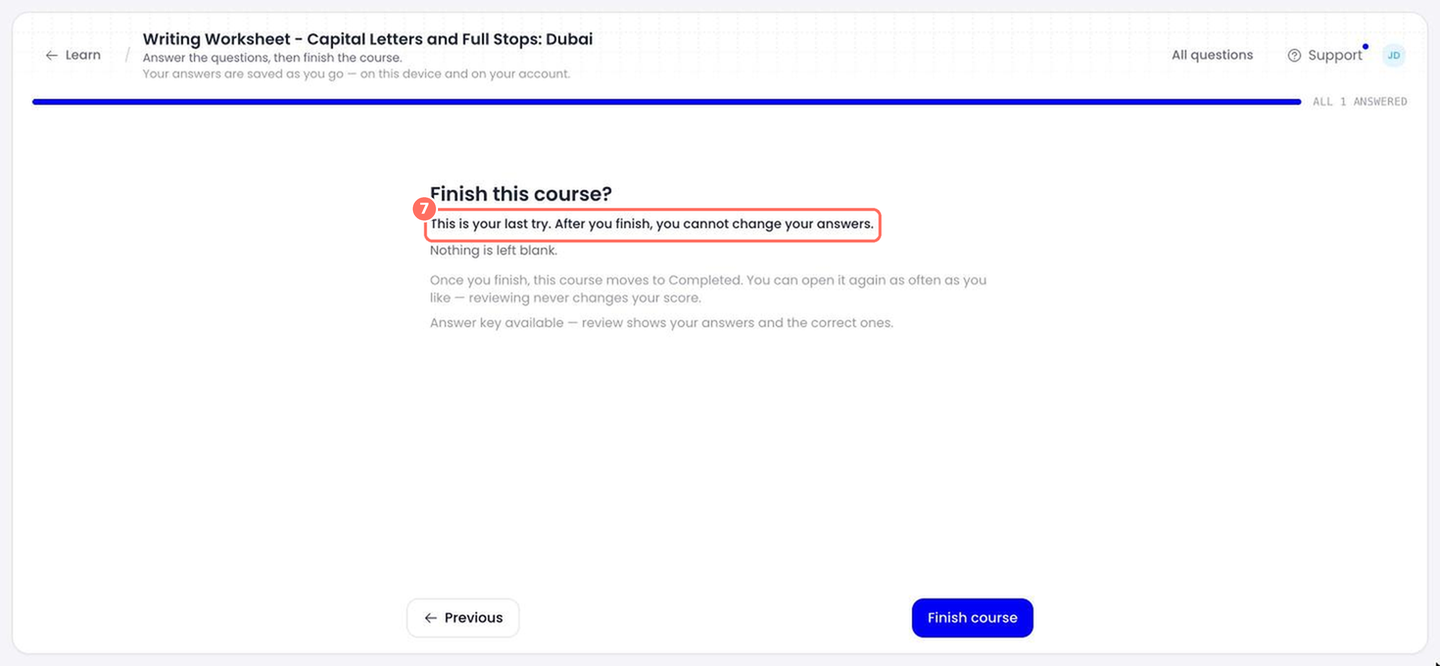
On your last attempt, Carna reminds you before you finish: This is your last try. After you finish, you cannot change your answers. Check your work, then click Finish course.
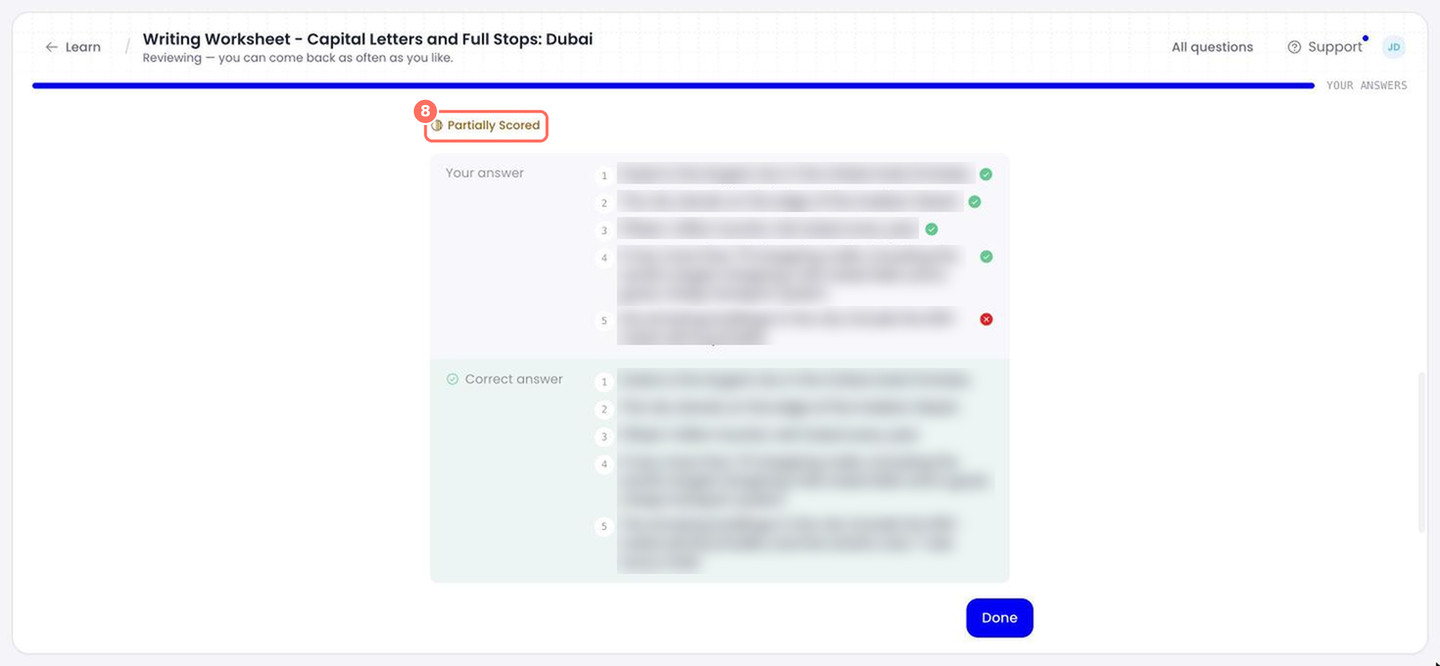
After your last attempt, each question shows a mark:
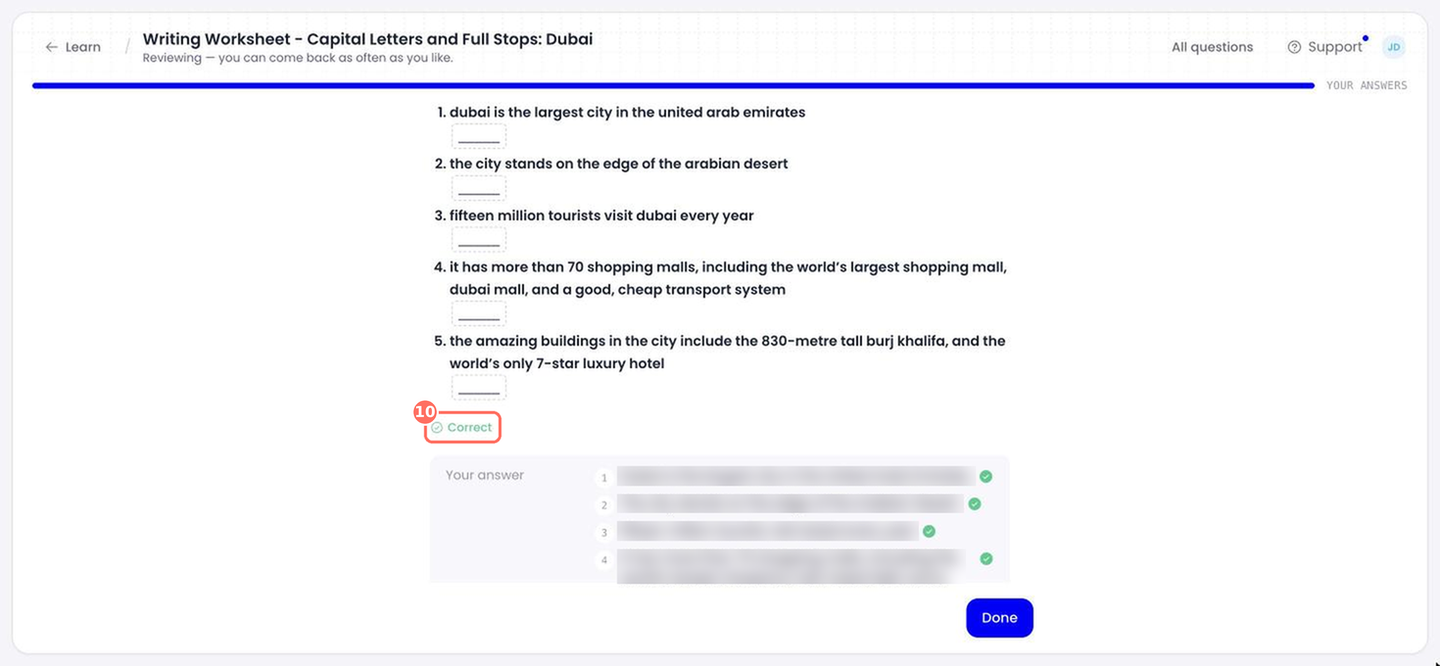
- Correct: your whole answer is right.
- Partially Scored: part of your answer is right. For example, 4 of 5 blanks are correct.
- Wrong: your answer is not correct.
Under the mark, Your answer shows a green tick or a red cross next to each part, and Correct answer shows what was expected.
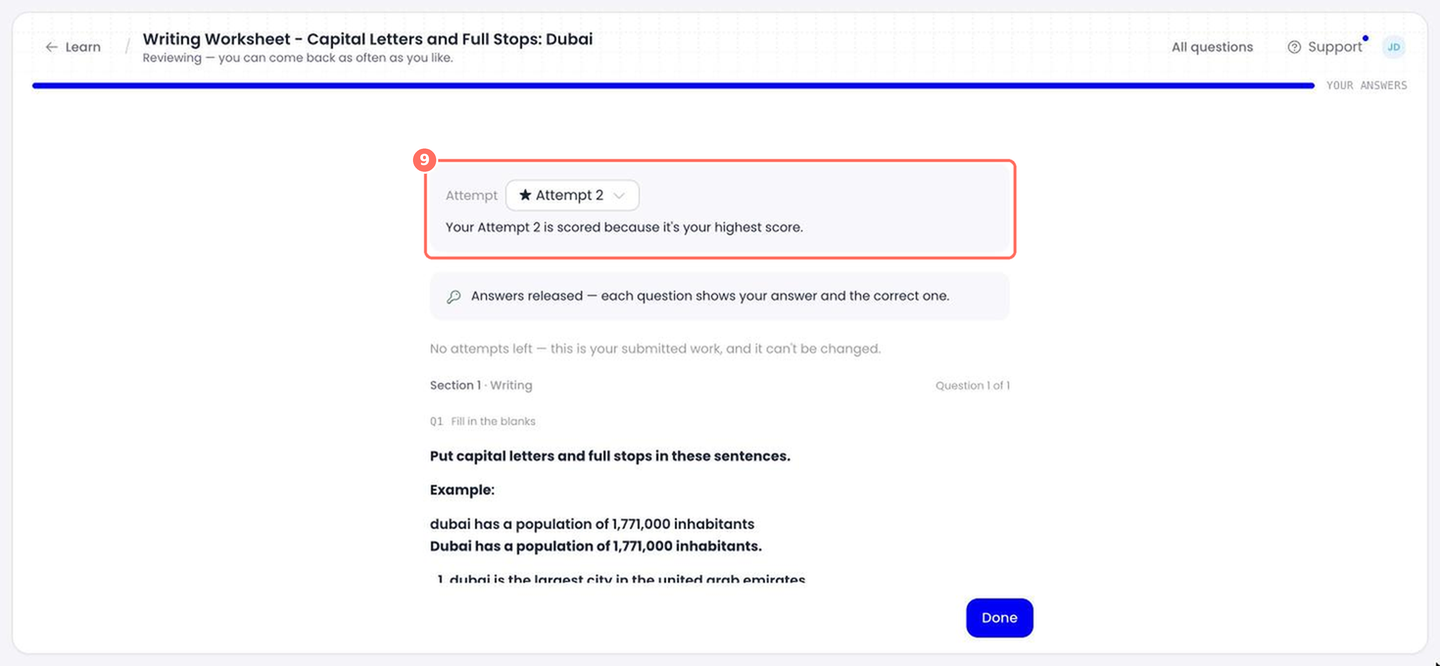
In See your answers, the Attempt box at the top shows which attempt is scored. Your best attempt is the one that counts, and it is marked with a star (for example, Your Attempt 2 is scored because it's your highest score.).
Go through the questions to see the mark, Your answer and, if you made a mistake, the Correct answer. In modules with more than one question, use Next and Previous.
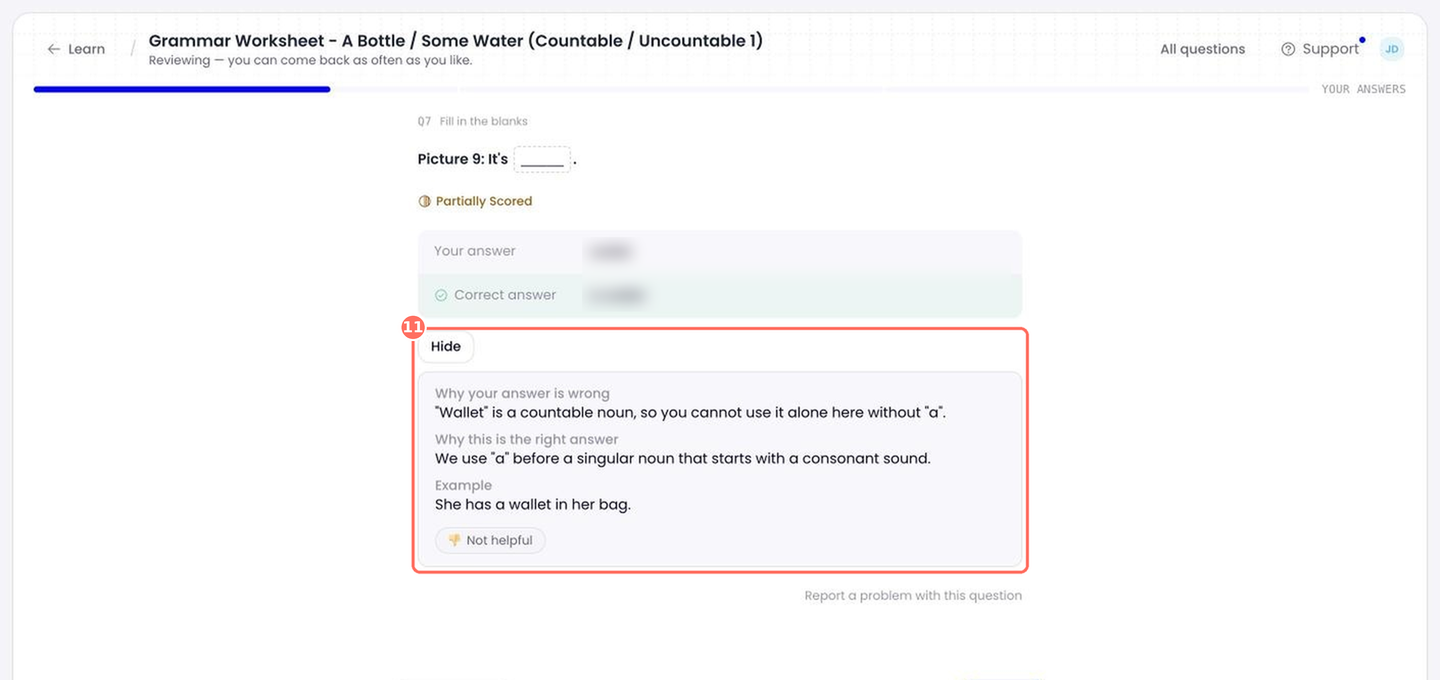
If an answer is wrong or partially right, click Why? under it. Carna explains Why your answer is wrong, Why this is the right answer and gives an Example. Click Hide to close it. If the explanation didn't help you, click Not helpful.
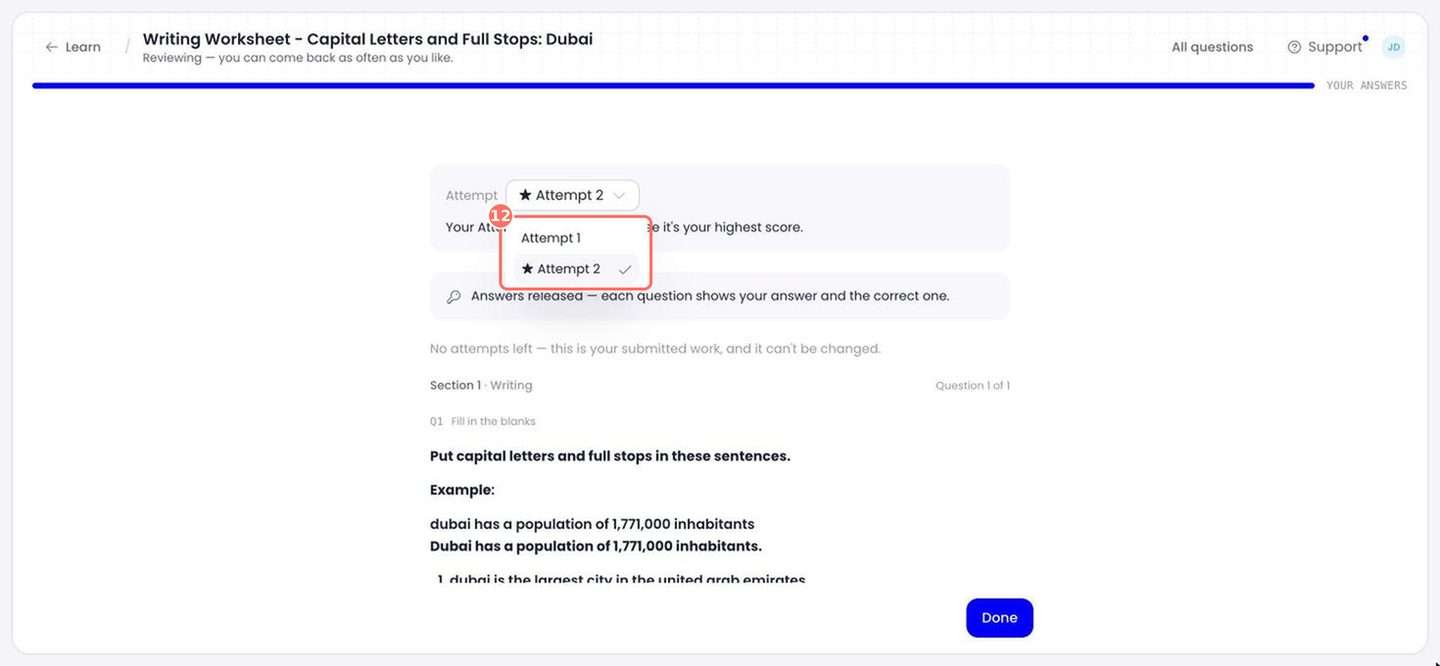
To look at an earlier attempt, open the Attempt list and choose it. The scored attempt always has a star.
Tips & Good to know #
- When your teacher assigns a module, they choose:
- How many attempts you get. With 1 attempt there is no Try again.
- When you see the answers. If they chose after the due date, you see Answer key unlocks with a date (for example, Answer key unlocks NOV 9) until then.
- Reviewing never changes your score. You can open your answers as often as you like: go to Assignments, open Completed Courses and click Review.
- When the due date passes, the work you last handed in counts as final, and you can't use any tries you have left. Use Try again or No, finish now before the due date.
- After your last attempt, the review says No attempts left — this is your submitted work, and it can't be changed.
- Why? appears only under answers that are wrong or partially right, and only after the answers are released.
- If you think a question is marked wrongly, click Report a problem with this question under it.
Troubleshooting #
- I can't see which answers were right: you still have an attempt left, or your teacher chose to show the answers after the due date. Use Try again, or wait for the date shown next to Answer key unlocks.
- The Try again button is missing: you only have one attempt, you have used all your attempts, you clicked No, finish now, or the due date has passed. Ask your teacher if you need another try.
- My score went down after trying again: it doesn't count against you. Your best attempt is the one that is scored.
- I can't find the module anymore: go to Assignments and open Completed Courses. See How to find your assignments on the home screen.