


































How to solve a module step by step
Open an assignment, answer the questions one by one, move between them and hand in your work when you're done.
Who is this for: Students
Summary: Open an assignment, answer the questions one by one, move between them and hand in your work when you're done.
Before you start: You need a student account and an assignment from your teacher. See How to find your assignments on the home screen.
Steps #
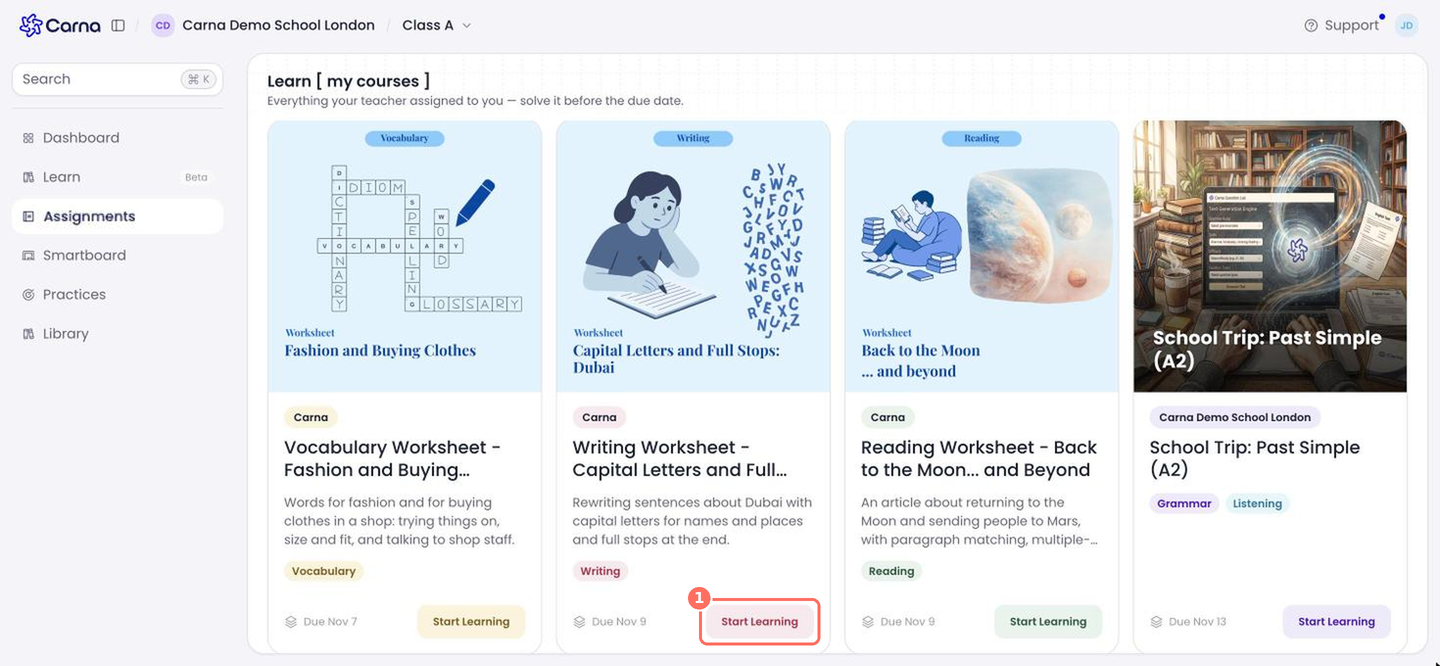
In Assignments, under Active Courses, click Start Learning on the module you want to do.
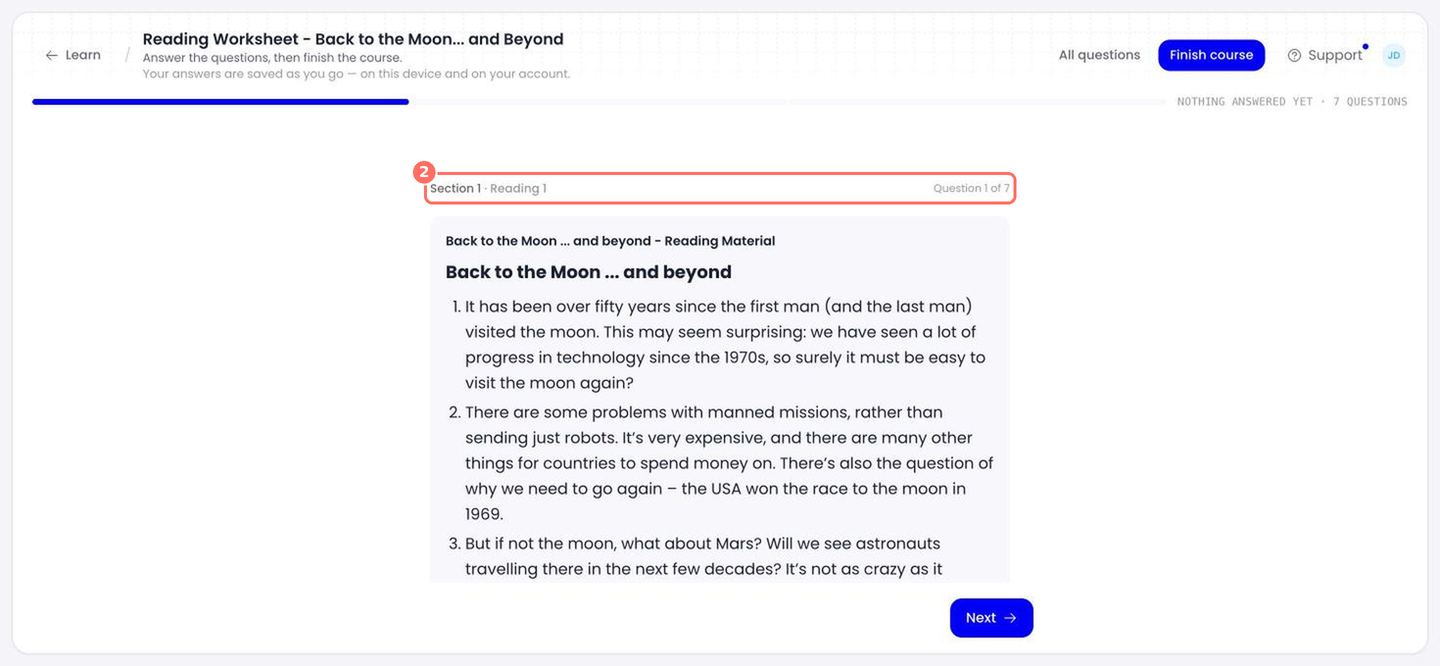
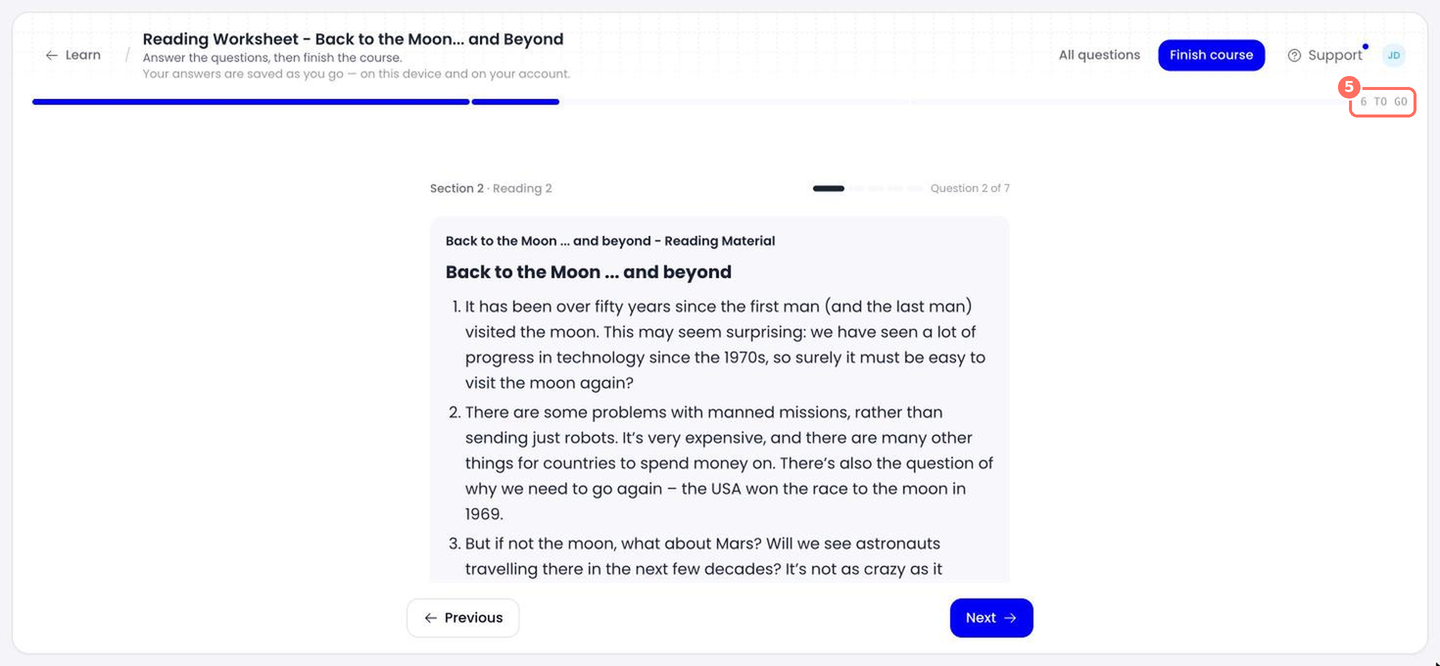
The module opens on the first question. Above it you see the section (for example, Section 1 · Reading 1) and where you are (Question 1 of 7). In reading and listening modules, the text or audio comes first; scroll down to find the question.
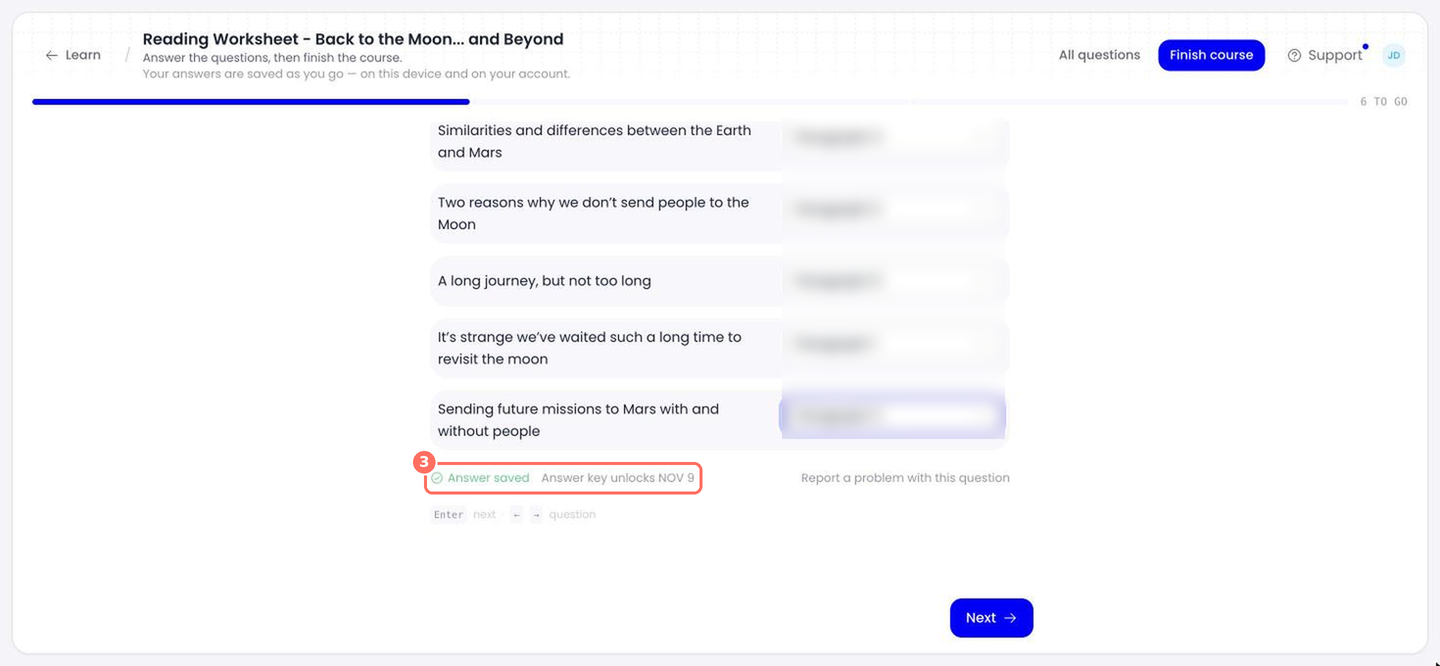
Answer the question. Depending on the question, you type in a blank, choose an option, or pick an answer from a Response list (for example, to match ideas to paragraphs). Answer saved appears under the question each time you answer.
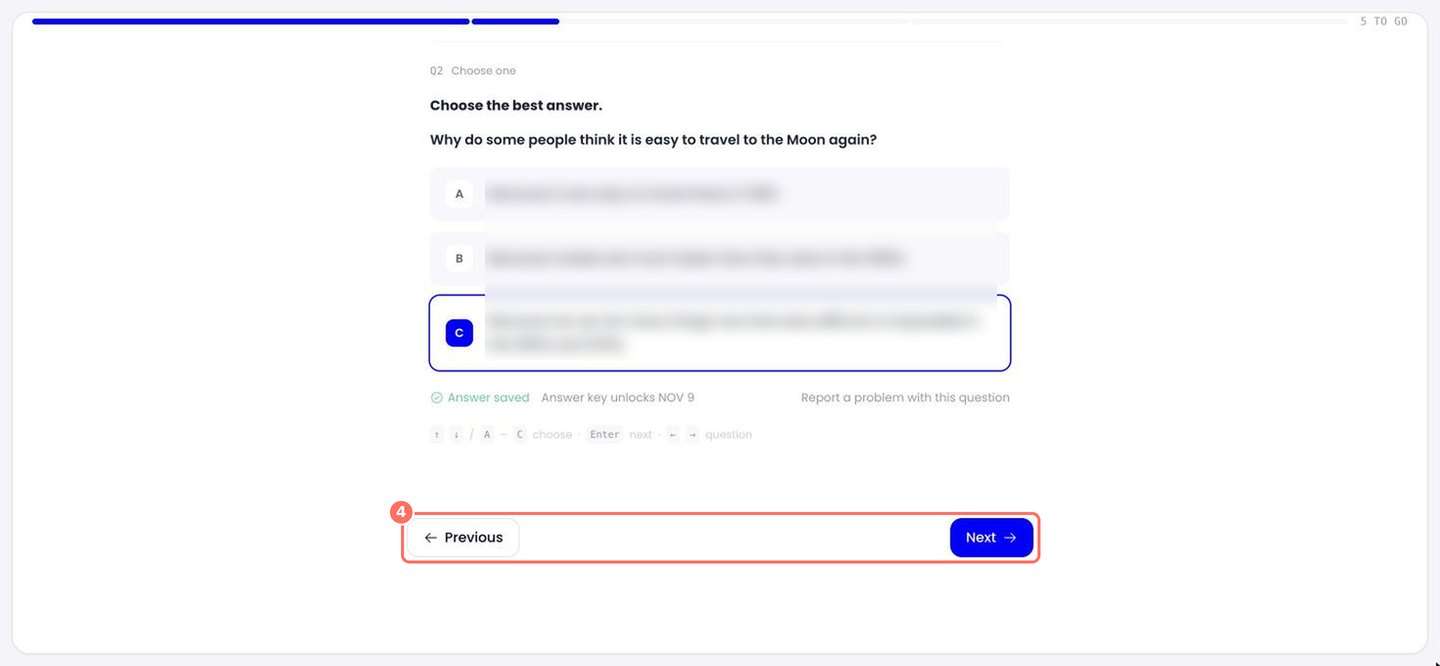
Click Next to go to the next question, or Previous to go back. The keys under each question show the shortcuts:
- A, B, C or ↑ / ↓ to choose an option.
- Enter for the next question (in a fill-in-the-blank question, Enter moves to the next blank).
- ← / → to move between questions when you're not typing.
The bar at the top shows your progress, one part for each section. The text on the right tells you how many questions are left (for example, 6 TO GO).
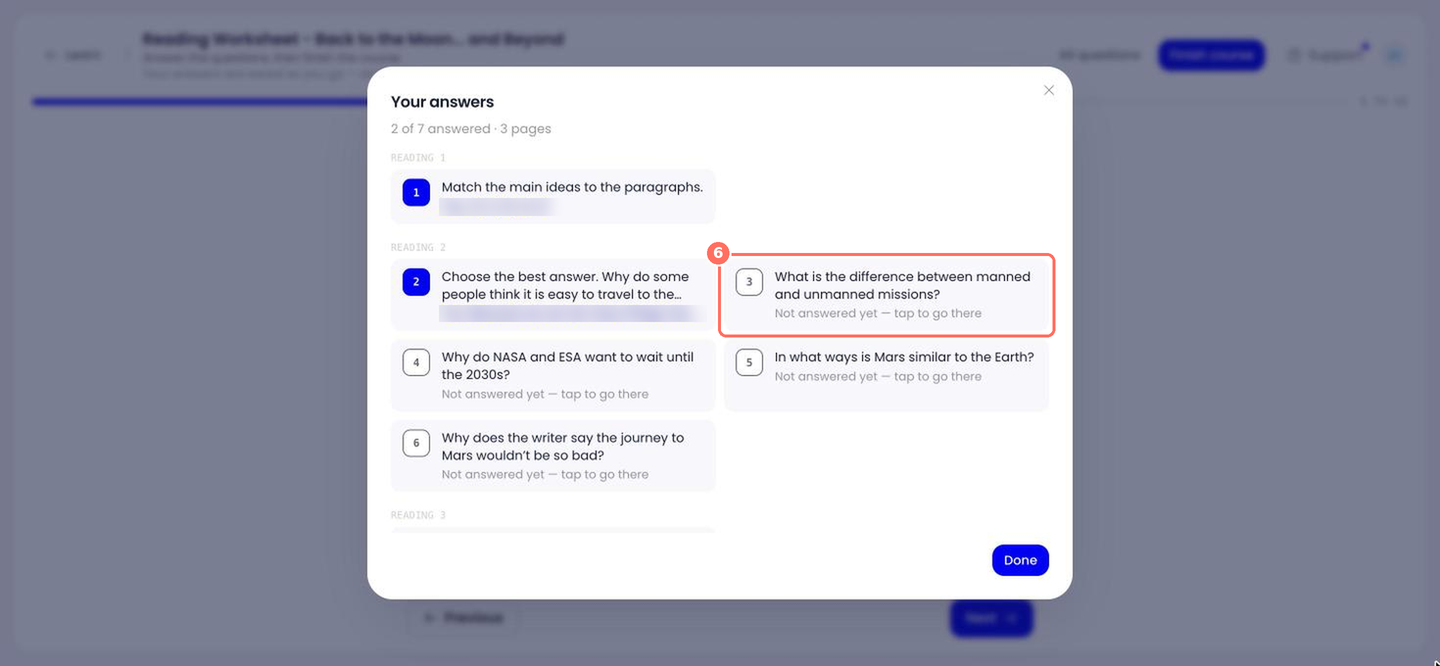
Click All questions at the top to see every question and what you've answered so far (for example, 2 of 7 answered · 3 pages). Click a question marked Not answered yet — tap to go there to jump straight to it, or click Done to close the list.
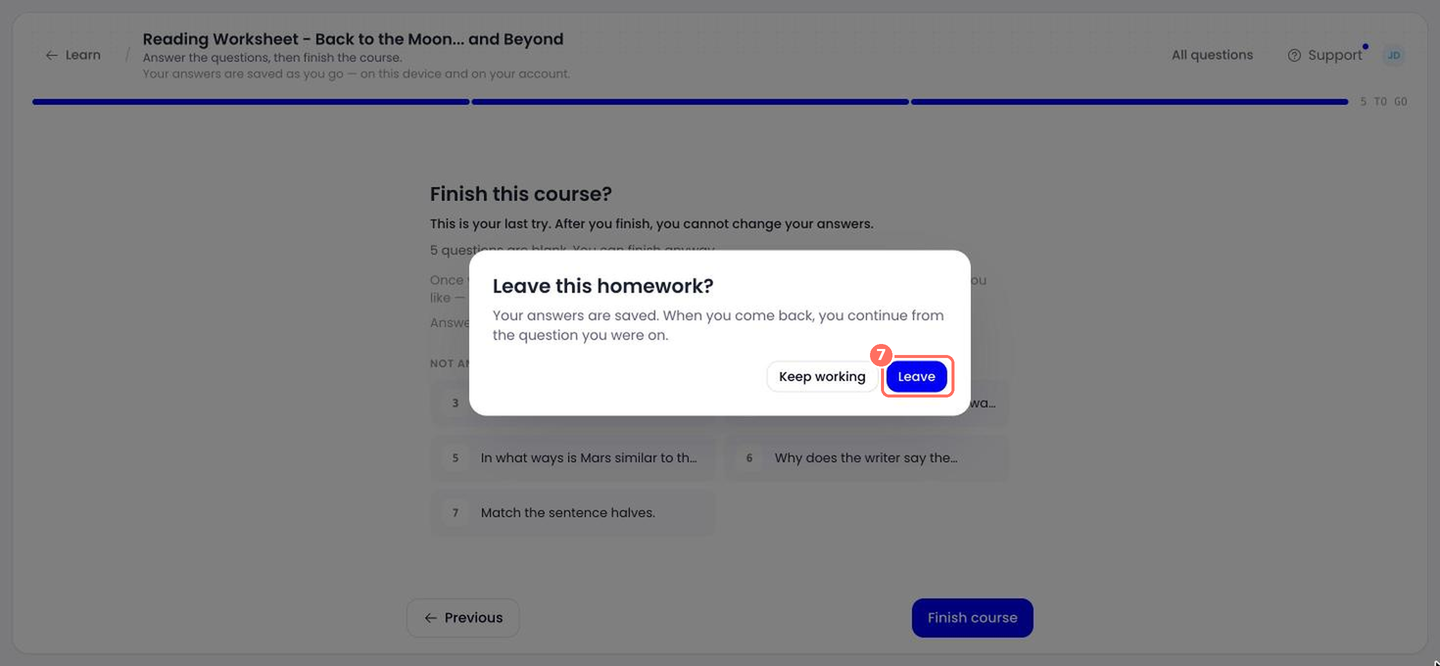
Need a break? Click Learn at the top left, then Leave. Your answers are saved, and when you come back you continue from the question you were on. Click Keep working to stay.
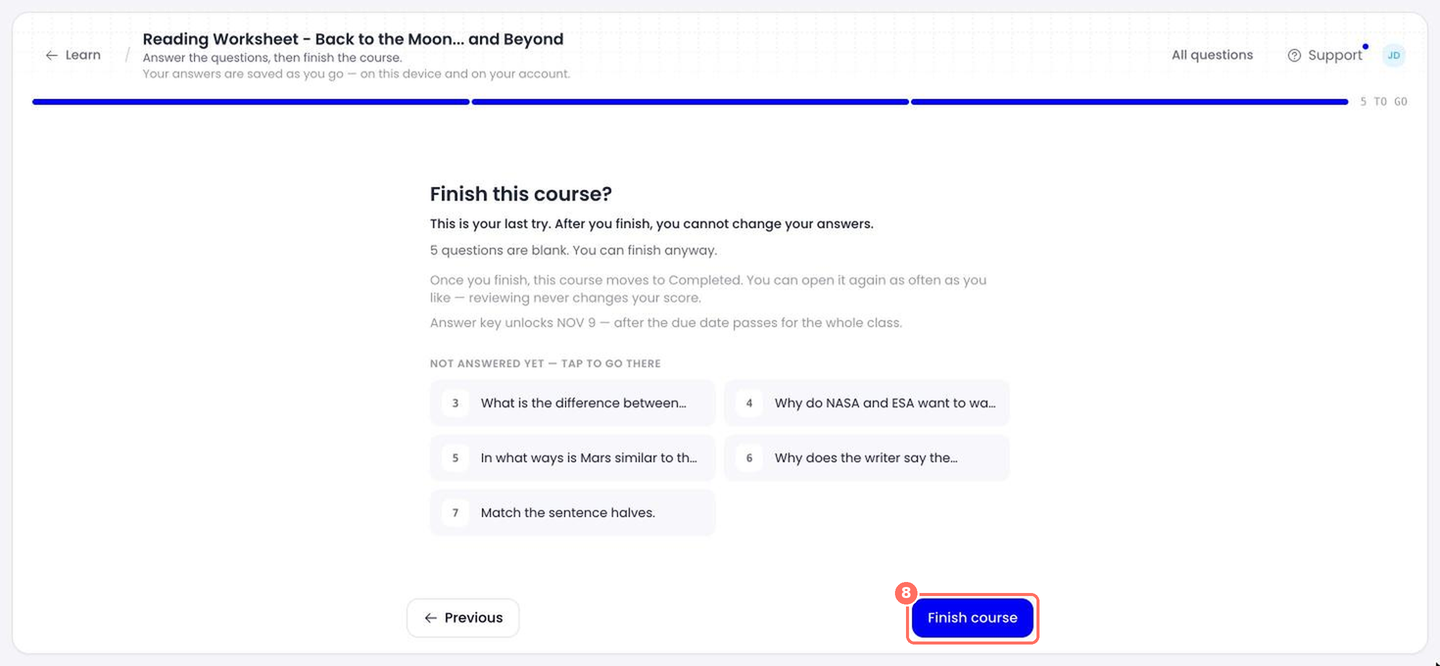
When you've answered everything, click Finish course at the top. Carna lists any questions you haven't answered yet under Not answered yet — tap to go there. Click one to answer it, or click Finish course to hand in your work.
Tips & Good to know #
- Your answers are saved as you go, on this device and on your account, so you can continue on another device.
- Answer key unlocks NOV 9 under a question means you'll see the correct answers on that date. Your teacher chose to show them after the due date.
- The Finish this course? screen also tells you if this is your last try. After your last try you can't change your answers.
- You can hand in with blank questions. Carna tells you how many are blank (for example, 5 questions are blank. You can finish anyway.).
- Something wrong with a question? Click Report a problem with this question under it.
Troubleshooting #
- My answers disappeared: make sure you're signed in to your own account. Answers are saved to your account, not only to the device.
- Enter doesn't go to the next question: in a fill-in-the-blank question, Enter first moves through the blanks. Click Next instead.
- I finished by mistake: if your teacher allows more than one attempt, you can try again. See How to review your answers and try again.
- The Start Learning button is missing: the work may already be handed in. Check Completed Courses.