


































How to find an assignment you can't see
Your teacher says they gave you homework, but you can't find it. Go through these checks to find it, or to know what to tell your teacher.
Who is this for: Students
Summary: Your teacher says they gave you homework, but you can't find it. Go through these checks to find it, or to know what to tell your teacher.
Before you start: You need a student account. Sign in at org.carna.app with the account your teacher gave you.
Steps #
- In the left menu, click Assignments. The Active Courses tab lists the work your teacher assigned to you that you still need to do, sorted by due date. Book quizzes from the Library are listed here too.
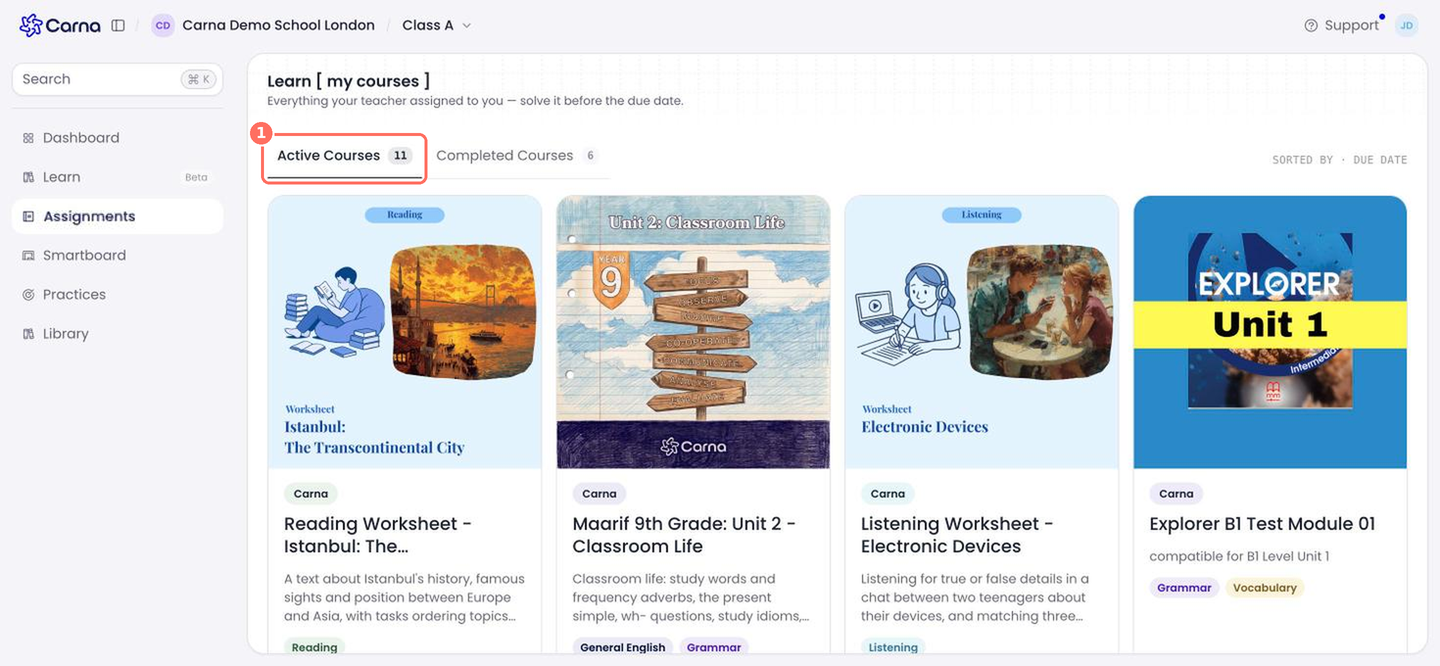
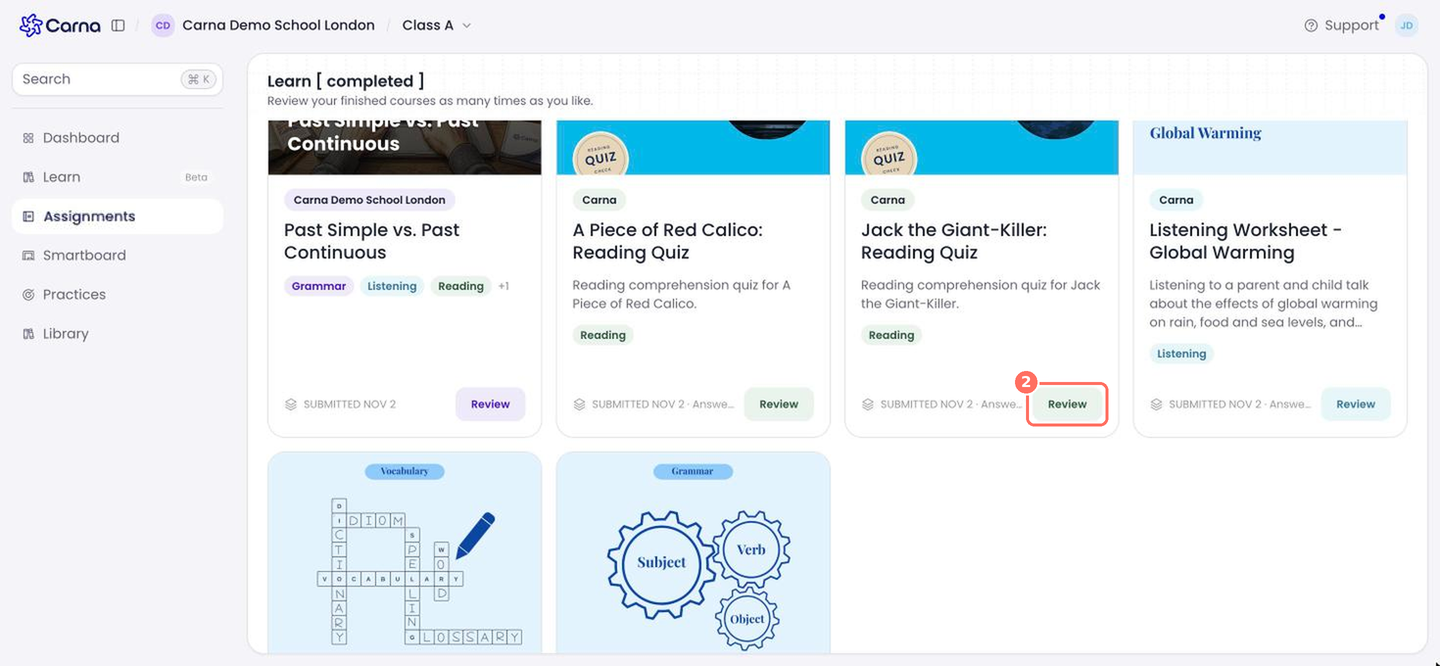
- If you have already handed it in, open the Completed Courses tab. Finished work moves here, and you can click Review to see your answers.
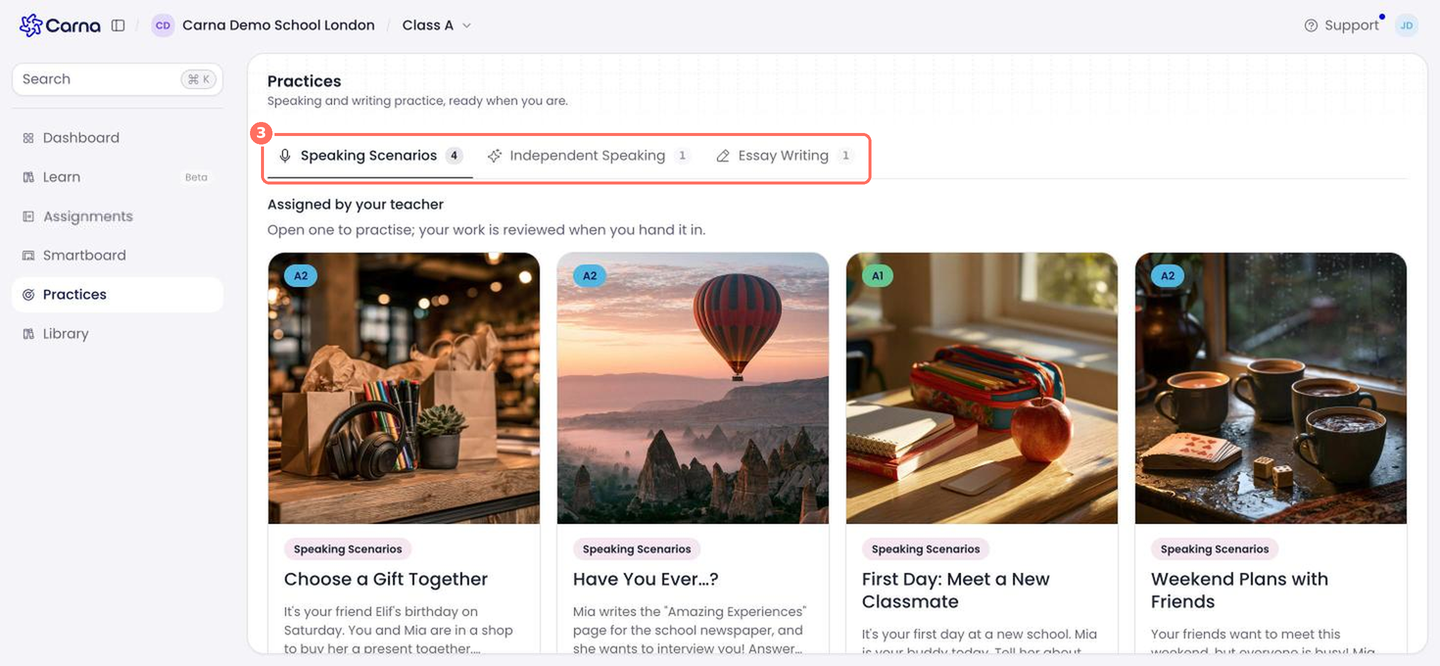
- Speaking and writing tasks are not on the Assignments page. Click Practices in the left menu and check all three tabs: Speaking Scenarios, Independent Speaking and Essay Writing. The number next to each tab shows how many practices it has. Work from your teacher is under Assigned by your teacher.
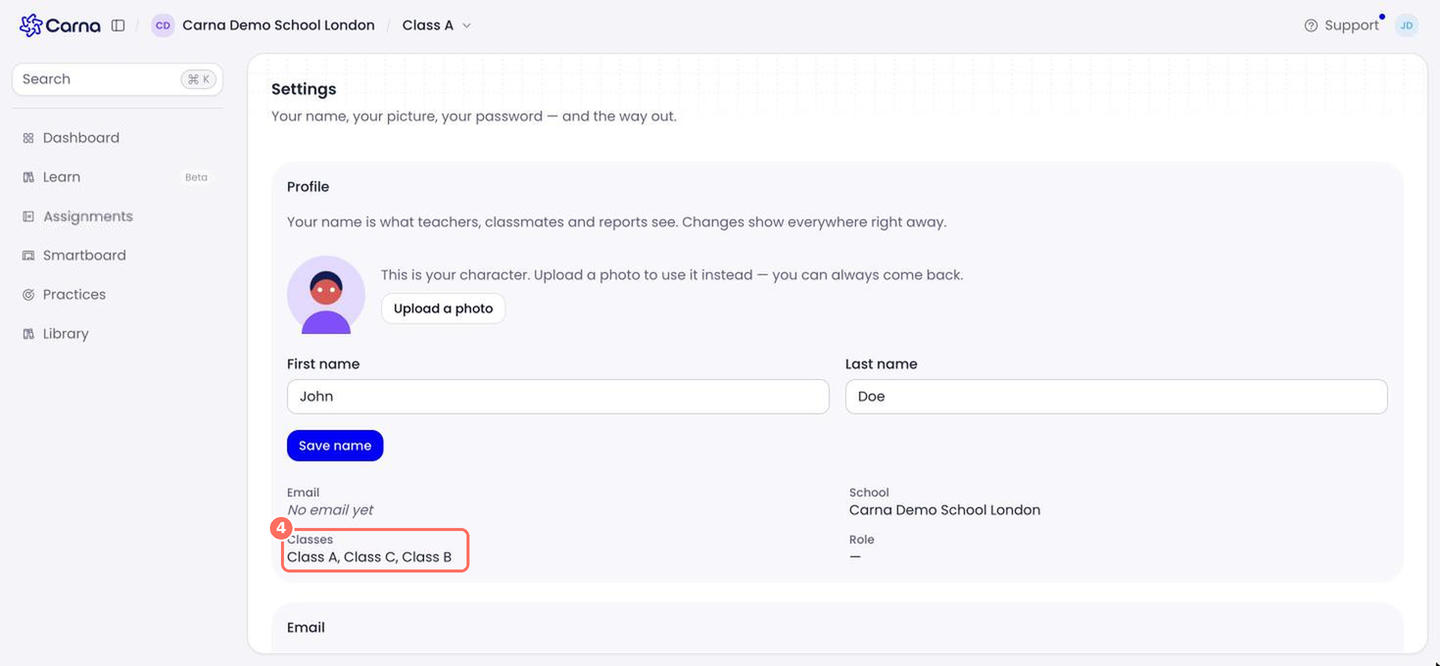
- Check that you are in the right class. Click your initials in the top right, choose Settings, and look at Classes under Profile (for example, Class A, Class C, Class B). If the class your teacher assigned the work to is missing, tell your teacher.
Tips & Good to know #
- Your teacher can set a start date. The work appears on that date, not when your teacher assigns it.
- The Homework card on your Dashboard counts all your assignments, including the ones you've handed in. Click its arrow to open the Assignments page.
- If you are in more than one class, choose the class at the top of the page. You see the work for the class shown there.
- If you joined a class with an invite code, your teacher must approve your request first. Until then, you won't see that class's work.
- Make sure you are signed in with your own account. Your name is shown when you click your initials in the top right.
Troubleshooting #
- The list is empty or out of date: refresh the page. If you use the installed app, close it and open it again.
- The page shows strange words or another language: your browser may be translating the page. See How to fix a page shown in the wrong language.
- I saved my answers, but my teacher can't see my work: your answers are saved as you go, but the work is handed in only after you click Finish course. Open the task again, click Finish course, and check that it appears under Completed Courses.
- I still can't find it: tell your teacher the name of the task and your class. They can check that it was assigned to you and that it wasn't archived.
- I can find it but can't open it: the due date may have passed, or your teacher may have closed the assignment. Ask your teacher if they can accept late work.