


































How to assign a generated test to classes or students
Send a test you made in Test Generation to one or more classes, or only to the students you choose in a class.
Who is this for: Teachers
Summary: Send a test you made in Test Generation to one or more classes, or only to the students you choose in a class.
Before you start: Save your test first. See How to review, edit and approve generated questions.
Steps #
Find your test
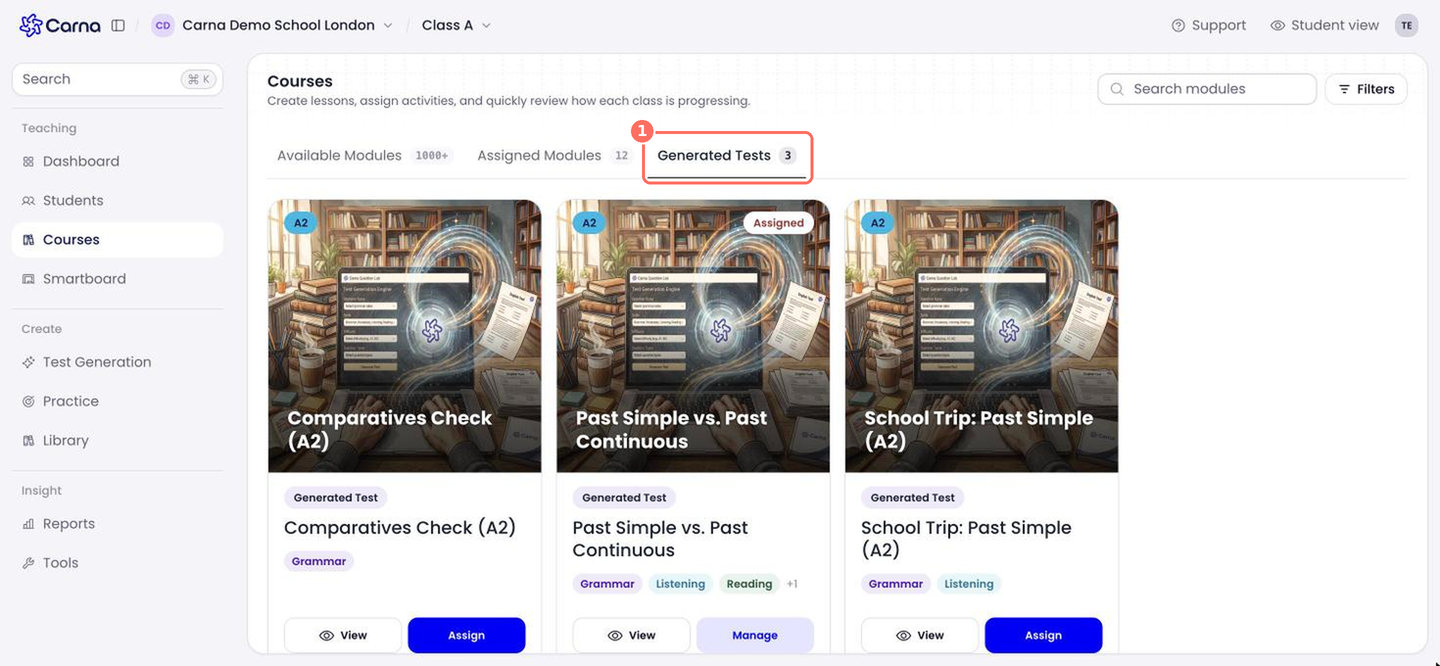
Go to Courses and click the Generated Tests tab.
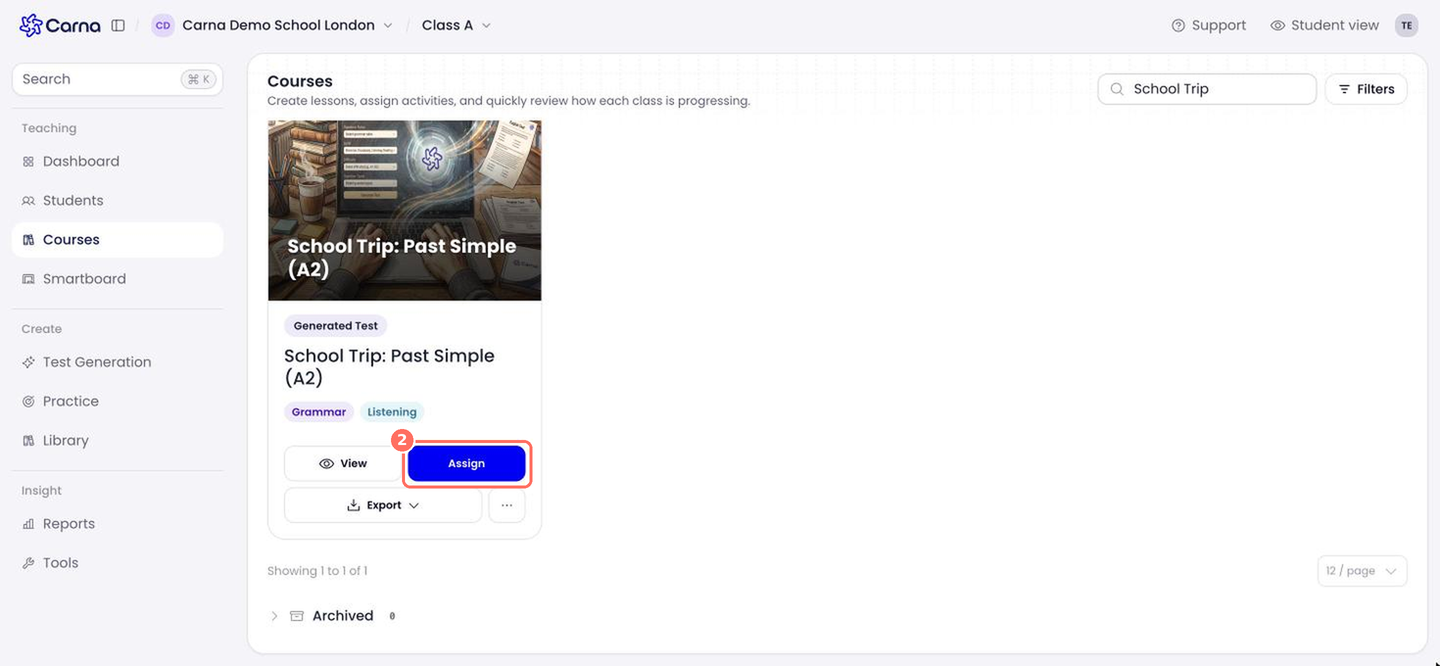
Type the test name in Search modules, then click Assign on its card.
Assign to several classes
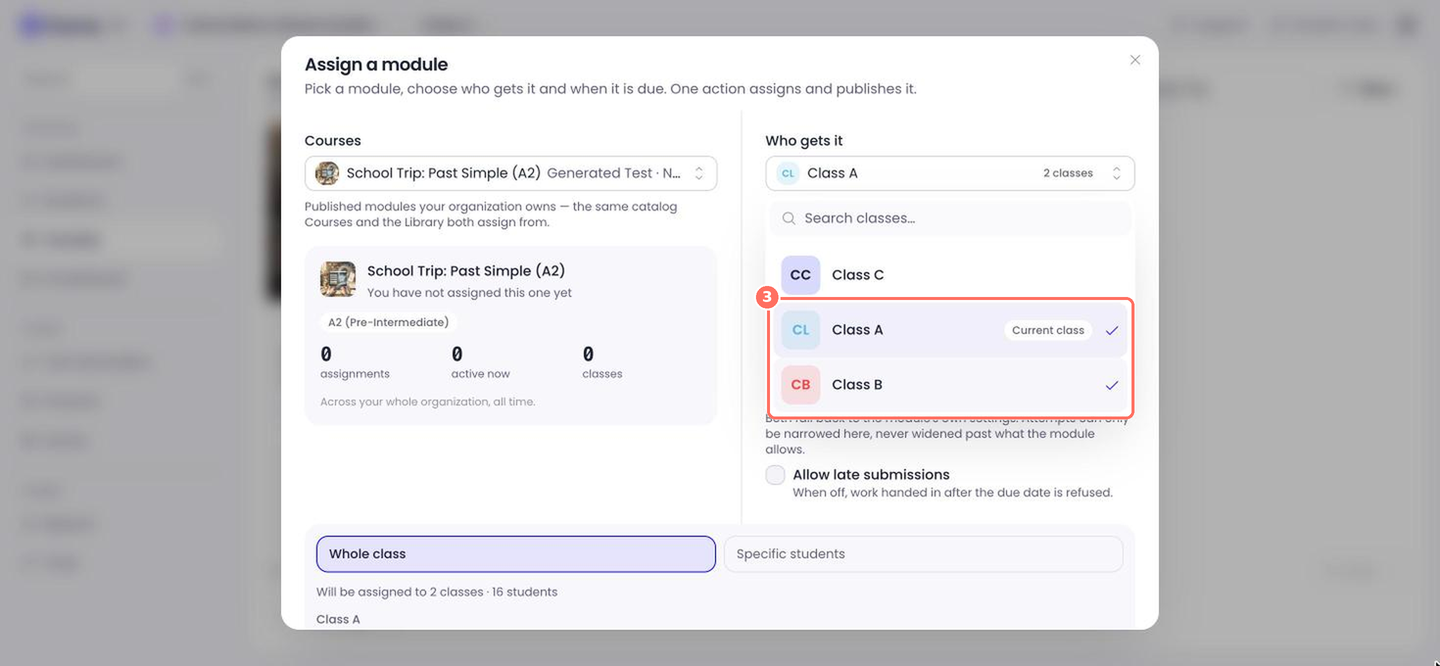
Under Who gets it, tick every class that should get the test. Your current class is marked Current class. Type in Search classes… to find a class quickly.
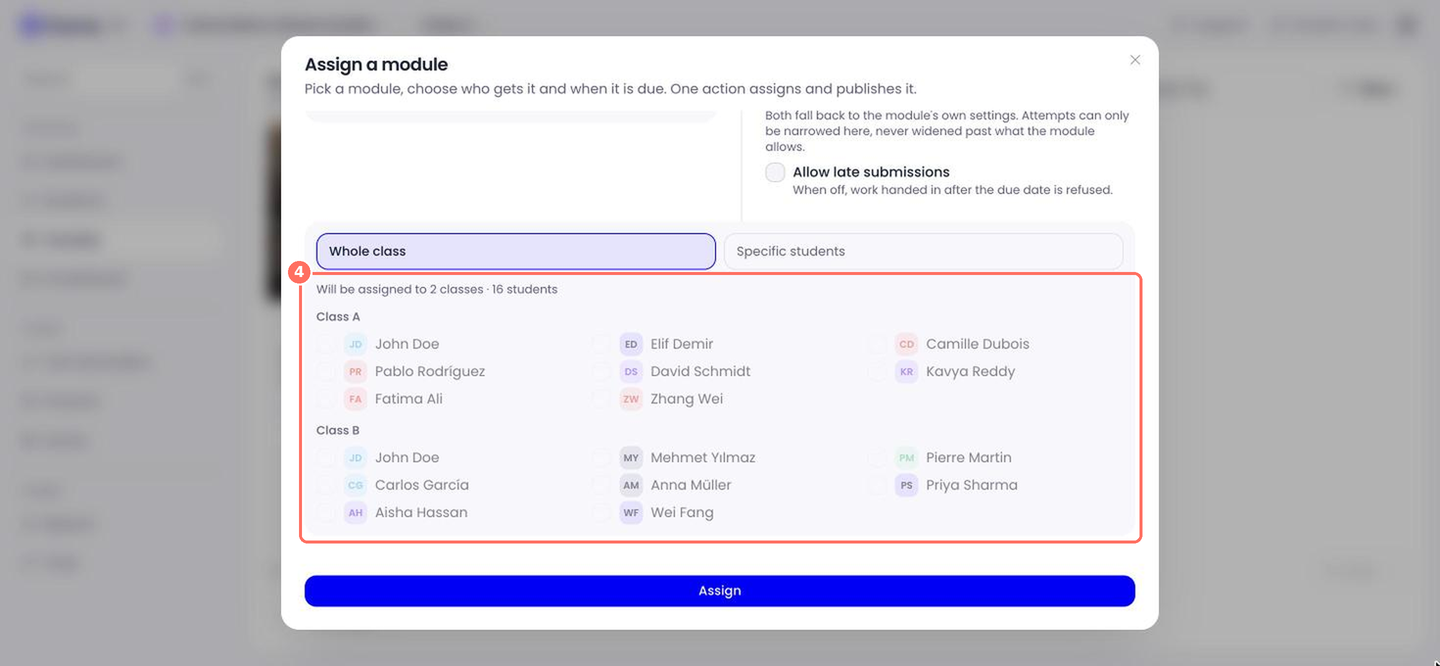
Set the Due date and Attempt policy as you would for a module (see How to assign a module to one or more classes): students see the test from the start day, and it ends at 23:59 on the due day. Keep Whole class selected and click Assign. Carna shows how many classes and students will get the test (for example, Will be assigned to 2 classes · 16 students) and lists the students of each class.
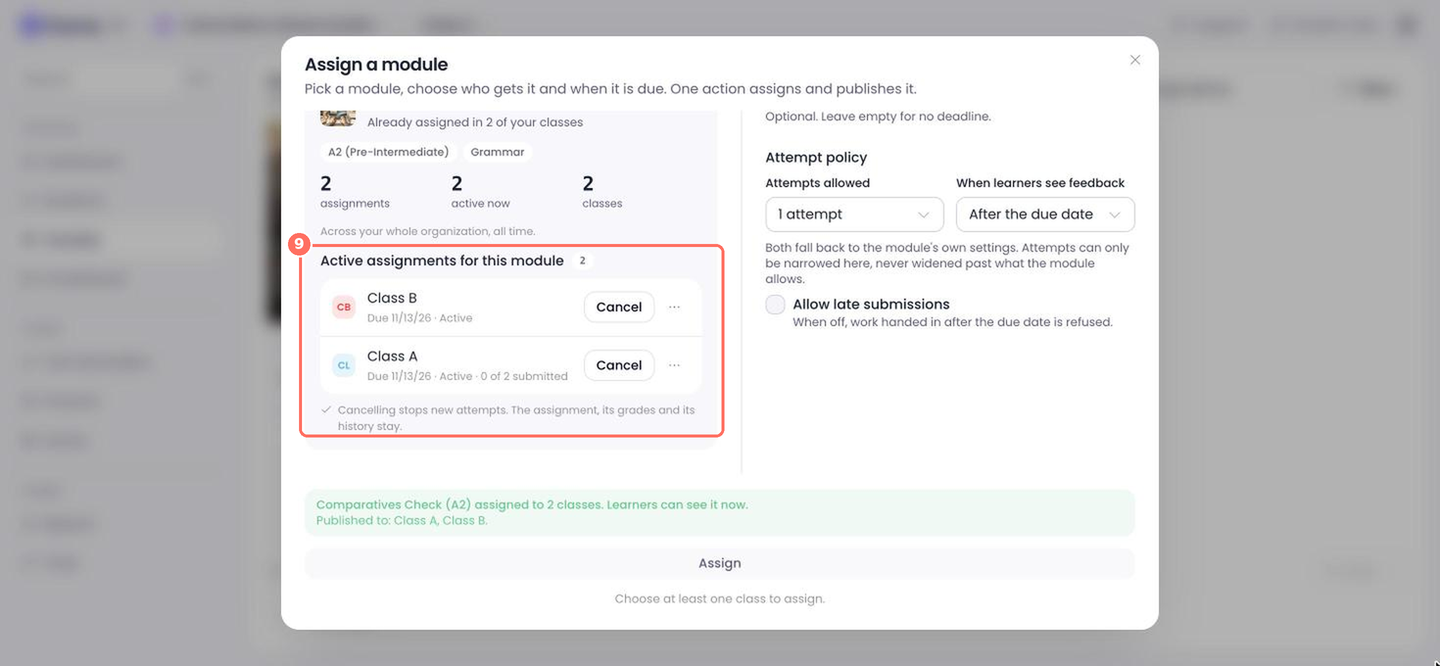
Carna confirms which classes the test was published to. Each class appears under Active assignments for this module.
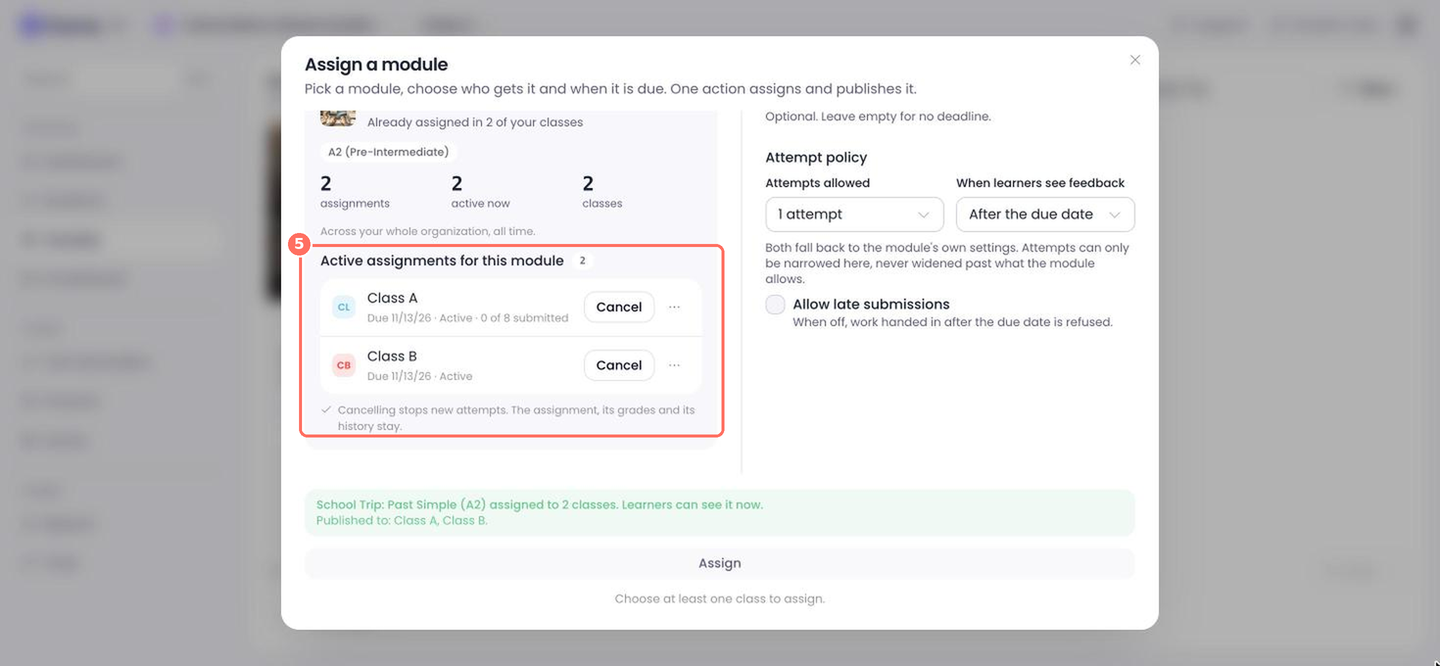
Assign to specific students
Open Assign on the test you want to give to some students only (for example, a second test, Comparatives Check (A2)) and choose one or more classes under Who gets it. Set the Due date. Under Attempt policy, choose Attempts allowed (1 to 3, or Module default) and When learners see feedback (After the due date, After each question, After submitting, Never or Module default). Tick Allow late submissions if students can still hand in after the due date.
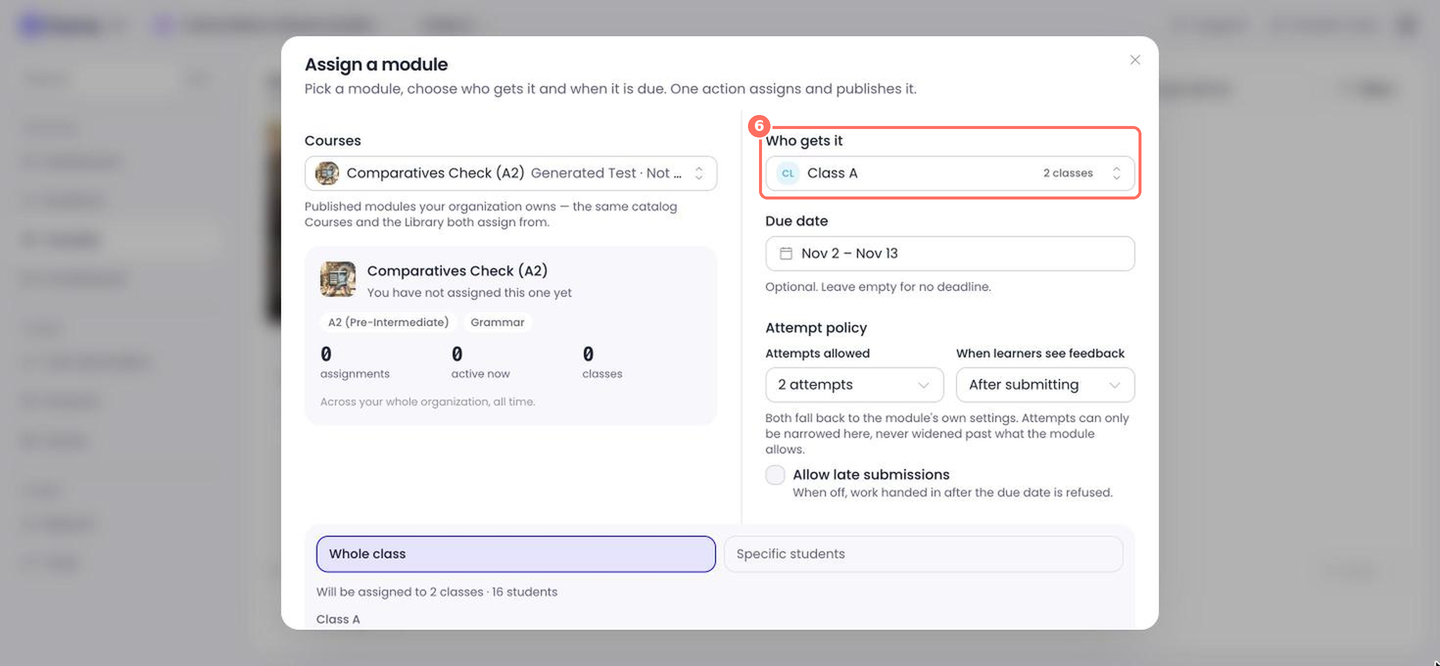
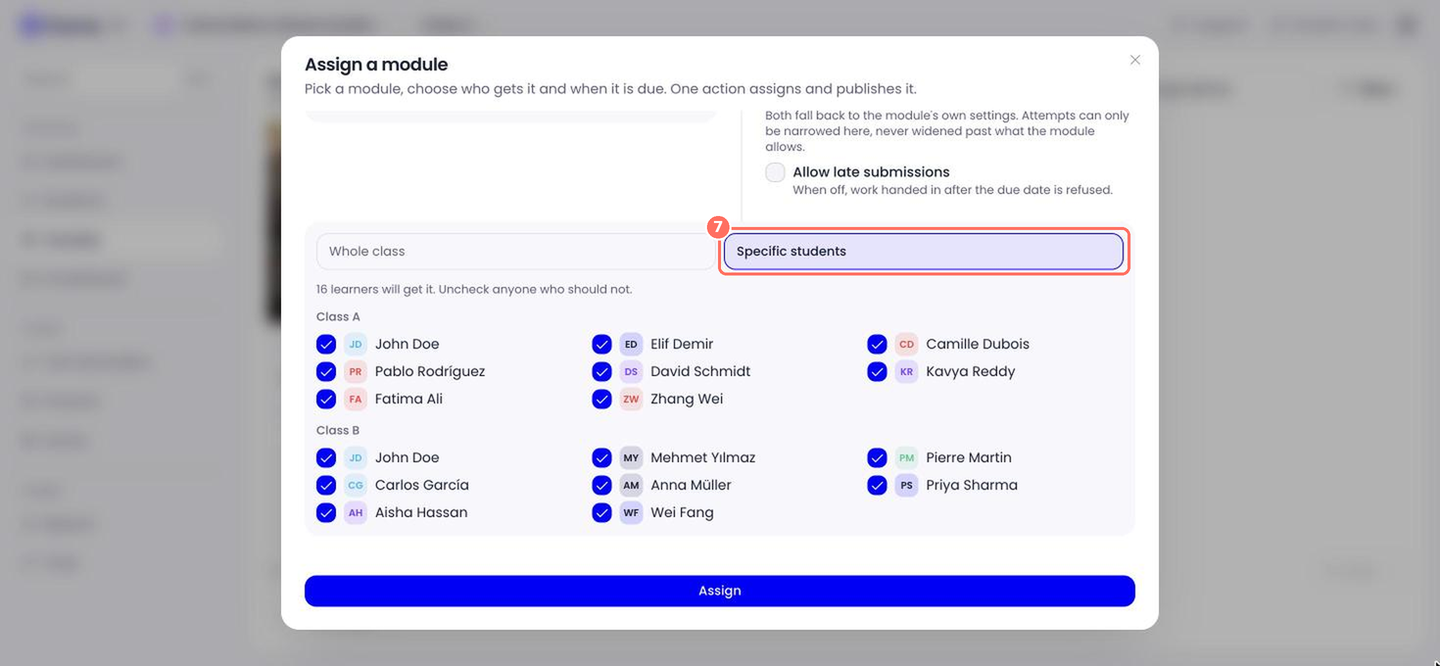
Click Specific students. Every student in the selected classes is ticked, with each class in its own list.
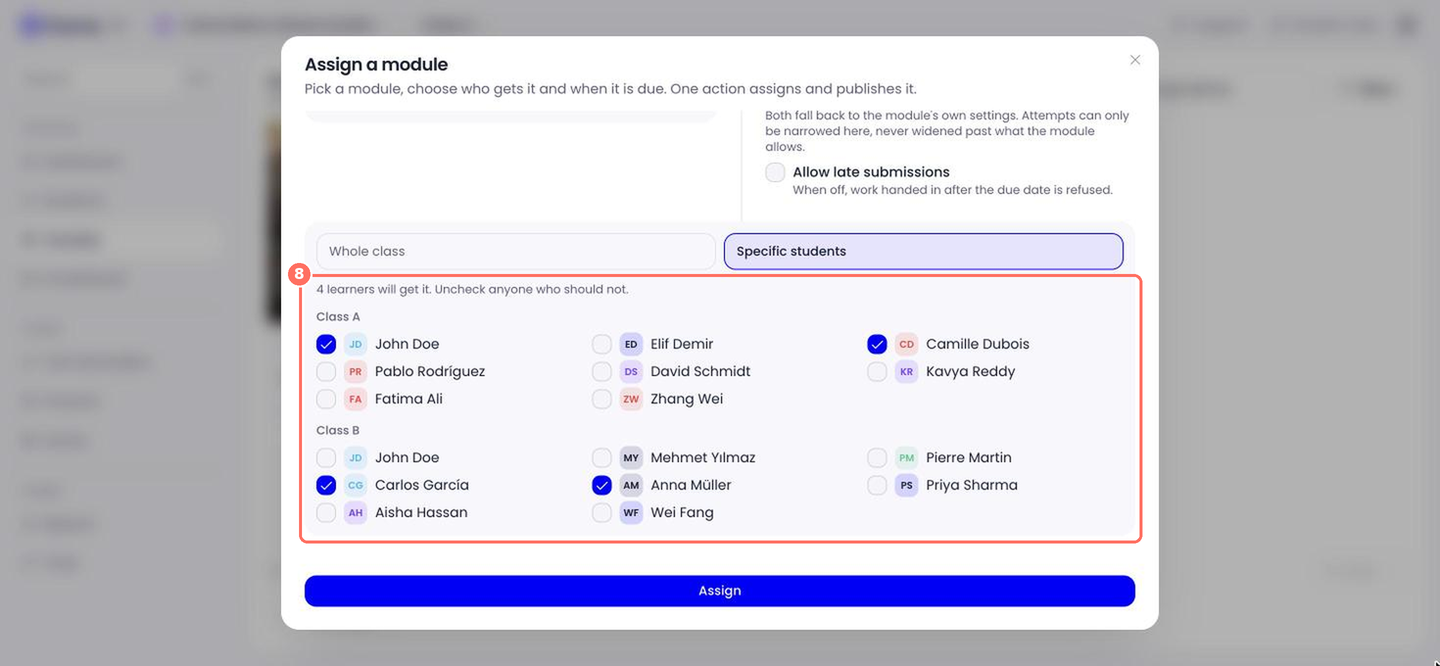
Untick anyone who shouldn't get the test. You can keep different students from different classes. Carna shows how many will get it (for example, 4 learners will get it). Click Assign.
Each class appears under Active assignments for this module with the number of students who got the test (for example, 0 of 2 submitted). The submitted count is for the class selected at the top of the page; to check another class, switch class there. Click Cancel next to a class to stop the assignment for that class.
Rename or archive a test
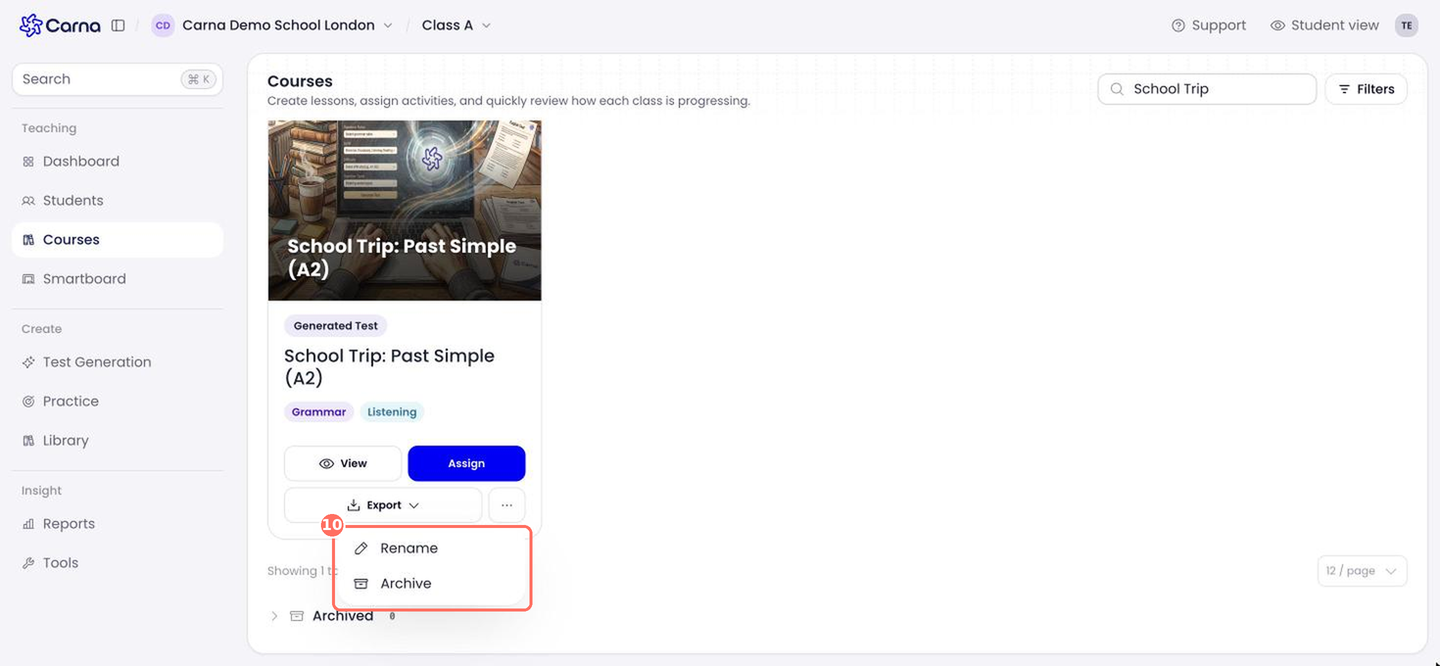
To rename or archive a test, click ⋯ under Assign on its card and choose Rename or Archive. Archived tests are under Archived at the bottom of the page.
To change the due date or attempts later, or to close, archive or restore an assignment, see How to manage, close and restore assignments.
Tips & Good to know #
- A generated test starts with 1 attempt and feedback After the due date. Change these before you click Assign if you want students to try again or see their results sooner.
- If a class already has the test, assigning it again creates a second assignment with its own due date. It doesn't give students another attempt at the first one.
- After you assign a test, the card in Generated Tests shows Manage instead of Assign. Click it to see the active assignments or to assign the test to more classes.
- Archive in the card's ⋯ menu (step 10) hides the test itself from Generated Tests. To unassign a test instead, archive the assignment from Assigned Modules › Manage.
- Cancel next to a class in the Assign window stops the assignment for that class: students no longer see it, but the grades and history stay. For the difference between Cancel, Close assignment and Archive, see How to manage, close and restore assignments.
- With Specific students, only the students you tick get the test. Students who join the class later don't get it automatically.
- If a student is in more than one class, they appear in the list of each class. Tick them under the class you're assigning for.
Troubleshooting #
- The Assign button is greyed out: choose at least one class under Who gets it.
- A student can't see the test: check that they're ticked under Specific students, and that the start date has passed. See How to find an assignment you can't see.
- I can't find my test in Generated Tests: check Archived at the bottom of the page.