


































How to manage your class roster and join requests
See who is in your class, handle students who asked to join, and take students out of the class when they leave.
Who is this for: Teachers
Summary: See who is in your class, handle students who asked to join, and take students out of the class when they leave.
Before you start: You need a teacher account and at least one class. Your school admin adds students to classes and shares the class code with them.
Steps #
In the left menu, click Students. The page shows the class selected at the top.
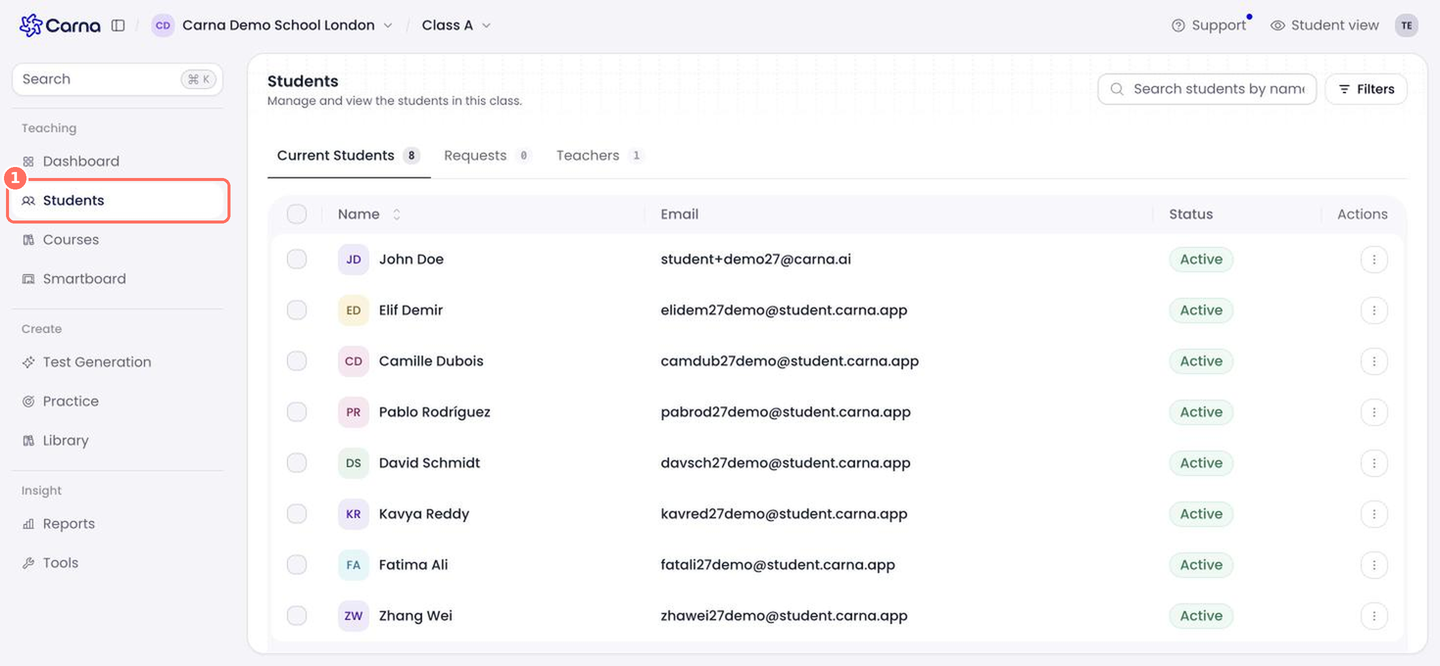
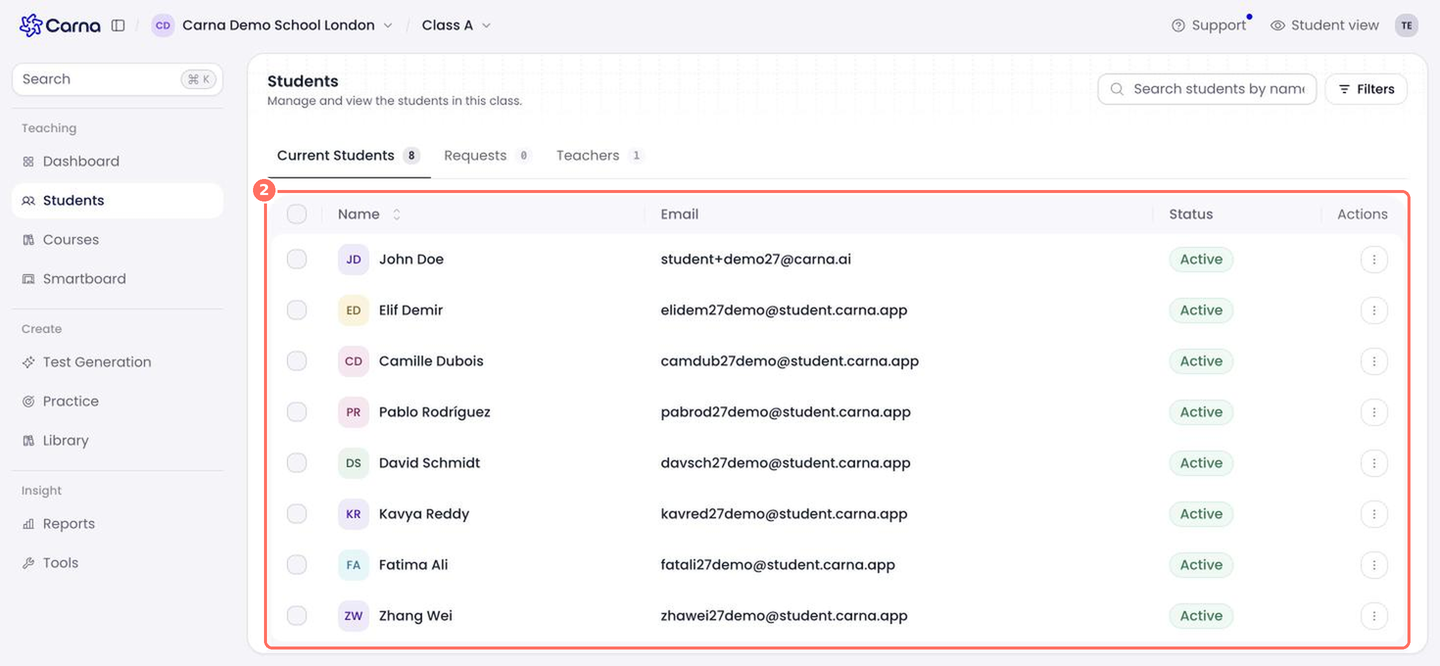
The Current Students tab lists everyone in the class with their name, email (or username) and status. Use Search students by name or email… to find someone quickly.
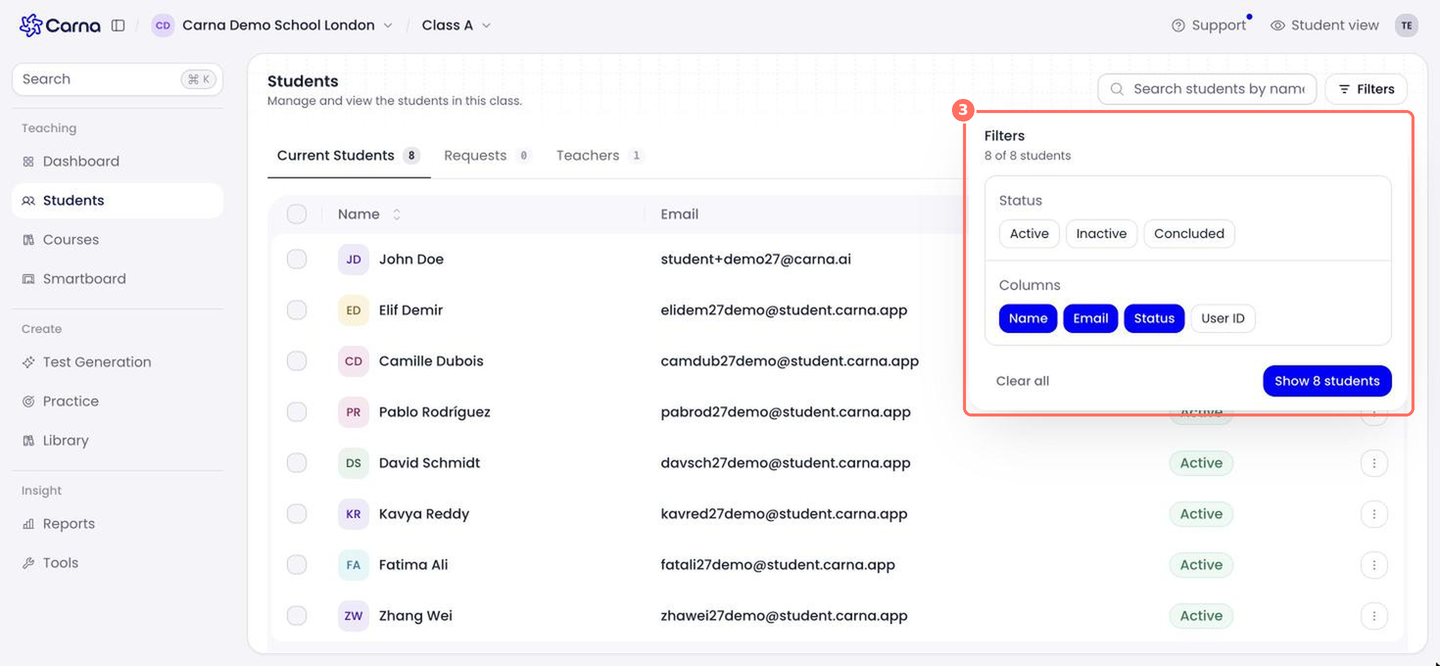
Click Filters to show only Active, Inactive or Concluded students, or to choose which columns you see.
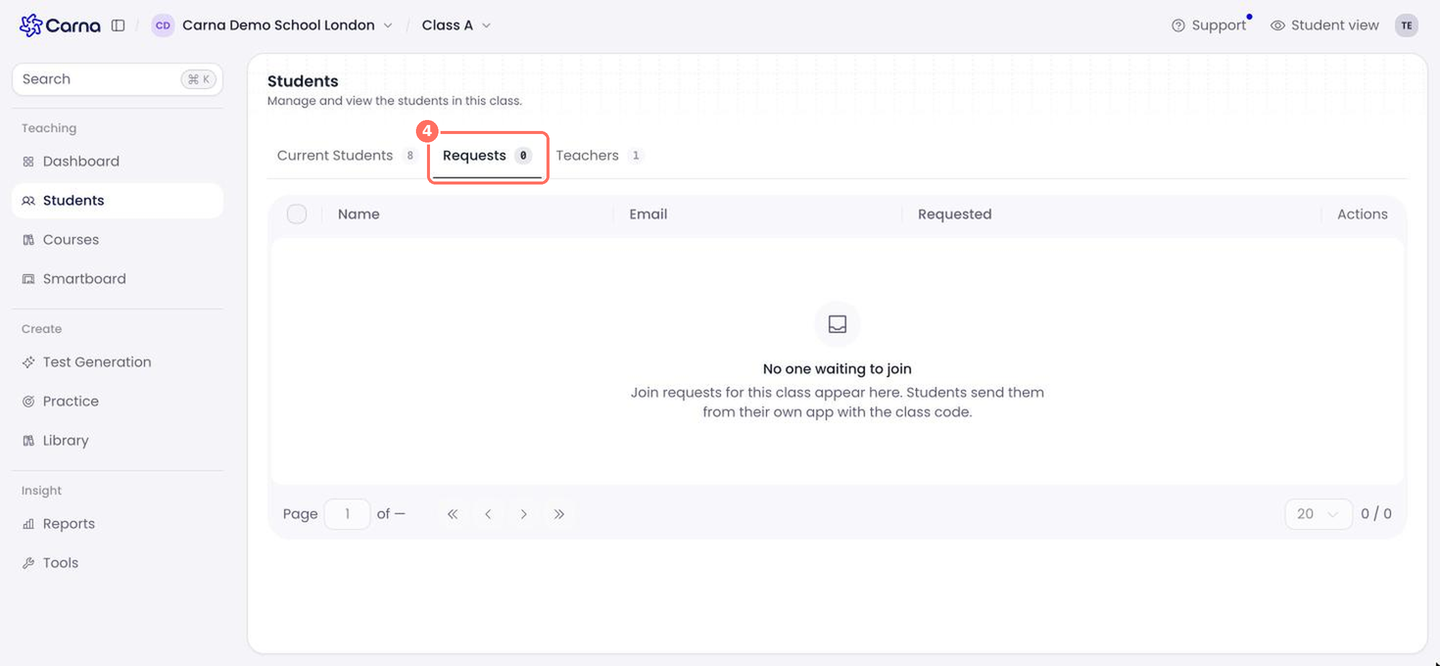
Click the Requests tab to see students who asked to join this class with the class code. Click Approve to add a student to the class, or Reject if they don't belong in it.
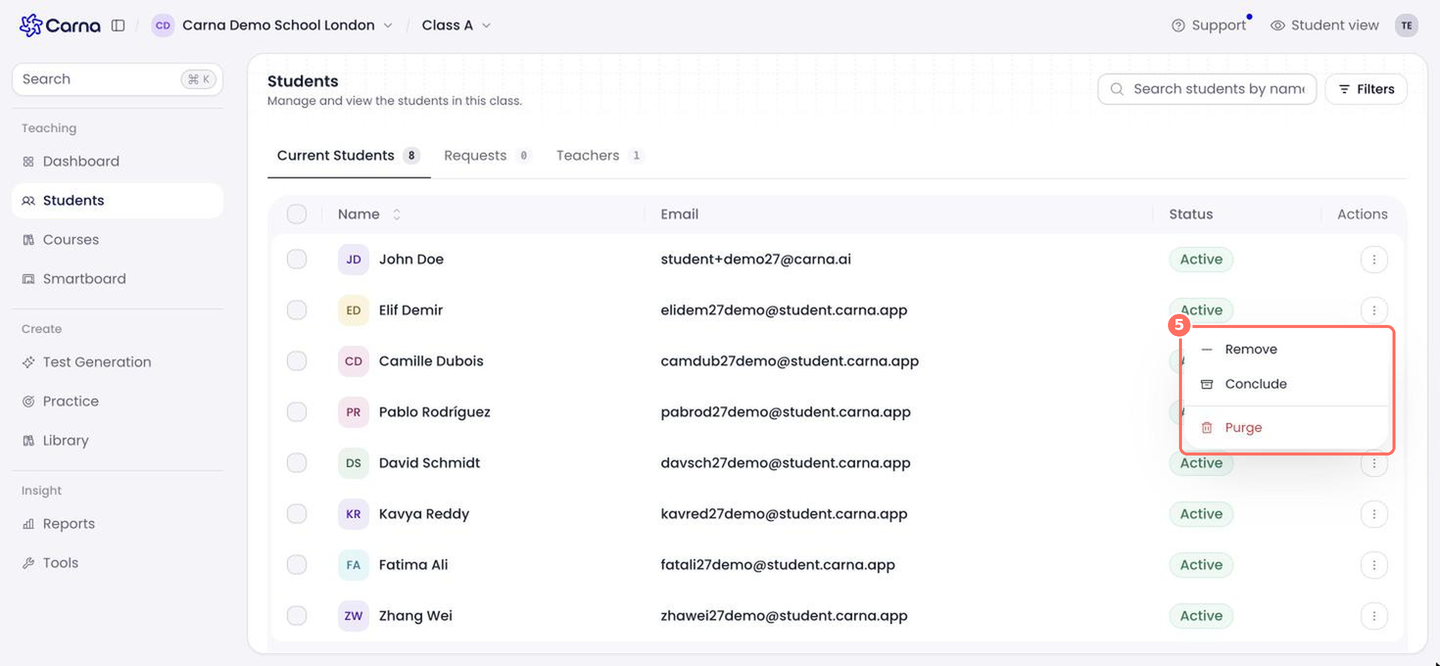
To take a student out of the class, click ⋮ at the end of their row and choose an option:
- Conclude: the student has finished or left the class. They move to Concluded and their work stays in your reports.
- Remove: takes the student out of this class.
- Purge: permanently deletes the student's data in this class. Use it only if you're sure.
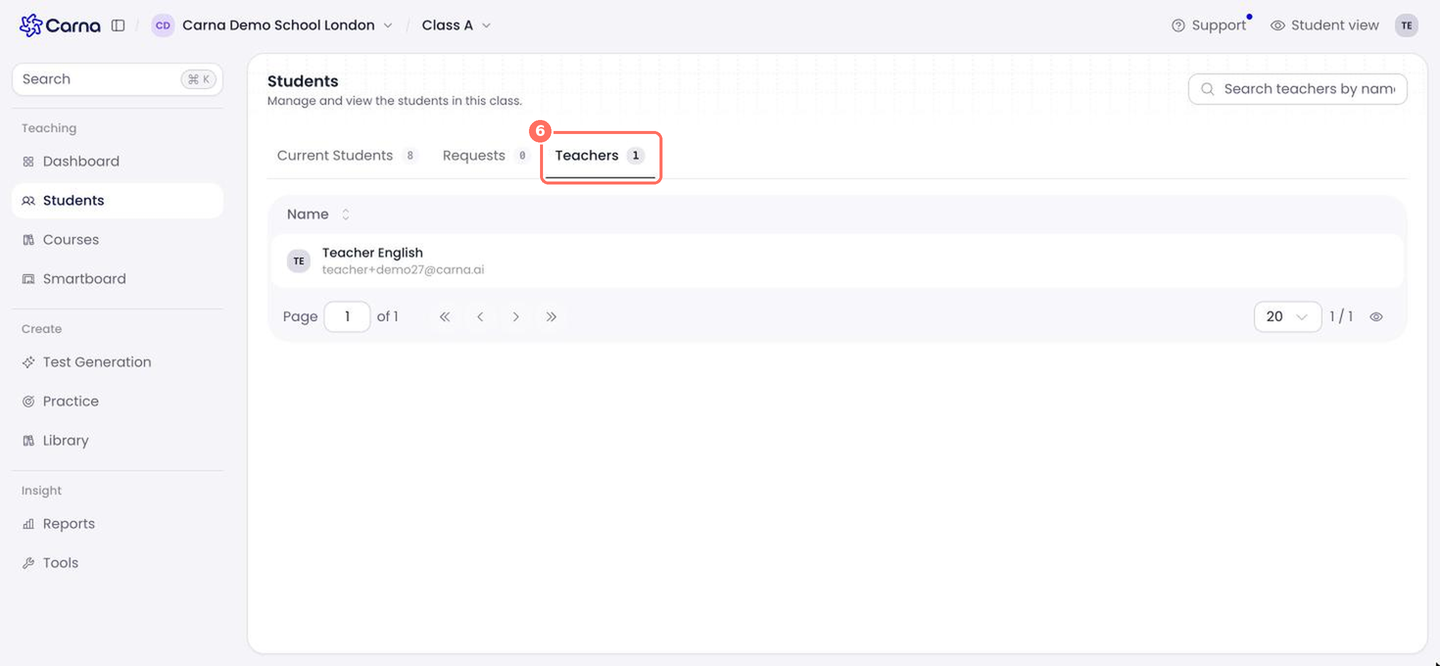
Click the Teachers tab to see who else teaches this class.
Tips & Good to know #
- Teachers can't add students directly. If a student is missing, ask your school admin to add them, or ask the student to send a join request with the class code.
- To remove several students at once, tick the box at the start of their rows (or the box in the header to select everyone), then click Remove in the bar that appears. Click Clear to cancel the selection.
- Click the menu next to a column heading to Sort ascending, Sort descending, Pin left or Pin right, or Hide from view. Use the page controls and Rows per page at the bottom when the list is long.
- The number next to each tab updates as you approve or remove students.
- To see students from another class, switch class at the top of the page. See How to switch between your classes.
Troubleshooting #
- A student says they joined but isn't on the list: check the Requests tab; their request may be waiting for you. Also check that the right class is selected at the top.
- The list is empty: make sure you selected the right class. If the class really has no students, ask your school admin to add them.
- A student is in the wrong class: conclude or remove them here, then ask your admin to add them to the right class.