


































How to create your Carna account
Register on Carna, then join your school and class with the invite code your school gave you.
Who is this for: Students
Summary: Register on Carna, then join your school and class with the invite code your school gave you.
Before you start: You need an email address and an invite code from your school or teacher (10 capital letters and numbers). Use a computer, tablet or phone with an up-to-date browser.
Steps #
Create your account #
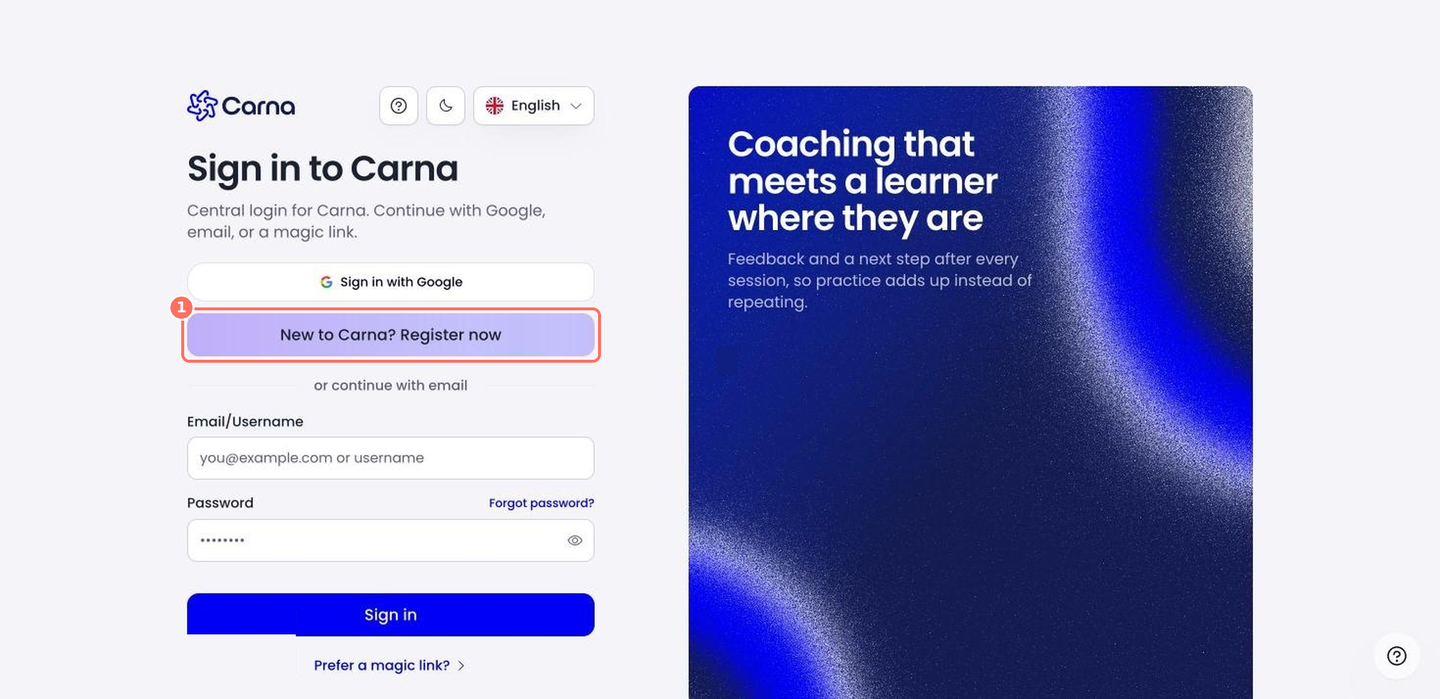
- Go to carna.app and click New to Carna? Register now.
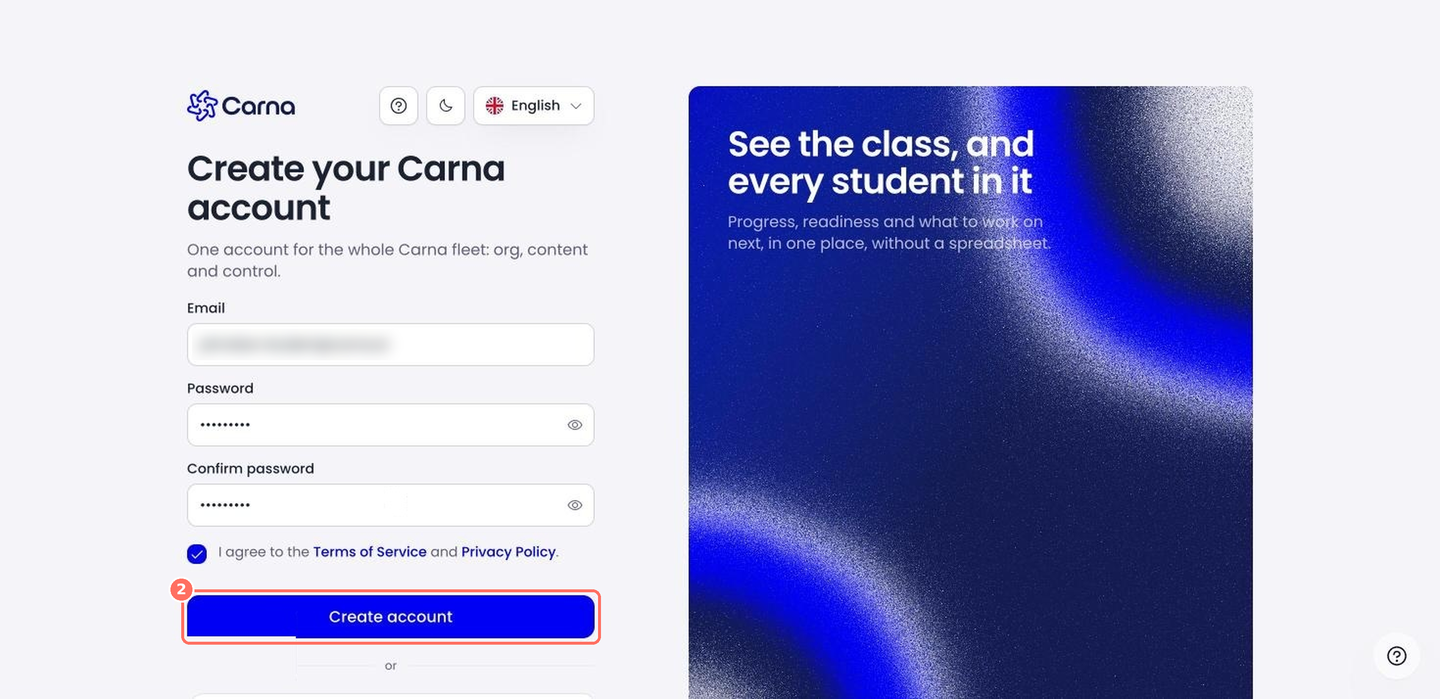
- Type your Email, choose a Password (at least 8 characters) and type it again under Confirm password. Tick I agree to the Terms of Service and Privacy Policy and click Create account.
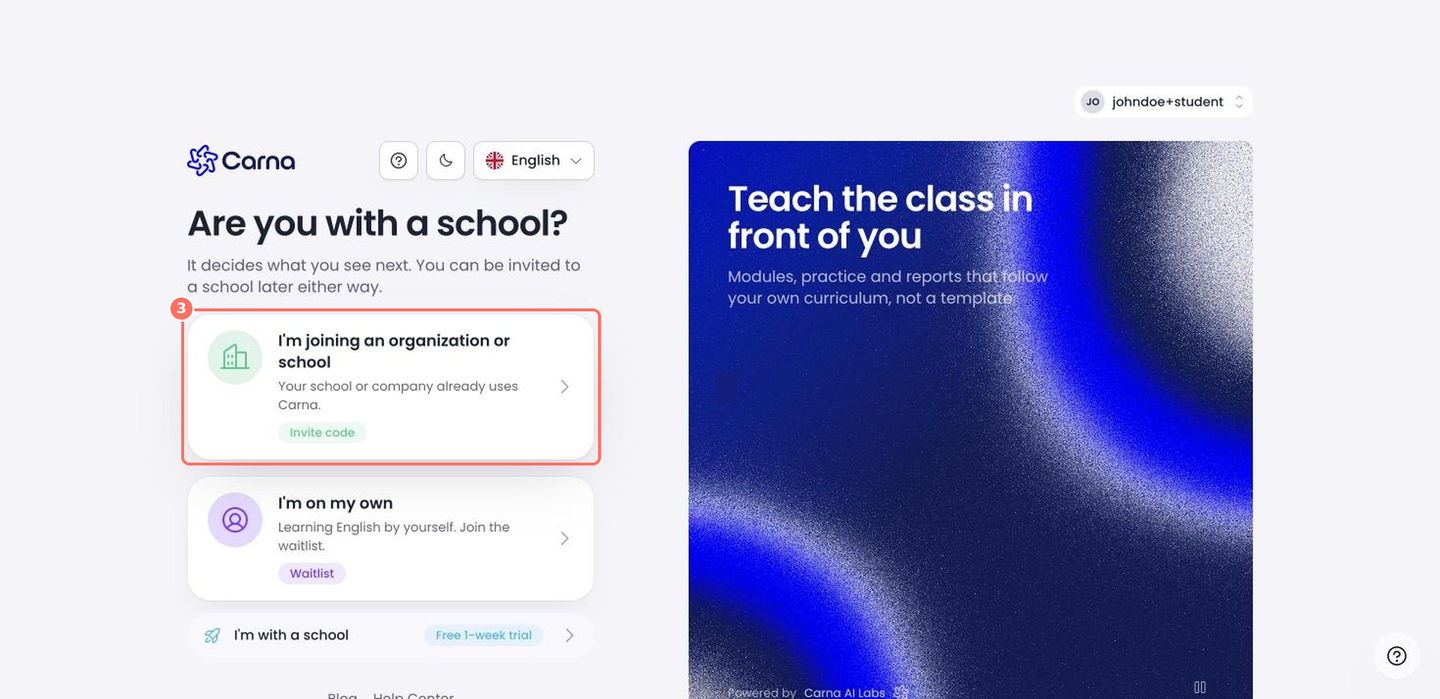
- Under Are you with a school?, click I'm joining an organization or school.
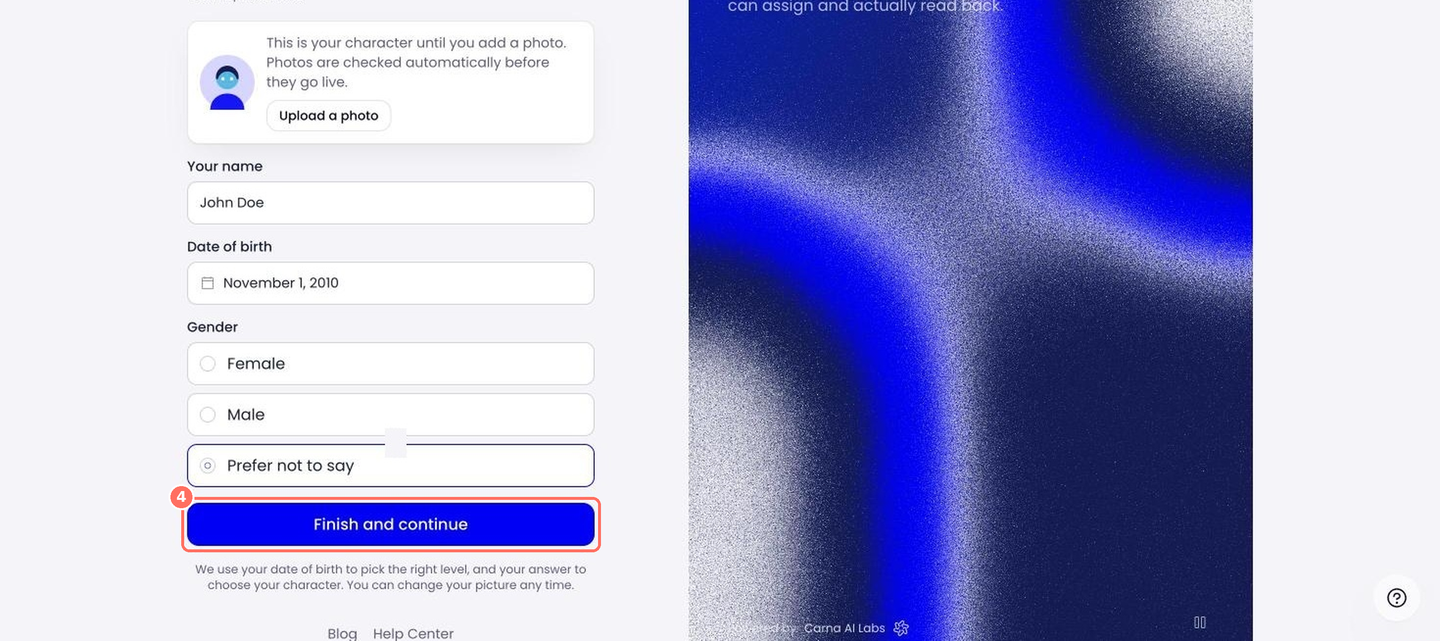
- On One more step, type Your name (the name your teacher will see), pick your Date of birth and choose a Gender option. You can also click Upload a photo. Click Finish and continue.
Join your school and class with an invite code #
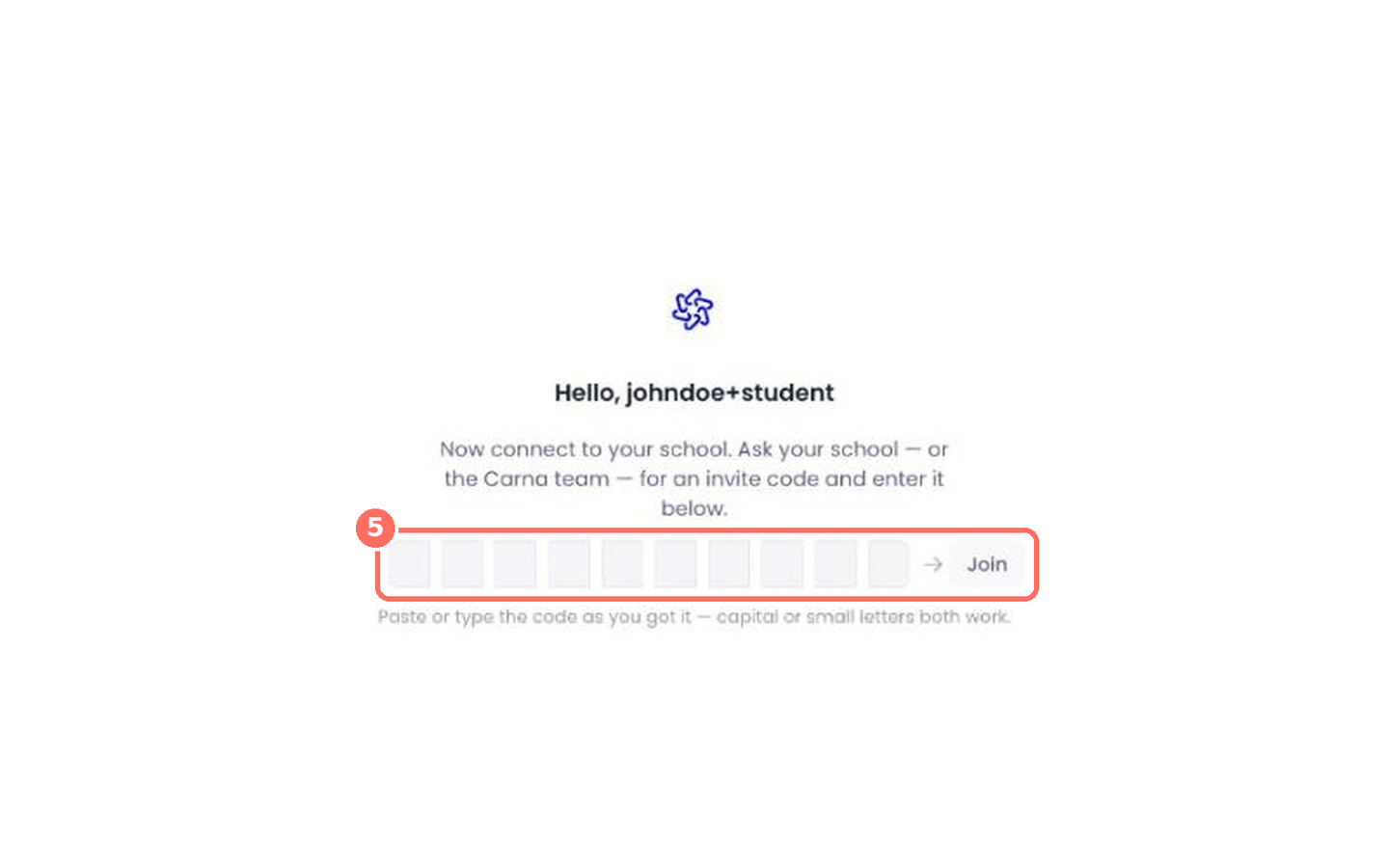
- Type or paste your invite code in the boxes and click Join.
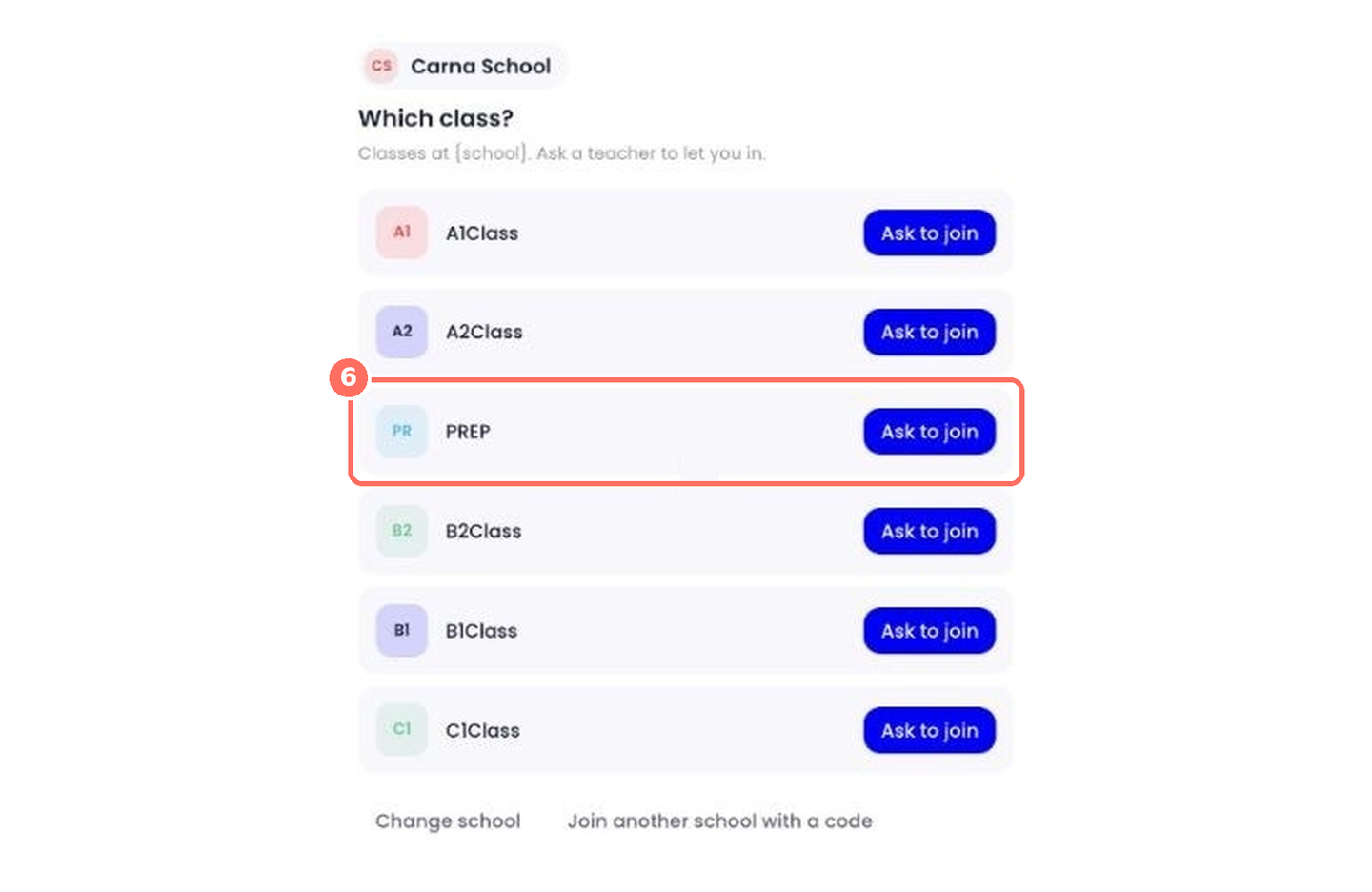
- Under Which class?, find your class (for example, PREP) and click Ask to join.
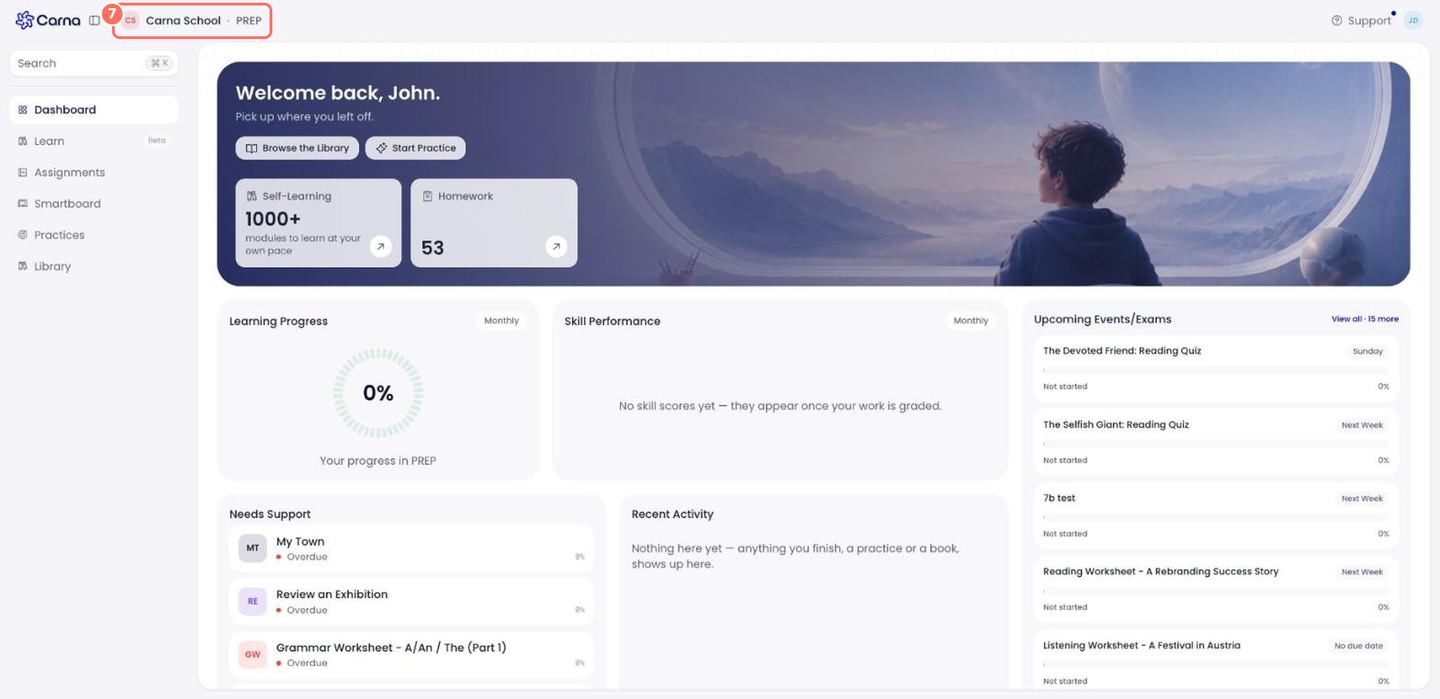
- Depending on your school's settings, you join the class straight away or your teacher approves your request first. Once you're in, your Dashboard opens and the top of the page shows your school and class (for example, Carna School · PREP).
Tips & Good to know #
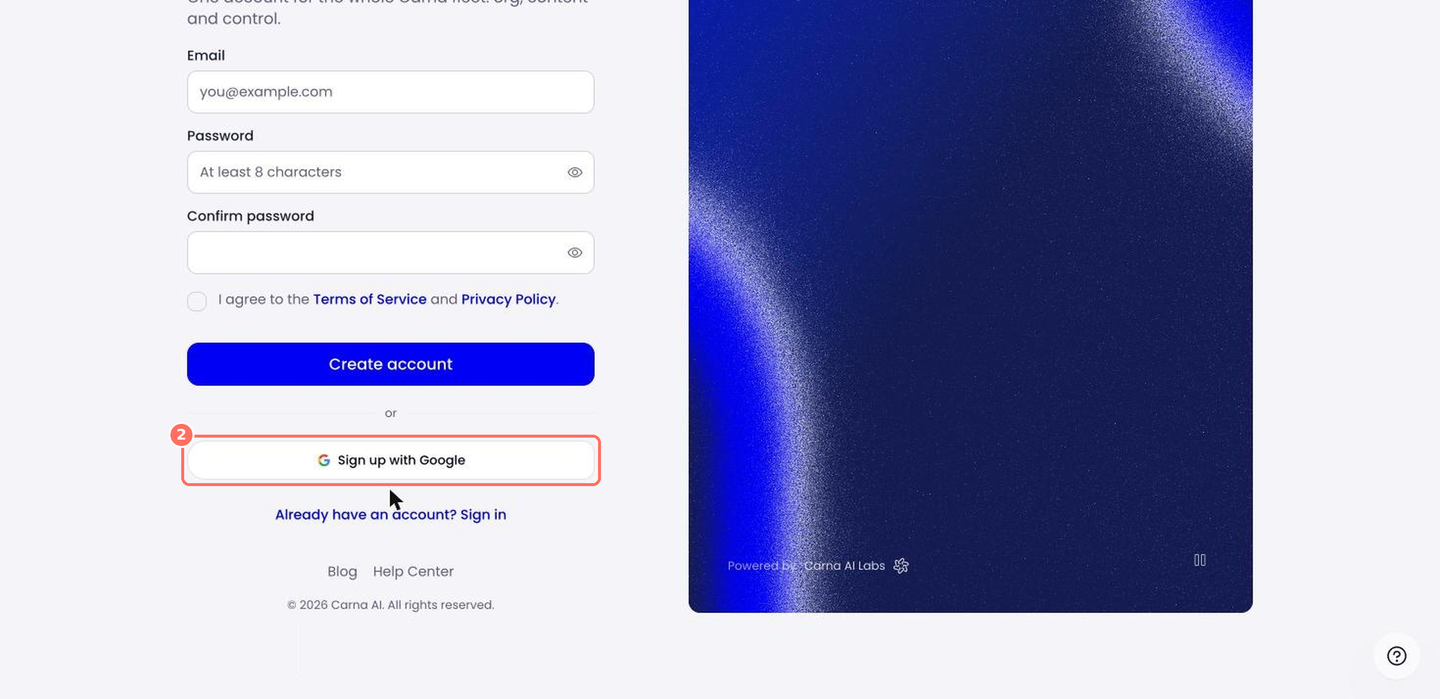
- You can also click Sign up with Google under Create account to register with your Google account.
- Already have a Carna account? Sign in instead. See How to sign in and reset your password.
- Ask your teacher which class to choose before you click Ask to join.
- Under the class list on the Which class? screen, Change school takes you back to choose another school, and Join another school with a code lets you enter a different invite code.
Troubleshooting #
- The Join button doesn't work: check that you typed all 10 characters of the code. Copy it again from your school's message, or ask your teacher for the code.
- My invite code still doesn't work: see My code is not accepted, or write to the Carna team through Live Support. Tell us your school's name and the code you used. See How to get help from the Carna team.
- My class isn't in the list: you may have used another school's code. Click Change school, or ask your teacher.
- I can't see any homework after joining: your teacher may still need to approve your request, or no work has been assigned yet. See How to find an assignment you can't see.
- I chose the wrong class: tell your teacher or school admin, so they can put you in the right class.
- I forgot my password: see How to sign in and reset your password.