


































How to create your own scenario, topic or essay
Make a speaking scenario, a speaking topic or an essay question that fits your lesson, then assign it like any other practice.
Who is this for: Teachers
Summary: Make a speaking scenario, a speaking topic or an essay question that fits your lesson, then assign it like any other practice.
Before you start: You need a teacher account. Practices you create are saved in your school, under My practices.
Steps #
Create a speaking scenario
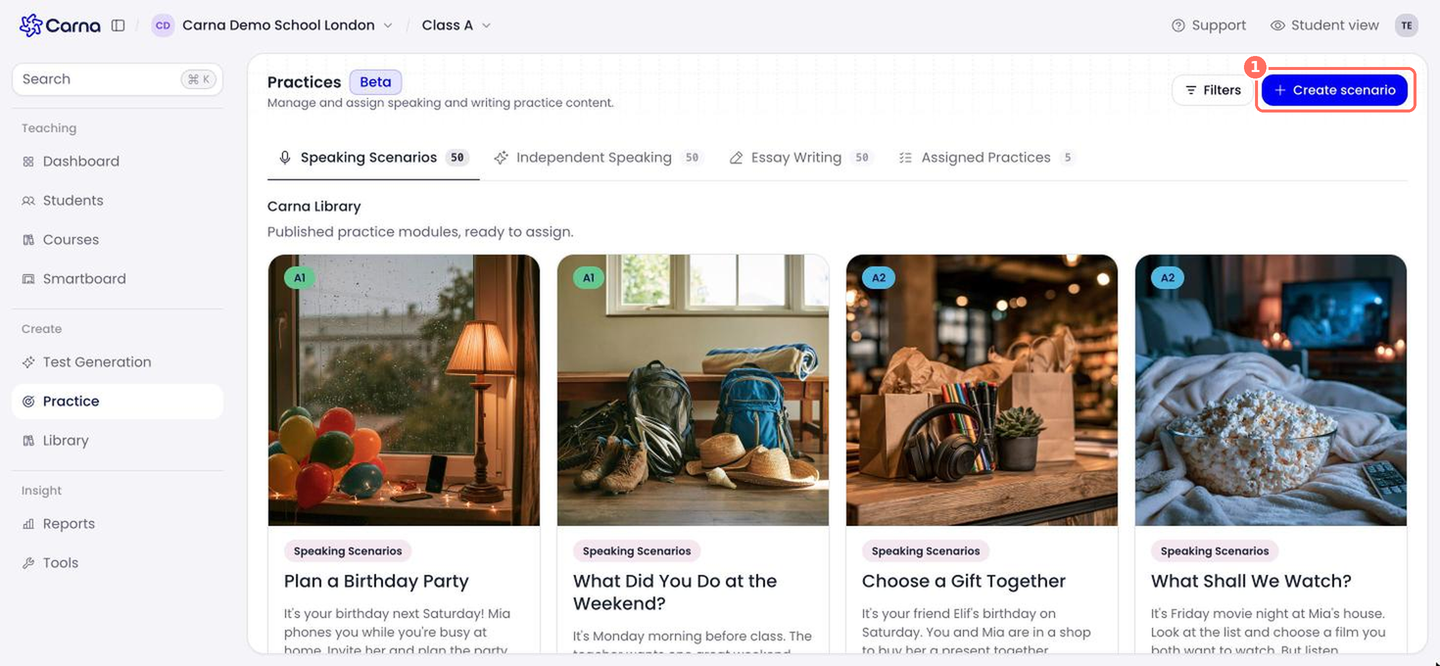
Go to Practice, open the Speaking Scenarios tab and click Create scenario.
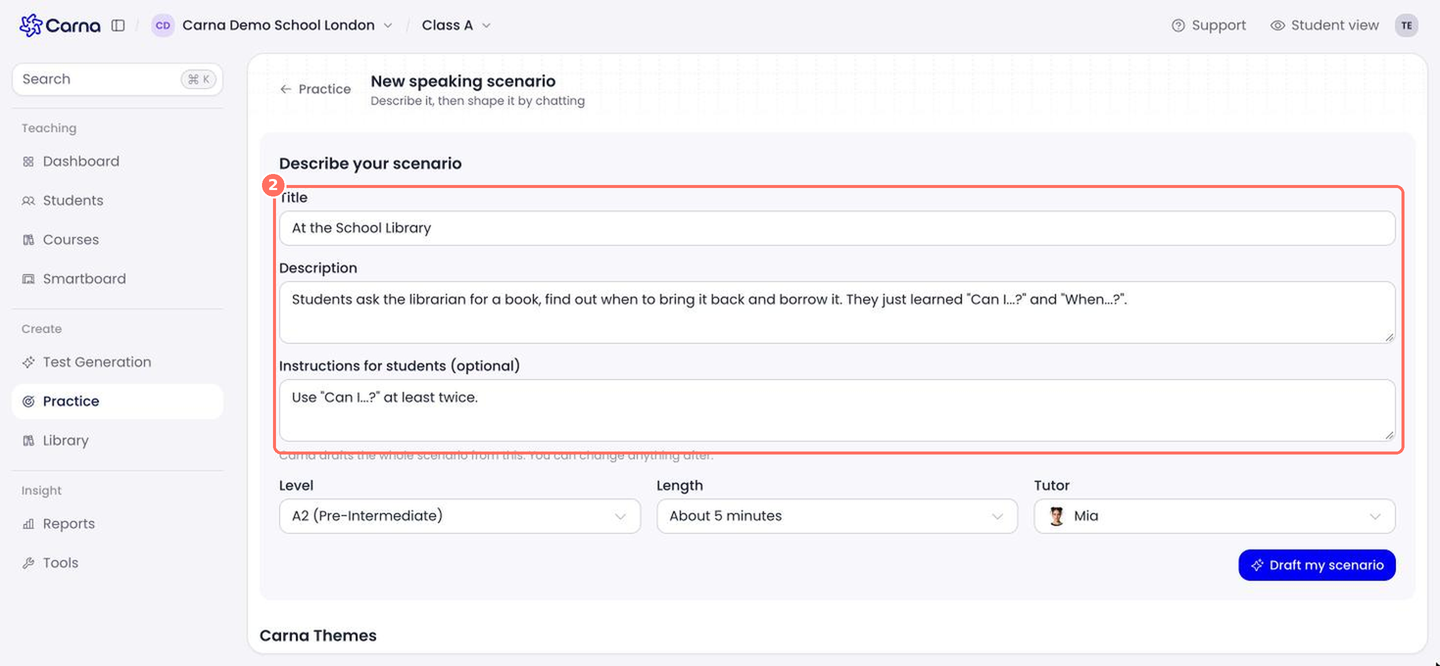
Under Describe your scenario, fill in:
- Title: the name students see, for example At the School Library.
- Description: the situation and what students just learned, for example Students ask the librarian for a book… They just learned "Can I…?" and "When…?".
- Instructions for students (optional): a goal, for example Use "Can I…?" at least twice.
Carna writes the whole scenario from this, and you can change anything after.
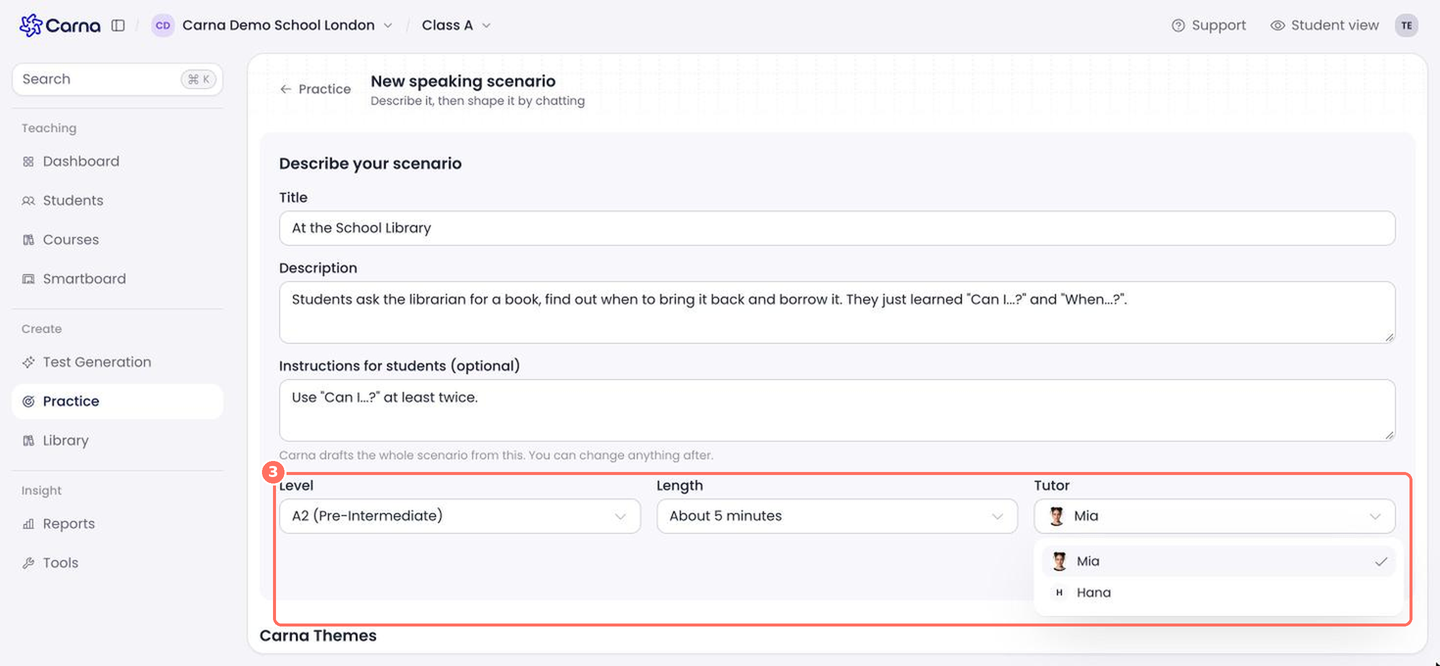
Choose the Level (A1 to C1), the Length (about 3, 5, 8 or 10 minutes) and the Tutor (Mia or Hana). Then click Draft my scenario.
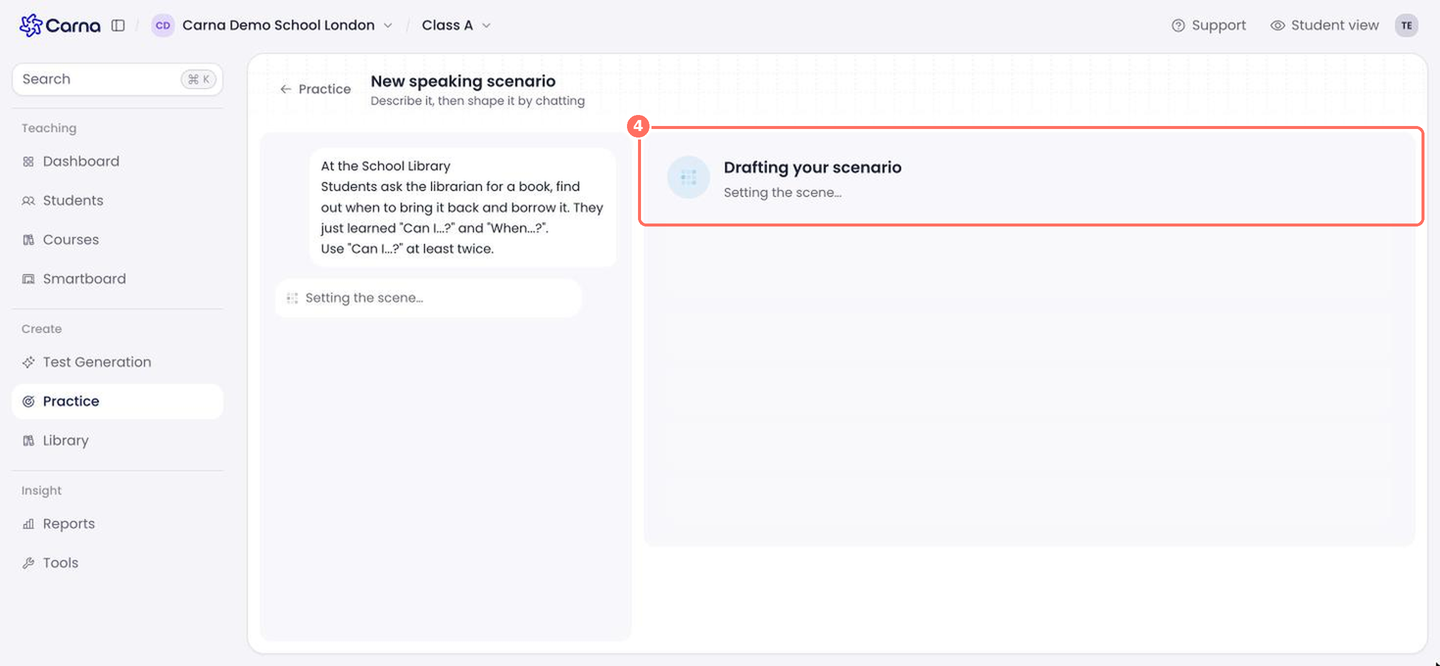
Carna shows Drafting your scenario. This usually takes under a minute. The scenario is saved as a draft in your school straight away.
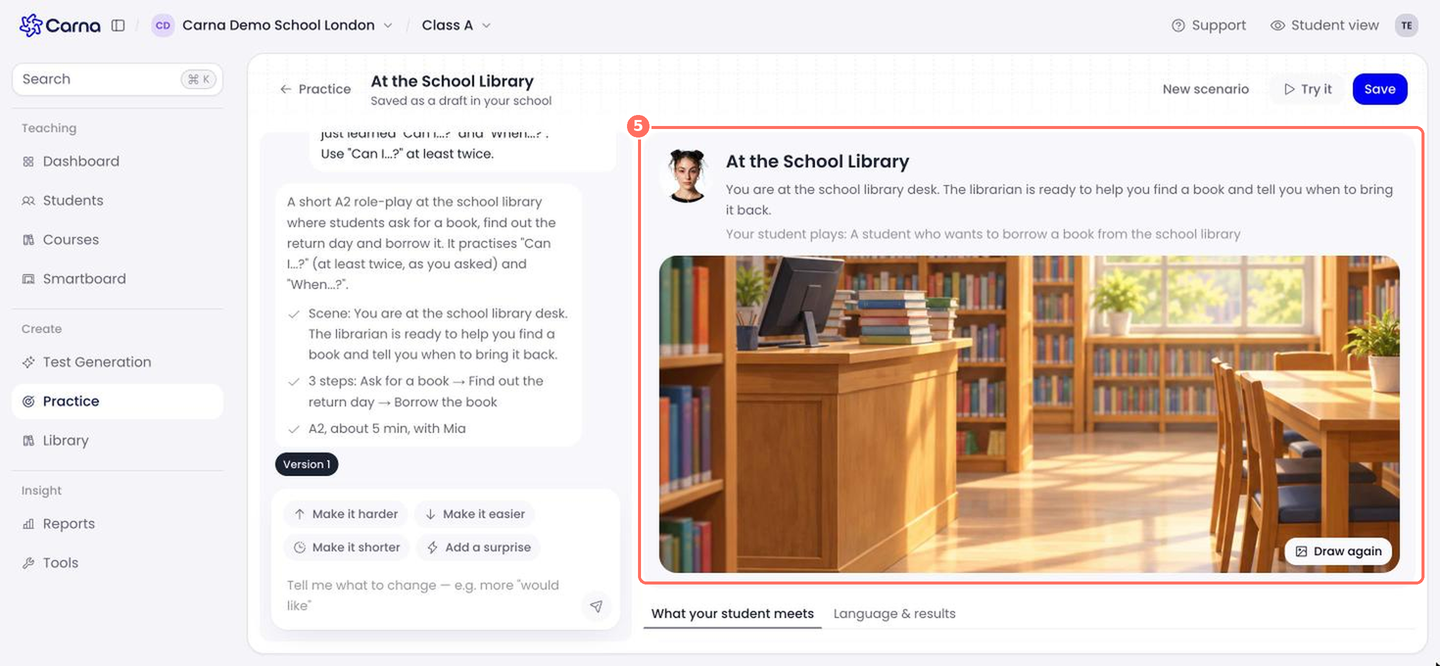
On the right, you see the scenario as students will meet it: the tutor, the scene and the role your student plays. Carna also draws a picture of the scene; click Draw again for a new one.
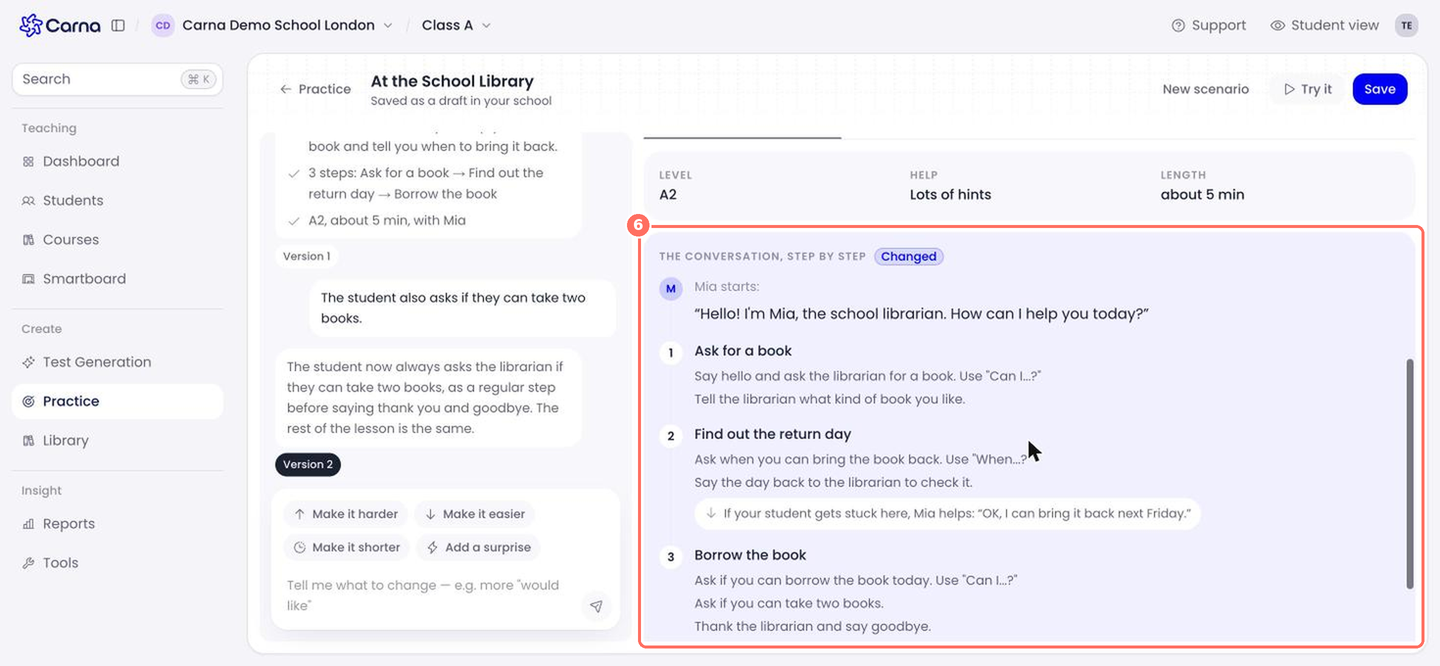
Under What your student meets, check the Level, Help (how many hints the tutor gives) and Length, and The conversation, step by step: what the tutor says first, each step the student has to do, and the help the tutor gives if the student gets stuck.
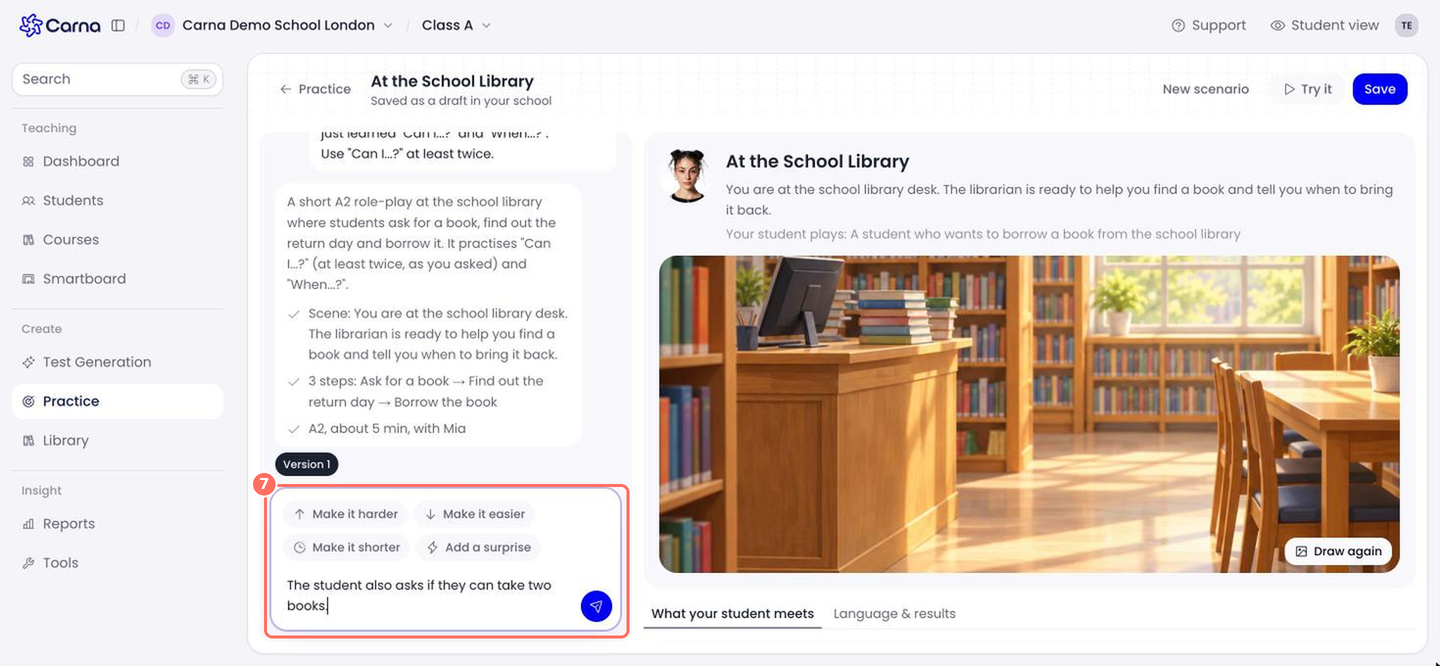
To change the scenario, click Make it harder, Make it easier, Make it shorter or Add a surprise on the left, or type what you want in your own words (for example, The student also asks if they can take two books) and click the send arrow.
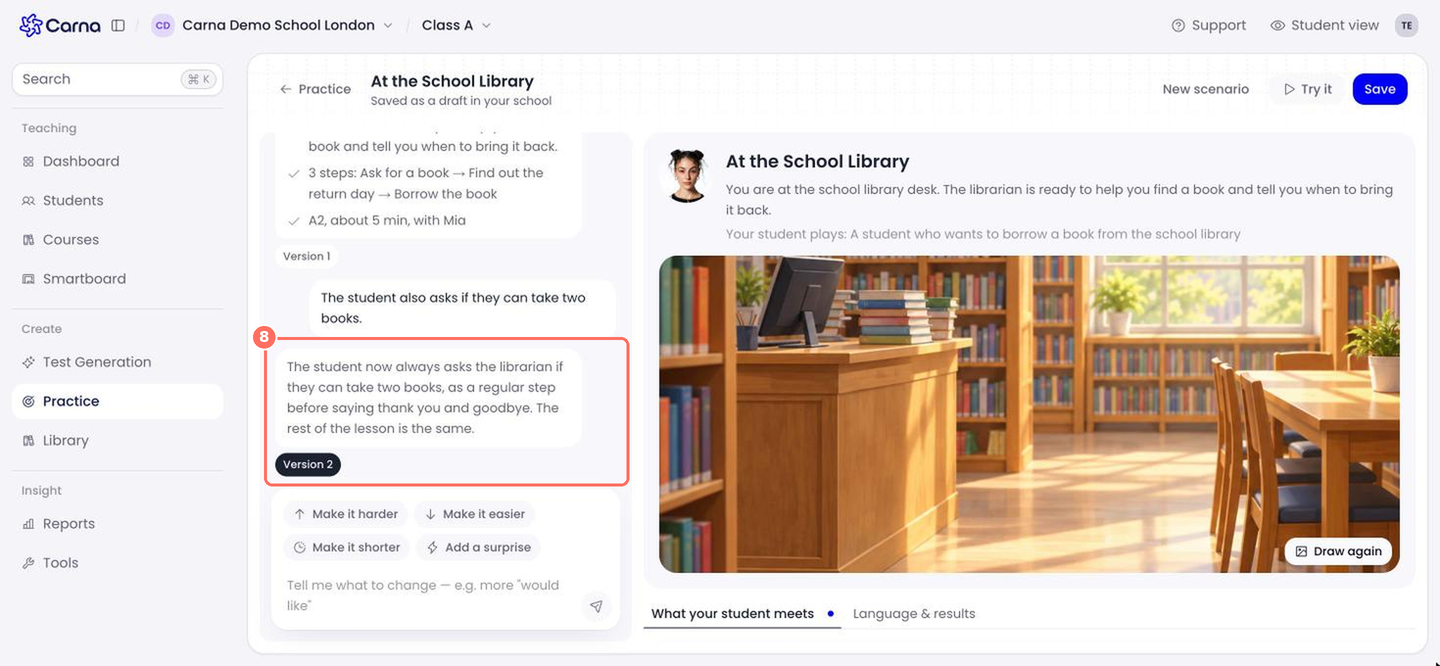
Carna explains what it changed and saves it as a new version (for example, Version 2). The changed part shows a Changed badge on the right.
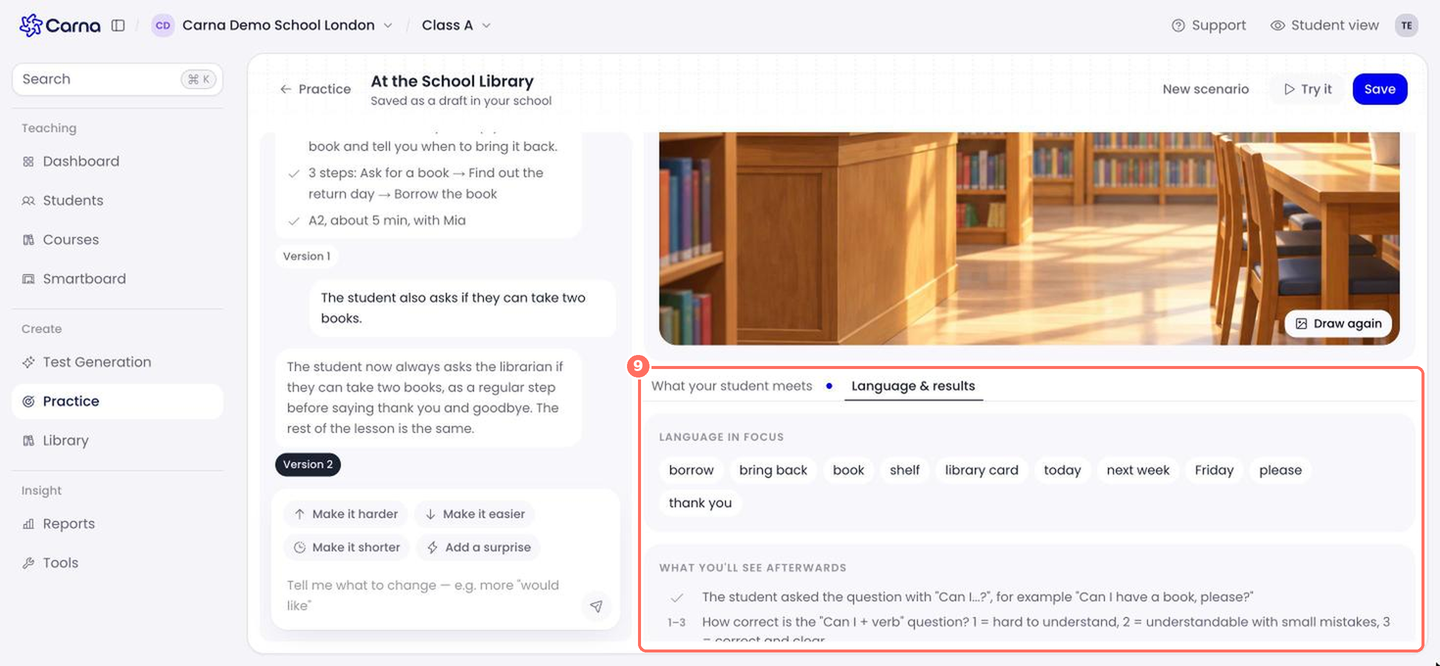
Click Language & results to see the Language in focus (the words and phrases students practise) and What you'll see afterwards (what Carna checks and scores in the report).
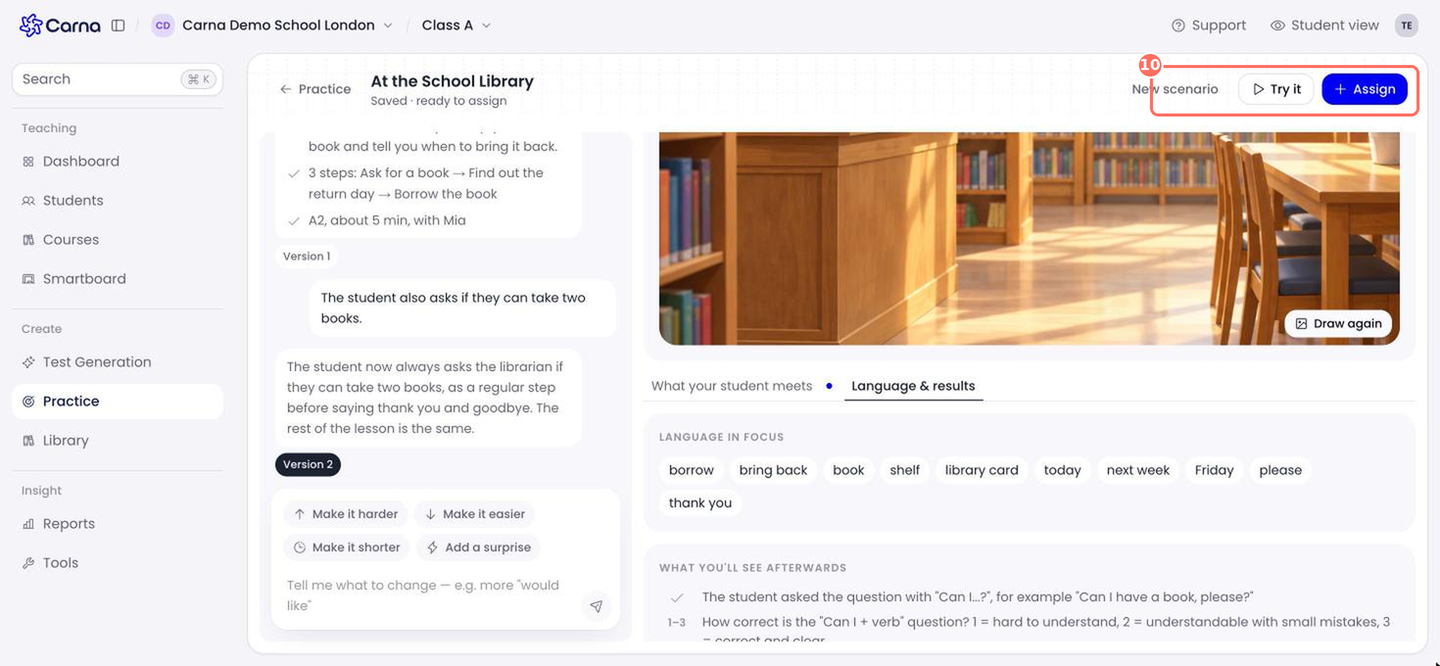
Click Save. The scenario shows Saved · ready to assign. Click Try it to test it yourself, or Assign to give it to your class.
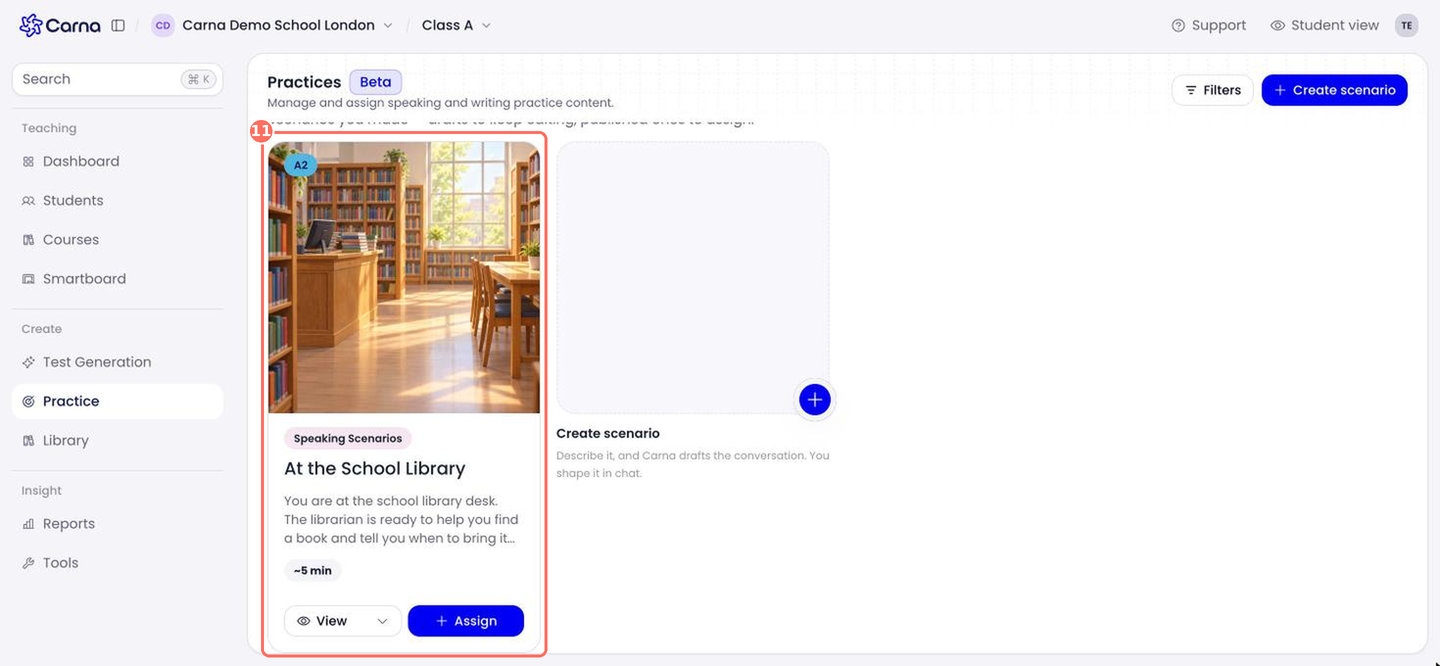
Your scenario is under My practices at the bottom of the Speaking Scenarios tab, after the Carna Library.
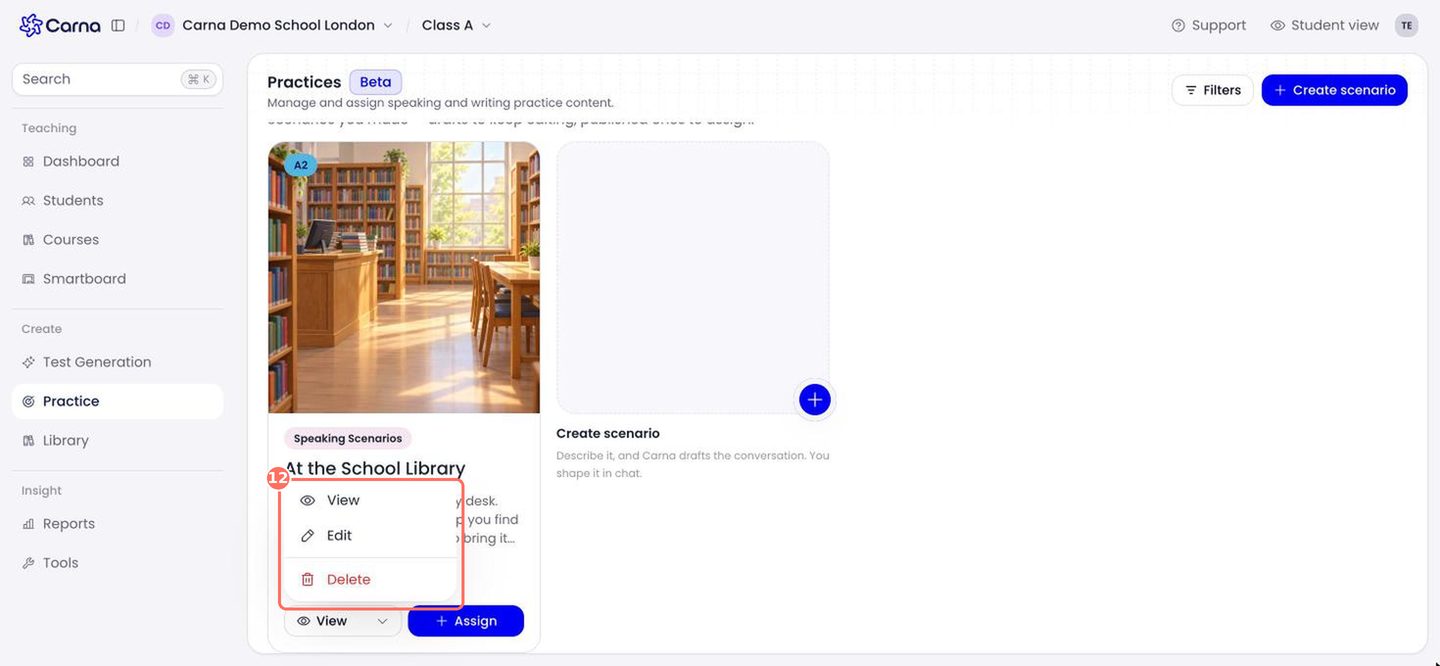
On your scenario card, open the View menu to View, Edit or Delete it.
Create a speaking topic
Open the Independent Speaking tab and click Create topic.
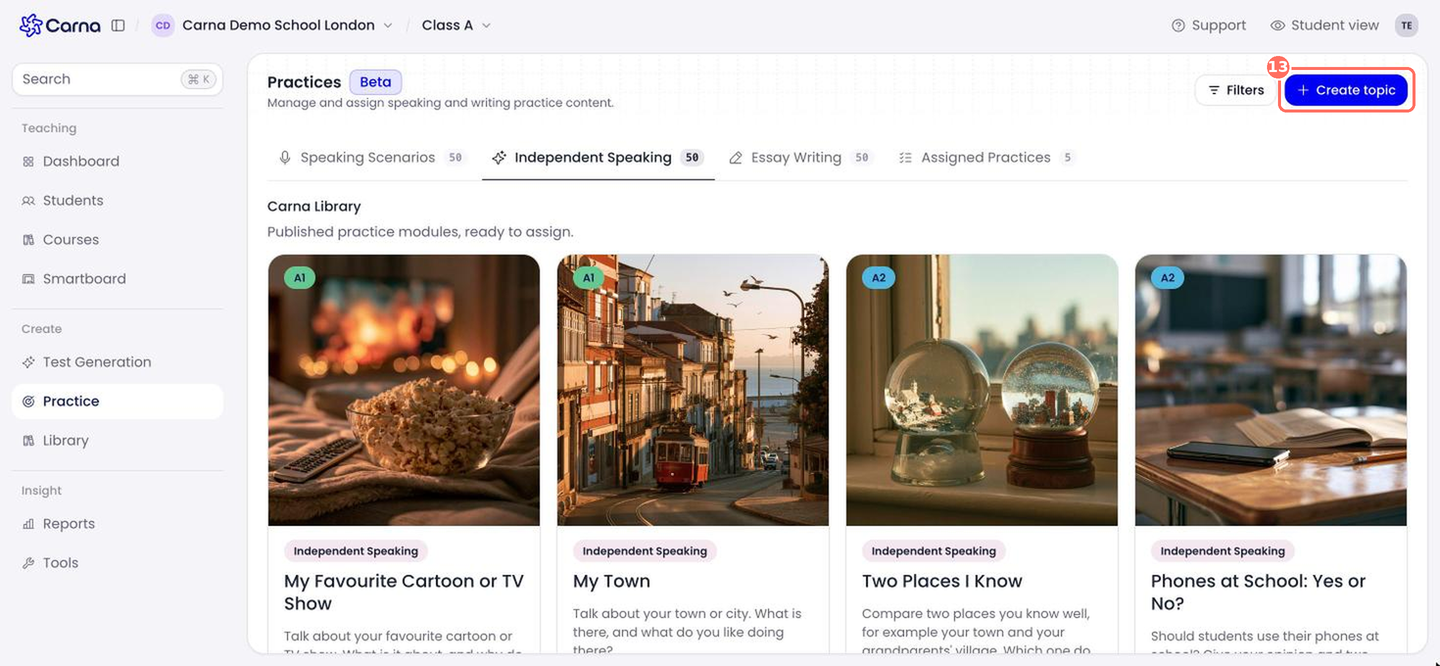
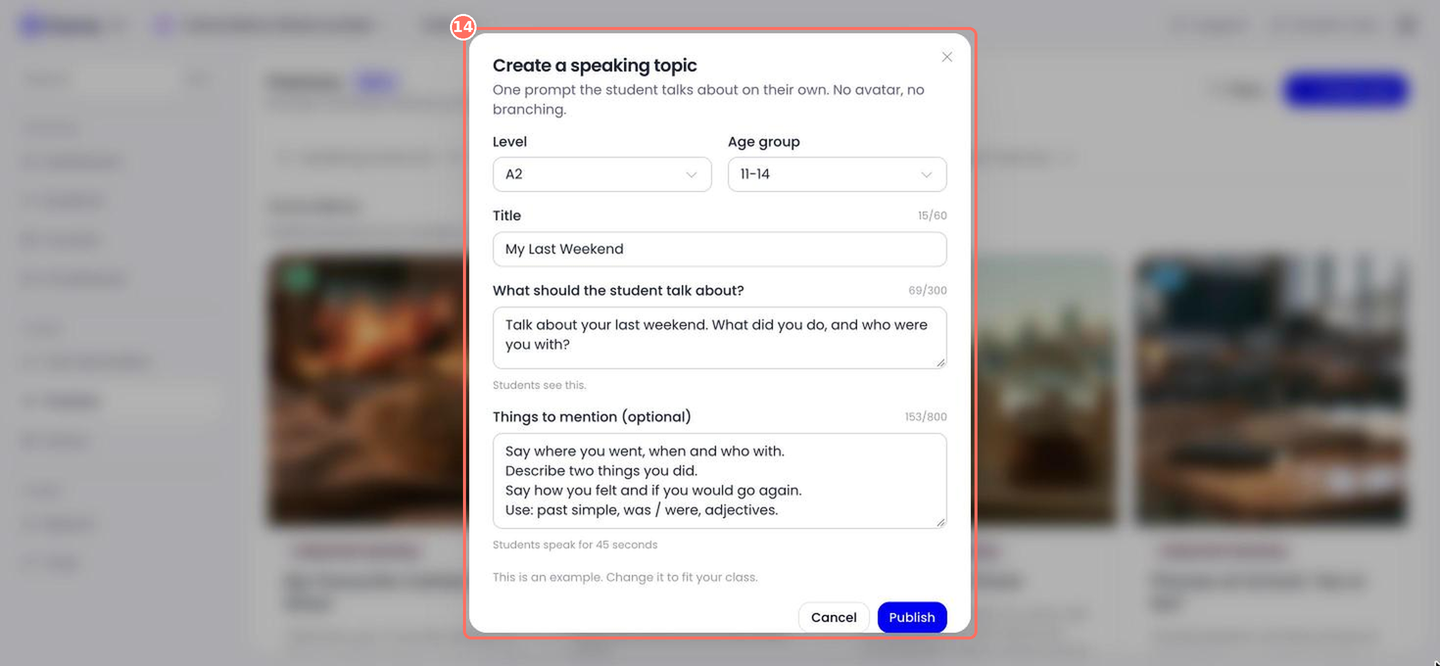
Choose the Level and Age group, then fill in:
- Title (up to 60 characters).
- What should the student talk about? (up to 300 characters). Students see this.
- Things to mention (optional, up to 800 characters): points, useful language and grammar.
The form opens with an example; change it to fit your class. The window also shows how long students speak (for example, 45 seconds). Click Publish.
Create an essay question
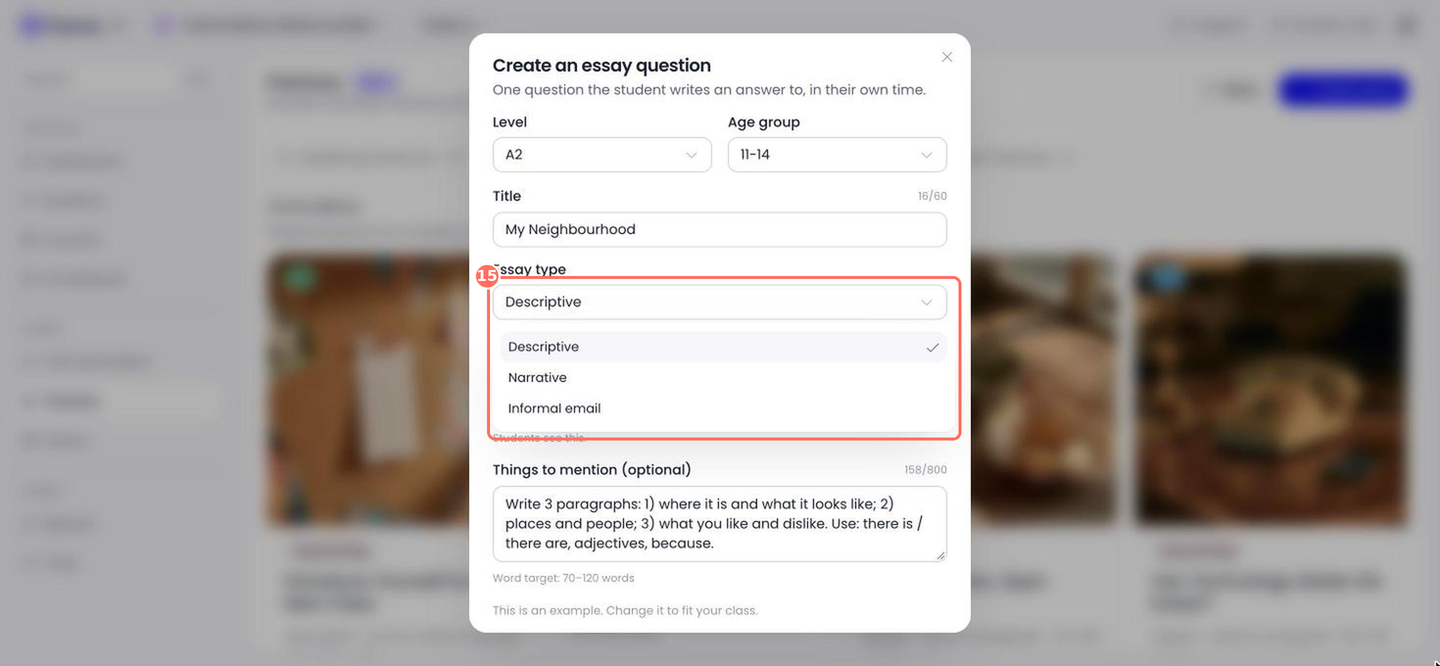
Open the Essay Writing tab and click Create essay. Choose the Level, the Age group and the Essay type: Descriptive, Narrative or Informal email. Fill in the Title, What should the student write about? and, if you like, Things to mention. The window shows the Word target (for example, 70–120 words). Click Publish.
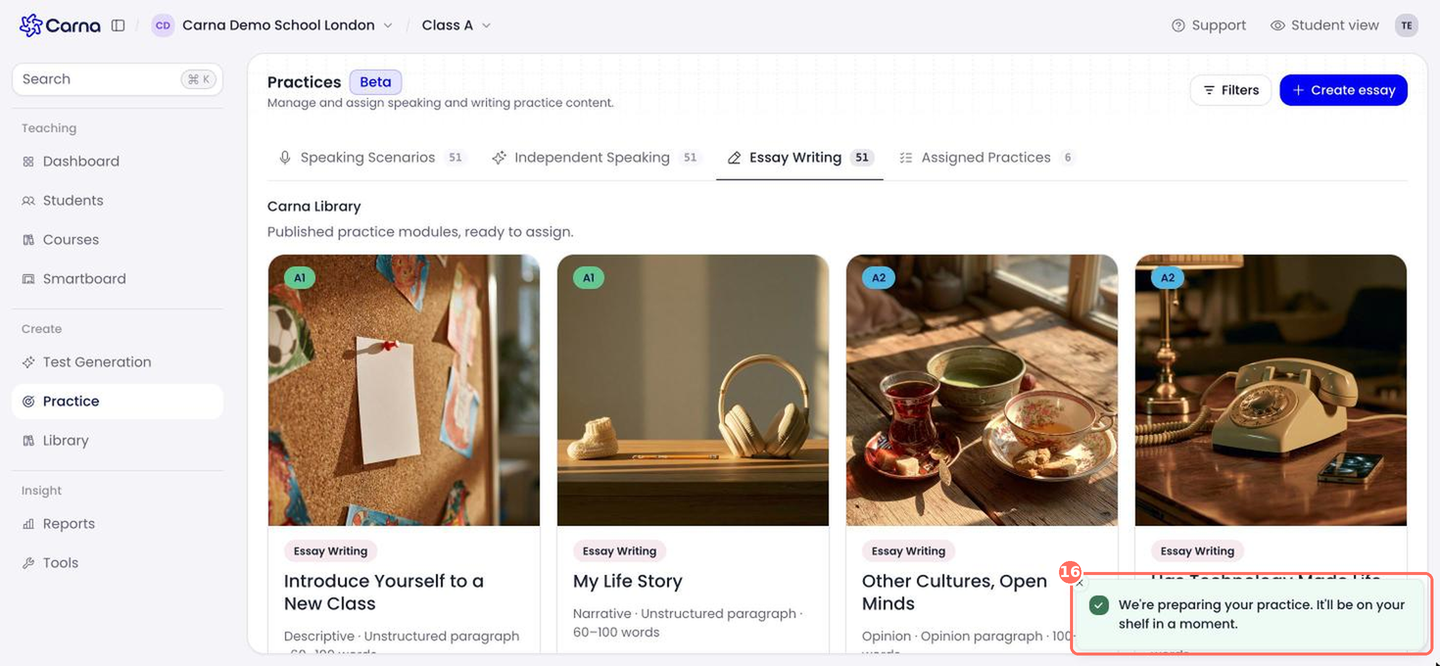
Carna shows We're preparing your practice. It'll be on your shelf in a moment. Your topic or essay then appears under My practices at the bottom of the tab.
Tips & Good to know #
- Not sure how to describe a scenario? Scroll down to Carna Themes on the New speaking scenario page and click Open this example to see what was asked and what Carna made.
- Be specific in the Description: the place, what students must do, and the language they just learned. The more you tell Carna, the closer the scenario is to your lesson.
- Every change you ask for is kept as a version, so you can see how the scenario developed in the chat on the left.
- Click New scenario at the top to start another one.
- Speaking topics can be created for A1 and A2 for now; higher levels show coming soon.
- Practices you create are shared within your school only.
Troubleshooting #
- Draft my scenario is grey: add a Title and a short Description first.
- The picture is still loading: Carna shows Drawing the scene — about half a minute. You can keep working while it draws.
- I can't find my topic or essay: wait a moment after Publish, then look under My practices at the bottom of the tab and refresh the page.