


































How to choose between the three practice types
Learn what Speaking Scenarios, Independent Speaking and Essay Writing are, what students do in each one, and which one fits your lesson.
Who is this for: Teachers
Summary: Learn what Speaking Scenarios, Independent Speaking and Essay Writing are, what students do in each one, and which one fits your lesson.
Before you start: You need a teacher account. To try a practice yourself, use a computer or tablet with a microphone.
Steps #
In the left menu, under Create, click Practice.
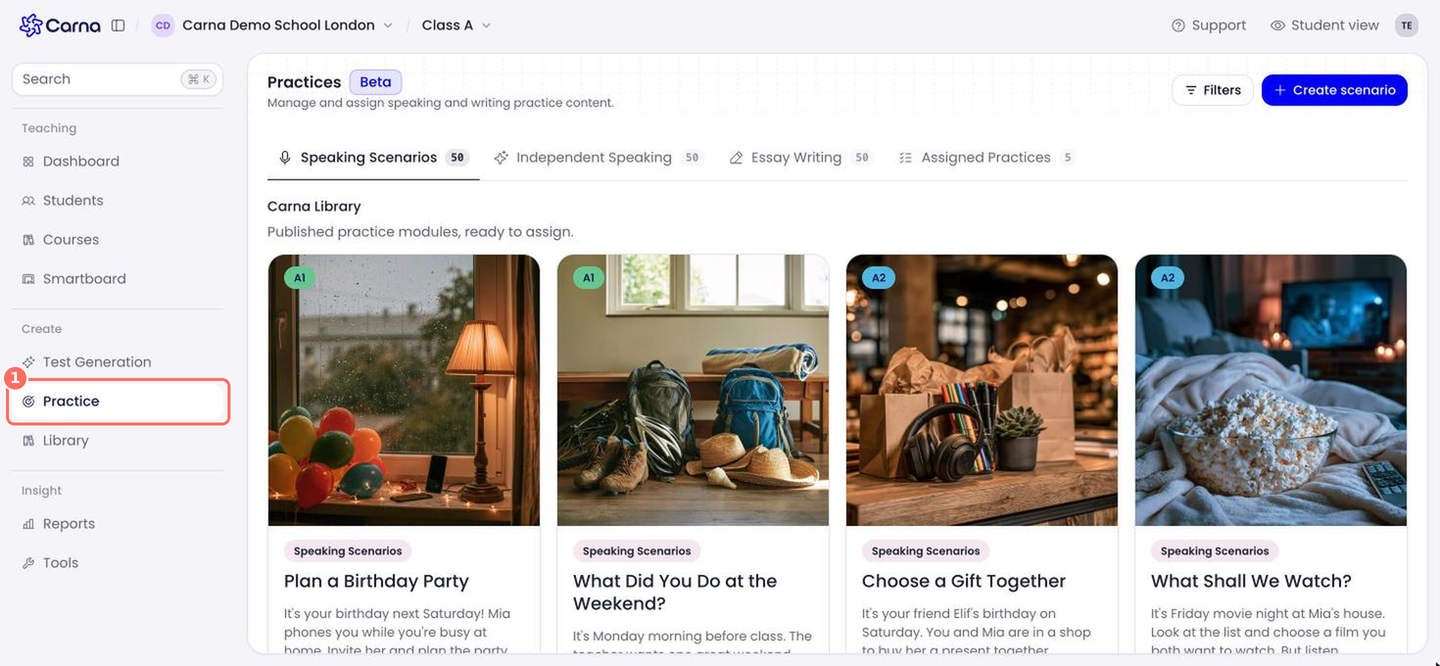
The Practices page has four tabs. The first three are the practice types: Speaking Scenarios, Independent Speaking and Essay Writing. The number next to each tab shows how many practices it has. The fourth tab, Assigned Practices, lists what you've already given your class.
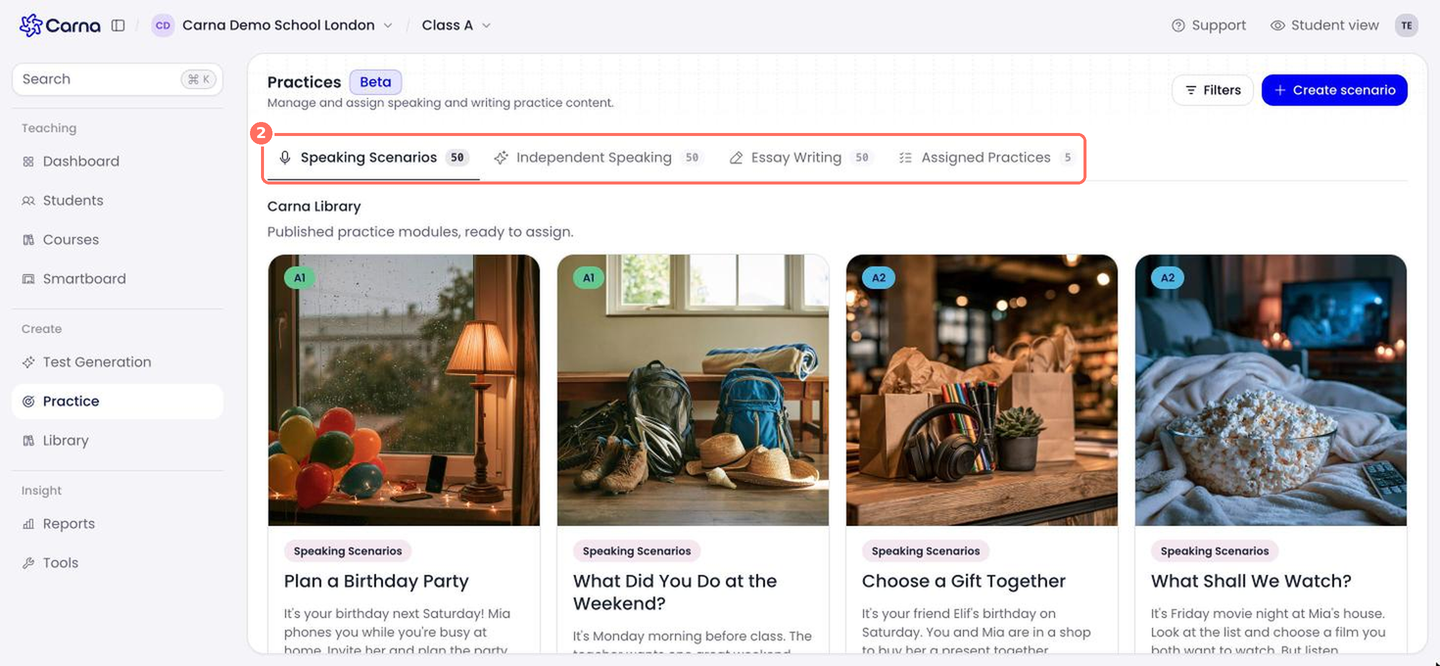
Speaking Scenarios
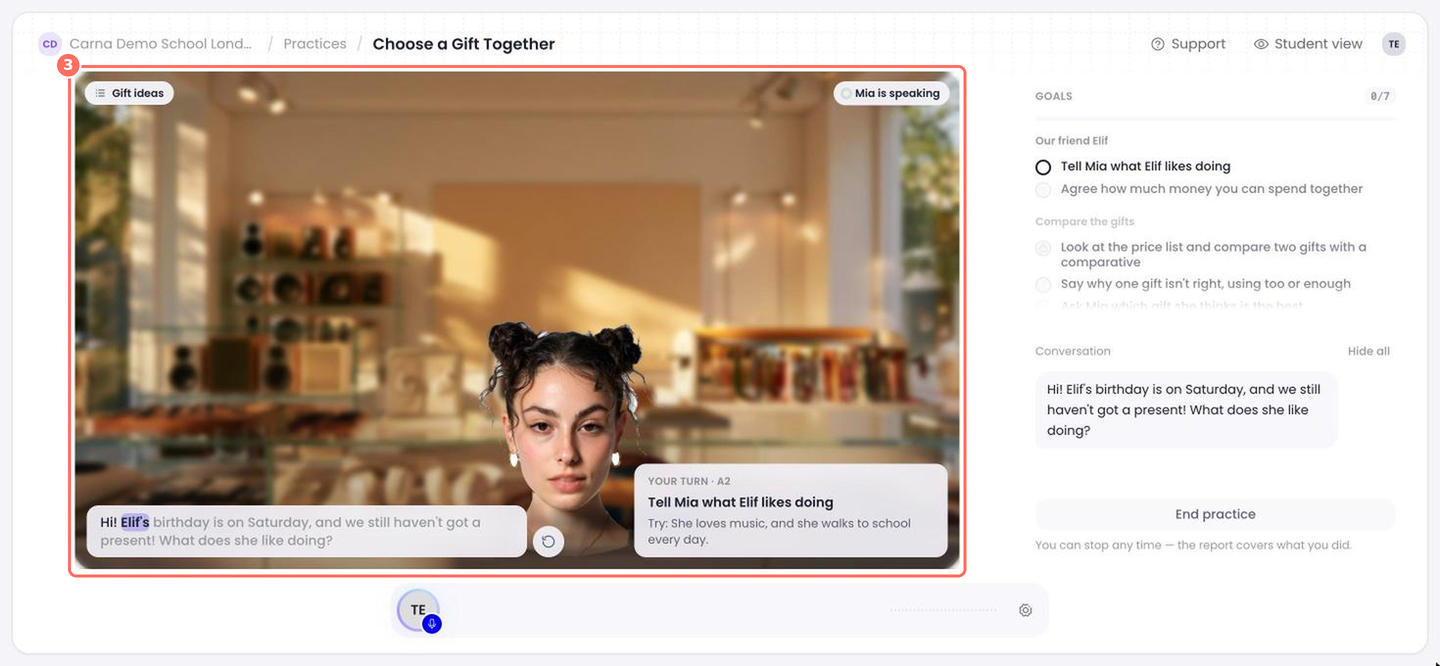
In a Speaking Scenario, the student has a spoken role-play with an AI tutor (for example, Mia) in a real-life situation, such as buying a present in a shop. The tutor speaks first. Under Your turn, the student sees what to do next and an example sentence (Try:), then answers out loud. Each card shows about how long the scenario takes (for example, ~5 min).
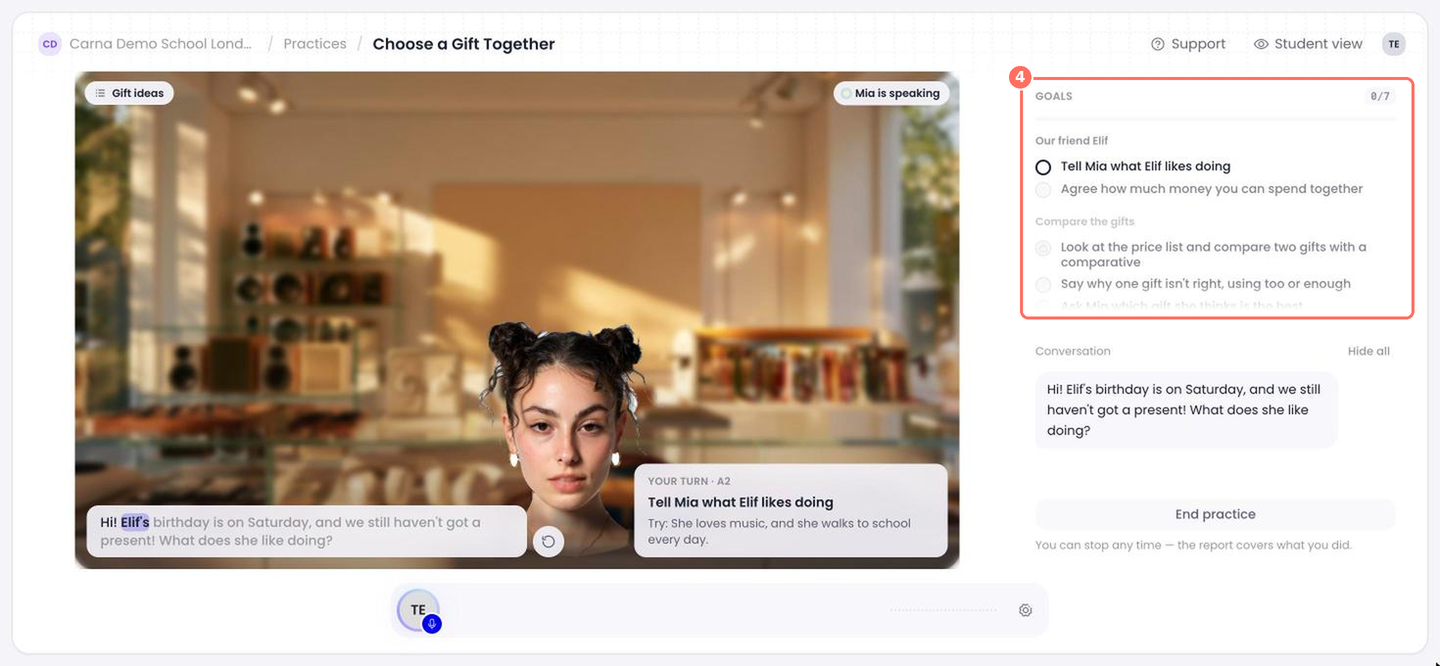
On the right, Goals lists what the student has to do in the conversation, and how many are done (for example, 0/7). Some goals stay locked until the student uses a prop, such as Gift ideas at the top of the scene. Under Conversation, the student can read everything said so far. The student can click End practice at any time; the report covers what they did.
Independent Speaking
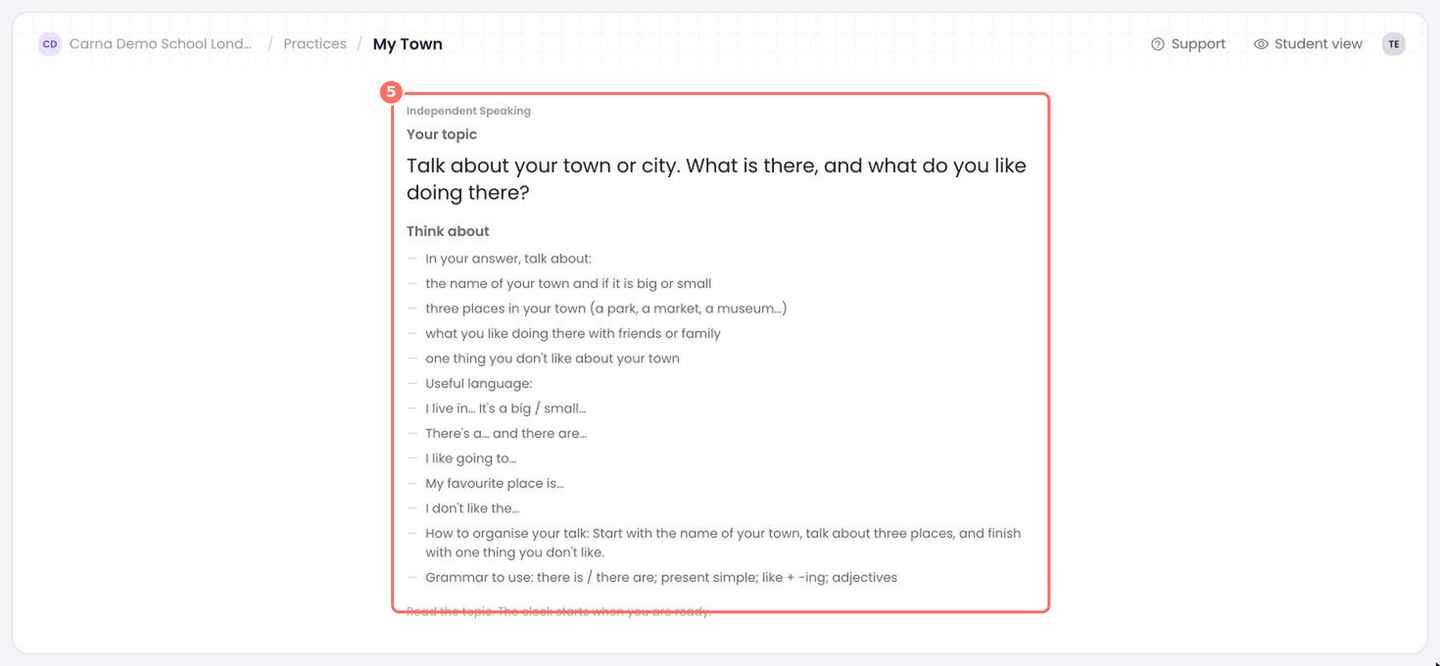
In Independent Speaking, the student talks alone about one topic, with no tutor. The page shows Your topic and Think about: the points to mention, useful phrases, how to organise the talk and the grammar to use. The clock doesn't start until the student is ready.
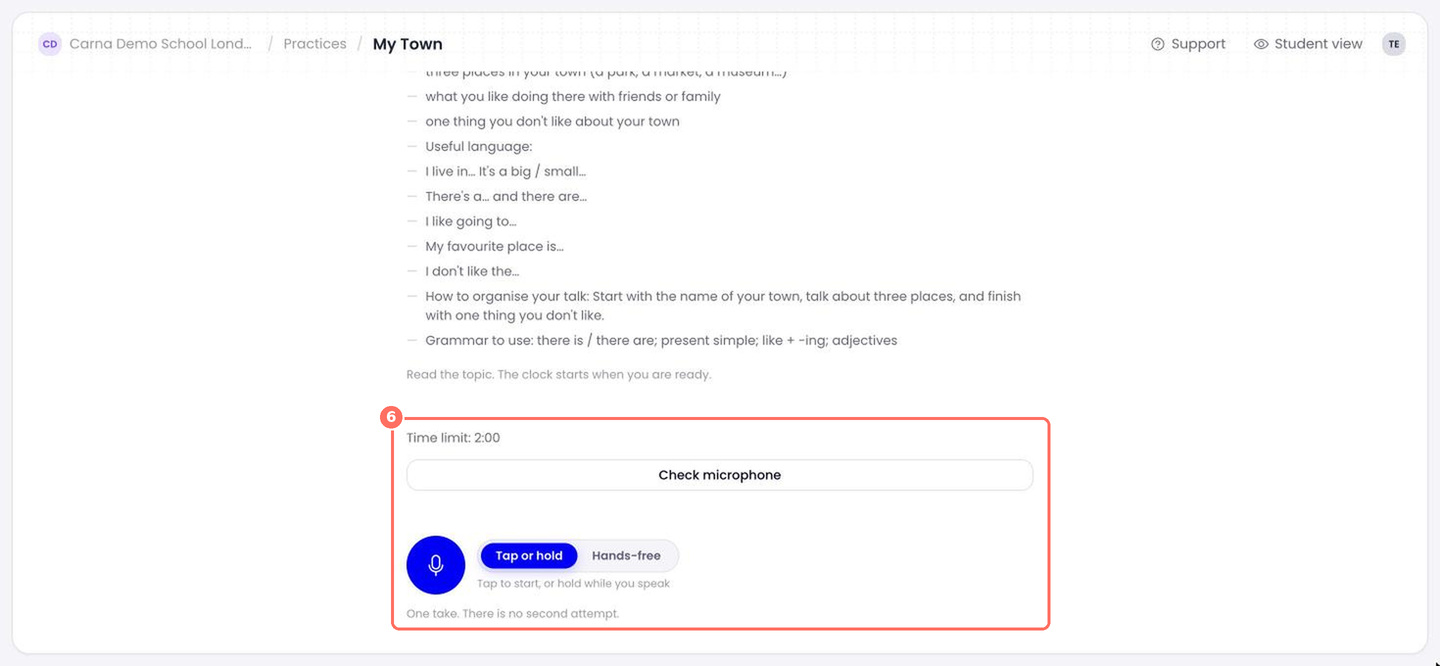
Below the topic, the student sees the Time limit (for example, 2:00), can click Check microphone, and chooses how to record: Tap or hold (tap to start, or hold while speaking) or Hands-free. Each recording is one take; there is no second attempt.
Essay Writing
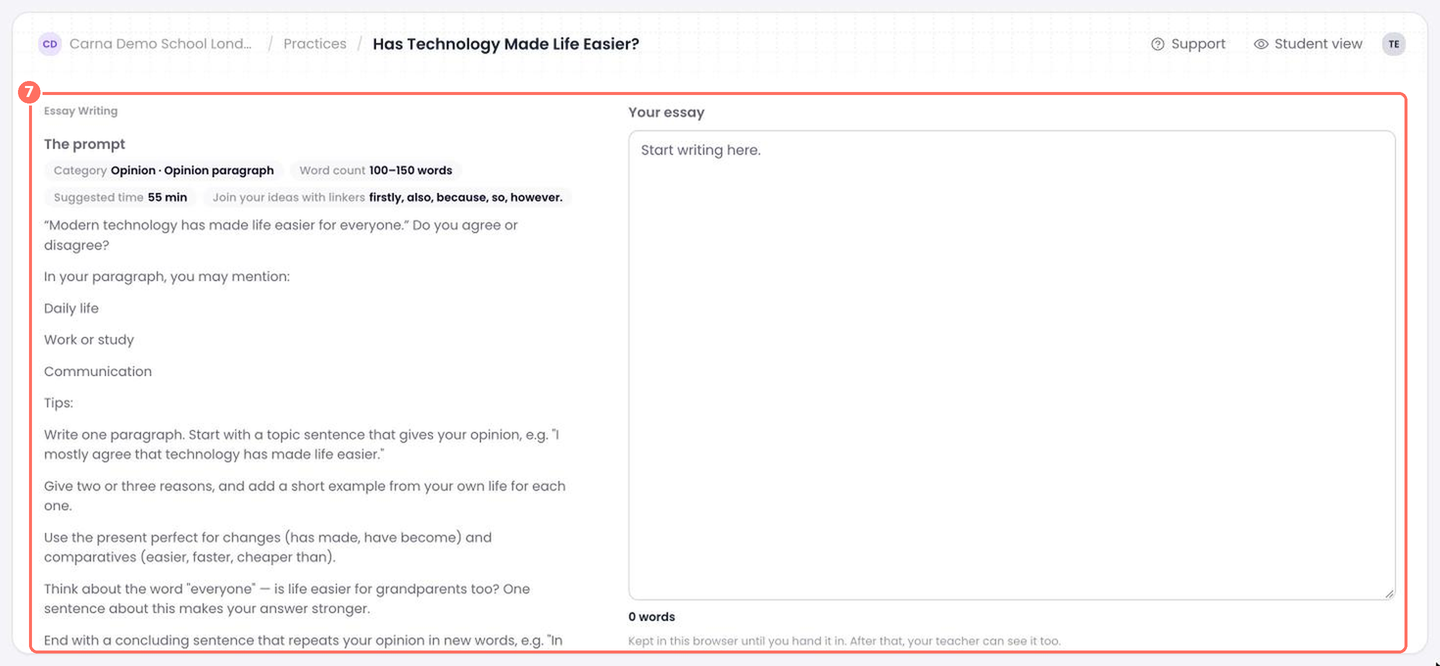
In Essay Writing, the student writes an answer to one question. On the left, The prompt shows the Category, the Word count, the Suggested time, the linkers to use and tips. On the right, the student writes under Your essay and sees the number of words. The essay is kept in the student's browser until they hand it in; after that, you can see it too.
Find a practice for your level
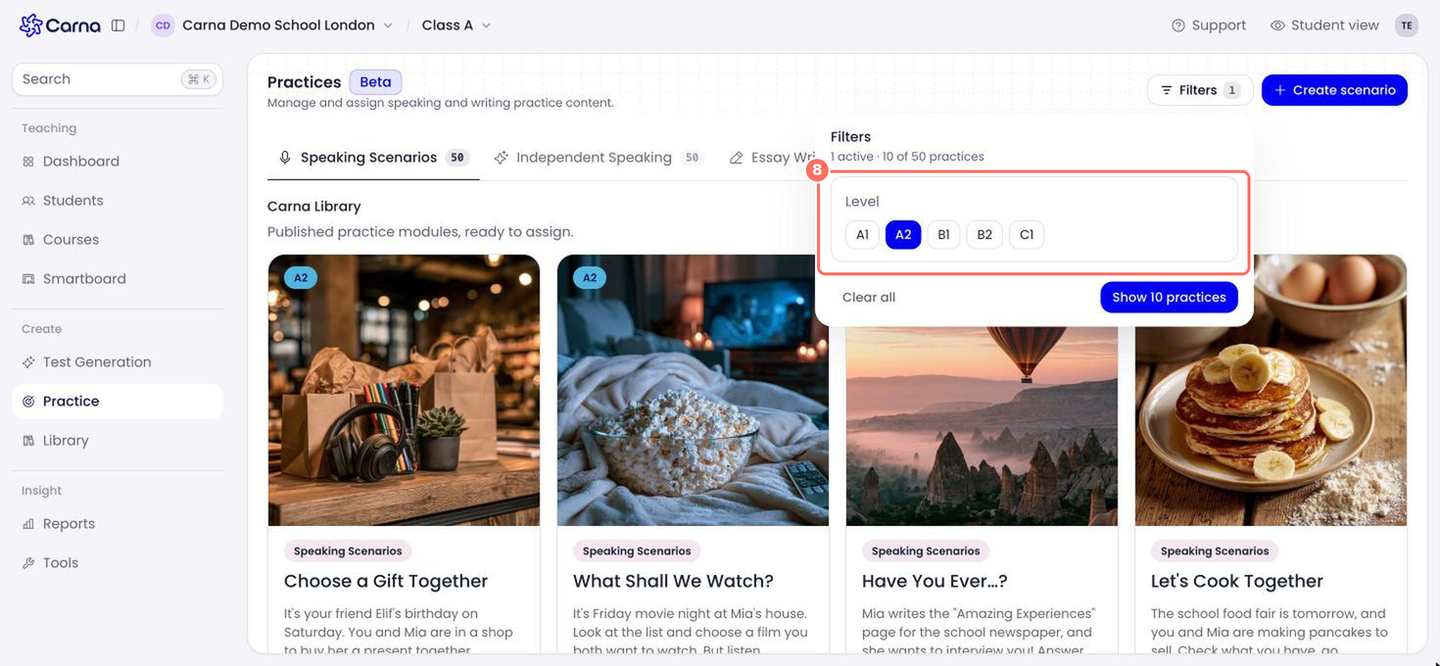
In any of the three tabs, click Filters, choose a Level (A1 to C1) and click Show … practices. To see a practice the way your students will, click View on its card.
Tips & Good to know #
- Which one should I use?
- Speaking Scenarios for conversation practice: asking and answering, reacting, negotiating.
- Independent Speaking for longer talks on one topic, such as describing, comparing or giving an opinion.
- Essay Writing for writing practice, homework and exam preparation.
- Every card shows the level, the practice type and about how long it takes (for example, ~5 min). Essay cards also show the category, the paragraph type and the word count.
- Practices are in Beta, so their screens may change.
- The cards under Carna Library are ready-made by Carna. Practices you create yourself are under My practices at the bottom of each tab. See How to create your own scenario, topic or essay.
- When you click View as a teacher, nothing is assigned or sent to students.
Troubleshooting #
- The microphone doesn't work when I try a speaking practice: allow microphone access for org.carna.app in your browser. See How to fix a microphone that isn't working.
- I can't hear the tutor: check your volume. On iPad or Safari, see How to fix audio that won't play on iPad or Safari.
- I can't find a practice for my class's level: clear the Level filter, or choose the level below and above.