


































How to use the Mistakes tab
See which questions your class gets wrong most often, what the correct answer is and which wrong answers students give, so you can plan what to reteach.
Who is this for: Teachers
Summary: See which questions your class gets wrong most often, what the correct answer is and which wrong answers students give, so you can plan what to reteach.
Before you start: You need a teacher account and a class with handed-in work. The tab fills up as students hand in modules and quizzes.
Steps #
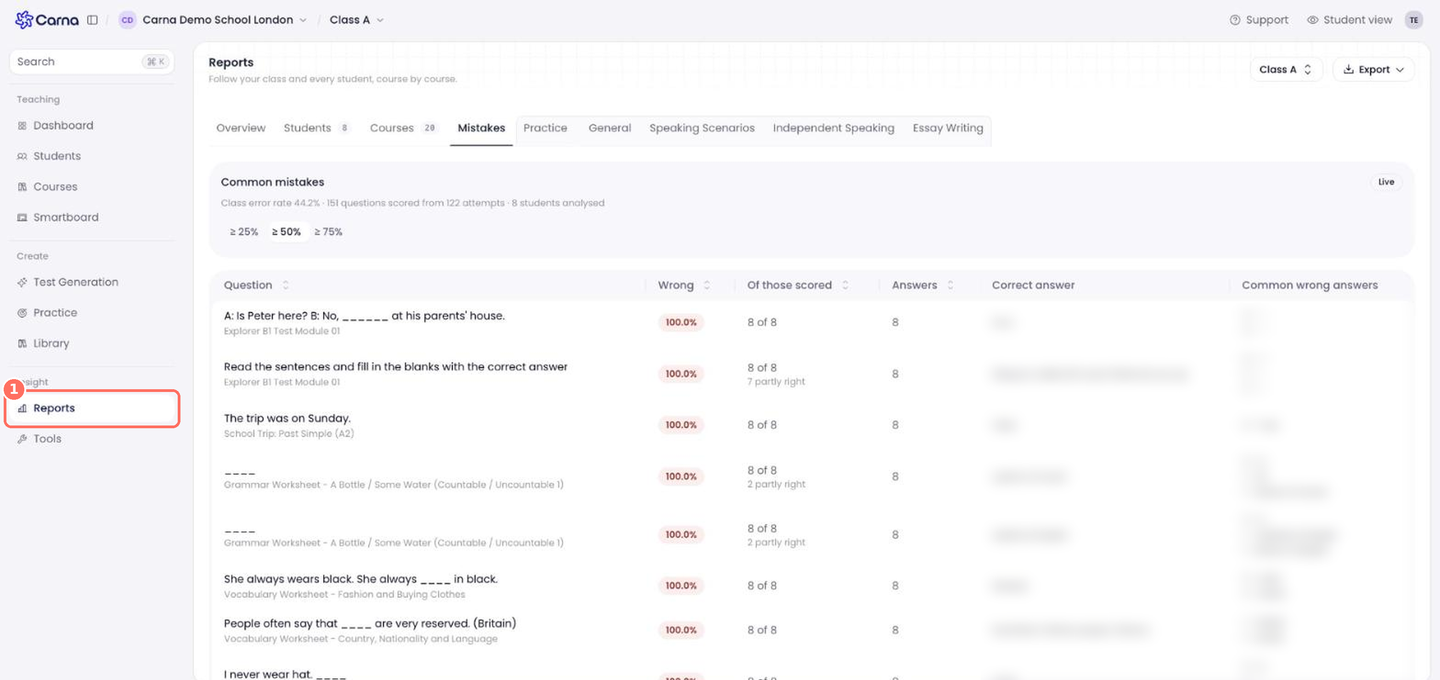
In the left menu, under Insight, click Reports.
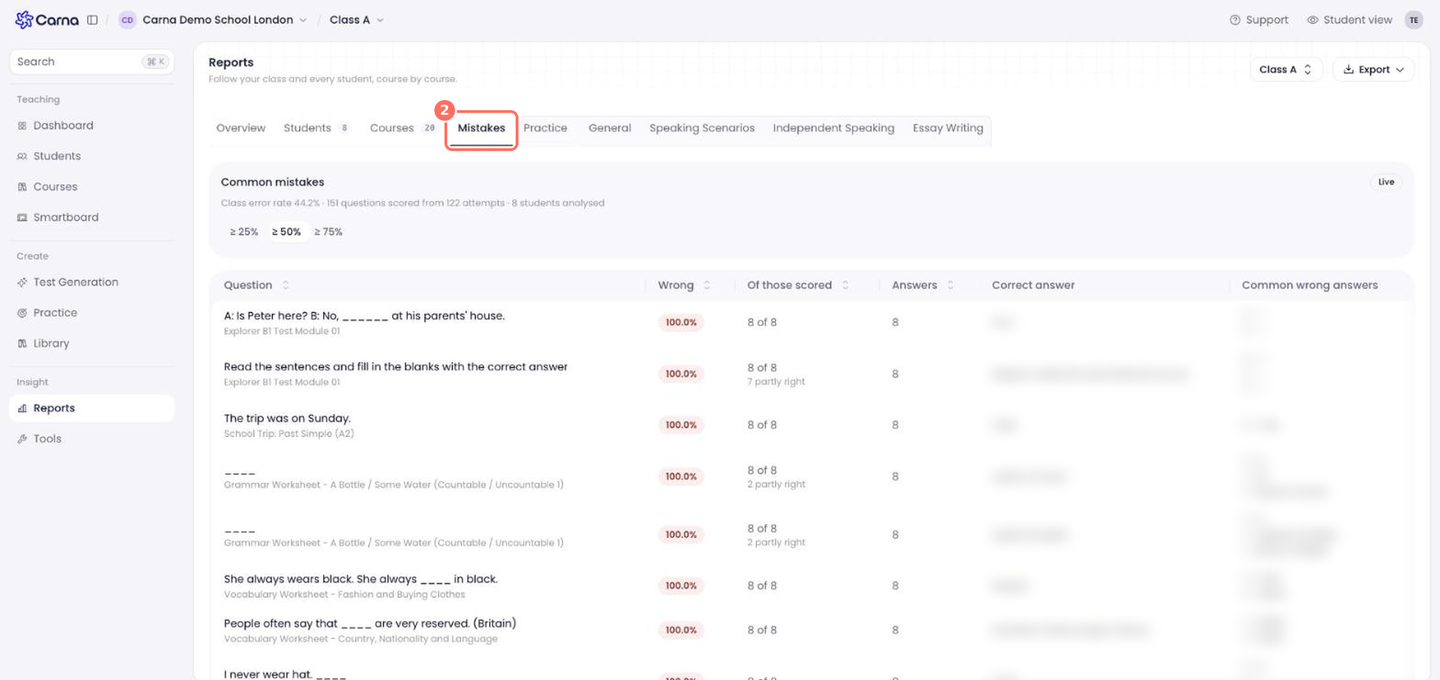
Click the Mistakes tab. Make sure the right class is selected at the top right of the page (for example, Class A).
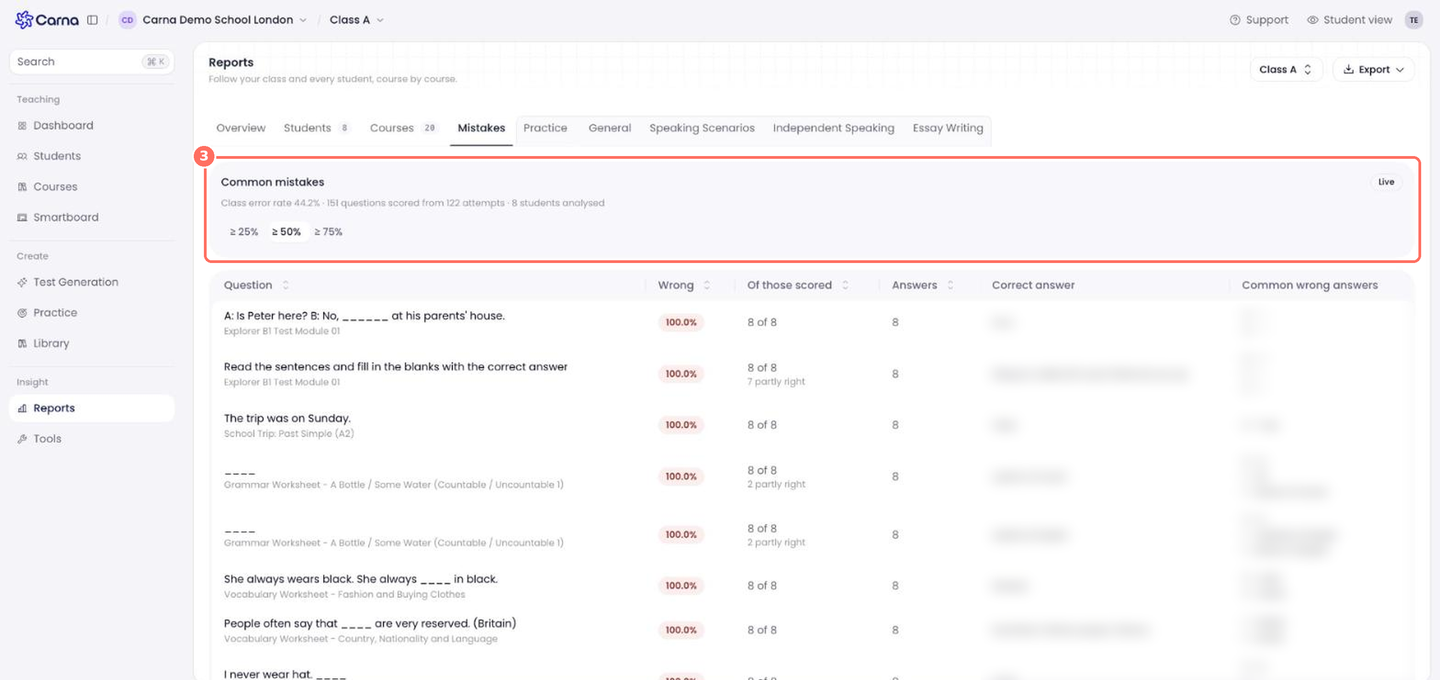
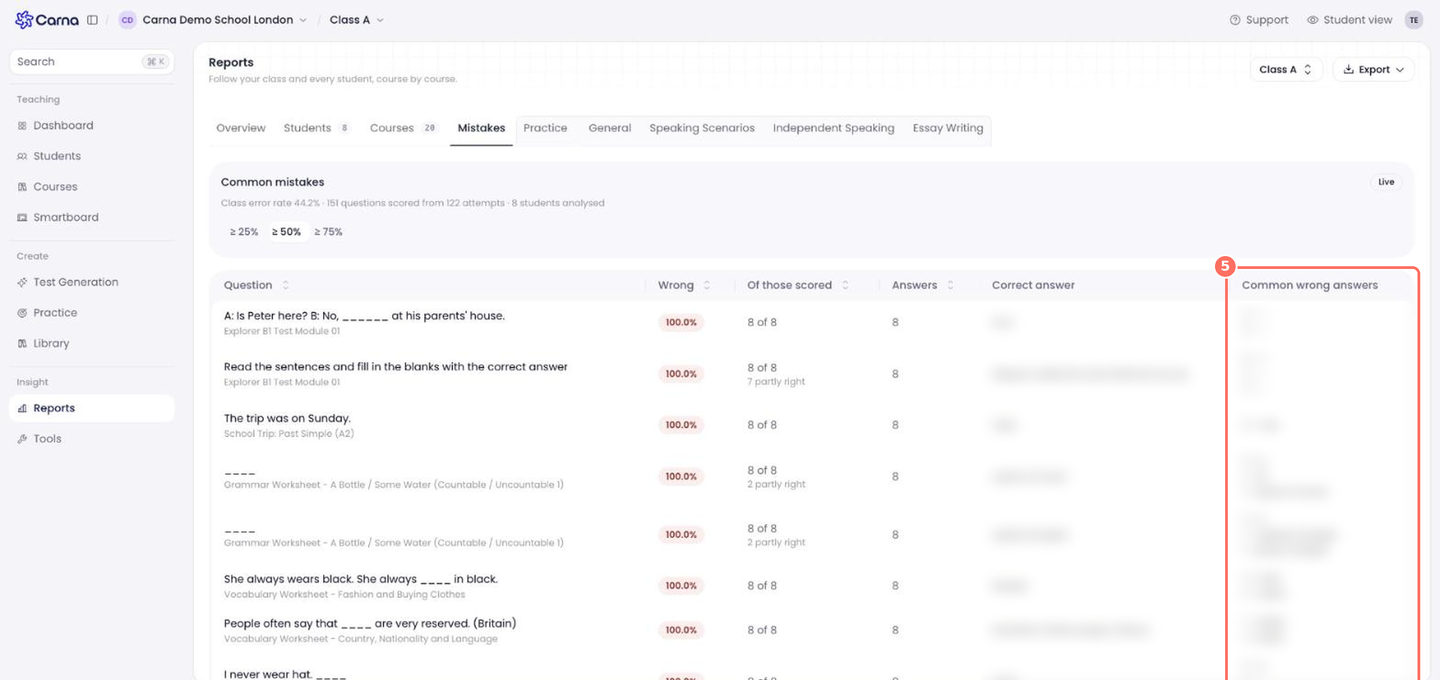
Common mistakes at the top sums up the class: the Class error rate, how many questions were scored, from how many attempts and how many students. The Live badge means the list updates as students hand in work. Choose how often a question must be answered wrong to appear in the list: ≥ 25%, ≥ 50% or ≥ 75%.
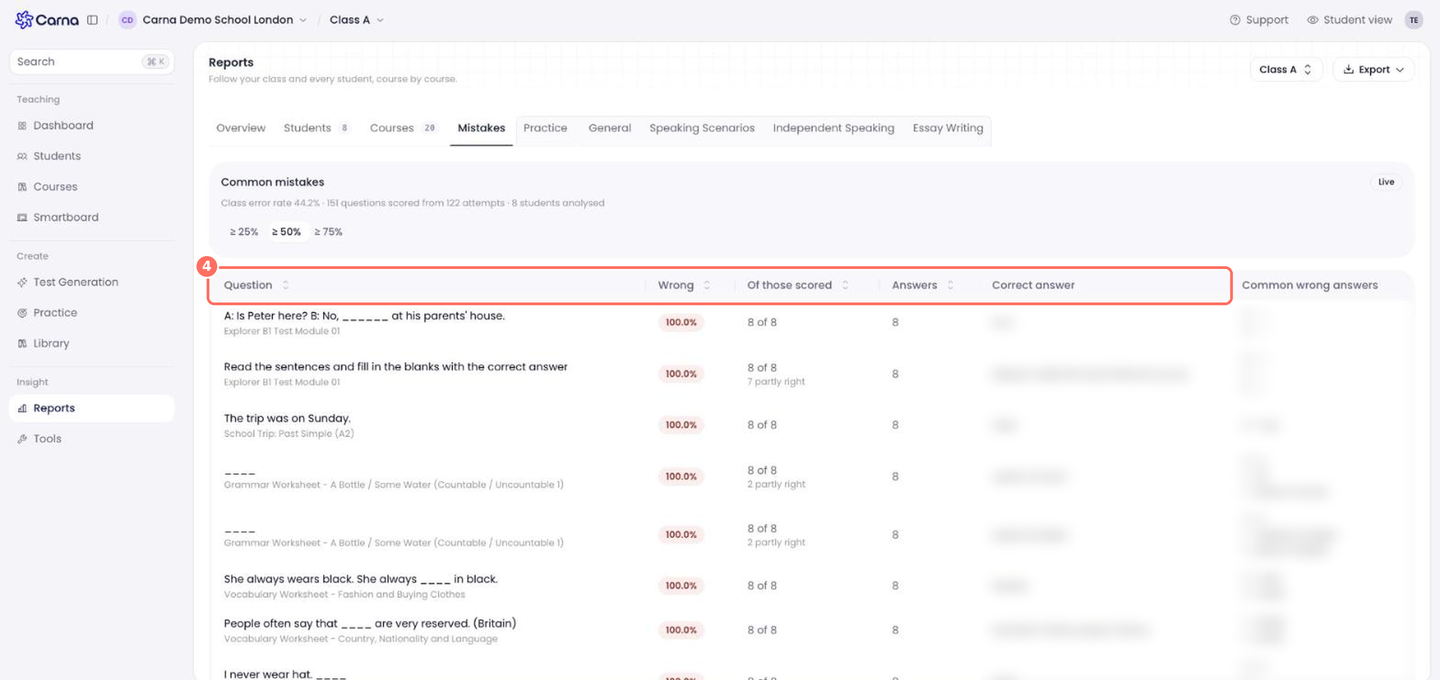
Each row is one question, with the module or quiz it comes from. The columns show:
- Wrong: the share of scored answers that were wrong (for example, 100.0%).
- Of those scored: how many answers were wrong out of the scored ones (for example, 8 of 8), and how many were partly right (for example, 2 partly right).
- Answers: how many students answered the question.
- Correct answer: the expected answer.
Click a column heading to sort the list by it.
The last column, Common wrong answers, shows the wrong answers students gave, and how many times each one was given (for example, 5×). This shows you the misunderstanding behind the mistake.
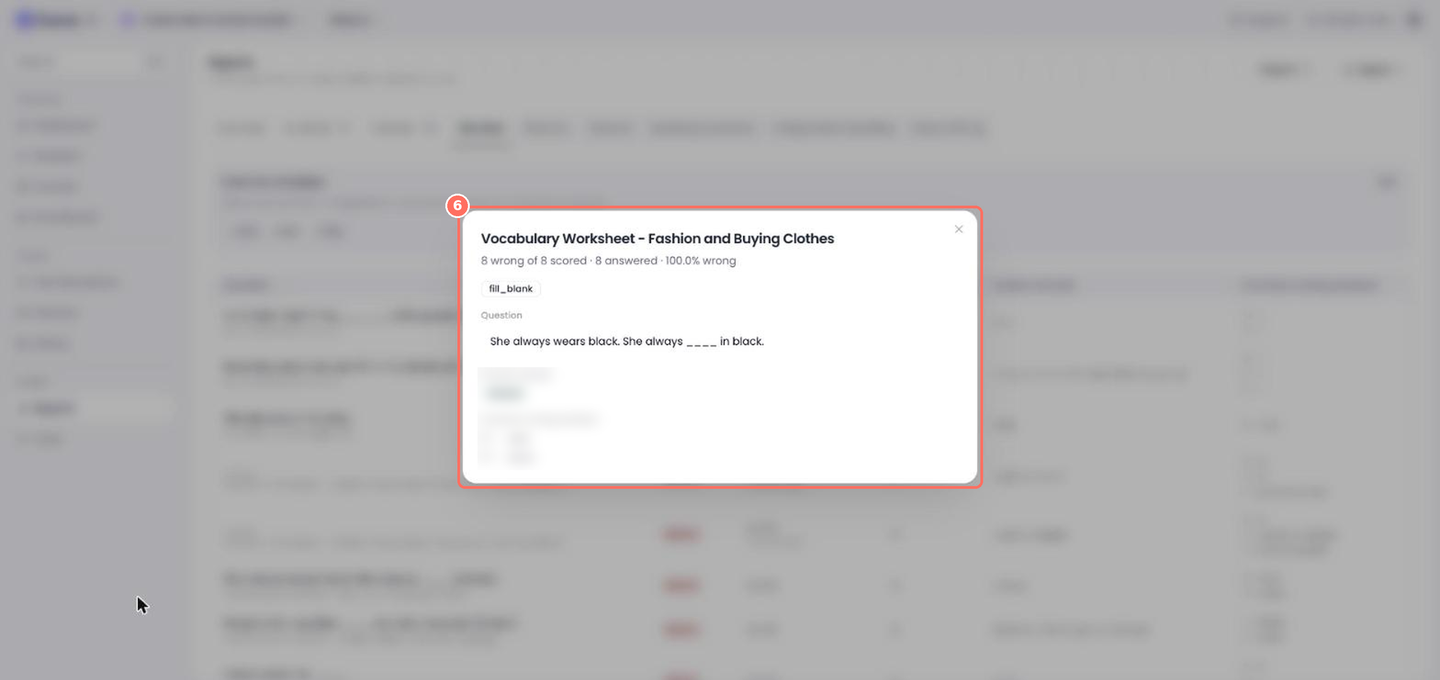
Click a row to open it. The window shows the full question, the question type (for example, fill_blank), how many students got it wrong, the Correct answer and the Common wrong answers. Click × to close it.
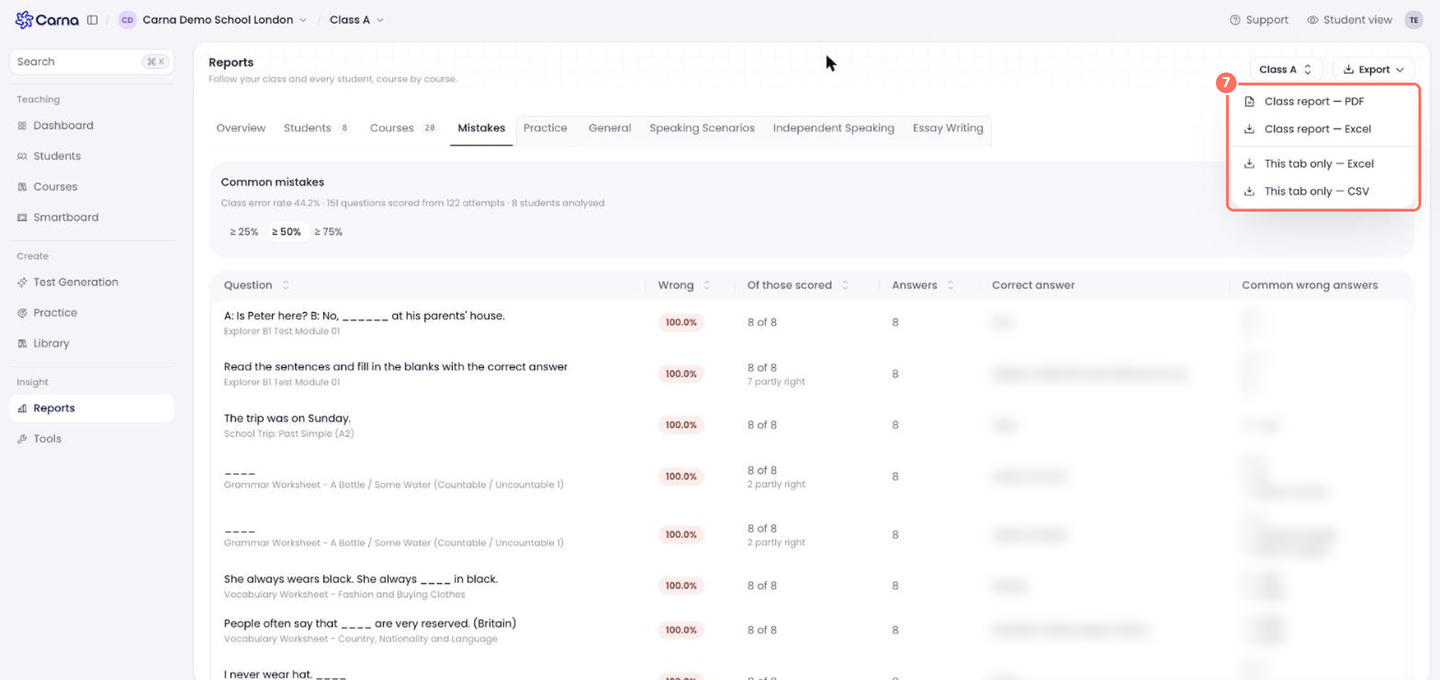
To keep a copy, click Export at the top right. Choose Class report — PDF or Class report — Excel for the whole report, or This tab only — Excel or This tab only — CSV for the mistakes list.
Tips & Good to know #
- Start with the questions at the top: the list puts the questions with the highest share of wrong answers first.
- A question answered wrong by one student out of one shows 100.0% too. Check Answers before you decide a whole class has a problem.
- Partly right answers count as wrong in Wrong, but you can see them under Of those scored. Typing slips (capital letters, punctuation, apostrophes) don't cost points unless the exercise is marked strict.
- Use the common wrong answers to plan a short review: the same wrong answer from many students usually means the rule wasn't clear, not a careless mistake.
Troubleshooting #
- The Mistakes tab is empty: no work has been handed in yet, or no question reaches the share you chose. Choose ≥ 25%, or wait until students hand in their work.
- I can't see the Common wrong answers column: scroll the table to the right, or make the browser window wider.
- The numbers look wrong for a question: open the row to see the full question and answers. If you think the answer key is wrong, contact the Carna team through Support.