


































How to view a student's submission and attempts
Open a student's handed-in work to see each answer, compare their attempts and check which attempt counts in the report.
Who is this for: Teachers
Summary: Open a student's handed-in work to see each answer, compare their attempts and check which attempt counts in the report.
Before you start: You need a teacher account and a student who has handed in work. Open the student's report first (see How to read class and student reports).
Steps #
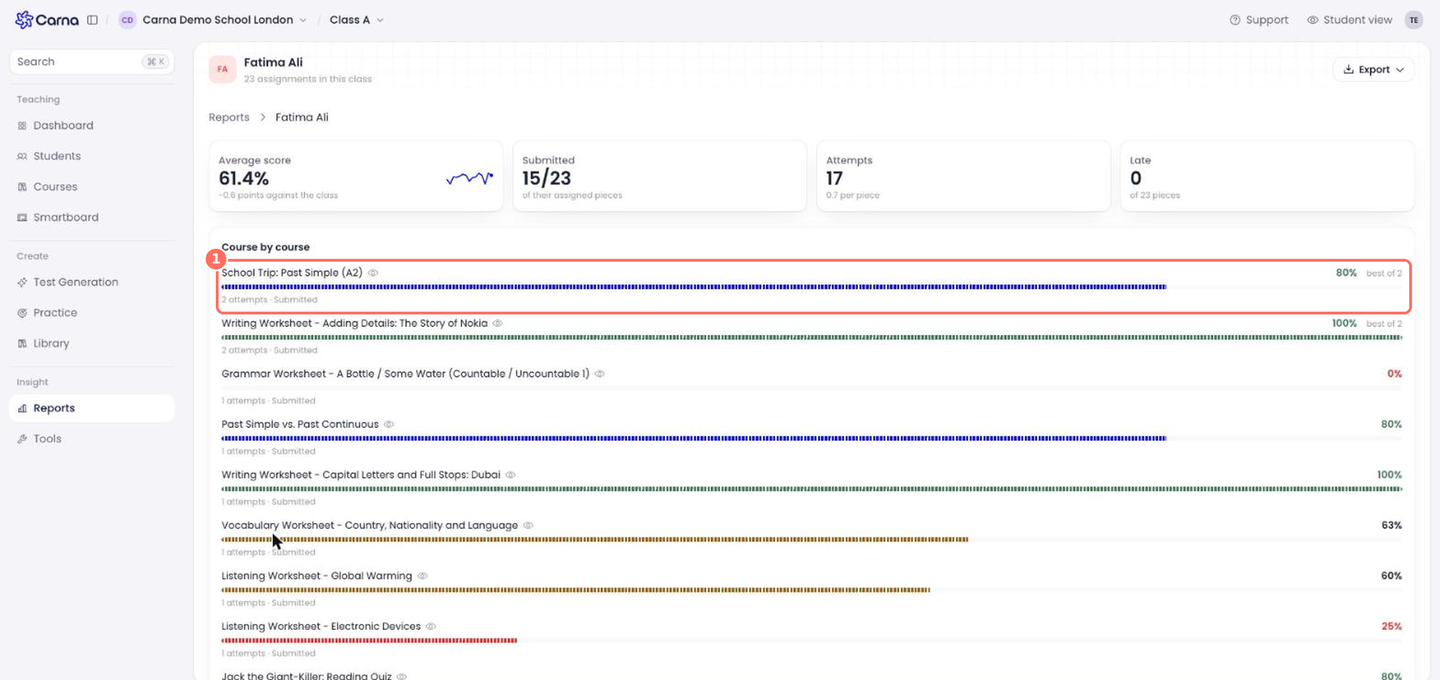
- In the student's report, find the course or quiz under Course by course and click its name. If the student used more than one attempt, the row shows best of 2 (or the number of attempts) next to the score.
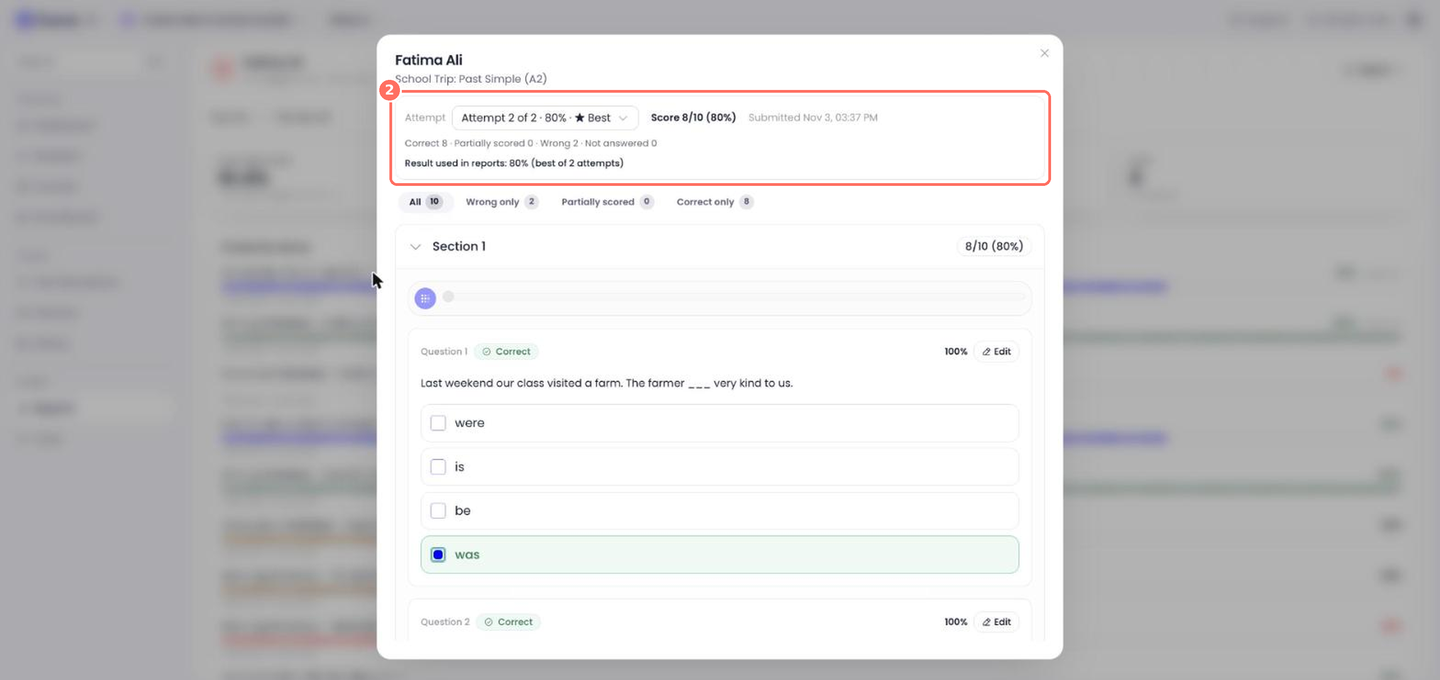
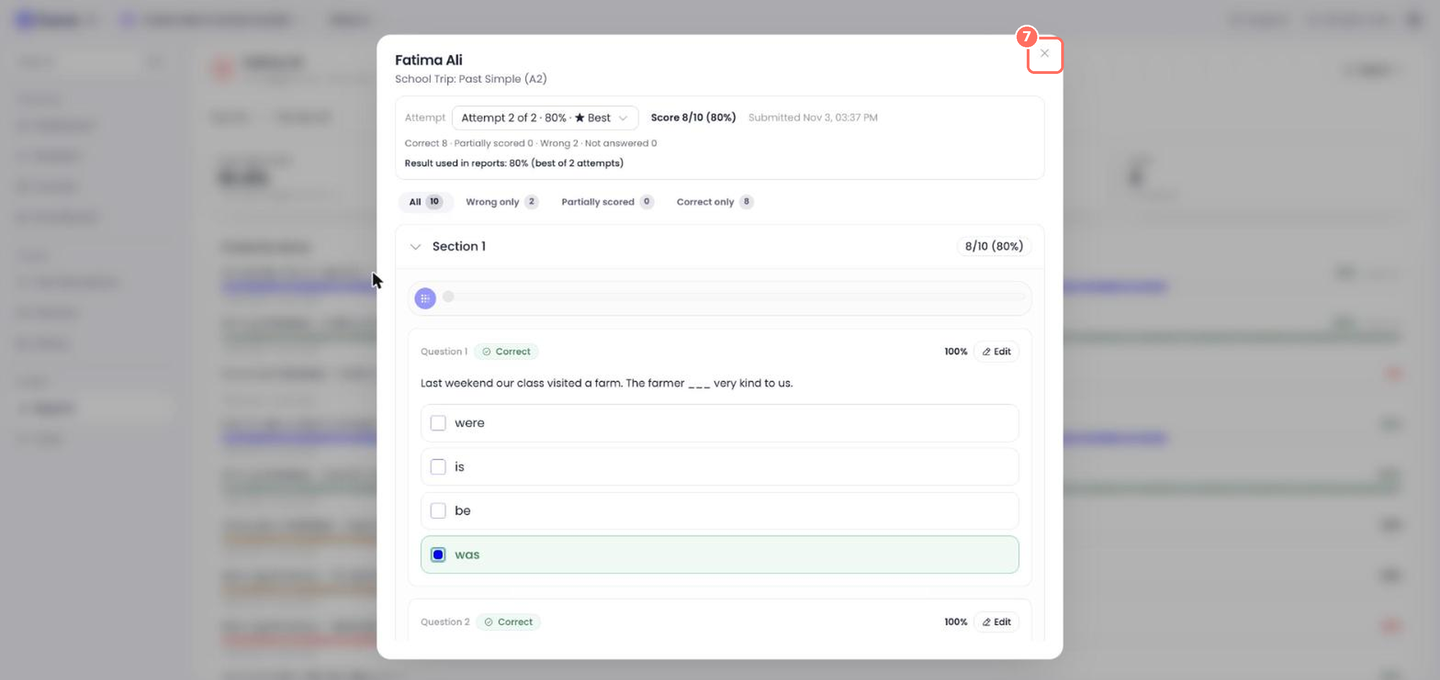
- The submission opens in a window. The top shows the Attempt, the Score (for example, 8/10 (80%)), when it was Submitted and how many answers were correct, partially scored, wrong or not answered. Result used in reports tells you which score counts and why (for example, 80% (best of 2 attempts)).
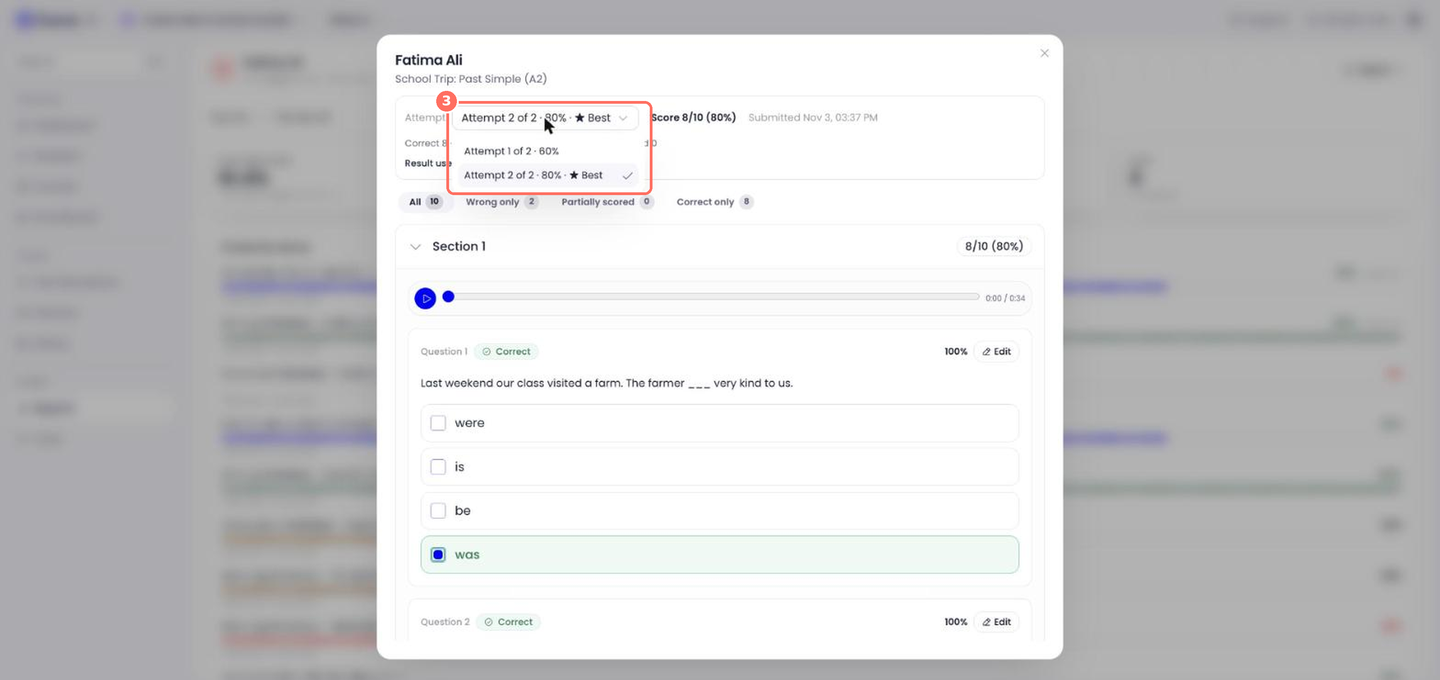
- To compare attempts, click the Attempt menu and choose another one. Each entry shows its score, and the one that counts is marked Best.
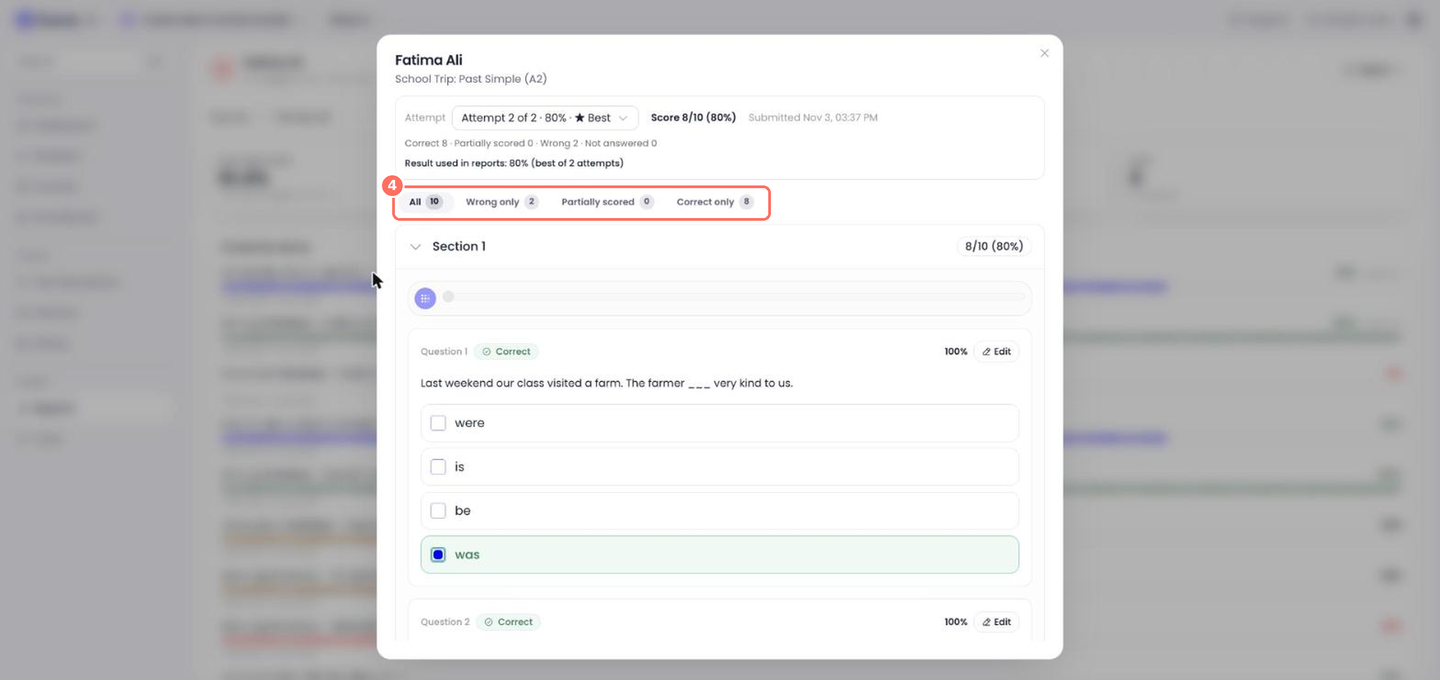
- Use the filters to focus on what you need: All, Wrong only, Partially scored or Correct only. The number next to each filter shows how many questions it contains.
- Scroll down to read every question. Each card shows whether the answer was Correct, Wrong or partly right, the score for that question, the student's answer and the correct answer.
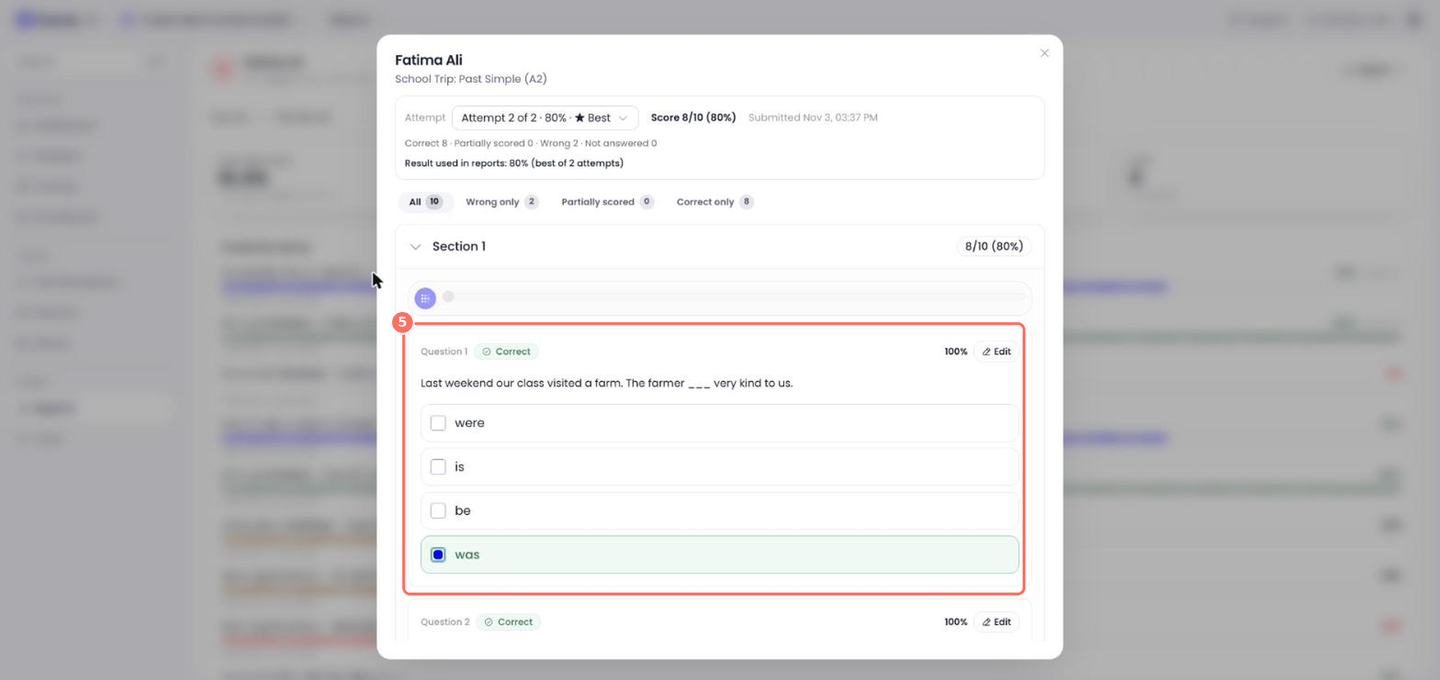
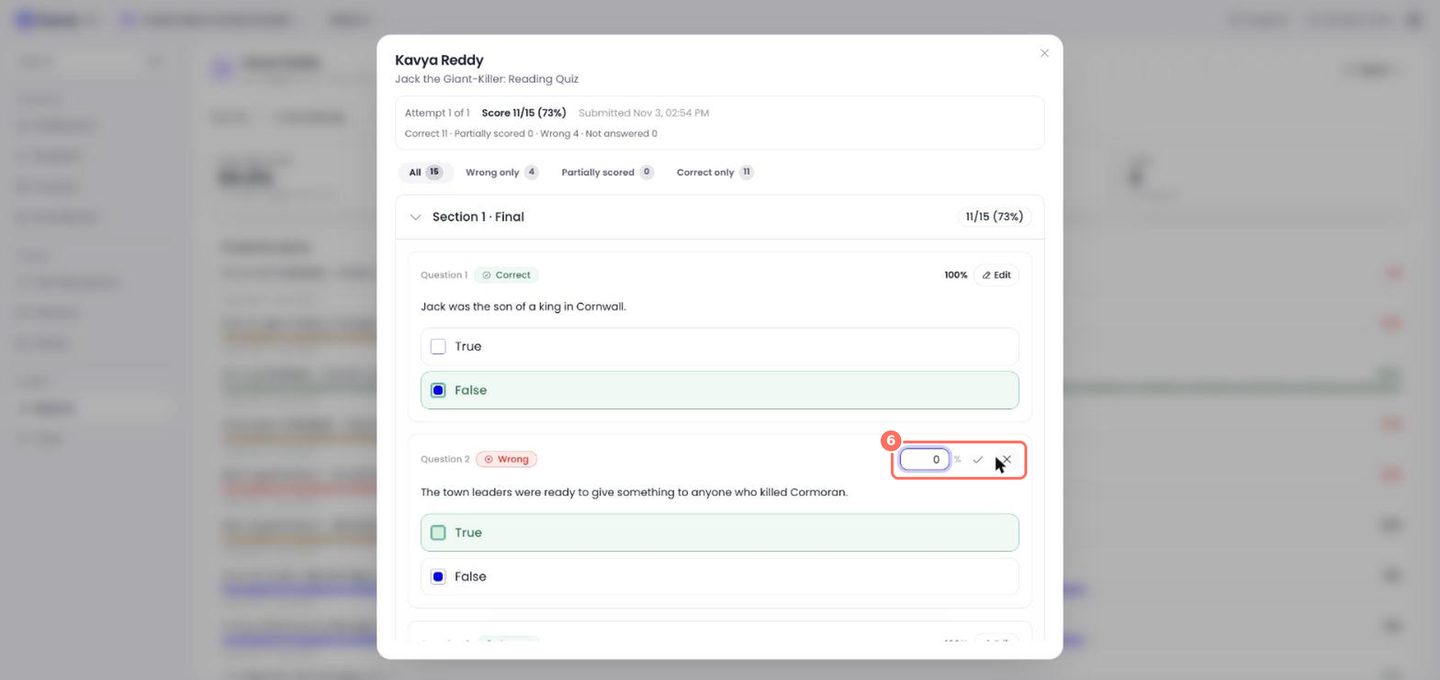
- To change the score of one question, click Edit on its card, type the new percentage and confirm with the check mark. Click × instead to cancel.
- Click × at the top right of the window to close it and go back to the report.
Tips & Good to know #
- The report uses the result named in Result used in reports. With several attempts, this is the best attempt, so a weaker later try never lowers the score.
- Modules with audio show their audio player in the submission, so you can replay it while you check the answers.
- Use Wrong only to prepare feedback quickly, then check the Mistakes tab to see which questions the whole class gets wrong.
Troubleshooting #
- The answers aren't marked as right or wrong: the answer key may not have unlocked yet. For some modules it unlocks after the due date passes for the whole class.
- I can't find the submission: the student may not have handed it in. In Course by course, work not started shows No data and Not started.
- The score looks different from the student's last try: check the Attempt menu. The score in the report comes from the attempt marked Best.