


































How to export a test as PDF or Word with its audio
Download your generated test as a PDF or Word file to print or edit, and download the listening audio as an MP3.
Who is this for: Teachers
Summary: Download your generated test as a PDF or Word file to print or edit, and download the listening audio as an MP3.
Before you start: Save your test first. See How to review, edit and approve generated questions.
Steps #
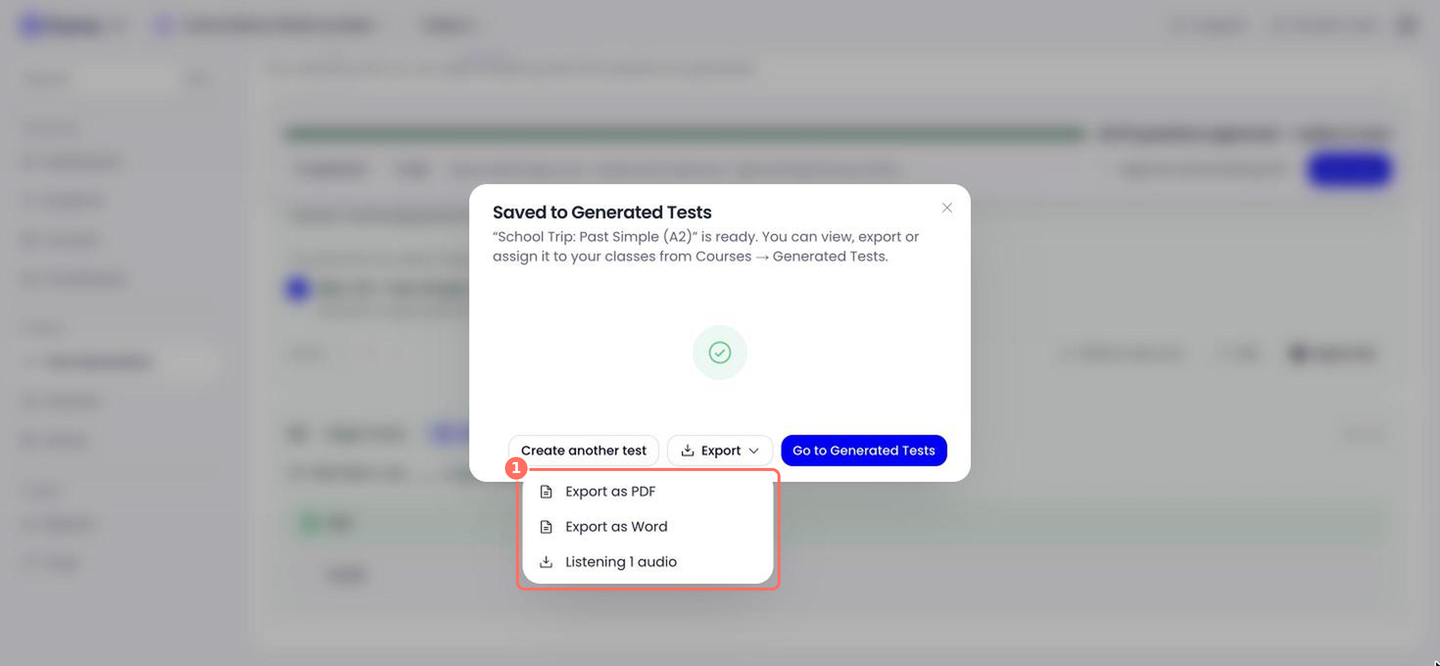
Right after you save a test, click Export in the Saved to Generated Tests window. Choose:
- Export as PDF to print the test.
- Export as Word to edit it in Word or Google Docs.
- Listening 1 audio to download the listening as an MP3. If the test has more than one listening, each one has its own line.
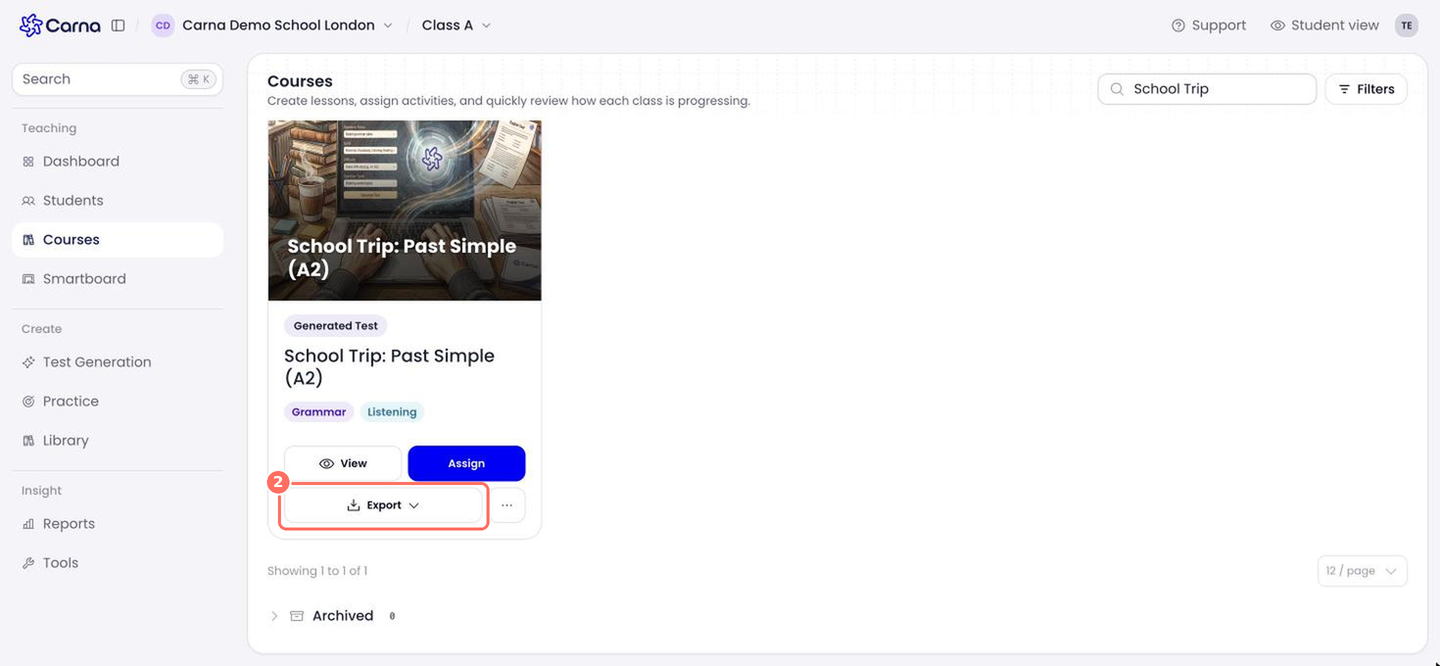
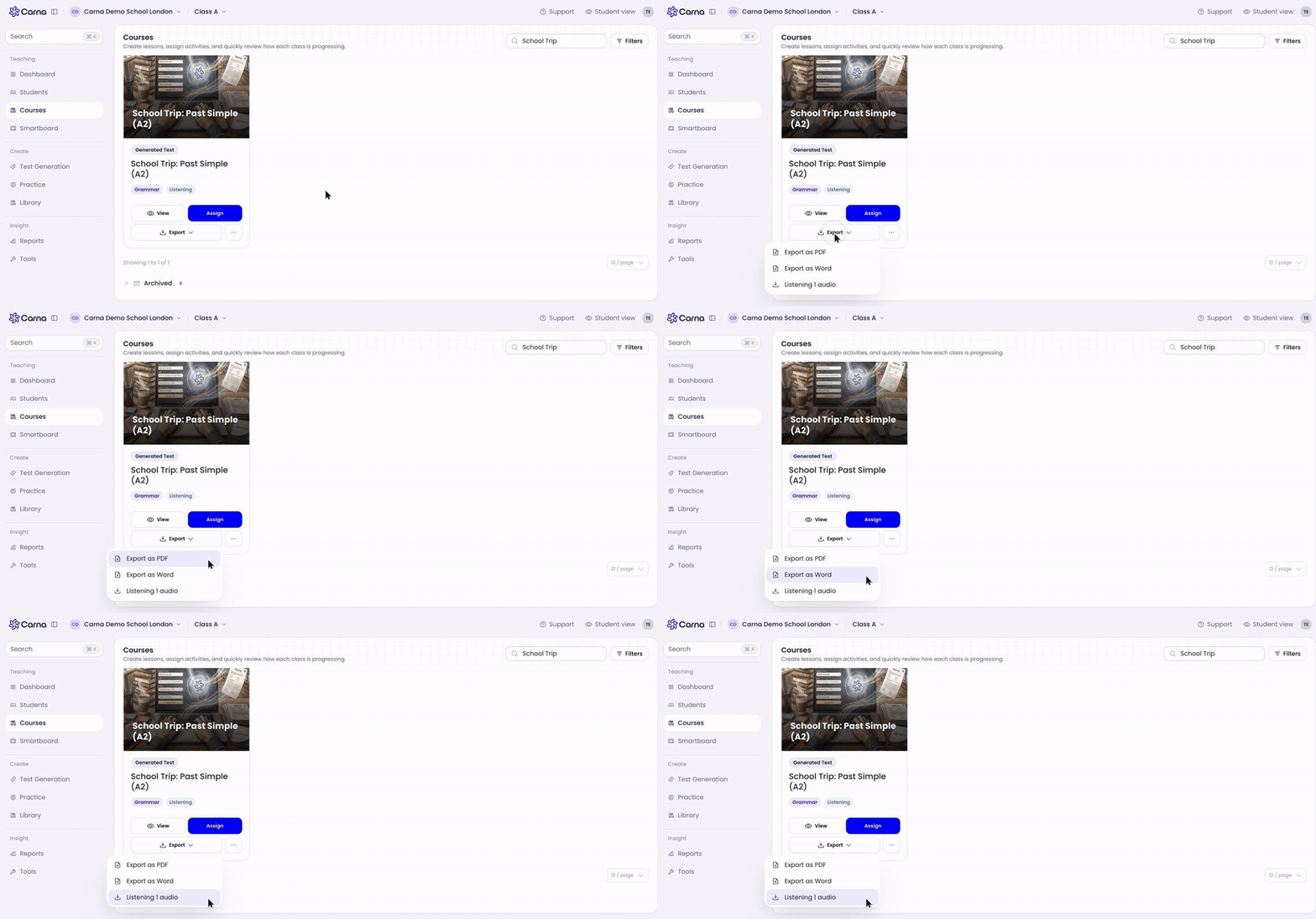
To export a test you saved earlier, go to Courses › Generated Tests, find the test and click Export under Assign on its card. The same options appear.
Video #
Tips & Good to know #
- The files go to your browser's Downloads folder.
- Play the MP3 in class from your computer or the smartboard while students answer on paper.
- Use Export as Word if you want to add your school logo or change the layout before printing.
Troubleshooting #
- Nothing seems to happen after I click Export: check your browser's Downloads list. Carna doesn't show a message when the download starts.
- The browser blocked the download: allow downloads for org.carna.app in your browser settings and try again.
- There is no audio option: the test has no listening questions.