


































How to review, edit and approve generated questions
Check the questions Carna writes for your test, change or replace the ones you don't like, approve them and save the test to Generated Tests.
Who is this for: Teachers
Summary: Check the questions Carna writes for your test, change or replace the ones you don't like, approve them and save the test to Generated Tests.
Before you start: Start a test from Test Generation and click Preview Questions. See How to create a custom test with Test Generation.
Steps #
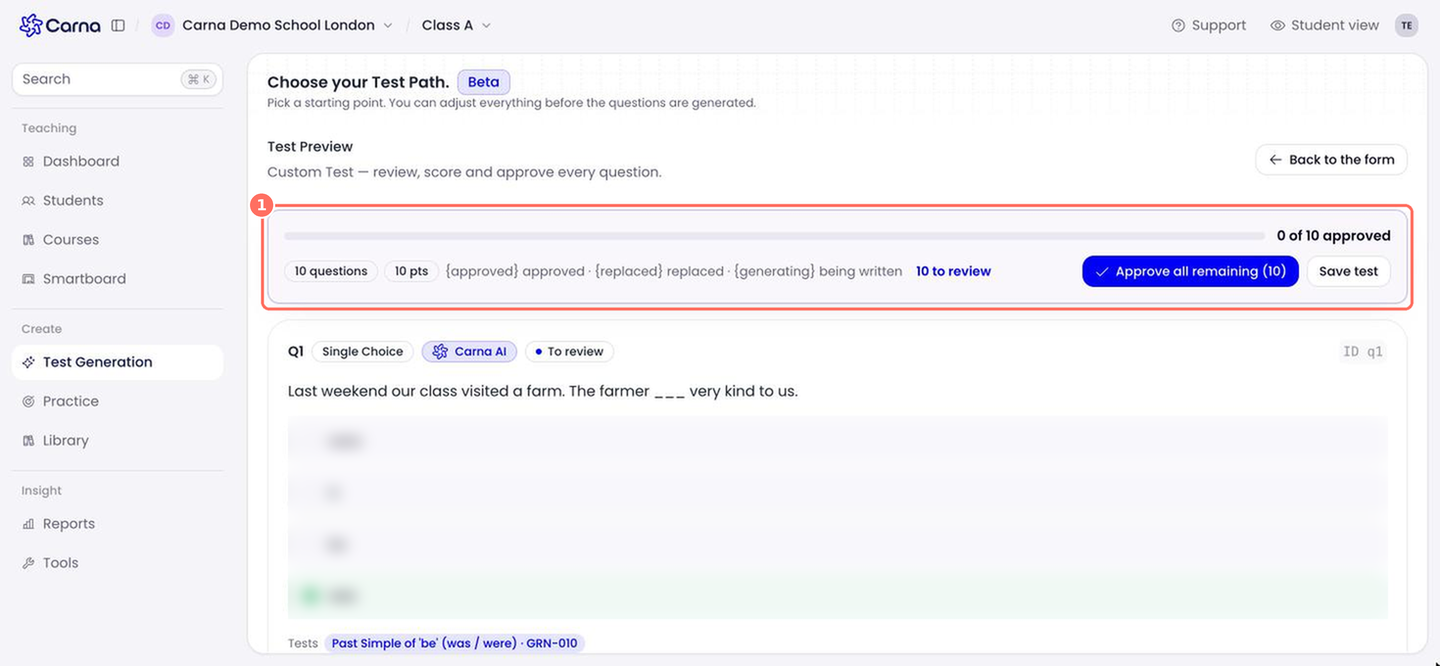
At the top of the preview, the summary bar shows how many questions there are, the total points and how many are approved (for example, 0 of 10 approved). While Carna is still writing, it shows how many more questions are coming; you can review the finished ones already.
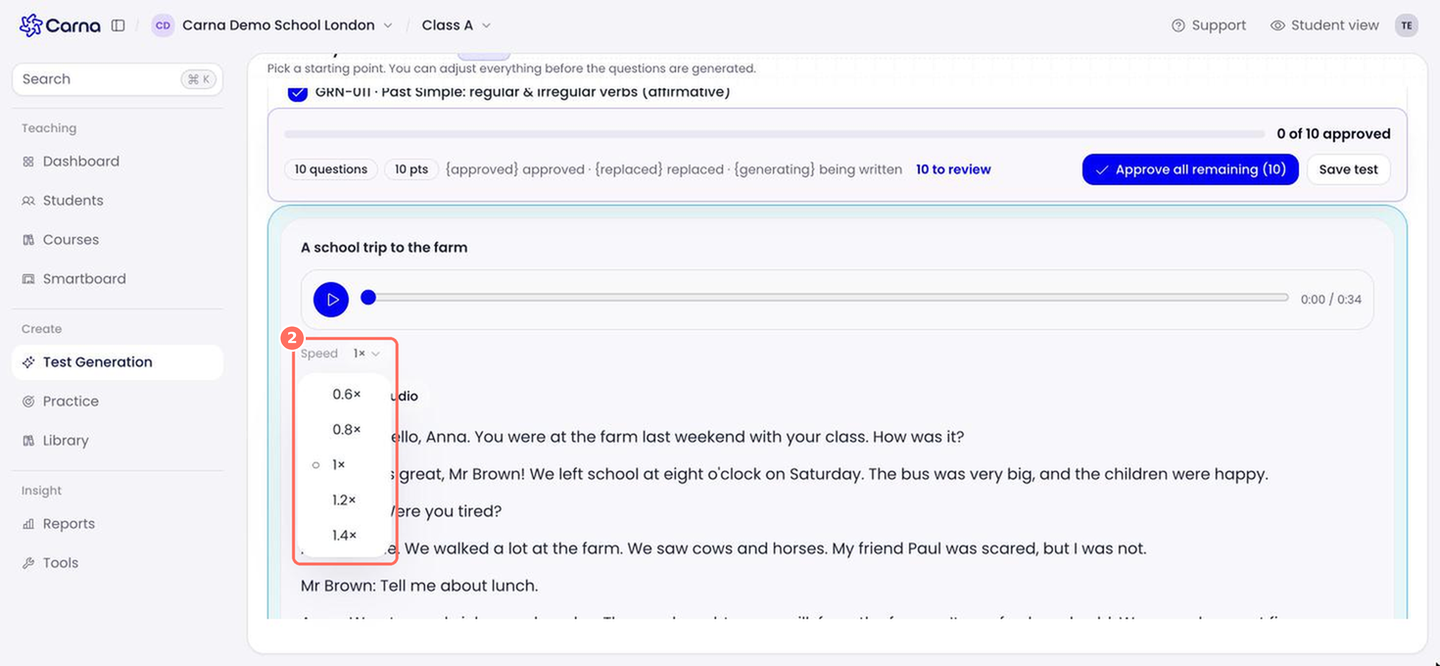
For a listening question, click play and use Speed to make it slower or faster: 0.6×, 0.8×, 1×, 1.2× or 1.4×. The script is shown under the player, so you can read along. If you don't like how the listening sounds, click Re-record audio under Speed to record it again.
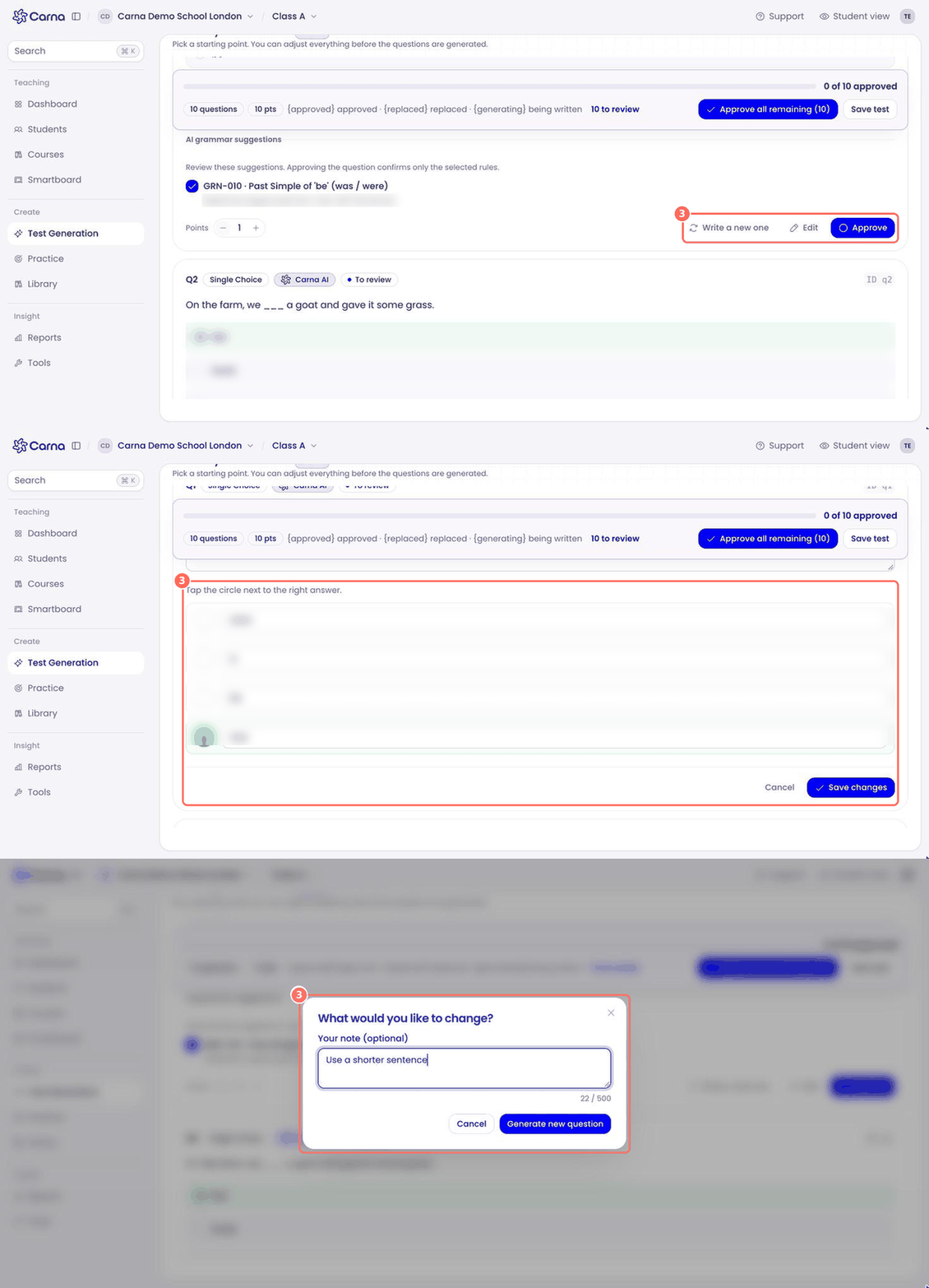
Read each question. Under it you have three options:
- Edit: change the question text or the answers, and tap the circle next to the right answer. Click Save changes.
- Write a new one: get a different question. Under What would you like to change? you can add a note, for example Use a shorter sentence, then click Generate new question.
- Approve: keep the question as it is.
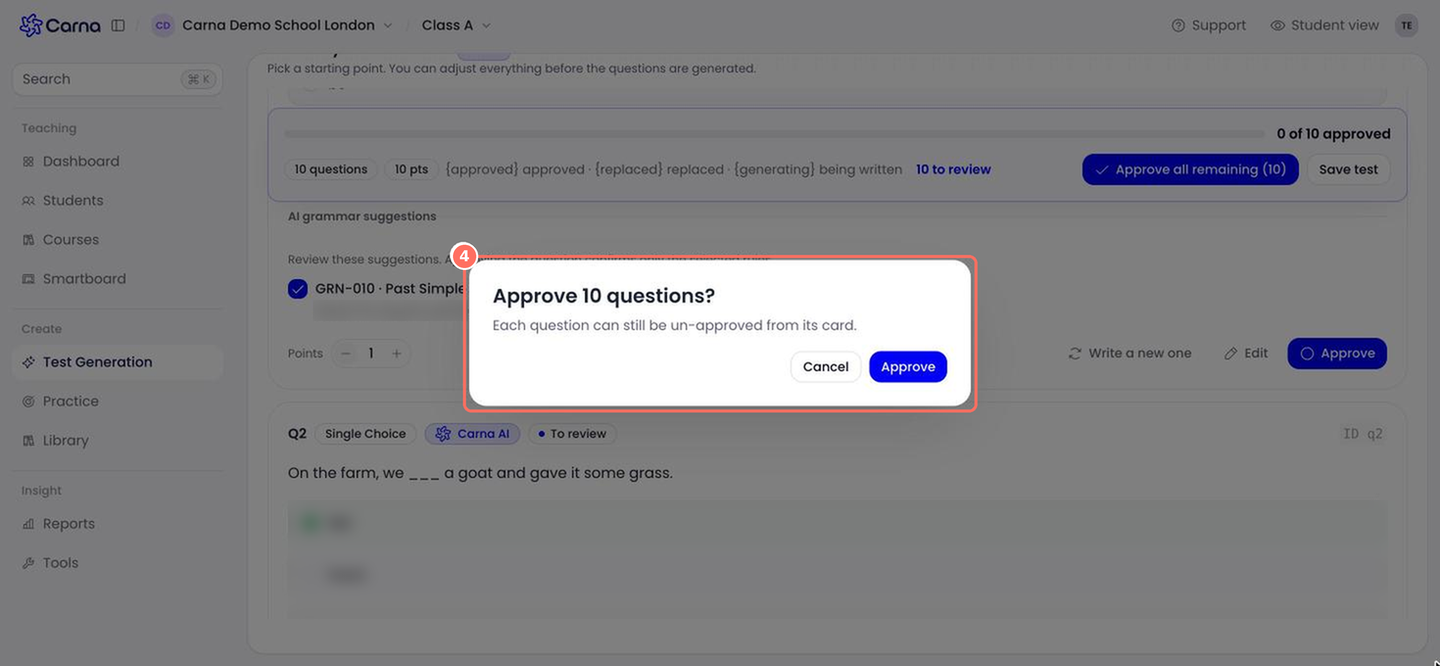
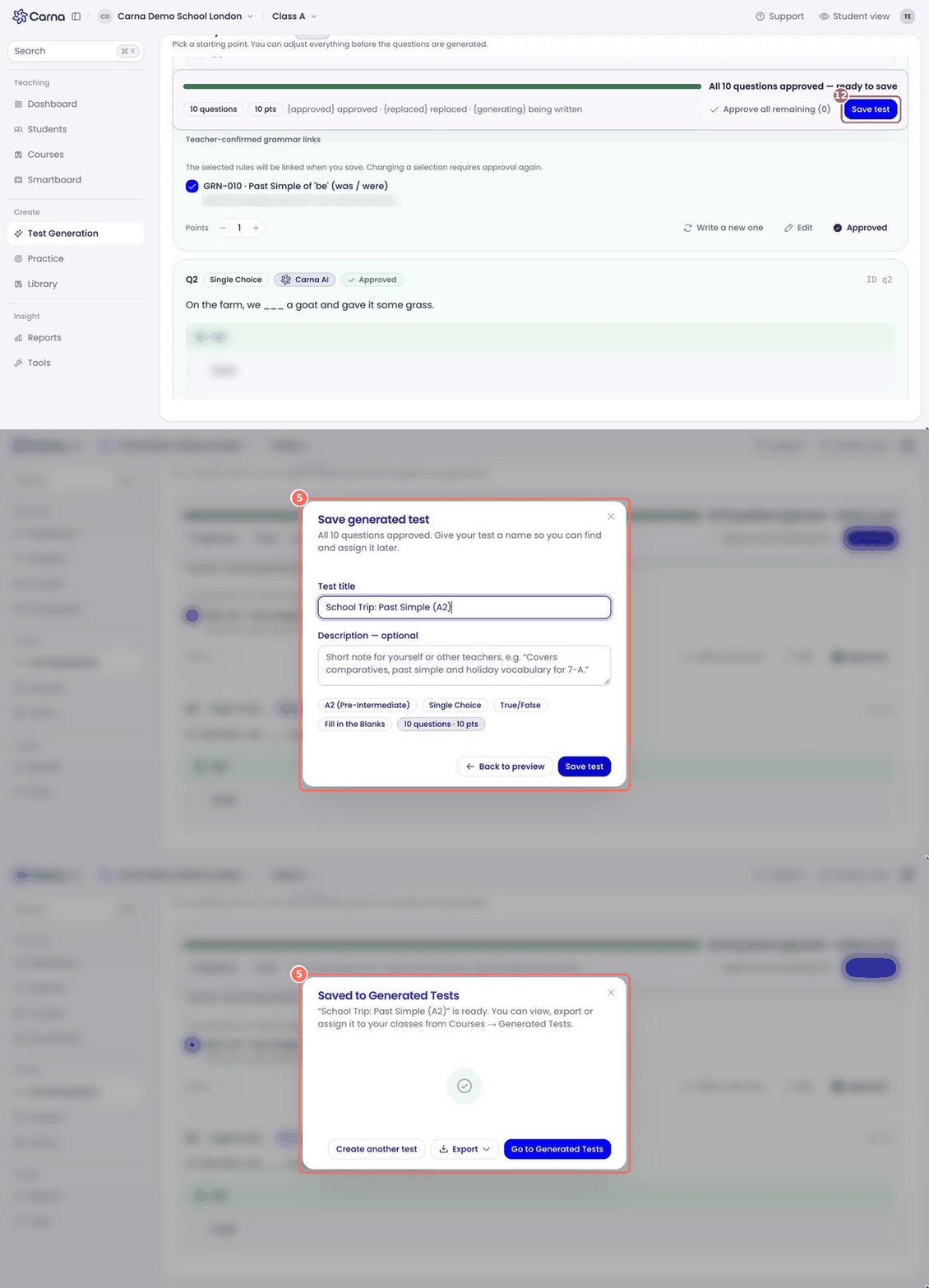
When you're happy with the questions, click Approve all remaining in the summary bar, then Approve.
Click Save test. Type a Test title (for example, School Trip: Past Simple (A2)) and, if you like, a Description, and click Save test again. Your test is saved to Generated Tests.
Tips & Good to know #
- Each question shows the grammar rule it tests. Under AI grammar suggestions, tick the rules that match: approving the question confirms only the ticked rules.
- Use + and − next to Points to change how much a question is worth.
- You can un-approve a question from its card if you change your mind.
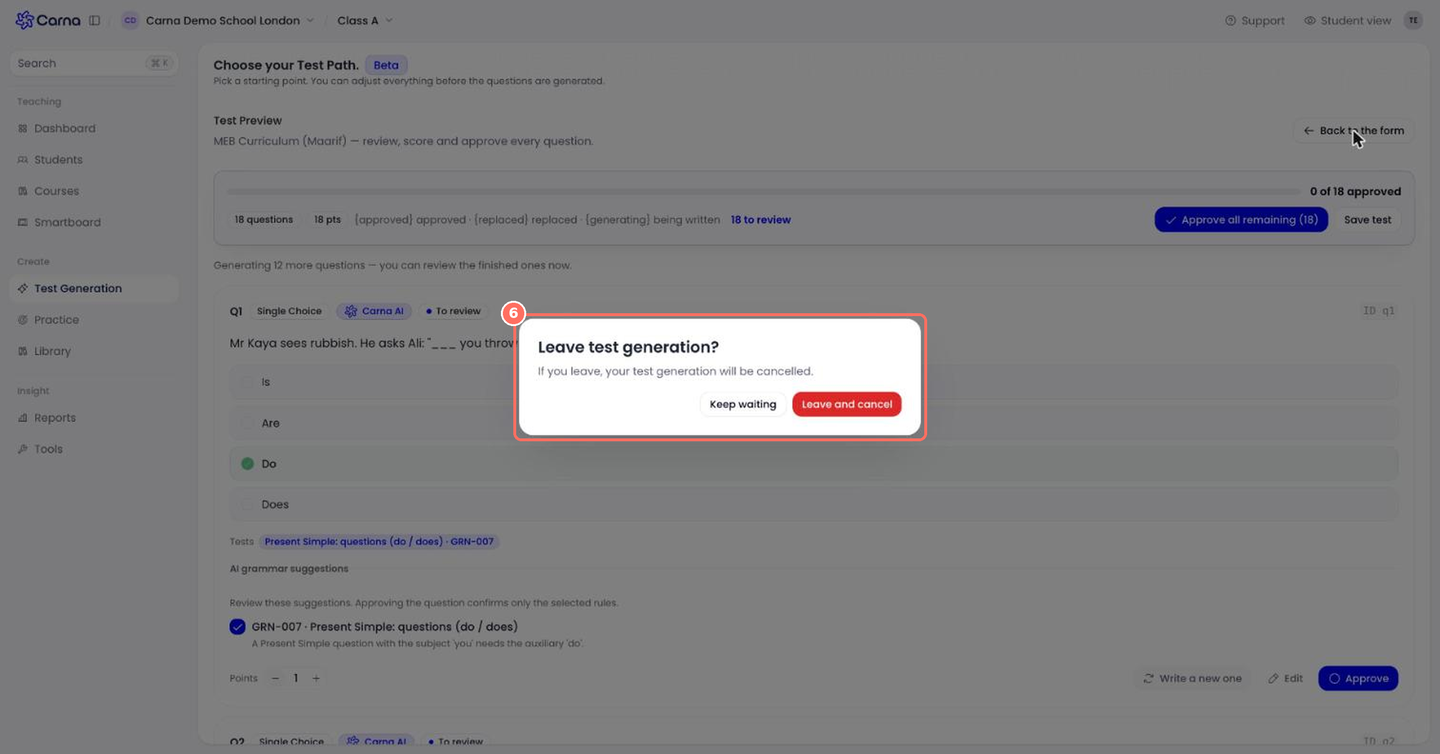
- Nothing is saved until you click Save test. If you click Back to the form while Carna is still writing, it asks Leave test generation?: Leave and cancel stops the questions being written, Keep waiting stays on the preview.
- After saving, you can export the test or assign it to your classes. See Related articles.
Troubleshooting #
- Save test is greyed out: approve every question first. The summary bar shows how many are left to review.
- The summary bar shows text in curly brackets, such as {approved}: this is a display issue and doesn't affect your test. You can keep working.
- A new question still isn't right: click Write a new one again with a more specific note, or use Edit to change it yourself.