


































How to get started with Carna in 2 minutes
Carna is an English learning platform for schools: teachers assign and create work, students practise and read, and everyone sees progress in one place. This tour shows where everything is.
Who is this for: Everyone
Summary: Carna is an English learning platform for schools: teachers assign and create work, students practise and read, and everyone sees progress in one place. This tour shows where everything is.
Before you start: You need a Carna account from your school. Carna works in Chrome, Edge or Safari on a computer, tablet or phone.
Steps #
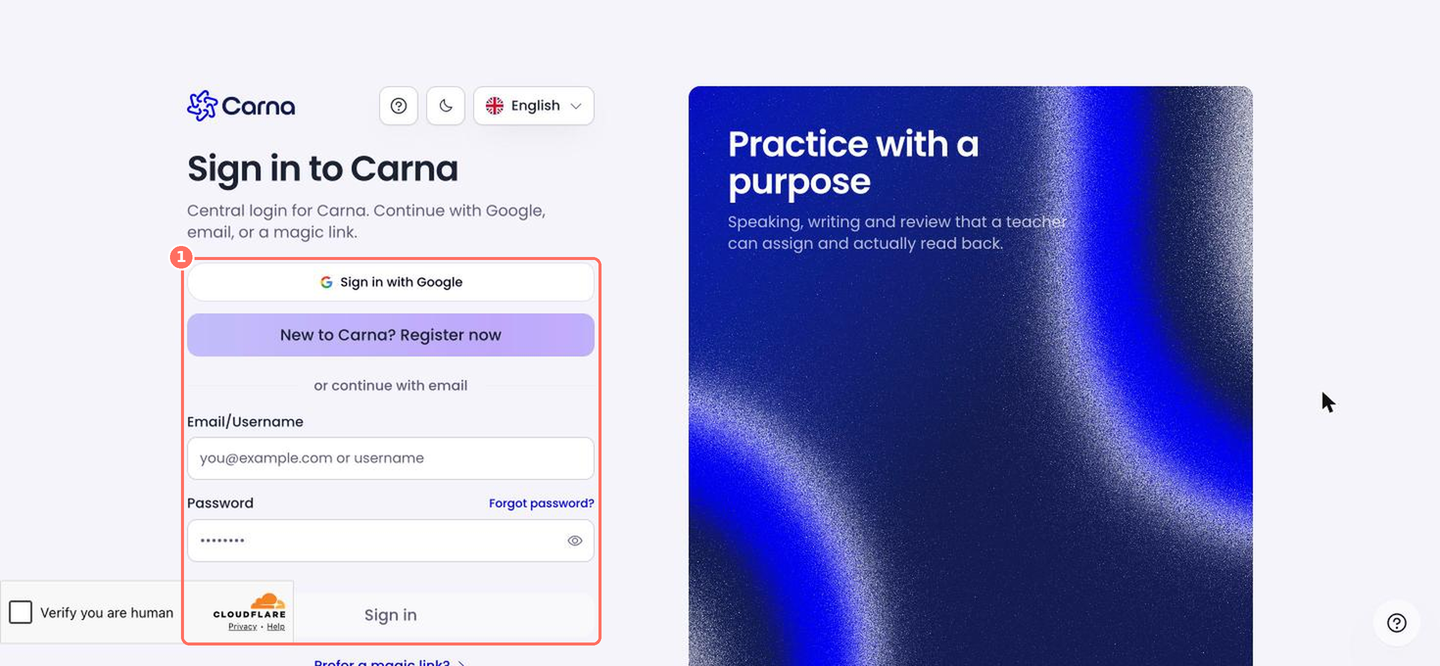
Go to org.carna.app and sign in with your email or username, with Google, or with a magic link. See How to sign in and reset your password.
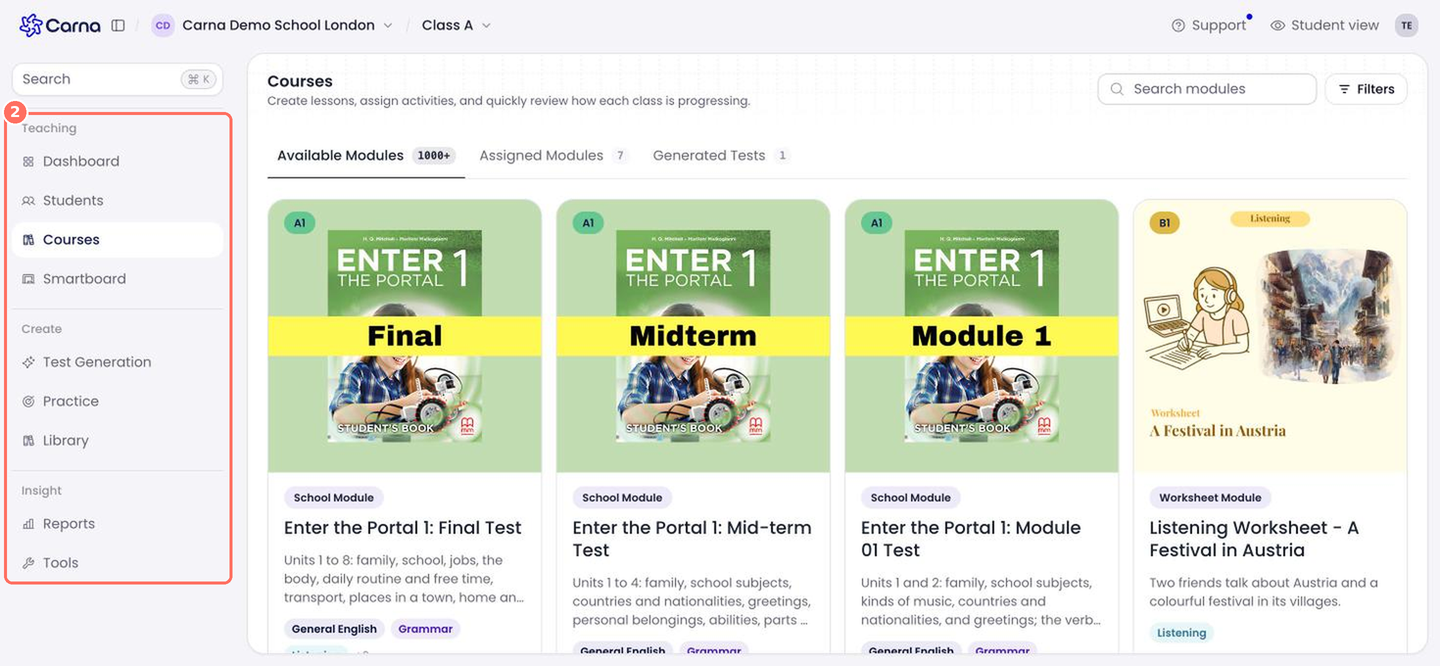
Teachers: your left menu has three groups.
- Teaching: Dashboard (your classes at a glance), Students (your class roster), Courses (modules to assign), Smartboard (for teaching in class).
- Create: Test Generation (build your own tests), Practice (speaking and writing practice) and Library (books and reading quizzes).
- Insight: Reports (results and progress) and Tools (announcements and class materials).
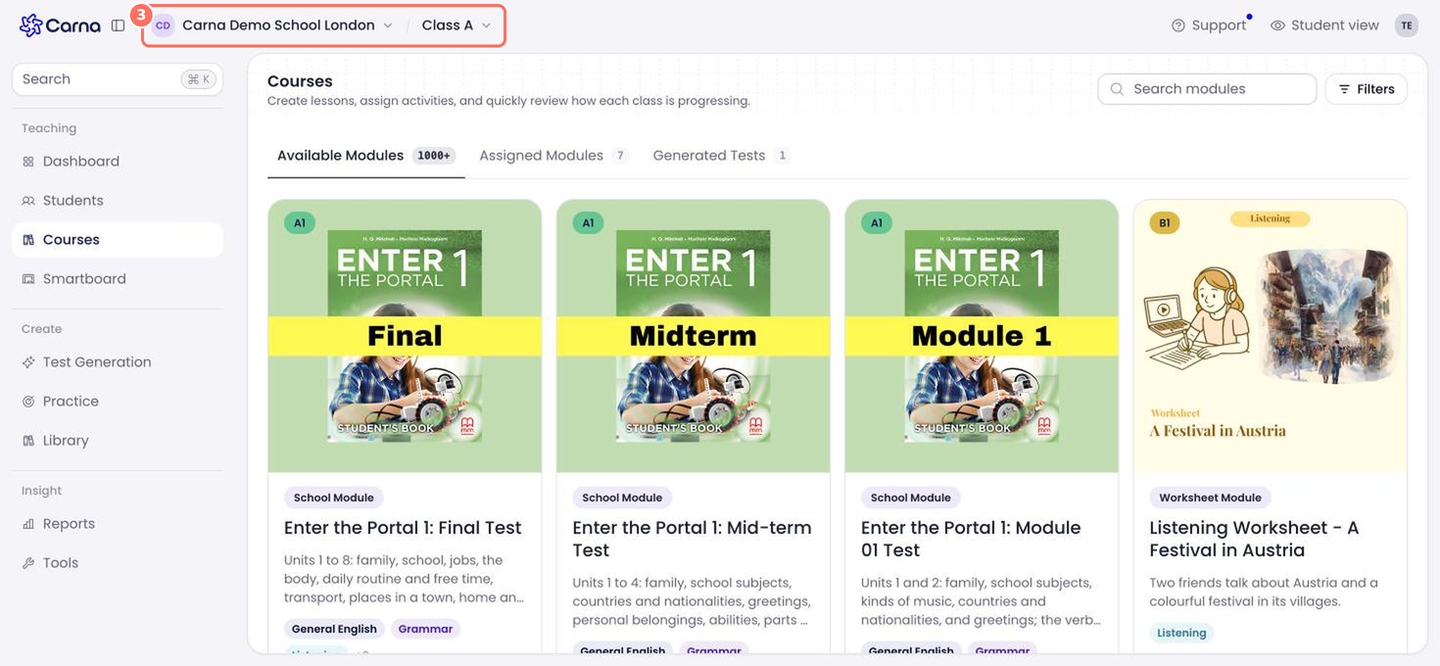
At the top, choose your school and class. Everything you see on the page is for the class shown here (for example, Class A).
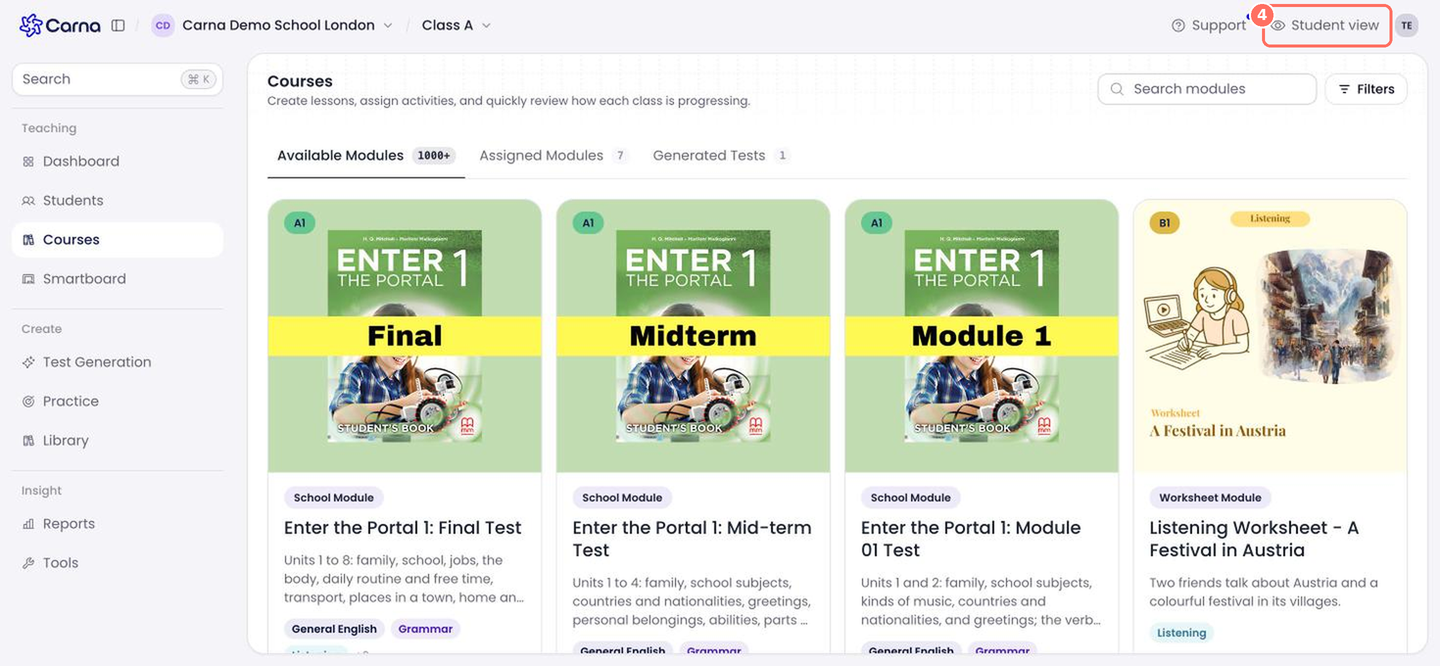
Click Student view to see Carna the way your students see it.
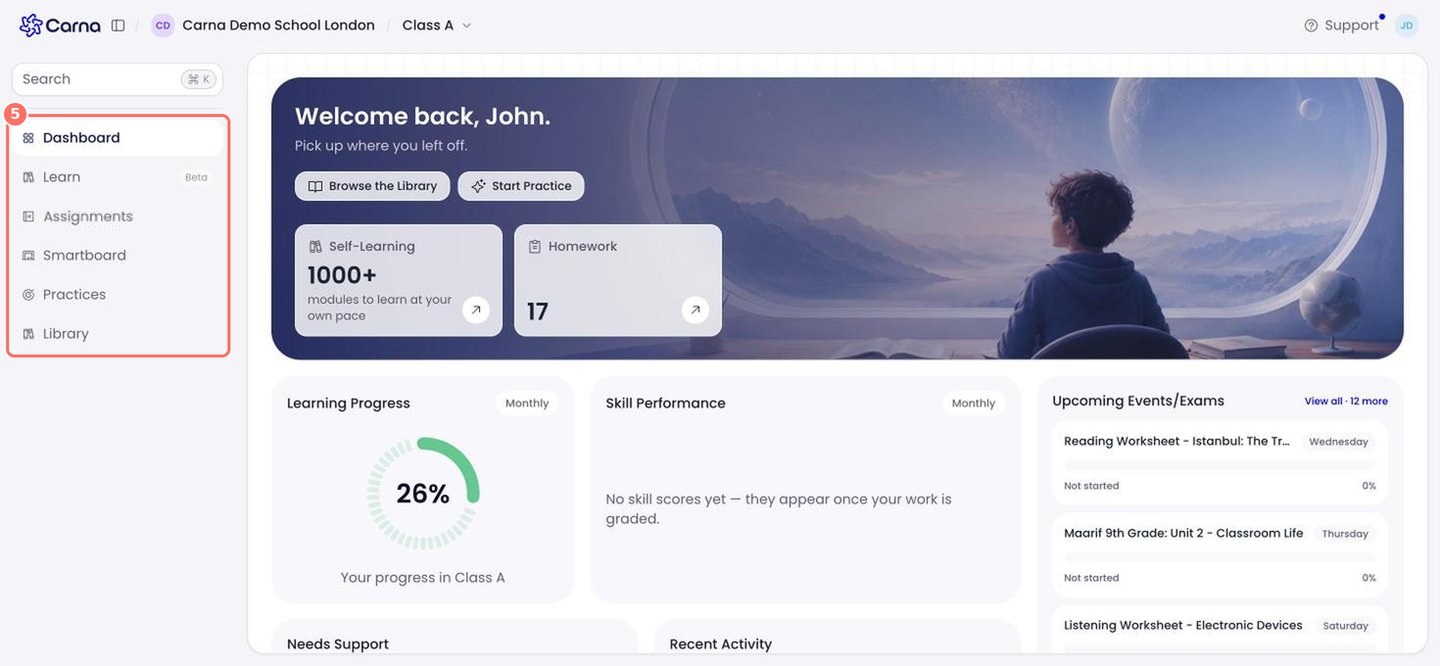
Students: your left menu has Dashboard (your homework and progress), Learn (practise on your own), Assignments (homework from your teacher), Smartboard (your school's coursebooks), Practices (speaking and writing) and Library (books with audio).
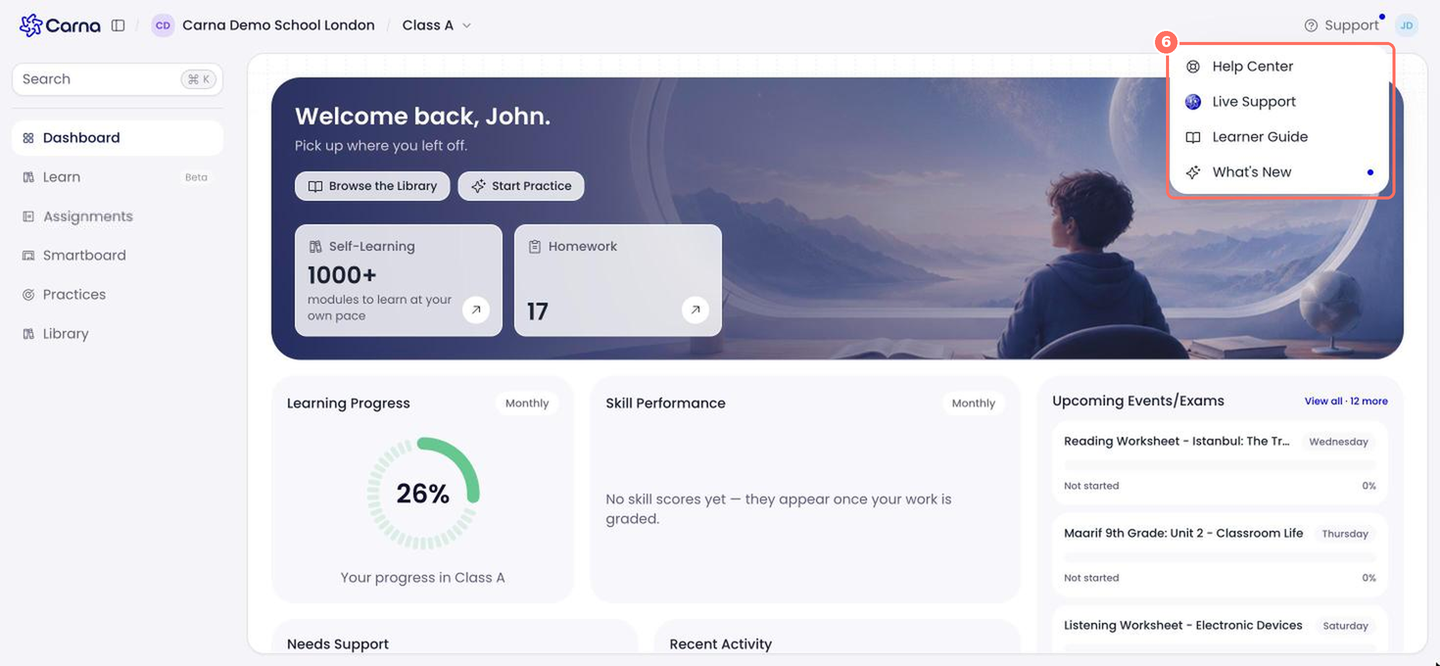
Whenever you need help, click Support in the top right: Help Center, Live Support, the guide for your role and What's New.
Tips & Good to know #
- Click your initials in the top right to open Settings, change the language, Install app or Sign out. Teachers can also choose a Light, Dark or System theme there and Submit a Request to the Carna team.
- Click the panel icon next to the Carna logo to hide or show the left menu.
- Use Search (or press ⌘ K on Mac, Ctrl K on Windows) to jump to any page.
- Install Carna on your phone, tablet or computer for one-tap access. See How to install the Carna app on your devices.
Troubleshooting #
- I can't sign in: see How to sign in and reset your password.
- I don't see my class or my homework: see How to find an assignment you can't see.
- The menus are in the wrong language: see How to fix a page shown in the wrong language.